การแนะนำ
This manual provides instructions for the Mars Gaming MCPTKLES RGB Combo, which includes a gaming keyboard and mouse. This combo is designed for optimal desktop space utilization and is compatible with multiple platforms, including Windows, Mac, PlayStation 4, Xbox One, and Nintendo Switch. The keyboard features RGB Breathing and RGB Flow lighting, H-Mech technology, and anti-ghosting capabilities. The mouse is equipped with a 3200 DPI optical sensor, RGB Flow lighting, and durable HUANO mechanical buttons.
เนื้อหาแพ็คเกจ
- Mars Gaming MCPTKLES TKL RGB Keyboard
- Mars Gaming MCPTKLES RGB Mouse
- คู่มือการใช้งาน (เอกสารนี้)
การตั้งค่า
Connecting the Combo
The Mars Gaming MCPTKLES combo uses a standard USB connection for both the keyboard and mouse. No additional drivers are typically required for basic functionality on supported operating systems.
- ค้นหาพอร์ต USB ที่ว่างอยู่บนคอมพิวเตอร์หรือเครื่องเล่นเกมของคุณ
- เสียบขั้วต่อ USB จากแป้นพิมพ์เข้ากับพอร์ต USB
- Plug the USB connector from the mouse into another available USB port.
- ระบบปฏิบัติการของคุณควรตรวจจับและติดตั้งไดรเวอร์ที่จำเป็นโดยอัตโนมัติ
- The RGB lighting on both devices should illuminate upon successful connection.
ความเข้ากันได้กับหลายแพลตฟอร์ม
This combo is designed to work with:
- ระบบปฏิบัติการวินโดวส์
- Mac operating systems
- เพลย์สเตชั่น 4
- เอกซ์บอกซ์ วัน
- นินเทนโดสวิตช์
Note: Specific game or console settings may be required for full functionality on gaming consoles. Refer to your console's user manual for peripheral setup.
คำแนะนำการใช้งาน
Keyboard Functions (TKL Design)
The TKL (Tenkeyless) design of the keyboard omits the numeric keypad, offering a more compact form factor. It features H-Mech technology for a smooth and precise typing experience.
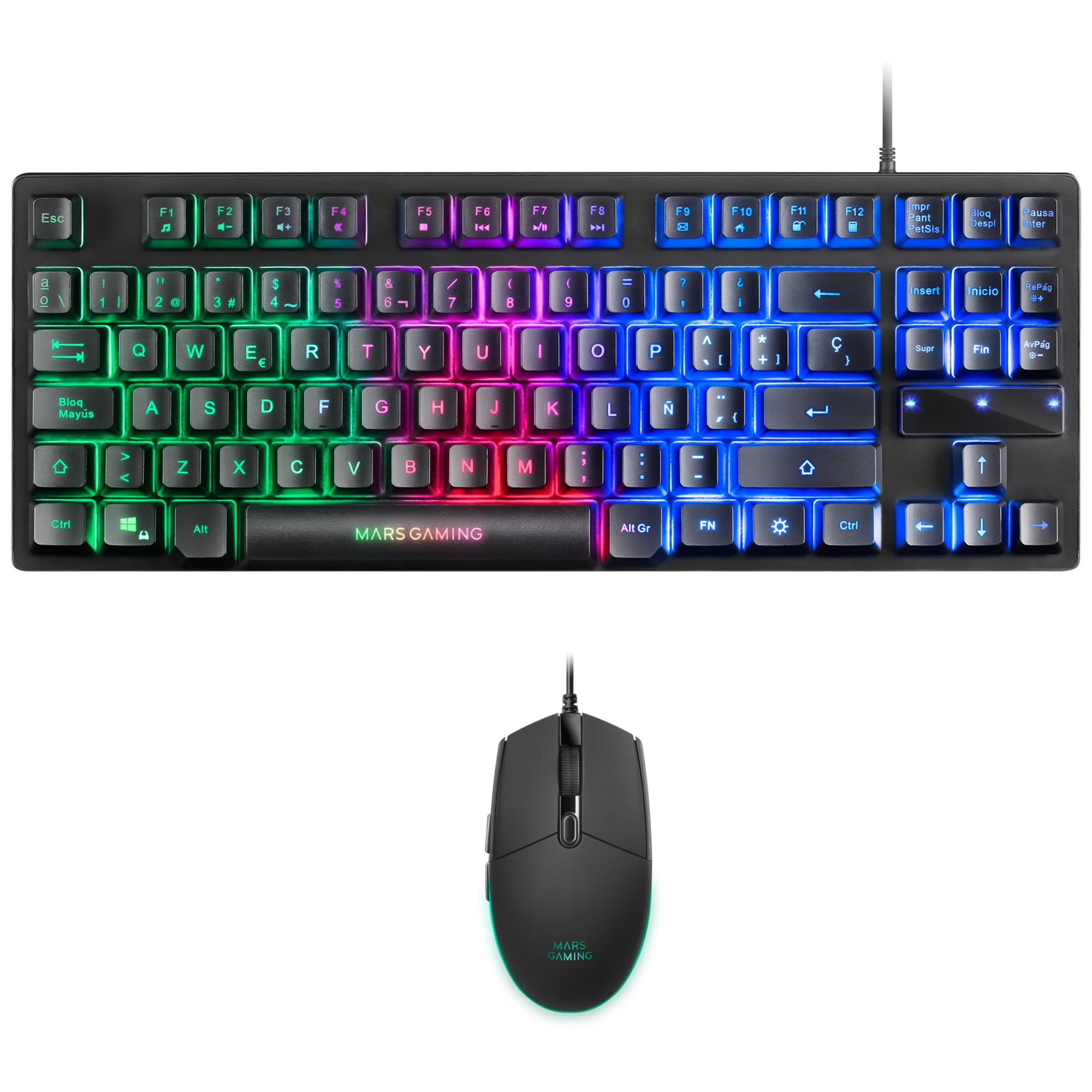
Image: Mars Gaming MCPTKLES TKL RGB Keyboard. This image shows the compact tenkeyless design of the keyboard with its RGB backlighting.
การควบคุมแสง RGB
The keyboard features RGB Control lighting. Specific key combinations allow you to cycle through different lighting modes and effects. Refer to the keyboard's function keys (Fn) combined with other keys for lighting adjustments. Common controls include:
- Fn + [ปุ่ม]: To change lighting modes (e.g., static, breathing, wave).
- Fn + [ปุ่มลูกศร]: To adjust brightness or speed of effects.

Image: Close-up of Mars Gaming MCPTKLES Keyboard RGB Keys. This image highlights the individual keys and their vibrant RGB backlighting.
ป้องกันการโดนผีหลอก
The keyboard is equipped with anti-ghosting technology, which ensures that multiple key presses are registered simultaneously without conflict, crucial for fast-paced gaming.
ฟังก์ชั่นเมาส์
The lightweight mouse features an optical sensor with adjustable sensitivity up to 3200 DPI, RGB Flow lighting, and 6 programmable buttons with high-quality HUANO mechanical switches.

Image: Mars Gaming MCPTKLES RGB Mouse Top View. This image displays the top of the mouse, showing the scroll wheel and main buttons.
DPI Adjustment (On-the-fly)
Use the dedicated DPI button (often located near the scroll wheel) to cycle through different sensitivity levels (DPI - Dots Per Inch). This allows for quick adjustments to mouse speed without interrupting gameplay.

Image: Mars Gaming MCPTKLES RGB Mouse Side View. This image shows the ergonomic shape and side buttons of the mouse.
ปุ่มที่สามารถตั้งโปรแกรมได้
The mouse features 6 buttons. While basic functionality is plug-and-play, advanced customization and macro programming may require specific software from Mars Gaming, if available. Visit the official Mars Gaming webเว็บไซต์สำหรับดาวน์โหลดซอฟต์แวร์

Image: Mars Gaming MCPTKLES RGB Mouse with RGB Flow Lighting. This image illustrates the dynamic RGB lighting effects on the mouse.
การซ่อมบำรุง
การทำความสะอาด
- โปรดถอดสายคีย์บอร์ดและเมาส์ออกจากคอมพิวเตอร์ก่อนทำความสะอาด
- ใช้ผ้าแห้งนุ่มๆ ที่ไม่มีขนเช็ดทำความสะอาดพื้นผิว
- สำหรับสิ่งสกปรกฝังแน่น ให้เช็ดออกเล็กน้อยampชุบผ้าด้วยน้ำหรือน้ำยาทำความสะอาดอ่อนๆ หลีกเลี่ยงความชื้นที่มากเกินไป
- ห้ามใช้สารเคมีรุนแรง น้ำยาทำความสะอาดที่มีฤทธิ์กัดกร่อน หรือตัวทำละลาย
- สำหรับแป้นพิมพ์ ให้ใช้ลมเป่าเพื่อกำจัดฝุ่นและเศษสิ่งสกปรกที่อยู่ระหว่างปุ่มต่างๆ
พื้นที่จัดเก็บ
เก็บอุปกรณ์ไว้ในที่แห้งและเย็น หลีกเลี่ยงแสงแดดโดยตรงและอุณหภูมิที่สูงหรือต่ำมากเมื่อไม่ได้ใช้งานเป็นเวลานาน
การแก้ไขปัญหา
แป้นพิมพ์หรือเมาส์ไม่ตอบสนอง
- Ensure both USB cables are securely plugged into the computer or console.
- ลองเสียบอุปกรณ์เข้ากับพอร์ต USB อื่น
- รีสตาร์ทคอมพิวเตอร์หรือคอนโซลของคุณ
- Test the devices on another computer to determine if the issue is with the combo or your system.
ไฟ RGB ไม่ทำงาน
- Verify the devices are properly connected and powered.
- Check if the lighting has been turned off via keyboard shortcuts (Fn + lighting control keys).
- ตรวจสอบให้แน่ใจว่าไม่มีข้อขัดแย้งของซอฟต์แวร์เกิดขึ้นหากคุณกำลังใช้แอปพลิเคชันควบคุมแสงของบริษัทอื่น
Mouse Cursor Jumps or is Inaccurate
- Clean the mouse sensor area on the underside of the mouse.
- Ensure you are using the mouse on a clean, uniform surface (a mouse pad is recommended).
- Adjust the DPI settings using the mouse's DPI button.
ข้อมูลจำเพาะ
| คุณสมบัติ | รายละเอียด |
|---|---|
| ยี่ห้อ | มาร์ส เกมมิ่ง |
| หมายเลขรุ่น | MCPTKLES |
| เทคโนโลยีการเชื่อมต่อ | USB (แบบมีสาย) |
| เค้าโครงแป้นพิมพ์ | Spanish (TKL - Tenkeyless) |
| คุณสมบัติของแป้นพิมพ์ | H-Mech Technology, RGB Control Lighting, Anti-Ghosting |
| เซ็นเซอร์เมาส์ | ออฟติคอล |
| DPI ของเมาส์ | Up to 3200 DPI (On-the-fly adjustable) |
| ปุ่มเมาส์ | 6 (with HUANO mechanical switches) |
| เมาส์ไลท์ติ้ง | การไหลของ RGB |
| อุปกรณ์ที่รองรับ | Linux, Mac, PS4, Windows, XBOX ONE |
| ขนาดสินค้า | 44 x 15.9 x 4.4 ซม. (แป้นพิมพ์) |
| น้ำหนักสินค้า | 400 กรัม |
| สี | สีดำ |
การรับประกันและการสนับสนุน
สำหรับข้อมูลการรับประกันและการสนับสนุนทางเทคนิค โปรดดูที่เว็บไซต์ Mars Gaming อย่างเป็นทางการ webหรือติดต่อฝ่ายบริการลูกค้า เก็บหลักฐานการซื้อไว้เพื่อใช้ในการเคลมประกัน
อย่างเป็นทางการของ Mars Gaming Webเว็บไซต์: www.marsgaming.eu


