1. บทนำ
This manual provides instructions for the i-tec USB C Dual Monitor Docking Station (Model C31DUALDPDOCKPD). This docking station is designed to expand the connectivity of your USB-C or Thunderbolt 3 enabled laptop, tablet, or smartphone, allowing for dual external monitor support, multiple USB peripheral connections, Gigabit Ethernet, and power delivery up to 100W.

Image 1.1: i-tec USB C Dual Monitor Docking Station.
2. สินค้าหมดview
The i-tec USB C Dual Monitor Docking Station offers a comprehensive set of ports for enhanced productivity and connectivity.
2.1. การจัดวางพอร์ต

Image 2.1: Front Panel Ports (USB-C 3.1 Gen 2, USB 3.0, Audio/Mic Jack).

Image 2.2: Rear Panel Ports (2x DisplayPort, Gigabit Ethernet, USB-C Power Delivery, Kensington Lock Slot).
2.2. All Connections Diagram

Image 2.3: Comprehensive diagram of all ports and their functions.
3. คำแนะนำในการตั้งค่า
Follow these steps to set up your i-tec USB C Dual Monitor Docking Station.
- เชื่อมต่อพลังงาน (ทางเลือกแต่แนะนำ): Connect your original USB-C charger (up to 100W) to the USB-C Power Delivery (USB-C PD) port on the docking station. This provides power to the docking station and charges your connected laptop. If not using a power adapter, some USB 3.0 and USB-C data ports may not function optimally with high-power devices.
- เชื่อมต่อกับอุปกรณ์โฮสต์: Use the integrated USB-C cable to connect the docking station to your laptop's USB-C or Thunderbolt 3 port.
- เชื่อมต่อจอภาพภายนอก: Connect your monitors to the two DisplayPort outputs on the docking station.
- Windows/Ubuntu: Supports up to two 4K/60Hz external monitors with extended or mirrored display modes.
- MacOS: Supports up to one 4K/60Hz external monitor. When connecting two monitors, both will display the same image due to macOS not supporting Multi-Stream Transport (MST) technology.
- เชื่อมต่ออุปกรณ์ต่อพ่วง: Connect your USB devices (keyboard, mouse, external drives) to the available USB 3.0 and USB 2.0 ports. Connect your Ethernet cable to the Gigabit Ethernet (LAN) port for a wired network connection. Connect headphones or a microphone to the combined audio/mic jack.
Video 3.1: Official i-tec USB C Dual Monitor Docking Station setup and feature overview. This video demonstrates the connection process and various functionalities of the docking station.
4. คู่มือการใช้งาน
4.1. ปุ่มเปิด/ปิด
The docking station features a power button on the top panel. Press and hold the power button for approximately 2 seconds to turn the unit on or off. This delay prevents accidental shutdowns.
4.2. การกำหนดค่าการแสดงผล
After connecting external monitors, configure your display settings through your operating system. Options typically include:
- ขยาย: Each monitor displays a separate desktop, expanding your workspace.
- Mirror/Duplicate: All monitors display the same content.
- สำหรับหน้าจอที่สองเท่านั้น: Only the external monitor(s) display content, with the laptop screen turned off.
4.3. ฟังก์ชันการชาร์จ
When a compatible USB-C charger is connected to the docking station's USB-C PD port, the docking station will pass through up to 100W of power to charge your connected laptop. Additionally, the USB-C 3.1 Gen 2 port on the front panel supports fast charging for smartphones and tablets.
5. ความเข้ากันได้
The docking station is compatible with devices featuring a USB-C or Thunderbolt 3 port that supports video output (DisplayPort Alternate Mode).
5.1. ระบบปฏิบัติการที่รองรับ
- Windows 10 และใหม่กว่า
- macOS X and later
- แอนดรอยด์
- โครมโอเอส
- ลินุกซ์
5.2. Display Output Limitations

Image 5.1: Display output capabilities across different operating systems.
หมายเหตุสำหรับผู้ใช้ macOS: macOS does not support Multi-Stream Transport (MST) technology. This means that when two monitors are connected to the docking station on a macOS device, both monitors will display the same image (mirroring), not an extended desktop across two separate displays. For extended desktop functionality on macOS, only one external monitor can be used with the docking station.
5.3. VESA Mounting Support
The docking station features VESA support, allowing for vertical installation behind a VESA compatible monitor. This helps in creating a clean and organized workspace.

Image 5.2: Docking station mounted behind a VESA compatible monitor for a clean desk setup.
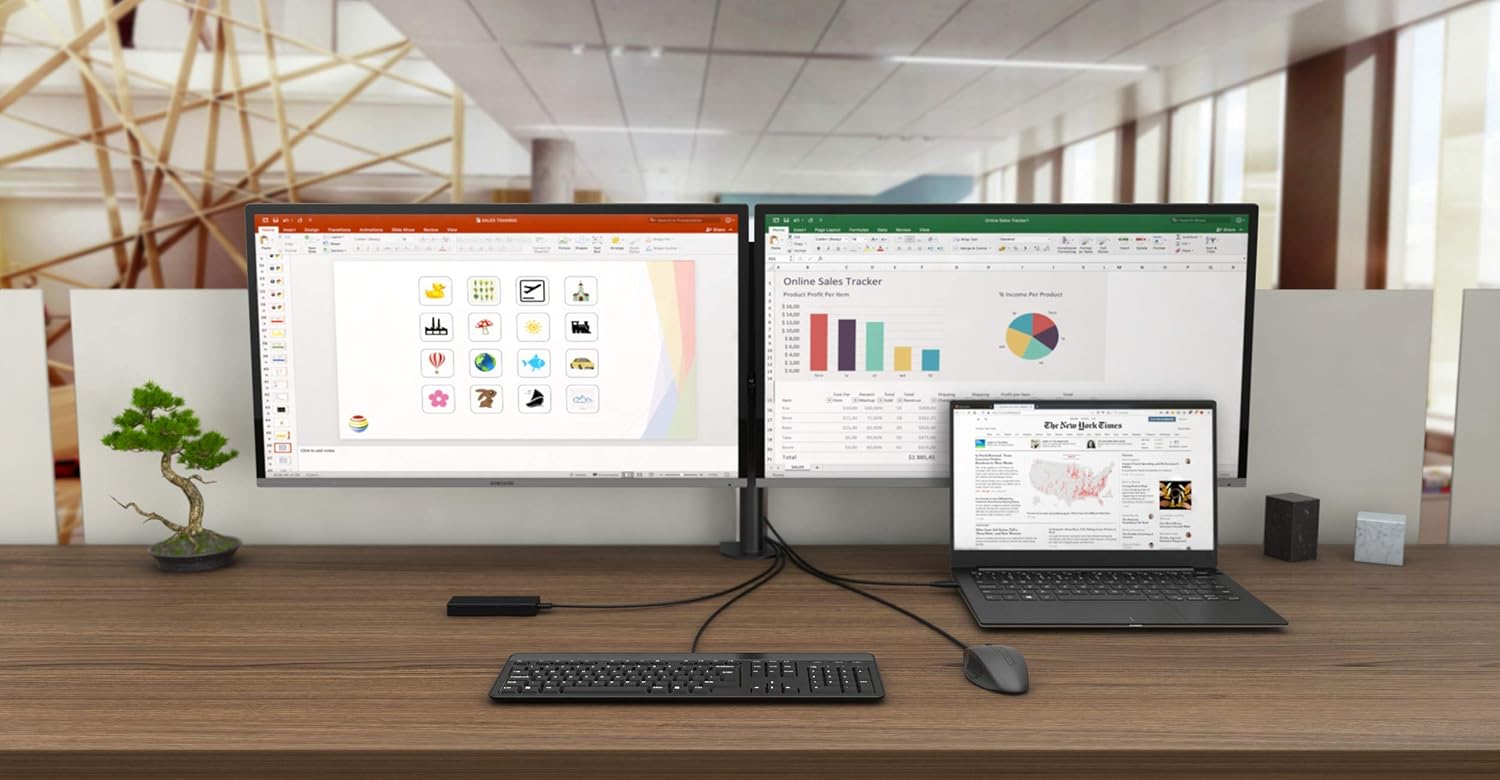
ภาพที่ 5.3: อดีตample of a complete workstation setup utilizing the docking station.
6. การบำรุงรักษา
To ensure optimal performance and longevity of your docking station, follow these maintenance guidelines:
- เก็บอุปกรณ์ไว้ในสภาพแวดล้อมที่แห้ง หลีกเลี่ยงแสงแดดโดยตรงและอุณหภูมิที่สูงหรือต่ำเกินไป
- หลีกเลี่ยงการให้อุปกรณ์สัมผัสกับน้ำหรือของเหลวอื่นๆ
- ทำความสะอาดอุปกรณ์ด้วยผ้านุ่มและแห้ง ห้ามใช้สารเคมีรุนแรงหรือน้ำยาทำความสะอาดที่มีฤทธิ์กัดกร่อน
- ตรวจสอบให้แน่ใจว่ามีการระบายอากาศที่เหมาะสมรอบ ๆ สถานีเชื่อมต่อเพื่อป้องกันความร้อนสูงเกินไป
7 การแก้ไขปัญหา
หากคุณพบปัญหาเกี่ยวกับแท่นวาง โปรดดูปัญหาทั่วไปและวิธีแก้ไขต่อไปนี้:
- ไม่มีการแสดงผล:
- ตรวจสอบให้แน่ใจว่าพอร์ต USB-C ของแล็ปท็อปของคุณรองรับ DisplayPort Alternate Mode
- Verify that the DisplayPort cables are securely connected to both the docking station and the monitors.
- Check your operating system's display settings to ensure external monitors are detected and configured correctly.
- If using macOS, remember that only one external monitor will extend the desktop; two monitors will mirror.
- อุปกรณ์ USB ใช้งานไม่ได้:
- Ensure the docking station is connected to a power adapter, especially for high-power USB devices like external SSDs. Without a power adapter, USB 3.0 and USB-C data ports may have limited functionality.
- ลองเสียบอุปกรณ์ USB เข้ากับพอร์ตอื่นบนแท่นวางดู
- Ensure device drivers are up to date on your host system.
- ไม่มีการเชื่อมต่อเครือข่าย:
- ตรวจสอบว่าสายเคเบิลอีเทอร์เน็ตเชื่อมต่อกับสถานีเชื่อมต่อและเราเตอร์/โมเด็มของคุณอย่างแน่นหนาแล้ว
- ตรวจสอบการตั้งค่าเครือข่ายบนอุปกรณ์โฮสต์ของคุณ
- แล็ปท็อปไม่ชาร์จ:
- Ensure your original USB-C charger is connected to the USB-C PD port on the docking station.
- ตรวจสอบว่าพอร์ต USB-C ของแล็ปท็อปของคุณรองรับการจ่ายพลังงาน
8. ข้อมูลจำเพาะ
| ยี่ห้อ | ไอ-เทค |
| แบบอย่าง | C31DUALDPDOCKPD |
| ฮาร์ดแวร์อินเตอร์เฟซ | Thunderbolt 3, USB Type C |
| อุปกรณ์ที่รองรับ | Devices with USB-C or Thunderbolt-3 ports |
| เอาท์พุตวิดีโอ | 2x DisplayPort (up to 4K/60Hz each) |
| พอร์ต USB | 3x USB 3.1, 1x USB-C 3.1 (Gen 2), 2x USB 2.0 |
| อีเธอร์เน็ต | Gigabit Ethernet RJ-45 (10/100/1000 Mbps) |
| เสียง | Combined Audio/Microphone Jack |
| การส่งกำลัง | Up to 100W (via USB-C PD port) |
| ความปลอดภัย | สล็อตล็อคเคนซิงตัน |
| ขนาด (กว้าง x ยาว x สูง) | 4.45" x 1.57" x 4.45" (11.3 ซม. x 4 ซม. x 11.3 ซม.) |
| น้ำหนัก | 245 กรัม |
9. การรับประกันและการสนับสนุน
i-tec products are covered by a manufacturer's warranty. For detailed warranty information, please refer to the warranty card included with your product or visit the official i-tec webเว็บไซต์.
9.1. การสนับสนุนด้านเทคนิค
For technical assistance, product inquiries, or further support, please contact i-tec customer service:
- Webเว็บไซต์: www.i-tec.pro
- อีเมล: support@itecproduct.com
- โทรศัพท์: +420 596 637 125


