การแนะนำ
The USAutomatic Nexx Gate WiFi Controller is a weather-resistant companion device that allows you to open, close, and monitor your gate from anywhere using the Nexx Home smartphone application. This device enhances the functionality of your existing USAutomatic or Sentry 300 gate opener by providing remote access and smart home integration.
With its intuitive design, the Nexx Gate offers features such as real-time gate status, activity logging, and compatibility with popular voice assistants like Google Assistant and Alexa. Its robust encryption technology ensures secure operation, providing peace of mind for your property's access control.
ข้อมูลด้านความปลอดภัย
- ความเข้ากันได้: อุปกรณ์นี้เป็น เท่านั้น to be used with USAutomatic or Sentry 300 gate openers. Using it with incompatible systems may result in malfunction or damage.
- ความปลอดภัยทางไฟฟ้า: Ensure all power connections are secure and follow local electrical codes. Disconnect power to the gate opener before performing any wiring.
- สภาพแวดล้อมการติดตั้ง: While weather-resistant, ensure the device is installed in a location that minimizes direct exposure to extreme weather conditions to prolong its lifespan.
- การดำเนินการประตู: Always ensure the gate path is clear of obstructions, people, or animals before operating the gate remotely or via voice commands.
- การกำกับดูแล: Do not allow children to operate the gate controller or play near the gate.
เนื้อหาแพ็คเกจ
ตรวจสอบว่ามีรายการทั้งหมดอยู่ในแพ็คเกจของคุณ:
- USAutomatic Nexx Gate WiFi Controller Unit
- สาย DB9
- เสาอากาศ
- DB9 to Flying Leads Cable (for older models or custom wiring)
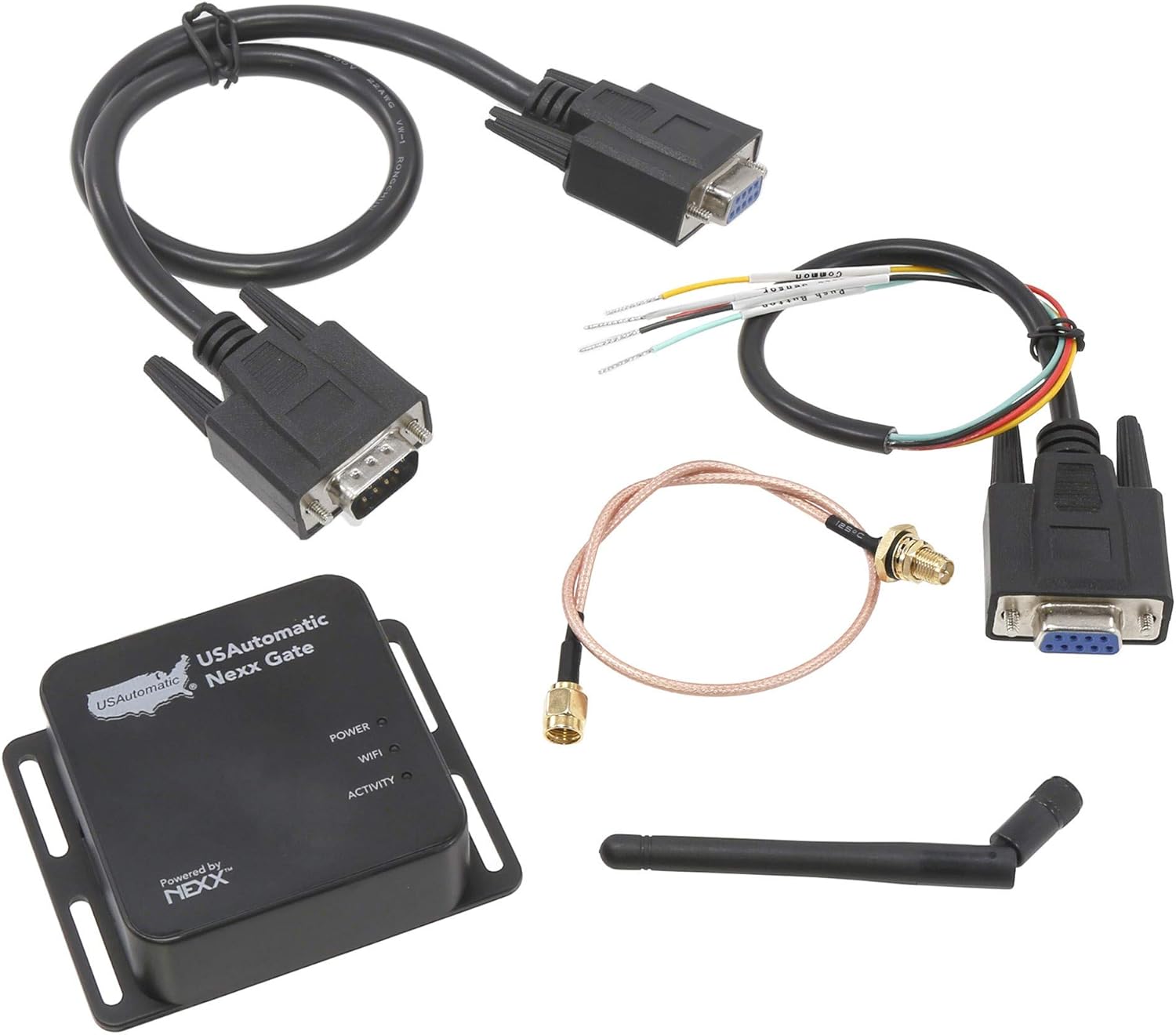
Image: The USAutomatic Nexx Gate WiFi Controller unit, showing the main device, the DB9 cable, the antenna, and the DB9 to flying leads cable for versatile connectivity.
การตั้งค่า
1. Physical Installation and Wiring
The Nexx Gate device connects to your gate opener's control board. The specific wiring may vary slightly depending on your gate opener model. Refer to your gate opener's manual for its control board layout.
- ระบุการเชื่อมต่อ: Locate the power, common ground, and push-button switch terminals on your gate opener's control board.
- Wiring with DB9 to Flying Leads Cable: If your gate opener board does not have a direct DB9 port, you will need to use the provided DB9 to flying leads cable. Strip the ends of the flying leads as necessary.
- Typical Wiring (USAutomatic Patriot 2 with Board 500016 exampเลอ):
- เชื่อมต่อ สีแดง wire to the power pin (e.g., J2 pin in slot one).
- เชื่อมต่อ สีดำ และ สีเหลือง wires (common ground) to the common ground pin (e.g., slot two).
- เชื่อมต่อ สีม่วง wire (push button switch) to the gate trigger pin (e.g., slot three).
- For proper gate status reporting (open/closed), splice the สีขาว wire from the Nexx Gate's cable into the white wire of your gate opener's main harness.
- การติดตั้งเสาอากาศ: Connect the antenna to the Nexx Gate unit. For optimal signal, position the antenna away from large metal objects and as high as possible. An extension cable is provided for flexible placement.
- เปิดเครื่อง: Once wired, connect the Nexx Gate device to the gate opener's power source (typically 12V). The Power, WiFi, and Activity LED indicator lights on the unit will illuminate.
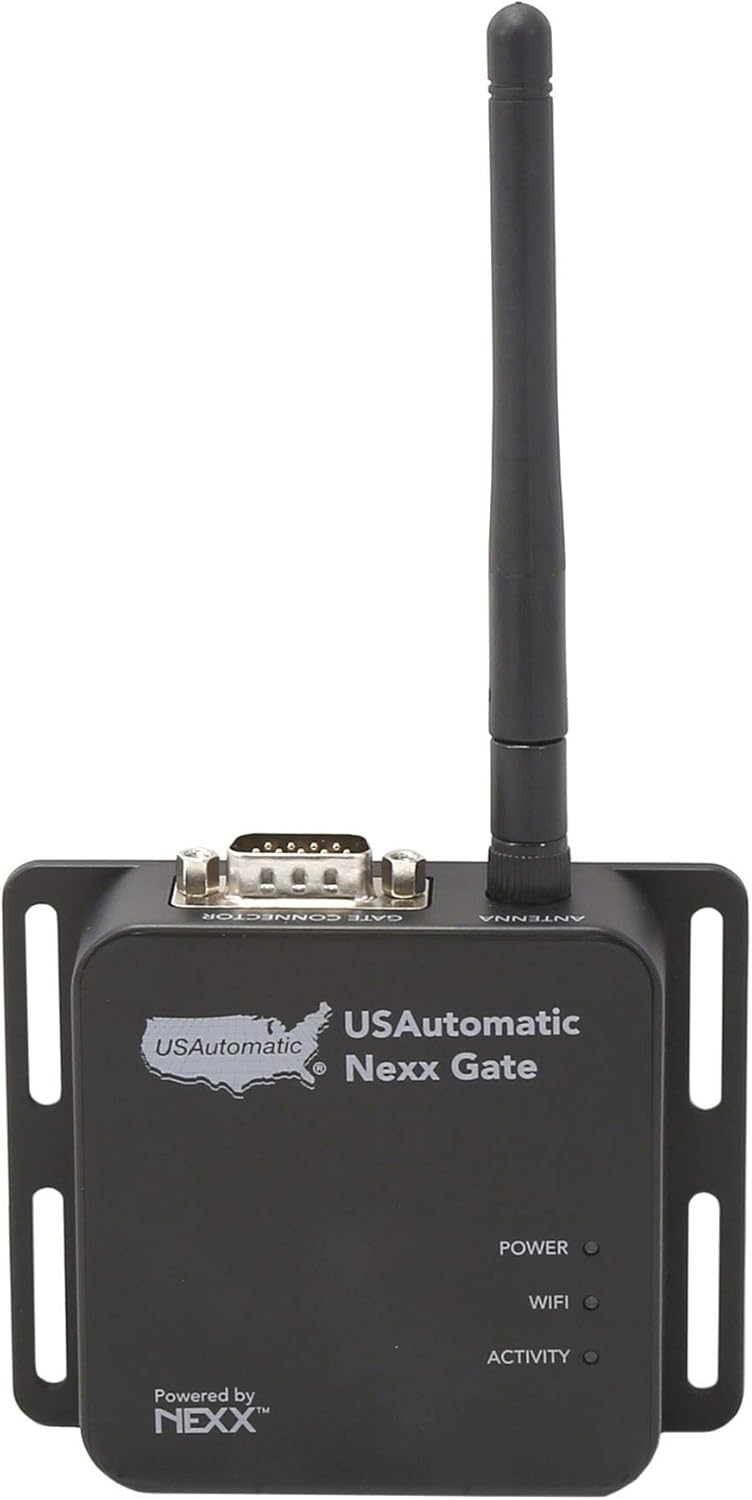
ภาพ: ด้านบน view of the Nexx Gate device, showing the antenna connection point and the LED indicators for Power, WiFi, and Activity.
2. Nexx Home App Setup
- ดาวน์โหลดแอพ: Download the "Nexx Home" app from your smartphone's app store (available for iOS and Android).
- สร้างบัญชี: Open the app and follow the prompts to create a new user account or log in if you already have one.
- เพิ่มอุปกรณ์: Select the option to add a new device. The app will typically use Bluetooth to initially connect to the Nexx Gate.
- วงจรไฟฟ้า: If prompted, cycle the power to the Nexx Gate device (unplug and re-plug) to complete the Bluetooth connection.
- เชื่อมต่อกับ WiFi: Follow the in-app instructions to connect your Nexx Gate to your home's 2.4GHz WiFi network. Ensure your WiFi signal is strong at the gate opener's location.
- อัพเดตเฟิร์มแวร์: The app may automatically download and install the latest firmware during the setup process. Allow this to complete without interruption.
- การดำเนินการทดสอบ: Once setup is complete, use the Nexx Home app to test opening and closing your gate. Verify that the gate status (open, moving, closed) is accurately displayed in the app.
Operating the Nexx Gate
1. Using the Nexx Home App
The Nexx Home app provides comprehensive control and monitoring capabilities:
- Open/Close Gate: Tap the designated button in the app to open or close your gate remotely.
- Gate Status: View the real-time status of your gate (open, closed, or moving).
- การแจ้งเตือน: Enable or disable push notifications to receive alerts whenever your gate is opened or closed.
- บันทึกกิจกรรม: Access a 7-day log of gate activity, showing dates and times of operation.
- การกำหนดตารางเวลา: Set schedules for your gate to automatically open or close at specific times on certain days.
- ตัวจับเวลา: Configure a timer to automatically close the gate after a set period following an opening.
- Control Sharing: Authorize other users to access and control your gate, with customizable permissions (e.g., view notifications, use timer, access history).
2. การบูรณาการการควบคุมด้วยเสียง
The Nexx Gate supports voice commands through various smart home platforms:
- อเมซอนอเล็กซ่า:
- Ensure the Alexa app is installed and linked to your Amazon account.
- Enable the "Nexx" skill within the Alexa app.
- Use commands like "Alexa, close the gate."
- To open the gate, you will typically need to provide a 4-digit passcode for security (e.g., "Alexa, open the gate, passcode [XXXX]").
- ผู้ช่วย Google:
- Link your Nexx Home account to Google Assistant through the Google Home app.
- Use commands such as "Hey Google, open the gate" or "Hey Google, close the gate."
- แอปเปิล Siri:
- Use the iOS "Shortcuts" app to create custom shortcuts for opening, closing, and checking the gate status.
- เช่นample, create a shortcut named "Open The Gate" that triggers the corresponding action in the Nexx Home app.
- Ensure "Listen for 'Hey Siri'" is enabled in your iPhone's settings.
3. Geofencing (Just Drive)
The "Just Drive" feature in the Nexx Home app uses your phone's GPS to automatically open the gate as you approach. This feature is considered beta.
- Enable Geofencing: Activate "Just Drive" in the Nexx Home app settings. You will need to agree to a user agreement.
- Location Permissions: For continuous operation, ensure the Nexx Home app has "Always" location access in your phone's privacy settings.
- ปริมณฑล: You can set the geofence radius from 100-250 feet within the app.
- ฟังก์ชันการทำงาน: "Just Drive" only opens the gate. You will need to manually close it via the app, voice command, or set an automatic close timer.
การซ่อมบำรุง
- การทำความสะอาด: Periodically wipe the device with a soft, dry cloth to remove dust and debris. Do not use harsh chemicals or abrasive cleaners.
- ตรวจสอบการเชื่อมต่อ: ตรวจสอบการเชื่อมต่อสายไฟทั้งหมดอย่างสม่ำเสมอ เพื่อให้แน่ใจว่าแน่นหนาและปราศจากสนิม
- อัพเดตเฟิร์มแวร์: Keep the Nexx Home app updated to ensure you have the latest features and security enhancements. The app will typically prompt you for firmware updates.
- ตำแหน่งการวางเสาอากาศ: Ensure the antenna remains in an optimal position for strong WiFi signal.
การแก้ไขปัญหา
| ปัญหา | สาเหตุที่เป็นไปได้ / วิธีแก้ไข |
|---|---|
| Gate does not open/close via app or voice command. |
|
| Gate status is incorrect (e.g., shows open when closed). |
|
| Activity log or timer features are not working. |
|
| Loud beeping sound from the device during operation. |
|
| Difficulty with Siri Shortcuts. |
|
ข้อมูลจำเพาะ
- แบบอย่าง: 030223
- ผู้ผลิต: เซนเท็กซ์
- การเชื่อมต่อ: WiFi (2.4GHz), Bluetooth
- ความเข้ากันได้: USAutomatic and Sentry 300 Gate Openers
- คุณสมบัติ: Remote control, voice control (Alexa, Google Assistant, Siri via Shortcuts), geofencing (Just Drive), notifications, 7-day activity log, scheduling, timer.
- ตัวบ่งชี้: Power LED, WiFi LED, Activity LED
- สี: สีดำ
- ความทนทานต่อสภาพอากาศ: ใช่
- มีจำหน่ายครั้งแรก: 9 กรกฎาคม 2020
การรับประกันและการสนับสนุน
For warranty information, please refer to the documentation provided with your purchase or contact USAutomatic directly. The manufacturer, Sentex, is listed for this product.
Regarding technical support, some users have reported positive experiences with Nexx support, noting prompt and helpful responses. However, more recent user feedback indicates potential issues with Nexx's server support and overall availability of technical assistance. If you encounter difficulties, it is recommended to first consult the troubleshooting section of this manual and then attempt to contact the manufacturer or the Nexx support team.
Please note that support availability and service quality may vary. It is advisable to check the official websites for the most current contact information and support resources.


