1. บทนำ
Welcome to the user manual for your Orbic Journey V Verizon Postpaid 4G LTE Flip Phone. This guide provides essential information on setting up, operating, maintaining, and troubleshooting your device. The Orbic Journey V is a compact and reliable flip phone designed for clear communication and essential smart features, running on the KaiOS operating system and supporting 4G LTE connectivity.
Please read this manual thoroughly to ensure proper use and to maximize the performance and longevity of your phone.
2. การตั้งค่า
2.1. การแกะกล่องและเนื้อหาภายในบรรจุภัณฑ์
Upon opening your Orbic Journey V package, verify that all components are present:
- Orbic Journey V โทรศัพท์ฝาพับ
- แบตเตอรี่ลิเธียมไอออนแบบชาร์จไฟได้
- เครื่องชาร์จ
2.2. การติดตั้งแบตเตอรี่
- Locate the battery cover on the back of the phone.
- Gently pry open the battery cover using the designated notch.
- Align the battery's gold contacts with the terminals inside the battery compartment.
- กดแบตเตอรี่ลงไปให้แน่นจนกระทั่งได้ยินเสียงคลิกเข้าที่
- Replace the battery cover, ensuring it is securely latched.
2.3. การติดตั้งซิมการ์ด
Your Orbic Journey V requires a Nano-SIM card for cellular service. Ensure the phone is powered off before inserting or removing the SIM card.
- Remove the battery cover and the battery as described in Section 2.2.
- Locate the SIM card slot, typically near the battery compartment.
- Insert the Nano-SIM card into the slot with the gold contacts facing down and the notched corner aligned with the slot's guide.
- ค่อยๆ ดันซิมการ์ดเข้าไปจนกระทั่งล็อคเข้าที่
- ติดตั้งแบตเตอรี่และฝาครอบแบตเตอรี่กลับเข้าที่
2.4. การเปิดเครื่องครั้งแรกและการชาร์จ
To power on your phone for the first time, press and hold the Power/End Call button until the screen illuminates. It is recommended to fully charge the phone before first use.
- Connect the charger to the phone's charging port.
- เสียบอุปกรณ์ชาร์จเข้ากับเต้ารับไฟฟ้ามาตรฐาน
- ไฟแสดงสถานะการชาร์จจะปรากฏบนหน้าจอ
- เมื่อชาร์จเต็มแล้ว ให้ถอดเครื่องชาร์จออก
3. การใช้งานโทรศัพท์ของคุณ
3.1. Phone Layout and Keys
Familiarize yourself with the physical components and buttons of your Orbic Journey V.
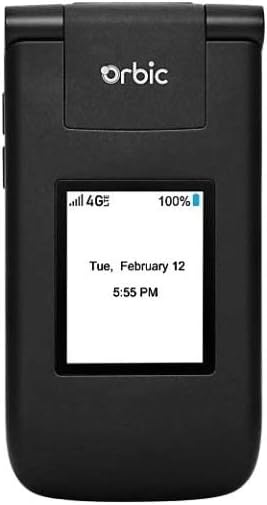
รูปที่ 3.1 : ด้านหน้า view of the Orbic Journey V, closed. The external display shows signal strength, battery level, and the current time and date.

Figure 3.2: Orbic Journey V in open position, revealing the main screen and the full alphanumeric keypad with navigation buttons.

รูปที่ 3.3: ด้านหลัง view of the Orbic Journey V, highlighting the main camera lens and the Verizon branding.
- จอแสดงผลภายนอก: Shows time, date, notifications, and caller ID when the phone is closed.
- จอแสดงผลภายใน: Main screen for navigating menus, viewing content, and interacting with applications.
- Navigation Key (D-Pad): ใช้สำหรับเลื่อนดูเมนูและเลือกตัวเลือก
- Center Select Key: ยืนยันการเลือก
- ปุ่มโทร/ส่ง: โทรออกและรับสายเรียกเข้า
- ปุ่มวางสาย/เปิด/ปิด: Ends calls, returns to the home screen, and powers the phone on/off.
- ปุ่มย้อนกลับ/ล้างข้อมูล: กลับไปยังหน้าจอก่อนหน้า หรือลบตัวอักษร
- ปุ่มปรับระดับเสียง: Adjusts call volume, media volume, and ringer volume.
- คีย์กล้อง: เข้าถึงฟังก์ชันกล้องได้อย่างรวดเร็ว
3.2. การนำทางพื้นฐาน
The Orbic Journey V operates on KaiOS. Use the Navigation Key to scroll through menu options and the Center Select Key to open applications or confirm actions.
- From the home screen, press the Navigation Key (up, down, left, right) to access shortcuts or navigate the main menu.
- Press the Center Select Key to open the main application menu.
- Press the Back/Clear key to go back to the previous screen.
3.3. การโทรออกและรับสาย
- ในการโทรออก: Enter the phone number using the keypad and press the Call/Send key. Alternatively, navigate to Contacts, select a contact, and press the Call/Send key.
- เพื่อรับสาย: When the phone rings, press the Call/Send key.
- วิธีวางสาย: กดปุ่มวางสาย/ปิดเครื่อง
3.4. การส่งและรับข้อความ
- วิธีส่งข้อความ: From the main menu, select 'Messages'. Choose 'New Message', enter the recipient's number or select from contacts, type your message using the keypad, and press 'Send'.
- เพื่อรับข้อความ: New messages will typically display a notification on the screen. Navigate to the 'Messages' application to view กล่องจดหมายของคุณ
3.5. การใช้กล้อง
The Orbic Journey V is equipped with front and rear cameras. The rear camera is located on the upper-right back of the phone.
- การเปิดกล้อง: Press the dedicated Camera key or navigate to the 'Camera' application from the main menu.
- ในการถ่ายภาพ: Frame your shot on the screen and press the Center Select key to capture the image.
- Viewing ภาพถ่าย: Access your photos through the 'Gallery' application.
3.6. Connectivity (Bluetooth, Wi-Fi)
Your phone supports Bluetooth and Wi-Fi for wireless connectivity.
- บลูทูธ: Go to 'Settings' > 'Network & Connectivity' > 'Bluetooth'. Turn Bluetooth on, and the phone will search for available devices. Select a device to pair.
- ไวไฟ : Go to 'Settings' > 'Network & Connectivity' > 'Wi-Fi'. Turn Wi-Fi on, select an available network, and enter the password if required.
4. การบำรุงรักษา
4.1. การทำความสะอาดโทรศัพท์ของคุณ
To keep your phone in optimal condition, clean it regularly:
- ใช้ผ้านุ่มที่ไม่เป็นขุยเช็ดหน้าจอและตัวเครื่อง
- หลีกเลี่ยงการใช้สารเคมีที่รุนแรง น้ำยาทำความสะอาดที่มีฤทธิ์กัดกร่อน หรือสเปรย์แอโรซอล
- โปรดตรวจสอบให้แน่ใจว่าโทรศัพท์ปิดเครื่องและถอดปลั๊กออกก่อนทำความสะอาด
4.2. การดูแลแบตเตอรี่
การดูแลแบตเตอรี่อย่างถูกวิธีสามารถยืดอายุการใช้งานได้:
- หลีกเลี่ยงอุณหภูมิที่สูงหรือต่ำเกินไป
- อย่าทิ้งโทรศัพท์ไว้ชาร์จนานเกินไปหลังจากชาร์จเต็มแล้ว
- If the phone will not be used for an extended period, store it with a partial charge (around 50%).
4.3. การอัปเดตซอฟต์แวร์
การอัปเดตซอฟต์แวร์ตามปกติจะมีคุณลักษณะใหม่ การปรับปรุงด้านความปลอดภัย และการแก้ไขจุดบกพร่อง
- เชื่อมต่อโทรศัพท์ของคุณกับ Wi-Fi
- Go to 'Settings' > 'Device' > 'Software Update'.
- ทำตามคำแนะนำบนหน้าจอเพื่อตรวจสอบและติดตั้งการอัปเดตที่มีอยู่
5 การแก้ไขปัญหา
This section addresses common issues you might encounter with your Orbic Journey V.
5.1. โทรศัพท์ไม่เปิด
- Ensure the battery is correctly installed and charged. Connect the charger and wait a few minutes before attempting to power on.
- Try removing and reinserting the battery, then attempt to power on again.
5.2. คุณภาพการโทรไม่ดีหรือไม่มีสัญญาณ
- ตรวจสอบความครอบคลุมของเครือข่ายในพื้นที่ของคุณ ย้ายไปยังบริเวณที่มีสัญญาณดีกว่า
- ตรวจสอบให้แน่ใจว่าคุณใส่ซิมการ์ดอย่างถูกต้อง
- รีสตาร์ทโทรศัพท์
- Verify that your account with Verizon is active and in good standing.
5.3. แบตเตอรี่หมดเร็ว
- ปิดแอปพลิเคชันที่ไม่ได้ใช้งานซึ่งทำงานอยู่เบื้องหลัง
- ลดความสว่างหน้าจอ
- Turn off Wi-Fi, Bluetooth, or GPS when not in use.
- Check for and install any available software updates, as these often include battery optimizations.
5.4. Software or Navigation Issues
- If the phone is unresponsive, try a soft reset by removing and reinserting the battery.
- Ensure the phone's software is up to date.
- หากปัญหายังคงมีอยู่ โปรดพิจารณาการรีเซ็ตเป็นค่าโรงงาน (Note: This will erase all data on the phone. Back up important information first.). Navigate to 'Settings' > 'Device' > 'Reset Phone'.
6. ข้อมูลจำเพาะ
| คุณสมบัติ | รายละเอียด |
|---|---|
| ชื่อรุ่น | การเดินทางของออร์บิค V |
| ยี่ห้อ | ออร์บิก |
| ASIN | B08971YYM1 |
| ระบบปฏิบัติการ | ไคโอเอส |
| ผู้ให้บริการไร้สาย | เวอริซอน |
| เทคโนโลยีเซลลูล่าร์ | แอลทีอี |
| เทคโนโลยีการเชื่อมต่อ | บลูทู ธ Wi-Fi |
| ฟอร์มแฟกเตอร์ | พลิก |
| สี | สีดำ |
| ขนาดหน้าจอ | 5.8 นิ้ว (ขนาดหน้าจอเมื่อตั้งวาง) |
| ปณิธาน | 1520 x 720 |
| คุณสมบัติกล้อง | ด้านหน้าด้านหลัง |
| แจ็คเสียง | ไม่มีช่องเสียบหูฟัง |
| แบตเตอรี่ | แบตเตอรี่ลิเธียมไอออน 1 ก้อน (รวมอยู่ด้วย) |
| น้ำหนักสินค้า | 12.8 ออนซ์ |
| ขนาดแพ็คเกจ | 5 x 3 x 3 นิ้ว |
| วันที่พร้อมใช้งานครั้งแรก | 26 พฤษภาคม 2020 |
7. การรับประกันและการสนับสนุน
For warranty information and technical support regarding your Orbic Journey V phone, please refer to the documentation provided with your purchase or contact Orbic directly. You can also visit the official Orbic webเว็บไซต์สำหรับทรัพยากรสนับสนุน
For service-related inquiries, please contact your wireless carrier, Verizon.
- ผู้ผลิต: ออร์บิก
- ผู้ให้บริการไร้สาย: เวอริซอน


