1. บทนำ
This manual provides detailed instructions for the installation, operation, and maintenance of your Phanteks Eclipse P500 Air Mid Tower Computer Case. Please read this manual thoroughly before beginning assembly or use to ensure proper functionality and safety.
The Phanteks Eclipse P500 Air is a mid-tower chassis designed for high airflow performance and versatile component support, including ATX, Micro ATX, Mini ITX, and E-ATX motherboards. It features a steel chassis with a tempered glass side panel and comes with three pre-installed 140mm D-RGB fans in the front.

รูปที่ 1 : ด้านหน้า view of the Phanteks Eclipse P500 Air Mid Tower Computer Case.
2. การตั้งค่าและการติดตั้ง
Follow these steps to install your computer components into the Phanteks Eclipse P500 Air chassis.
2.1 การแกะกล่องและการตรวจสอบเบื้องต้น
- นำตัวเครื่องออกจากบรรจุภัณฑ์อย่างระมัดระวัง
- Inspect the chassis for any signs of damage during transit.
- Ensure all accessories (screws, cable ties, manual) are present.

รูปที่ 2: ระเบิด view showing removable panels and components for assembly.
2.2 Removing Side Panels
The tempered glass side panel is hinged and secured with magnets. Gently pull the panel open to access the interior. The solid side panel can be removed by unscrewing the thumbscrews at the rear and sliding it off.
2.3 การติดตั้งเมนบอร์ด
- Install the necessary motherboard standoffs for your motherboard form factor (ATX, Micro ATX, Mini ITX, E-ATX).
- Carefully place your motherboard onto the standoffs and secure it with screws.

รูปที่ 3 : ภายใน view of the chassis, illustrating motherboard mounting area and fan locations.
2.4 การติดตั้งไดรฟ์จัดเก็บข้อมูล
The case supports up to 10 x 3.5" internal bays and 3 x 2.5" internal bays.
- ไดรฟ์ขนาด 3.5 นิ้ว: Utilize the drive cages located in the PSU shroud area or behind the motherboard tray.
- ไดรฟ์ขนาด 2.5 นิ้ว: Mount 2.5" SSDs/HDDs to the dedicated brackets behind the motherboard tray.

รูปที่ 4: ภายในส่วนท้ายรถ view, highlighting cable management channels and 2.5" drive mounts.
2.5 การติดตั้งแหล่งจ่ายไฟ
Install your ATX power supply into the dedicated compartment at the bottom rear of the chassis. Secure it with screws from the rear.
2.6 การติดตั้งการ์ดจอและการ์ดขยาย
- Remove the necessary PCI slot covers from the rear of the chassis.
- Insert your graphics card or other expansion cards into the motherboard's PCIe slots and secure them with screws.
- The case supports 7+3 PCI slots, allowing for vertical GPU mounting with an optional riser cable (not included).

Figure 5: Rear exterior view, detailing the PCI expansion slots and rear fan mount.
2.7 การจัดการสายเคเบิล
Utilize the integrated Velcro straps and cable ties provided to route and secure cables behind the motherboard tray. This improves airflow and aesthetics.
3. การดำเนินการ
The Phanteks Eclipse P500 Air features convenient front I/O ports and integrated D-RGB lighting controls.
3.1 แผง I/O ด้านหน้า
The top front panel provides access to essential controls and ports:
- ปุ่มเปิด/ปิด: เพื่อเปิดหรือปิดระบบ
- ปุ่มโหมด LED: Cycles through various D-RGB lighting effects.
- LED Color Button: Changes the color of the D-RGB lighting.
- พอร์ต USB 3.0 2 พอร์ต: สำหรับเชื่อมต่ออุปกรณ์ USB 3.0
- แจ็คไมโครโฟน: สำหรับอินพุตเสียง
- แจ็คหูฟัง: สำหรับเอาต์พุตเสียง

Figure 6: Close-up of the top front I/O panel, showing USB ports, audio jacks, and LED controls.
3.2 D-RGB Lighting Control
The three pre-installed 140mm D-RGB fans are controlled via the integrated D-RGB controller. Use the LED Mode and LED Color buttons on the front I/O panel to customize the lighting. The D-RGB lighting can also be optionally synchronized with compatible motherboards and software.
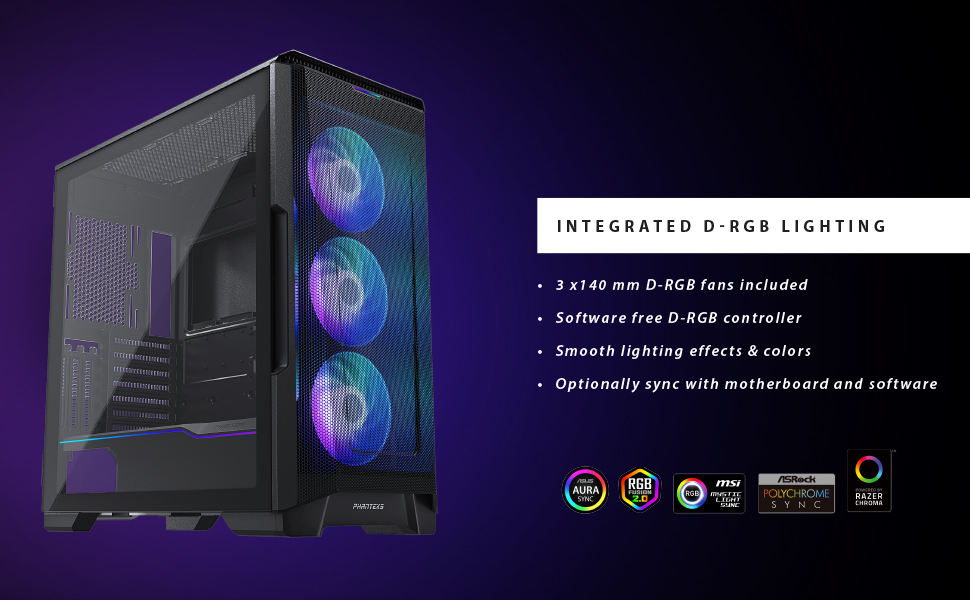
Figure 7: Illustration of the integrated D-RGB lighting effects on the front fans.
4. การบำรุงรักษา
การบำรุงรักษาตามปกติจะช่วยให้มั่นใจถึงประสิทธิภาพสูงสุดและอายุการใช้งานที่ยาวนานของเคสคอมพิวเตอร์ของคุณ
4.1 การทำความสะอาดตัวกรองฝุ่น
The Eclipse P500 Air features integrated dust filters on the front, top, and bottom (PSU intake) to prevent dust buildup. Regularly clean these filters to maintain optimal airflow.
- ตัวกรองด้านหน้า: The front mesh panel acts as a dust filter. It can be removed for cleaning.
- ตัวกรองด้านบน: The magnetic top filter can be easily lifted off for cleaning.
- ตัวกรองด้านล่าง: The PSU intake filter slides out from the rear for cleaning.
Use compressed air or a soft brush to remove accumulated dust. Do not use harsh chemicals or abrasive materials.
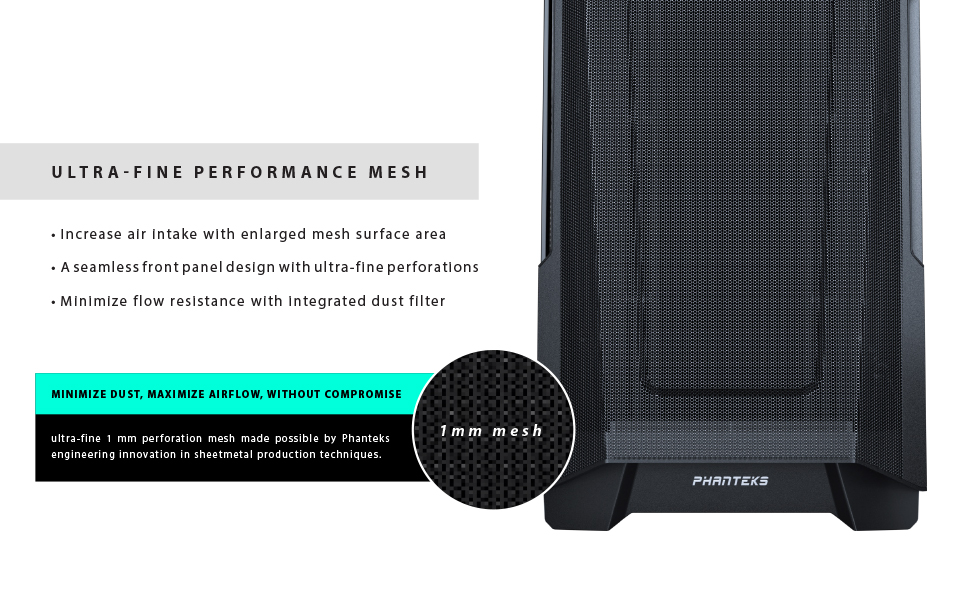
Figure 8: Detail of the ultra-fine mesh front panel, designed for dust filtration and airflow.
4.2 การทำความสะอาดทั่วไป
เช็ดพื้นผิวด้านนอกของเคสด้วยผ้าเนื้อนุ่มและแห้งamp cloth. Avoid direct contact with electronic components inside the case.
5 การแก้ไขปัญหา
This section addresses common issues you might encounter during the setup or operation of your Phanteks Eclipse P500 Air case.
- ระบบไม่เปิดเครื่อง:
- ตรวจสอบให้แน่ใจว่าได้เสียบปลั๊กไฟเข้ากับเต้ารับที่ผนังอย่างถูกต้องและเปิดสวิตช์แล้ว
- Verify that the power switch cable from the case is correctly connected to the motherboard's front panel header.
- ตรวจสอบการเชื่อมต่อสายไฟภายในทั้งหมด (ขั้วต่อ ATX 24 พิน, ขั้วต่อ CPU 8 พิน, ขั้วต่อไฟ PCIe สำหรับการ์ดจอ)
- D-RGB Fans Not Lighting Up:
- Confirm that the D-RGB cables from the fans are correctly connected to the integrated D-RGB controller or your motherboard's D-RGB header.
- Press the LED Mode and LED Color buttons on the front I/O panel to cycle through effects and colors.
- If connected to the motherboard, ensure the motherboard's RGB software is installed and configured correctly.
- การไหลเวียนของอากาศไม่ดี/อุณหภูมิสูง:
- Clean all dust filters (front, top, bottom).
- Ensure fans are oriented correctly for optimal airflow (front intake, rear/top exhaust).
- Verify that no cables are obstructing airflow inside the case.
- พอร์ต USB ด้านหน้าใช้งานไม่ได้:
- Check that the USB 3.0 header cable from the case is securely connected to the corresponding header on your motherboard.
6. ข้อมูลจำเพาะ
Below are the detailed specifications for the Phanteks Eclipse P500 Air Mid Tower Computer Case (PH-EC500ATG_DWT01).
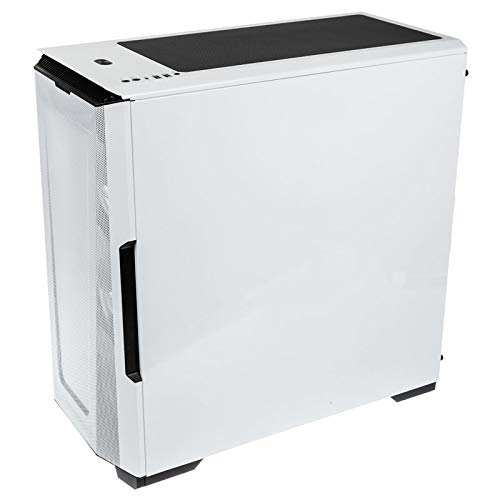
Figure 9: Manufacturer's specification table for the Eclipse P500 Air.
| คุณสมบัติ | รายละเอียด |
|---|---|
| หมายเลขรุ่น | PH-EC500ATG_DWT01 |
| ฟอร์มแฟกเตอร์ | มิดทาวเวอร์ |
| ขนาด (กxยxส) | 240 x 510 x 505 มม. (9.45 x 20.1 x 19.9 นิ้ว) |
| วัสดุ | Steel Chassis, Tempered Glass |
| การรองรับเมนบอร์ด | E-ATX (up to 280mm wide), ATX, Micro ATX, Mini ITX, Mini ITX |
| พอร์ต I/O ด้านหน้า | 2 x USB 3.0, Microphone, Headphone, Power Button, LED Mode Button, LED Color Button |
| Internal 3.5" Bay | 10 (2x included, also supports 2.5" drives) |
| Internal 2.5" Bay | 3 (3x included) |
| สล็อต PCI | 7 + 3 (vertical) |
| พัดลมที่ติดตั้งล่วงหน้า | 3 x 140mm D-RGB fans (Front) |
| ฐานรองพัดลม (ด้านหน้า) | 3 x 120มม. หรือ 3 x 140มม. |
| การสนับสนุนแฟนๆ (ด้านบน) | 3 x 120มม. หรือ 2 x 140มม. |
| การรองรับพัดลม (ด้านหลัง) | 1 x 120มม. หรือ 1 x 140มม. |
| ขาตั้งหม้อน้ำ (ด้านหน้า) | Up to 360mm or 420mm |
| ตัวรองหม้อน้ำ (ด้านบน) | Up to 360mm or 280mm |
| ขาตั้งหม้อน้ำ (ด้านหลัง) | 120มม. หรือ 140มม. |
| การกวาดล้าง GPU | 435 มม. / 17.2 นิ้ว |
| ความสูงของ CPU Cooler | 190 มม. / 7.5 นิ้ว |
| ความยาวแหล่งจ่ายไฟ | 195 mm (250 mm if 2 HDD brackets are removed) |
| น้ำหนักสุทธิ | 8 กก. / 17.6 ปอนด์ |
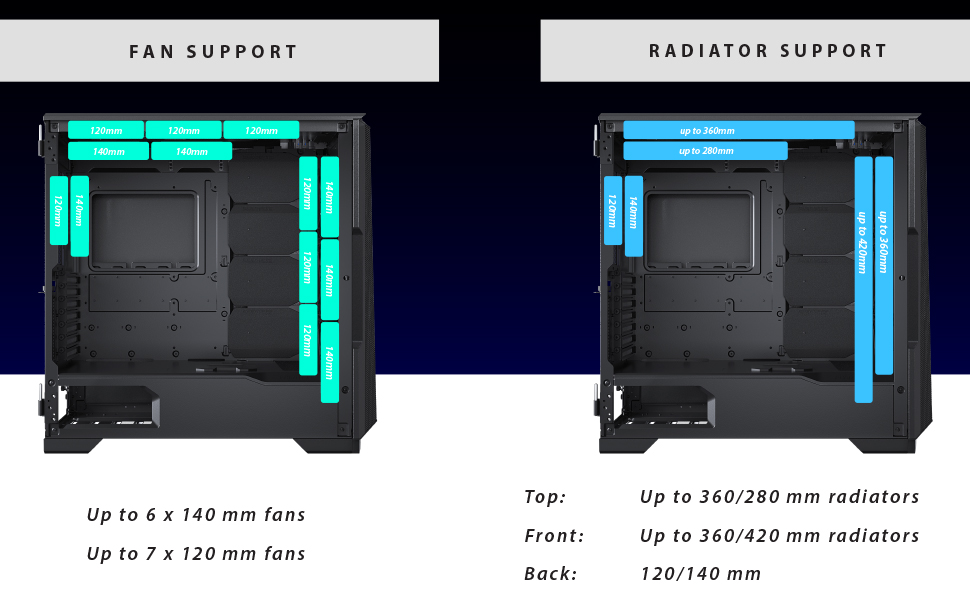
Figure 10: Visual representation of fan and radiator mounting options within the chassis.
7. การรับประกันและการสนับสนุน
Phanteks provides a manufacturer's warranty for this product.
- ระยะเวลารับประกัน: 5 Years Manufacturer Warranty.
- For warranty claims or technical support, please contact Phanteks customer service or visit their official webเว็บไซต์.
- เก็บหลักฐานการซื้อของคุณไว้เพื่อใช้ยืนยันการรับประกัน
For further assistance, refer to the official Phanteks webเว็บไซต์หรือติดต่อช่องทางการสนับสนุนของพวกเขา


