1. บทนำ
Thank you for choosing the Glorious Model O- (Minus) Gaming Mouse. This manual provides essential information for setting up, operating, and maintaining your new gaming mouse. The Model O- (Minus) is engineered for competitive e-sports, featuring an ultralight design, a flexible Ascended Cord, and customizable RGB lighting to enhance your gaming experience.
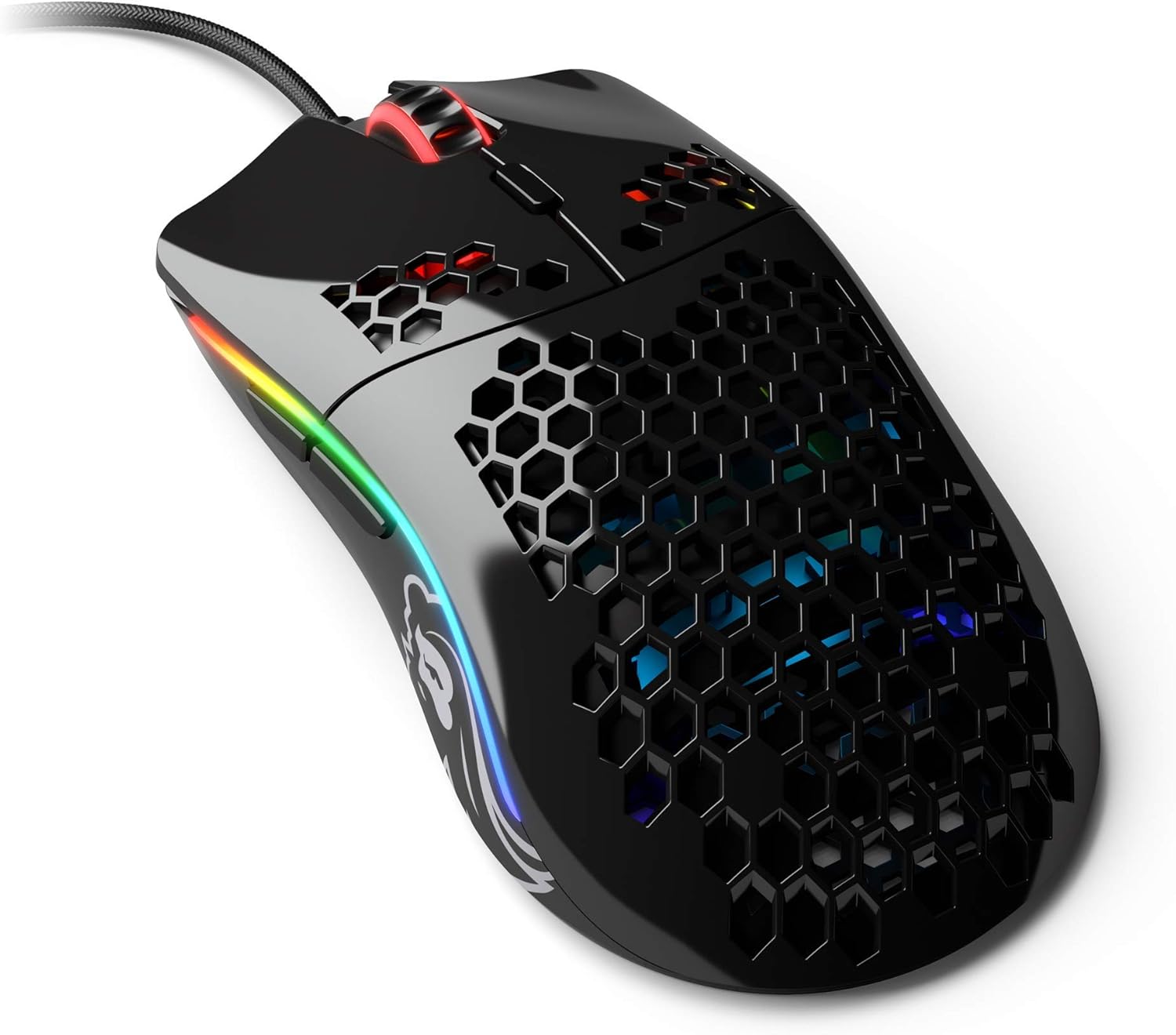
Image: The Glorious Model O- (Minus) Gaming Mouse in Glossy Black, showcasing its honeycomb shell design and RGB lighting.
2. การตั้งค่า
2.1 เนื้อหาบรรจุภัณฑ์
ก่อนดำเนินการต่อ โปรดตรวจสอบให้แน่ใจว่ามีส่วนประกอบครบถ้วน:
- Glorious Model O- (Minus) Gaming Mouse
- Ascended Cord (attached)
- คู่มือเริ่มต้นอย่างรวดเร็ว (เอกสารนี้)
2.2 การเชื่อมต่อเมาส์
- ค้นหาพอร์ต USB ที่มีอยู่ในคอมพิวเตอร์ของคุณ
- Plug the USB connector of the Glorious Model O- (Minus) into the USB port.
- The mouse is plug-and-play and should be recognized automatically by your operating system.

Image: The Glorious Ascended Cord, a lightweight and flexible USB cable designed to minimize drag.
2.3 Software Installation (Glorious Core)
For advanced customization of DPI settings, button assignments, and RGB lighting, download the Glorious Core software from the official Glorious webงาน (www.gloriousgaming.com/pages/glorious-core) ปฏิบัติตามคำแนะนำบนหน้าจอเพื่อการติดตั้ง

Image: Screenshot of the Glorious Core software interface, demonstrating options for lighting and key binding customization for the mouse.
3. คู่มือการใช้งาน
3.1 ฟังก์ชันพื้นฐานของเมาส์
- คลิกซ้าย: ปุ่มการดำเนินการหลัก
- คลิกขวา: ปุ่มการดำเนินการรอง โดยทั่วไปใช้สำหรับเมนูบริบท
- ล้อเลื่อน: เลื่อนเนื้อหาขึ้น/ลง สามารถคลิกเพื่อใช้งานฟังก์ชันคลิกกลางได้เช่นกัน
- ปุ่มด้านข้าง: Programmable buttons, typically for forward/back navigation in browsers or in-game actions.
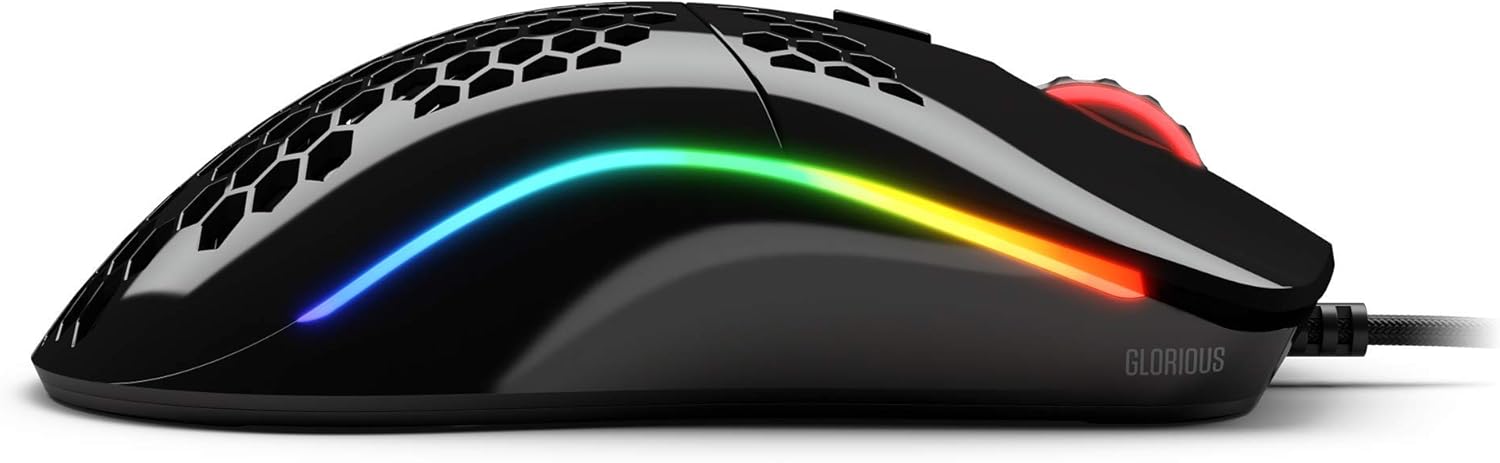
ภาพ: ด้านข้าง view of the Glorious Model O- (Minus) mouse, highlighting the two programmable side buttons and the vibrant RGB lighting strip.
3.2 การปรับ DPI
The Model O- (Minus) features a dedicated DPI button on the underside of the mouse. Press this button to cycle through pre-set DPI stagเช่น ค่า DPI เริ่มต้นtages can be customized using the Glorious Core software.
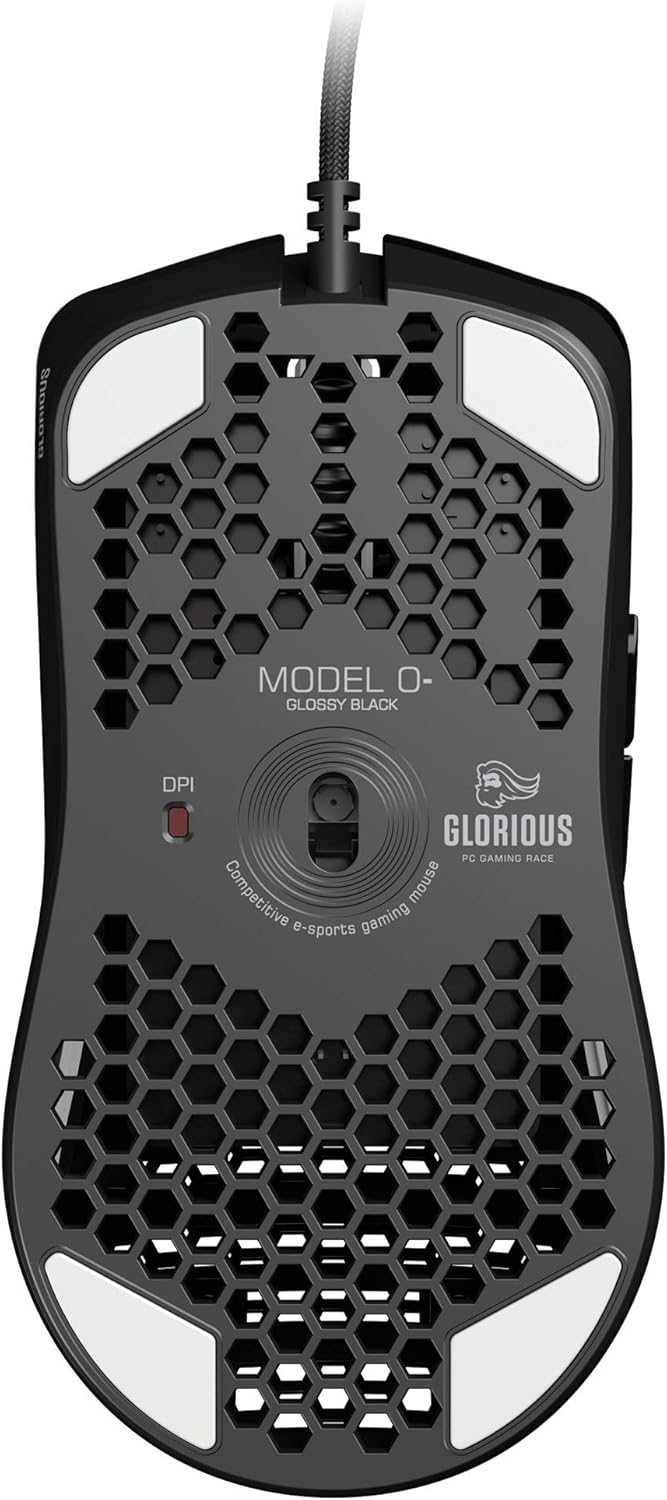
Image: The underside of the Glorious Model O- (Minus) mouse, clearly showing the DPI switch button and the optical sensor.
3.3 การปรับแต่งแสง RGB
The RGB lighting on your Glorious Model O- (Minus) can be fully customized using the Glorious Core software. You can select from various effects, colors, and brightness levels to match your setup or mood.
4. การบำรุงรักษา
4.1 การทำความสะอาดเมาส์
- โปรดตรวจสอบให้แน่ใจว่าได้ถอดสายเมาส์ออกจากคอมพิวเตอร์ก่อนทำการทำความสะอาด
- ใช้ผ้านุ่มไม่เป็นขุยค่อยๆ งampชุบน้ำหรือน้ำยาทำความสะอาดอ่อนๆ เพื่อเช็ดพื้นผิวของเมาส์
- สำหรับเซนเซอร์แบบออปติคอล ให้ใช้สำลีพันก้านเช็ดเบาๆampened with isopropyl alcohol to gently clean the lens. Avoid excessive moisture.
- ห้ามใช้สารเคมีรุนแรงหรือวัสดุที่มีฤทธิ์กัดกร่อน เนื่องจากอาจทำให้พื้นผิวหรือชิ้นส่วนภายในของเมาส์เสียหายได้
4.2 การดูแลสายเคเบิล
The Ascended Cord is designed to be lightweight and flexible. Avoid sharp bends or excessive pulling on the cable to prevent damage. Use a cable tie or management system to keep the cable tidy and prevent tangles.
5 การแก้ไขปัญหา
5.1 เมาส์ไม่ตอบสนอง
- ตรวจสอบให้แน่ใจว่าเสียบสาย USB เข้ากับพอร์ต USB ที่ใช้งานได้บนคอมพิวเตอร์ของคุณอย่างแน่นหนา
- ลองเสียบเมาส์เข้ากับพอร์ต USB อื่น
- รีสตาร์ทเครื่องคอมพิวเตอร์ของคุณ
- ลองทดสอบเมาส์กับคอมพิวเตอร์เครื่องอื่นเพื่อตรวจสอบว่าปัญหาเกิดจากเมาส์หรือระบบคอมพิวเตอร์ของคุณ
5.2 Inconsistent Tracking or Cursor Movement
- ทำความสะอาดเซ็นเซอร์แสงตามวิธีที่อธิบายไว้ในส่วนการบำรุงรักษา
- โปรดตรวจสอบให้แน่ใจว่าคุณใช้เมาส์บนพื้นผิวที่สะอาดและเรียบ (เช่น แผ่นรองเมาส์) หลีกเลี่ยงพื้นผิวที่มีการสะท้อนแสงสูงหรือโปร่งใส
- Check DPI settings using the DPI button or Glorious Core software.
- Update your mouse drivers or Glorious Core software to the latest version.
5.3 RGB Lighting Not Working Correctly
- Ensure Glorious Core software is installed and up to date.
- Check the lighting settings within Glorious Core to ensure RGB is enabled and configured as desired.
- รีสตาร์ทเครื่องคอมพิวเตอร์ของคุณ
6. ข้อมูลจำเพาะ
| คุณสมบัติ | รายละเอียด |
|---|---|
| ขนาดสินค้า | 4.72 x 2.48 x 1.42 นิ้ว |
| น้ำหนักสินค้า | 2.08 ออนซ์ |
| เทคโนโลยีการเชื่อมต่อ | USB (แบบมีสาย) |
| เทคโนโลยีตรวจจับการเคลื่อนไหว | ออฟติคอล |
| สี | สีดำเงา |
| คุณสมบัติพิเศษ | การออกแบบแบบถนัดทั้งสองข้าง |
| ผู้ผลิต | การแข่งขันเกมพีซีอันยิ่งใหญ่ |
7. การรับประกันและการสนับสนุน
7.1 ข้อมูลการรับประกัน
The Glorious Model O- (Minus) Gaming Mouse comes with a รับประกัน 2 ปี. This warranty covers manufacturing defects and ensures hassle-free return and replacement on all Glorious electronic devices. Please retain your proof of purchase for warranty claims.
7.2 การสนับสนุนลูกค้า
If you encounter any issues not covered in this manual or require further assistance, please contact Glorious customer support through their official webเว็บไซต์:
- Webเว็บไซต์: www.gloriousgaming.com/pages/support
- Our dedicated support team is available to assist with any questions or concerns you may have.


