การแนะนำ
ขอบคุณสำหรับการซื้อasing the ABKO RGB LED Membrane Keyboard and Mouse Set, model KM110. This manual provides essential information for the proper setup, operation, and maintenance of your new peripheral set. Please read this guide thoroughly before use to ensure optimal performance and longevity of your product.
เนื้อหาแพ็คเกจ
ตรวจสอบว่ามีรายการทั้งหมดอยู่ในแพ็คเกจของคุณ:
- 1 x ABKO RGB LED Membrane Keyboard (KM110)
- 1 x ABKO RGB LED Optical Mouse
- 1 x คู่มือผู้ใช้ (เอกสารนี้)
สินค้าเกินview
The ABKO KM110 set features a membrane keyboard with vibrant RGB LED backlighting and an optical mouse with color-changing LED effects, designed for use with laptops and PCs. The keyboard includes a Korean/English layout and is designed with a waterproof structure.
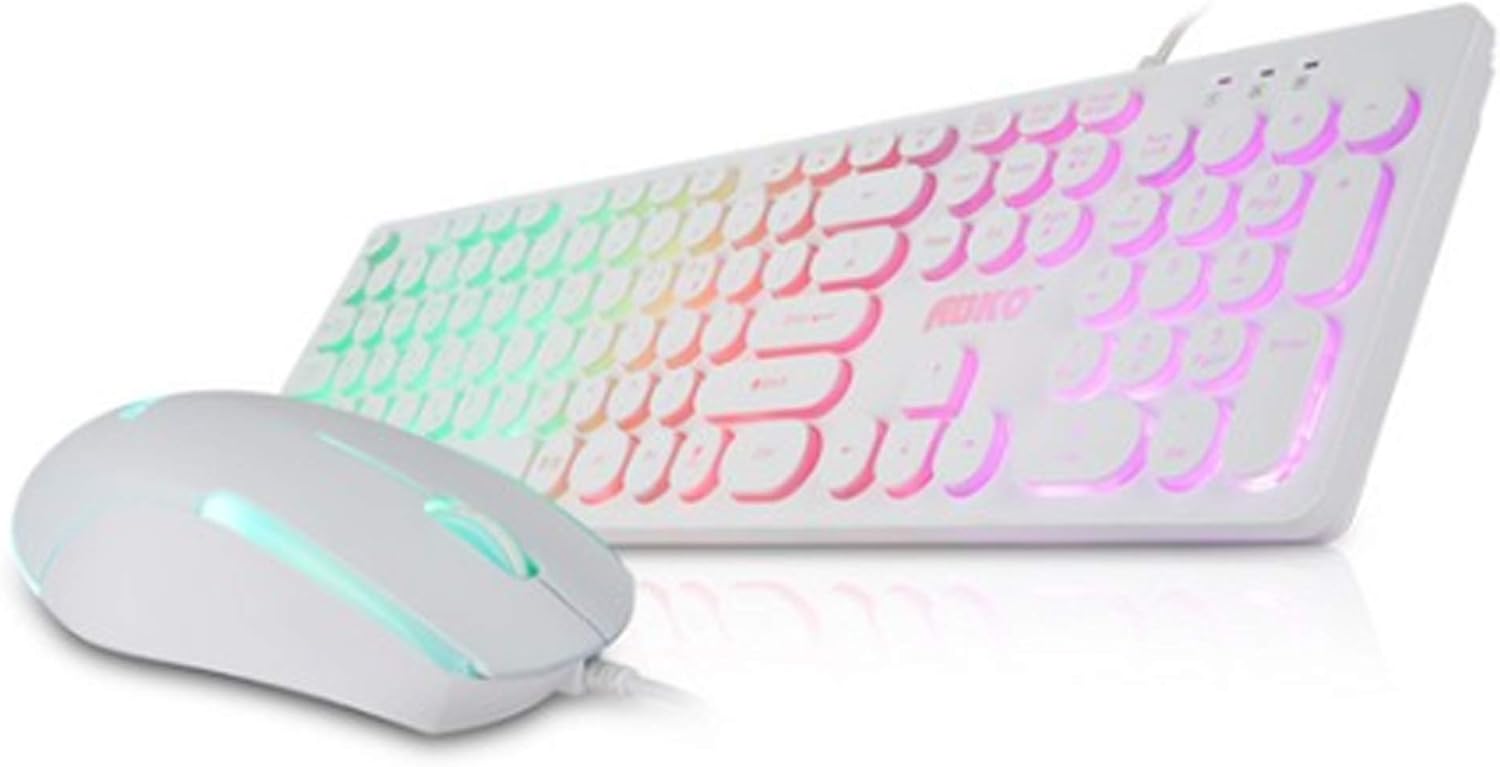
Image: The ABKO KM110 RGB LED Membrane Keyboard and Mouse Set, showcasing the white keyboard with rainbow backlighting and the matching white mouse.
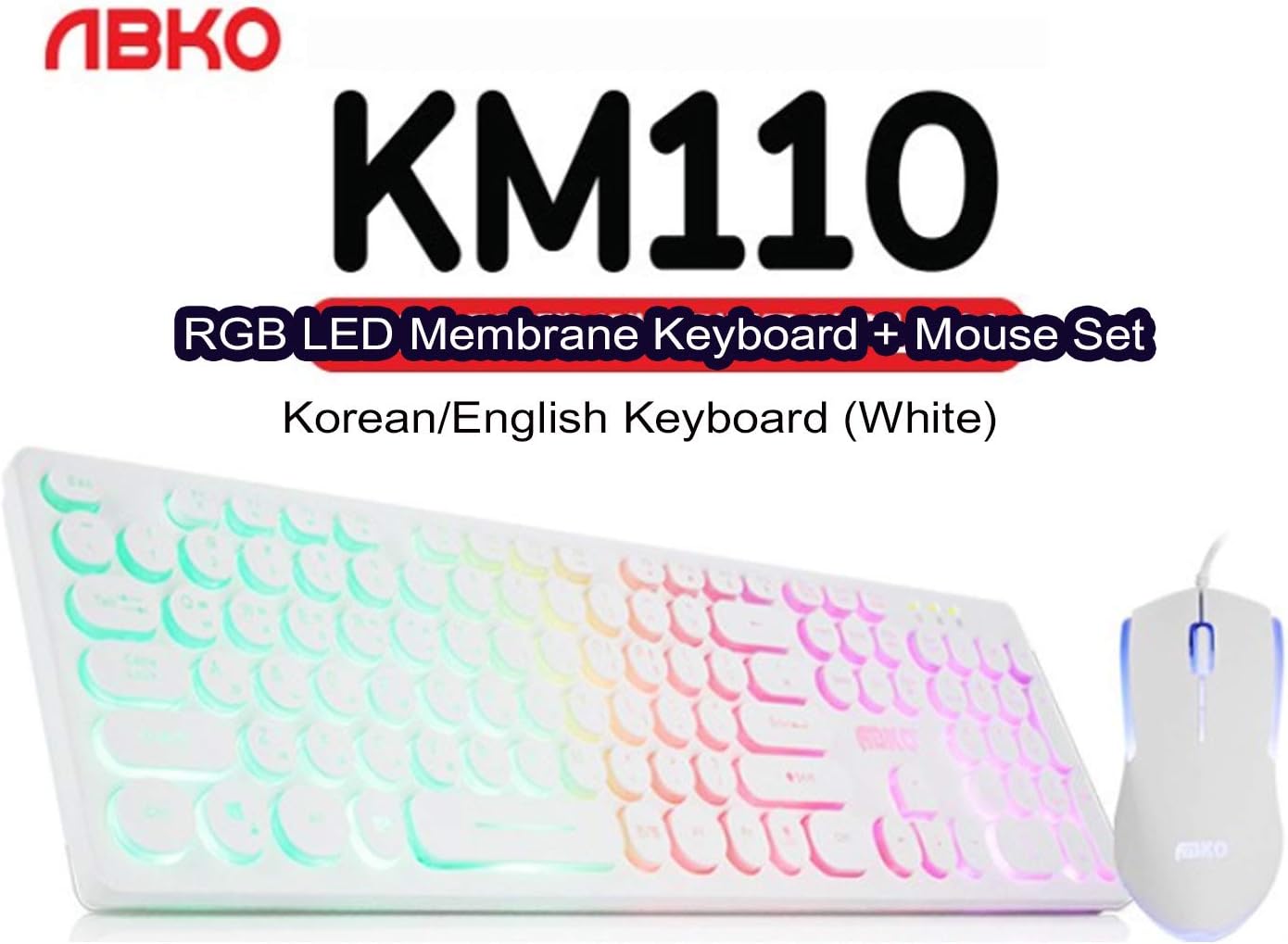
ภาพ: ภาพระยะใกล้ view identifying the product as the ABKO KM110 RGB LED Membrane Keyboard + Mouse Set, specifically the Korean/English White version.
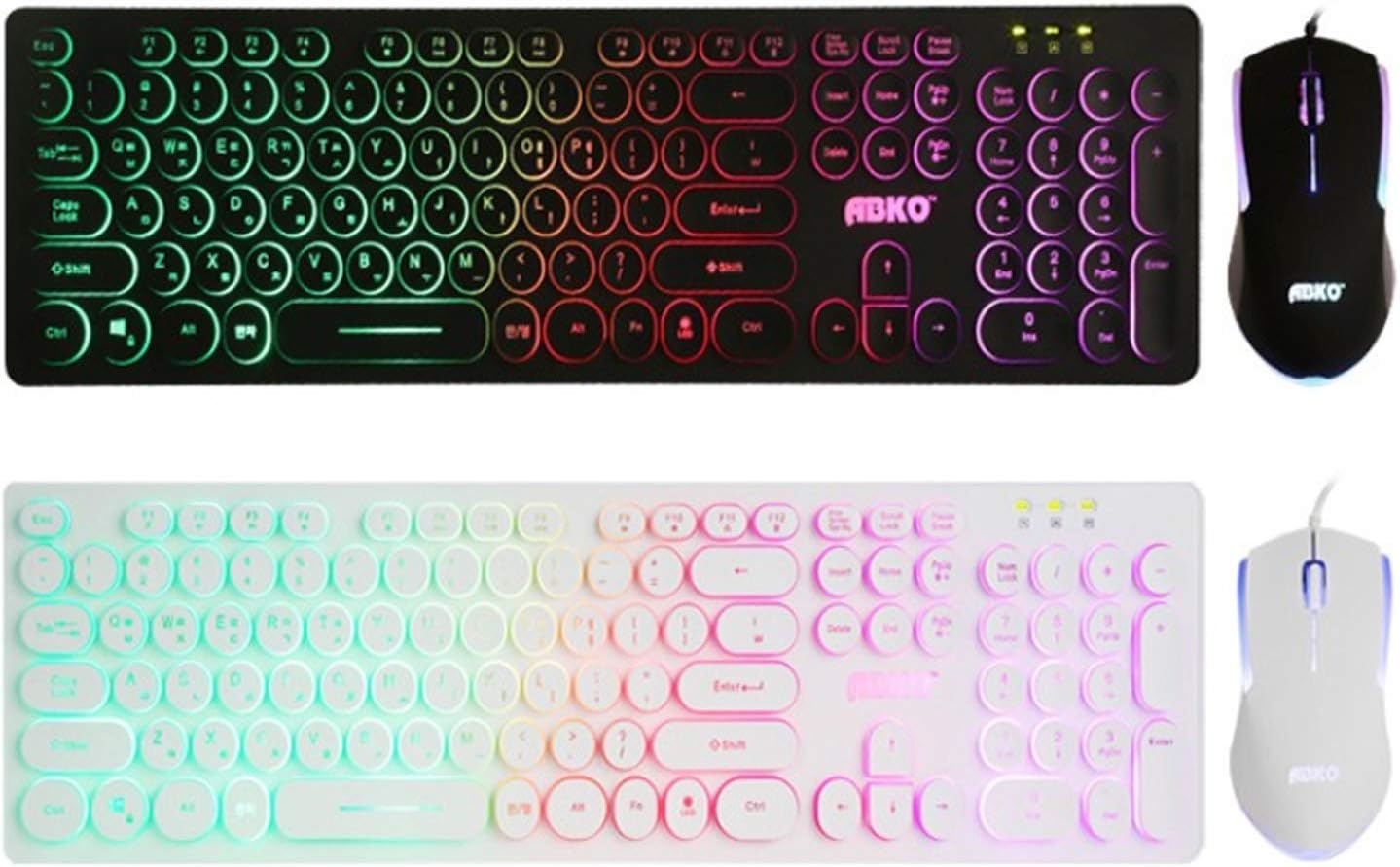
ภาพ: การเปรียบเทียบ view of the ABKO KM110 keyboard and mouse set in both black and white color variants, highlighting the consistent design and RGB lighting.

ภาพ: รายละเอียด view of the ABKO KM110 mouse, illustrating its optical sensor and the dynamic LED lighting that changes colors.
คำแนะนำการตั้งค่า
Follow these steps to connect your ABKO KM110 Keyboard and Mouse Set to your computer:
- เชื่อมต่อคีย์บอร์ด: Locate an available USB port on your computer (laptop or PC). Insert the USB connector of the ABKO keyboard firmly into the USB port.
- เชื่อมต่อเมาส์: Locate another available USB port on your computer. Insert the USB connector of the ABKO mouse firmly into the USB port.
- การจดจำระบบ: Your operating system (Windows, macOS, etc.) should automatically detect and install the necessary drivers for the keyboard and mouse. This process may take a few moments.
- ตรวจสอบการทำงาน: Once installation is complete, test the keyboard by typing in a text editor and test the mouse by moving the cursor and clicking. The RGB lighting on both devices should illuminate.
คำแนะนำการใช้งาน
การทำงานของแป้นพิมพ์
- การพิมพ์ขั้นพื้นฐาน: Use the keys as you would with any standard keyboard. The keyboard features a Korean/English layout.
- เอฟเฟกต์ไฟ LED RGB: The keyboard features a colorful LED effect. Specific key combinations (e.g., Fn + Scroll Lock, Fn + Home, etc.) are typically used to cycle through different lighting modes, adjust brightness, or change colors. Refer to the keyboard's keycap legends for specific function key combinations related to LED control.
- การออกแบบกันน้ำ: The membrane keyboard is designed to be waterproof, offering protection against accidental spills. In case of a spill, disconnect the keyboard immediately and allow it to dry completely before reconnecting.
การทำงานของเมาส์
- ฟังก์ชั่นพื้นฐาน: เมาส์นี้มีฟังก์ชันการคลิกซ้าย คลิกขวา และการเลื่อนล้อเมาส์ตามมาตรฐาน
- การติดตามด้วยแสง: The optical sensor ensures precise cursor movement on various surfaces.
- ไฟ LED: The mouse features an optical LED that changes color, providing a dynamic visual effect during use.
การซ่อมบำรุง
To ensure the longevity and proper functioning of your ABKO KM110 Keyboard and Mouse Set, follow these maintenance guidelines:
- การทำความสะอาดคีย์บอร์ด: Disconnect the keyboard from your computer. Use a soft, damp cloth to wipe down the keys and surface. For stubborn dirt, a small amount of mild soap solution can be used, ensuring no liquid enters the internal components. The waterproof design helps protect against spills, but direct immersion or excessive liquid should be avoided.
- การทำความสะอาดเมาส์: Disconnect the mouse. Use a soft, dry cloth to clean the surface. For the optical sensor, use a cotton swab lightly dampเช็ดทำความสะอาดบริเวณเซ็นเซอร์ด้วยแอลกอฮอล์อย่างอ่อนโยน
- พื้นที่จัดเก็บ: เมื่อไม่ได้ใช้งานเป็นเวลานาน ควรเก็บแป้นพิมพ์และเมาส์ไว้ในที่สะอาดและแห้ง หลีกเลี่ยงแสงแดดโดยตรงและอุณหภูมิที่สูงหรือต่ำเกินไป
การแก้ไขปัญหา
If you encounter issues with your ABKO KM110 set, refer to the following common solutions:
- คีย์บอร์ด/เมาส์ไม่ตอบสนอง:
- ตรวจสอบให้แน่ใจว่าสาย USB เสียบเข้ากับพอร์ต USB ของคอมพิวเตอร์อย่างแน่นหนา
- ลองเสียบอุปกรณ์เข้ากับพอร์ต USB อื่น
- รีสตาร์ทเครื่องคอมพิวเตอร์ของคุณ
- Test the devices on another computer to determine if the issue is with the peripherals or your system.
- ไฟ LED ไม่ทำงาน:
- For the keyboard, ensure the LED function is not turned off. Use the designated key combinations (e.g., Fn + Scroll Lock) to cycle through lighting modes or turn them on/off.
- ตรวจสอบให้แน่ใจว่าอุปกรณ์เชื่อมต่ออย่างถูกต้องและได้รับพลังงานแล้ว
- เคอร์เซอร์เมาส์กระโดดหรือไม่แน่นอน:
- ทำความสะอาดเซ็นเซอร์ออปติคอลที่ด้านล่างของเมาส์
- ตรวจสอบให้แน่ใจว่าคุณใช้เมาส์บนพื้นผิวที่เหมาะสม (เช่น แผ่นรองเมาส์) หลีกเลี่ยงพื้นผิวที่สะท้อนแสงสูงหรือโปร่งใส
ข้อมูลจำเพาะ
- แบบอย่าง: KM110
- ยี่ห้อ: เอบีเคโอ
- ประเภทคีย์บอร์ด: เมมเบรน
- ประเภทเมาส์: ออฟติคอล
- การเชื่อมต่อ: สาย USB
- รูปแบบแป้นพิมพ์: เกาหลี/อังกฤษ
- คุณสมบัติพิเศษ: RGB LED Backlighting (Keyboard), Color-changing LED (Mouse), Waterproof (Keyboard)
- อุปกรณ์ที่รองรับ: แล็ปท็อปพีซี
- ขนาดของผลิตภัณฑ์ (แป้นพิมพ์): ประมาณ 17.6 x 4.96 x 0.98 นิ้ว (44.7 x 12.6 x 2.5 ซม.)
- ASIN: B087F61W2B
การรับประกันและการสนับสนุน
For warranty information and technical support, please refer to the official ABKO webหรือติดต่อผู้ค้าปลีกของคุณ โปรดเก็บใบเสร็จรับเงินไว้เป็นหลักฐานการซื้อสำหรับการเรียกร้องการรับประกันใดๆ