1. บทนำ
This manual provides comprehensive instructions for setting up, operating, and maintaining your Logitech Ergo K860 Wireless Ergonomic Keyboard and MX Vertical Wireless Mouse. This combo is designed for all-day comfort, promoting a more relaxed posture and reducing strain during extended use.
โปรดอ่านคู่มือนี้อย่างละเอียดก่อนใช้งานผลิตภัณฑ์ เพื่อให้มั่นใจได้ถึงประสิทธิภาพสูงสุดและอายุการใช้งานที่ยาวนาน
2. สินค้าหมดview

Figure 2.1: Logitech Ergo K860 Wireless Ergonomic Keyboard and MX Vertical Wireless Mouse Combo. This image displays the full product set, including the keyboard, mouse, and USB receivers.

Figure 2.2: Advanced Ergonomic Solution. This image highlights the ergonomic design of the keyboard and mouse, emphasizing comfort for prolonged use.
2.1 คุณสมบัติหลัก
- คีย์บอร์ดแยกส่วนตามหลักสรีรศาสตร์: The ERGO K860 features a curved, split, and sloping keyframe designed to reduce wrist bending and forearm strain.
- Pillowed Wrist Rest: Integrated wrist rest provides 54% more wrist support compared to standard keyboards, enhancing comfort.
- การปรับระดับความสูงฝ่ามือ: Tilt legs allow for adjustable angles (0, -4, -7 degrees) to maintain a natural wrist position whether seated or standing.
- MX Vertical Mouse: Designed with a unique 57-degree vertical angle to place the hand in a natural handshake position, reducing wrist pressure.
- การเชื่อมต่อหลายอุปกรณ์: Connects via Bluetooth or USB receiver to up to three devices, allowing seamless switching.
- คีย์ที่เงียบสงบ: PerfectStroke keys are crafted for precision and quiet typing.
3. การตั้งค่า
3.1 การแกะกล่องและการตรวจสอบเบื้องต้น
- เปิดบรรจุภัณฑ์ของผลิตภัณฑ์อย่างระมัดระวัง
- Remove the keyboard, mouse, and USB receiver(s).
- ตรวจสอบชิ้นส่วนทั้งหมดว่ามีร่องรอยความเสียหายหรือไม่ หากพบความเสียหายใด ๆ โปรดติดต่อฝ่ายบริการลูกค้า
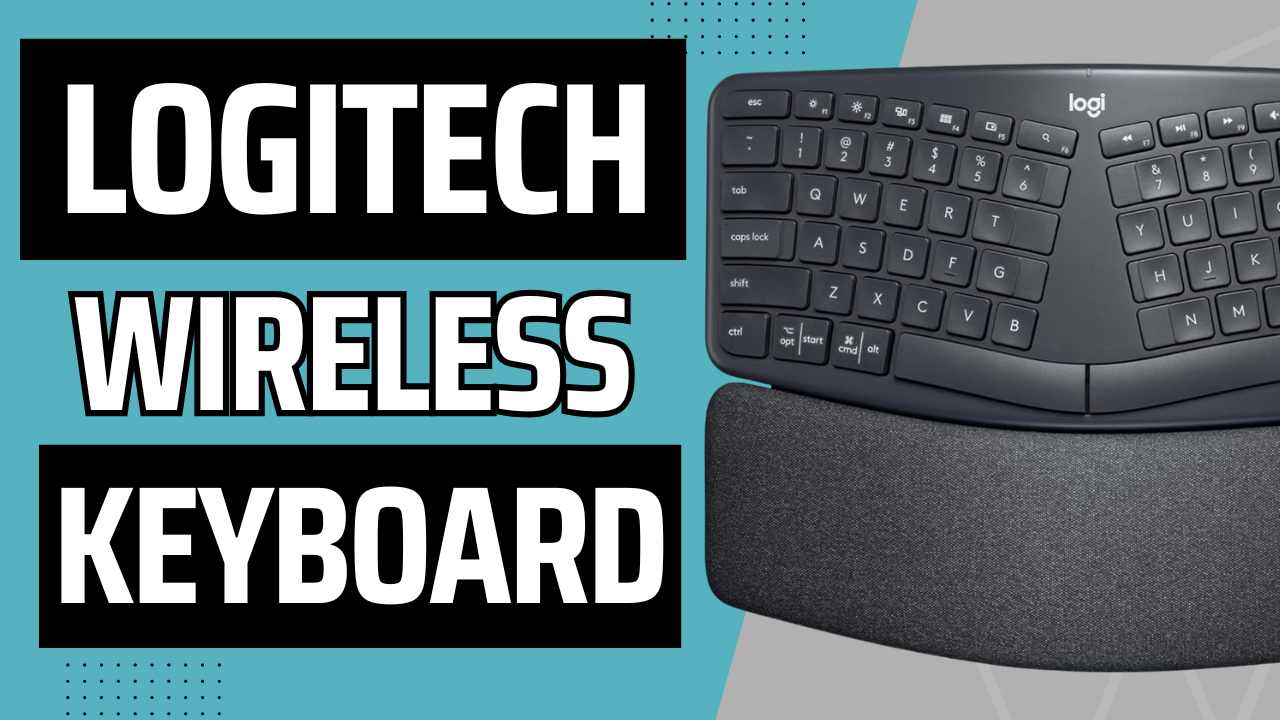
Figure 3.1: Unboxing the Logitech ERGO K860. This image shows the keyboard being removed from its packaging, highlighting the initial setup process.
3.2 การเปิดเครื่องและการติดตั้งแบตเตอรี่
The keyboard uses AAA batteries. The mouse has a built-in rechargeable battery.
- For the keyboard, locate the battery compartment on the underside.
- Insert the provided AAA batteries, ensuring correct polarity.
- Turn on the keyboard using the power switch, usually located on the top right edge.
- For the mouse, ensure it is charged. It comes with a USB cable for charging.
- Turn on the mouse using its power switch, typically on the underside.

Figure 3.2: Keyboard Battery Compartment. This image illustrates the location for inserting AAA batteries into the keyboard.

Figure 3.3: MX Vertical Mouse Charging. This image shows the USB-C charging port on the MX Vertical mouse.
3.3 การเชื่อมต่อกับอุปกรณ์ของคุณ
The combo supports both Bluetooth and Logitech Unifying USB receiver connections.
3.3.1 Using the Logitech Unifying USB Receiver
- Plug the Unifying USB receiver into an available USB port on your computer.
- The keyboard and mouse should automatically connect. If not, press and hold one of the Easy-Switch buttons (1, 2, or 3) on the keyboard/mouse until the LED blinks rapidly, then follow on-screen prompts or use Logitech Options software.
Figure 3.4: Logitech Unifying USB Receiver. The small USB dongle is visible, used for wireless connection.
3.3.2 การใช้บลูทูธ
- ตรวจสอบให้แน่ใจว่าเปิดใช้งาน Bluetooth บนคอมพิวเตอร์ของคุณแล้ว
- On the keyboard/mouse, press and hold one of the Easy-Switch buttons (1, 2, or 3) until the LED blinks rapidly. This indicates it's in pairing mode.
- On your computer, go to Bluetooth settings and select "Logitech ERGO K860" or "Logitech MX Vertical" from the list of available devices.
- ปฏิบัติตามคำแนะนำบนหน้าจอเพื่อเสร็จสิ้นกระบวนการจับคู่

Figure 3.5: Multi-Device Pairing. This image demonstrates how the keyboard can be paired with up to three different devices, such as laptops and monitors.
4. การใช้งานอุปกรณ์ของคุณ
4.1 การใช้งานแป้นพิมพ์
The split design of the ERGO K860 promotes a natural typing posture. Place your hands on the pillowed wrist rest, allowing your wrists to remain straight and relaxed.

Figure 4.1: Proper Ergonomic Typing. This image shows a user's hands positioned correctly on the keyboard, demonstrating the ergonomic benefits.

Figure 4.2: Ergonomic Certification. This image displays certifications for the product's ergonomic design, indicating user testing and approval.
4.1.1 Adjustable Palm Lift
The keyboard features adjustable tilt legs on the underside. You can set them to 0, -4, or -7 degrees to find the most comfortable angle for your wrists, whether you are sitting or standing.

Figure 4.3: Adjustable Keyboard Tilt. This image illustrates the adjustable feet on the keyboard's underside, allowing users to modify the tilt for optimal comfort.
4.1.2 Easy-Switch Buttons
Use the Easy-Switch buttons (1, 2, 3) located on the top right of the keyboard to seamlessly switch between connected devices. Simply press the button corresponding to the device you wish to control.
4.2 การใช้งานเมาส์
The MX Vertical mouse is designed to reduce muscle strain by promoting a natural handshake position. Grip the mouse comfortably with your hand at a 57-degree vertical angle.
Figure 4.4: MX Vertical Mouse Grip. This image demonstrates the natural handshake grip encouraged by the MX Vertical mouse's design.

Figure 4.5: MX Vertical Mouse Features. This image labels various parts of the MX Vertical mouse, including the scroll wheel, buttons, and sensor.
4.2.1 Cursor Speed Switch
The MX Vertical mouse features a cursor speed switch (DPI button) to instantly adjust the pointer speed and accuracy. This allows for precise control for different tasks.
4.3 ซอฟต์แวร์ตัวเลือก Logitech
ดาวน์โหลดและติดตั้งซอฟต์แวร์ Logitech Options จากเว็บไซต์ทางการของ Logitech webงาน (www.logitech.com/software/logitech-options.html) to customize your keyboard and mouse settings. This software allows you to:
- กำหนดฟังก์ชันใหม่ให้กับปุ่มฟังก์ชันและปุ่มเมาส์
- ปรับความเร็วของตัวชี้เมาส์และลักษณะการเลื่อนหน้าจอ
- Enable Logitech Flow for seamless multi-computer control (requires compatible Logitech Flow devices).
5. การบำรุงรักษา
5.1 การทำความสะอาด
- ใช้ผ้านุ่มไม่เป็นขุยเช็ดเล็กน้อยampล้างพื้นผิวของแป้นพิมพ์และเมาส์ด้วยน้ำหรือน้ำยาทำความสะอาดอ่อนๆ
- หลีกเลี่ยงการใช้น้ำยาทำความสะอาดที่มีฤทธิ์กัดกร่อน ตัวทำละลาย หรือสเปรย์แอโรซอล
- For the keyboard's fabric wrist rest, gently wipe with a damp cloth. The fabric is stain-resistant.
5.2 การดูแลแบตเตอรี่
- Replace AAA batteries in the keyboard when the battery indicator light turns red.
- Recharge the MX Vertical mouse when its battery indicator is low using the provided USB-C cable. A full charge provides approximately four months of power, and a one-minute quick charge provides three hours of use.
- ควรเก็บอุปกรณ์ไว้ในที่แห้งและเย็นเมื่อไม่ได้ใช้งานเป็นเวลานาน
6 การแก้ไขปัญหา
| ปัญหา | สาเหตุที่เป็นไปได้ | สารละลาย |
|---|---|---|
| อุปกรณ์ไม่ได้เชื่อมต่อ | Low battery, incorrect pairing, USB receiver issue. |
|
| การเชื่อมต่อล่าช้าหรือขาดๆ หายๆ | Interference, distance from receiver/device. |
|
| กุญแจไม่ตอบสนอง | Software issue, physical damage. |
|
7. ข้อมูลจำเพาะ
| คุณสมบัติ | คำอธิบาย |
|---|---|
| ยี่ห้อ | โลจิเทค |
| แบบอย่าง | ERGO K860 (Keyboard), MX Vertical (Mouse) |
| การเชื่อมต่อ | Bluetooth, USB Unifying Receiver |
| เค้าโครงแป้นพิมพ์ | Ergonomic Split, Full-size with Numpad |
| ที่วางข้อมือ | Integrated Pillowed Wrist Rest (Stain-resistant fabric) |
| ปรับความเอียงได้ | 0, -4, -7 degrees |
| หลักสรีรศาสตร์ของเมาส์ | 57-degree vertical angle for natural handshake position |
| เซ็นเซอร์เมาส์ | 4000 DPI high-precision sensor |
| Battery Life (Keyboard) | Up to 2 years (with AAA batteries) |
| Battery Life (Mouse) | Up to 4 months (rechargeable, 1 min quick charge for 3 hrs) |
| ระบบปฏิบัติการที่รองรับ | Windows, macOS, Chrome OS, Linux, iOS, Android |
8. การรับประกันและการสนับสนุน
สำหรับข้อมูลการรับประกันและการสนับสนุนทางเทคนิค โปรดเยี่ยมชมเว็บไซต์ฝ่ายสนับสนุนอย่างเป็นทางการของ Logitech webเว็บไซต์หรือดูบัตรรับประกันที่รวมอยู่ในบรรจุภัณฑ์ผลิตภัณฑ์ของคุณ
ฝ่ายสนับสนุน Logitech: support.logi.com
9. วิดีโอผลิตภัณฑ์อย่างเป็นทางการ
No official product videos from the seller are available for embedding in this manual based on the provided data.


