1. สินค้าหมดview
The TESmart HKS202-E23 is an HDMI KVM switch designed to manage two computers with two monitors and a single set of keyboard and mouse. It supports high-resolution video up to 4K@60Hz and includes features for enhanced compatibility and user convenience.

Figure 1: TESmart HDMI KVM Switch HKS202-E23 and included accessories.
2. คุณสมบัติหลัก
- รองรับจอภาพคู่: Connects 2 computers to 2 monitors, supporting extended, mirrored, or respective display modes.
- ความละเอียดสูง: Supports up to 3840x2160 (4K) @60Hz, 3440x1440@100Hz, and 1920x1080@240Hz. Compatible with 3D, HDR10, HDCP2.2, and Dolby Vision.
- โปรแกรมจำลอง EDID: Ensures correct display information is always sent to computers, preventing display setting changes during input switching.
- Flexible Switching: Offers three methods for switching between computers: IR remote control, front panel button, and keyboard hotkeys.
- ความเข้ากันได้ในวงกว้าง: Works with Unix, Windows, Debian, Ubuntu, Fedora, Mac OS X, Raspbian, and other Linux-based systems.
- USB Peripheral Sharing: Includes a USB 2.0 port for sharing USB hubs, drives, printers, or scanners across connected devices. Dedicated keyboard and mouse ports support wired, wireless (2.4G receiver), mechanical, multimedia, and gaming keyboards/mice (Bluetooth not supported).
- เอาต์พุตเสียง: Features a 3.5mm audio jack with a built-in DAC chip for stereo audio output.
- รองรับการเสียบปลั๊กขณะทำงาน (Hot Plug Support): ช่วยให้สามารถเพิ่มหรือลบอุปกรณ์ได้โดยไม่ต้องปิดสวิตช์ KVM หรืออุปกรณ์ที่เชื่อมต่ออยู่
3. เนื้อหาบรรจุภัณฑ์
The TESmart HDMI KVM Switch HKS202-E23 package includes:
- สวิตช์ KVM HDMI 2x1 จำนวน 2 ตัว
- 2x 5ft (HDMI+USB-B) cables
- 2x 5ft HDMI cables
- 1x IR remote control (AAA batteries not included)
- 1x อะแดปเตอร์ไฟ DC 12V
- 1x คู่มือผู้ใช้
4. คำแนะนำในการตั้งค่า
Follow these steps to connect your TESmart HDMI KVM Switch:
- การเชื่อมต่อไฟฟ้า: Connect the DC 12V power adapter to the KVM switch's DC 12V port.
- ตรวจสอบการเชื่อมต่อ: Connect your two monitors to the 'Display 1' and 'Display 2' HDMI output ports on the KVM switch.
- Computer 1 Connection:
- Connect one end of an (HDMI+USB-B) cable to the 'Input A PC 1' HDMI port and the USB-B port on the KVM switch.
- Connect the other end of the HDMI cable to an HDMI output on PC 1.
- Connect the other end of the USB-B cable to a USB port on PC 1.
- If PC 1 has a second HDMI output, connect it to the 'Input B PC 1' HDMI port on the KVM switch using a standard HDMI cable.
- Computer 2 Connection:
- Connect one end of an (HDMI+USB-B) cable to the 'Input A PC 2' HDMI port and the USB-B port on the KVM switch.
- Connect the other end of the HDMI cable to an HDMI output on PC 2.
- Connect the other end of the USB-B cable to a USB port on PC 2.
- If PC 2 has a second HDMI output, connect it to the 'Input B PC 2' HDMI port on the KVM switch using a standard HDMI cable.
- คีย์บอร์ดและเมาส์: Connect your keyboard and mouse to the dedicated USB ports on the KVM switch. For wireless keyboards/mice, plug the 2.4G receiver into one of these dedicated ports.
- Additional USB Devices: Connect other USB peripherals (e.g., USB hub, printer, scanner) to the USB 2.0 port on the KVM switch.
- อุปกรณ์เสียง: Connect headphones or speakers to the 3.5mm L/R audio output port.
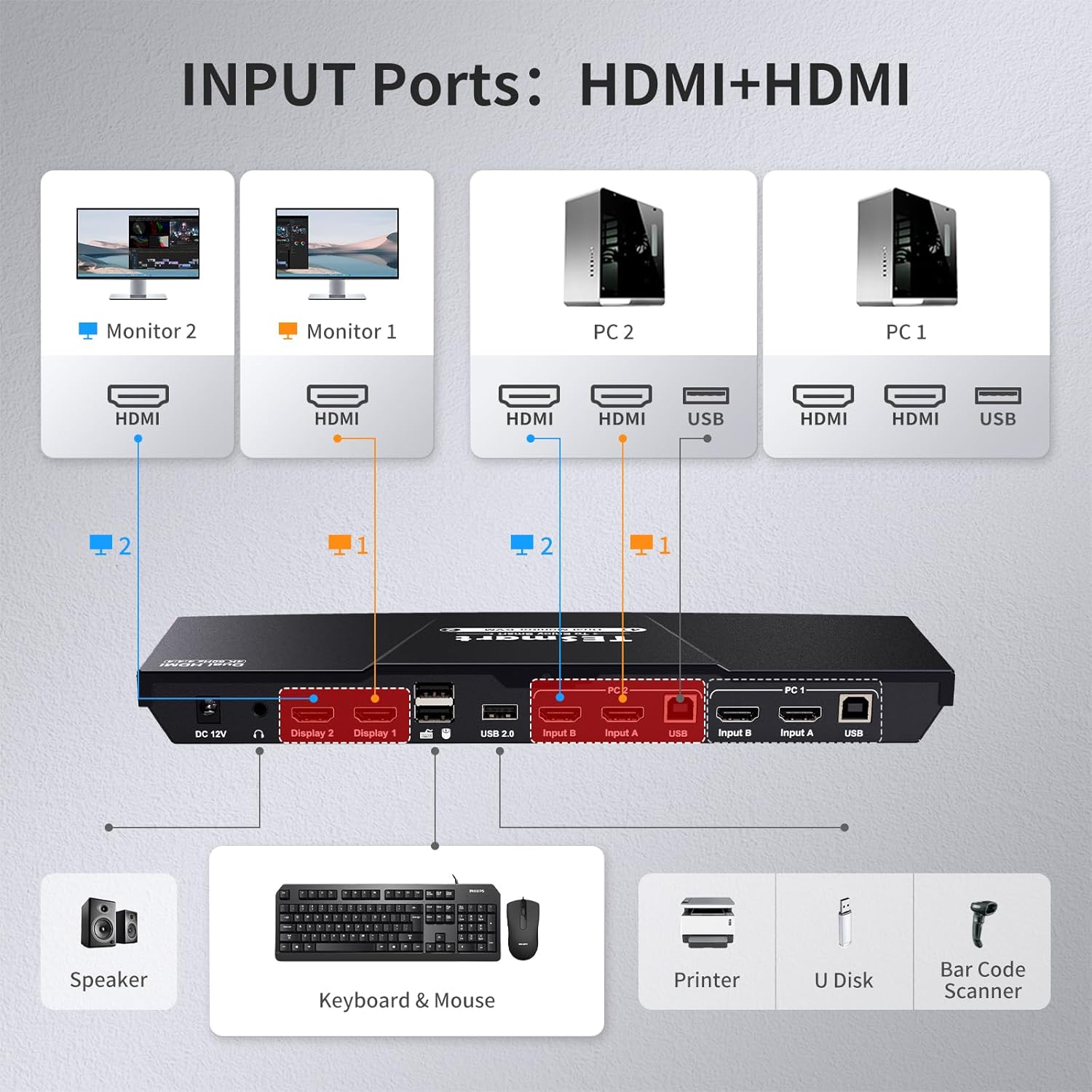
Figure 2: Detailed diagram of KVM switch input ports and connections.
Video 1: TESmart Dual HDMI 4x2 Dual Monitor KVM Switch 2 Port 4K@60Hz setup guide.
5. คู่มือการใช้งาน
The TESmart KVM switch offers multiple ways to control your connected devices.
5.1 การสลับใช้งานระหว่างคอมพิวเตอร์
You can switch between PC1 and PC2 using one of the following methods:
- ปุ่มที่แผงด้านหน้า: Press the 'Selection' button on the front panel of the KVM switch.
- รีโมทคอนโทรล IR: Use the provided IR remote control to select the desired PC input.
- ปุ่มลัดของแป้นพิมพ์: Use predefined keyboard combinations to switch inputs. Refer to the user manual for specific hotkey combinations.

รูปที่ 3: เกินview of available switching methods.
5.2 โหมดการแสดงผล
The KVM switch supports two primary display modes:
- Mode 1: One PC Across Two Monitors (Extended or Mirrored): Both monitors display content from a single PC, either extending the desktop or mirroring the display.
- Mode 2: Two PCs on Two Monitors (Respective Display): Each monitor displays content from a different PC.

Figure 4: Illustration of the two display modes.
5.3 การเลือกเอาต์พุตเสียง
To select the correct audio output device:
- Right-click on the 'Sound settings' icon in the lower right corner of your desktop and open the sound settings.
- Select the correct audio output device. The audio will then be routed through the L/R port on the KVM switch.
6 การแก้ไขปัญหา
- ไม่มีการแสดงผล/กะพริบ: Ensure all HDMI and USB cables are securely connected. Verify that your laptop is capable of dual monitor output. If using adapters (e.g., DisplayPort to HDMI), ensure they are compatible and configured correctly (e.g., NVIDIA control panel dynamic range from limited to full). Try powering the KVM unit off and back on.
- ปัญหาคีย์บอร์ด/เมาส์: Ensure wired or 2.4G wireless (with receiver) keyboards/mice are plugged into the dedicated K&M ports for seamless switching. Bluetooth devices are not supported. If using a mouse with extra buttons and experiencing input issues, try plugging the mouse into a generic USB 2.0 port instead of the dedicated mouse port.
- Display Settings Change: The built-in EDID emulators should prevent display setting changes when switching inputs in extended display mode. If this occurs, verify connections and KVM settings.
- การสลับปุ่มลัดไม่ทำงาน: If your keyboard is connected to the USB 2.0 port, hotkey switching may not be supported. Connect the keyboard to a dedicated K&M port.
- Purple Screen/Inconsistent Signal: This can indicate a cable issue, an incompatible adapter, or a problem with the KVM unit itself. Try different HDMI cables, ensure adapters are high-quality and compatible, and power cycle the KVM.
7. ข้อมูลจำเพาะ
- หมายเลขรุ่น: HKS202-E23
- ขนาดสินค้า : 11.81 x 4.33 x 1.18 นิ้ว
- น้ำหนัก: 1 ปอนด์
- วัสดุ: โลหะ
- โหมดการทำงาน: เปิดปิด
- คะแนนปัจจุบัน: 2 Amps
- ปฏิบัติการฉบับที่tage: 12 โวลต์ (กระแสตรง)
- ประเภทสวิตช์: ปุ่มกด
- มีจำหน่ายครั้งแรก: 8 มกราคม 2020
8. การรับประกันและการสนับสนุน
The TESmart HDMI KVM Switch HKS202-E23 comes with a 1-year warranty. For any questions or concerns, please contact the TESmart customer experience design team.


