1. บทนำ
The Logitech MX Keys Advanced Wireless Illuminated Keyboard for Mac is designed for seamless integration with macOS, iPadOS, and iOS devices. This full-size keyboard features a Mac key layout, spherically-dished keys for comfortable typing, and dynamic backlighting that adjusts to ambient light. It offers multi-device connectivity, allowing you to switch between up to three devices with ease, and can follow a Flow-enabled mouse for a fluid multi-computer workflow. The keyboard is built with a metal construction for stability and precision, and recharges via a USB-C to USB-C cable.
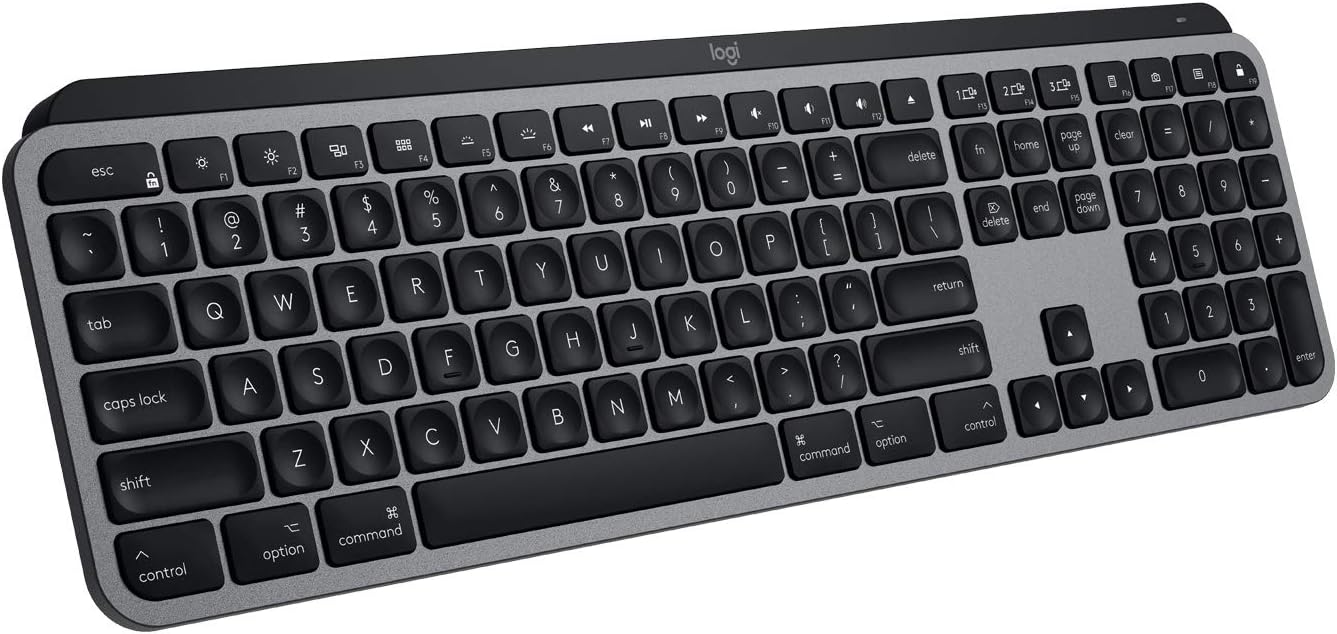
Image: The Logitech MX Keys Advanced Wireless Illuminated Keyboard for Mac, showcasing its full-size layout and Space Grey finish.
2. การตั้งค่า
2.1 อะไรอยู่ในกล่อง
Upon unboxing your Logitech MX Keys for Mac, you will find the following components:
- Logitech MX Keys Advanced Wireless Illuminated Keyboard for Mac
- ตัวรับ USB Logitech Unifying
- สายชาร์จ USB-C ถึง USB-C (1 เมตร)
- เอกสารประกอบการใช้งาน

Image: A diagram illustrating the contents included in the Logitech MX Keys for Mac packaging, including the keyboard, USB receiver, and charging cable.
2.2 การชาร์จเริ่มต้น
Before first use, it is recommended to fully charge your keyboard. Connect the supplied USB-C to USB-C charging cable to the keyboard's USB-C port and to a compatible USB-C power source (e.g., your Mac, a wall adapter). A full charge can last up to 10 days with backlighting on, or up to 5 months with backlighting off.

Image: A close-up of the Logitech MX Keys for Mac showing the USB-C charging port and the USB-C to USB-C cable connected.
2.3 การเชื่อมต่อคีย์บอร์ดของคุณ
The MX Keys for Mac offers two primary connection methods: Bluetooth Low Energy and the Logitech Unifying USB Receiver.
- การเชื่อมต่อบลูทู ธ :
- Turn on the keyboard using the power switch on the top right edge.
- Press and hold one of the Easy-Switch keys (F1, F2, or F3) for three seconds until the LED indicator on the key starts blinking rapidly. This indicates pairing mode.
- On your Mac or iPad, go to System Settings (or System Preferences) > Bluetooth and select "MX Keys for Mac" from the list of available devices.
- ทำตามคำแนะนำบนหน้าจอเพื่อทำการจับคู่ให้เสร็จสมบูรณ์
- Logitech Unifying USB Receiver Connection:
- Plug the Unifying USB receiver into an available USB-A port on your Mac.
- เปิดแป้นพิมพ์ ระบบจะเชื่อมต่อกับตัวรับสัญญาณโดยอัตโนมัติ
- For advanced setup and customization, download and install the Logitech Options software from the official Logitech webเว็บไซต์.
3. การใช้งานคีย์บอร์ด
3.1 คุณสมบัติหลัก
The MX Keys for Mac is designed for an optimal typing experience:
- คีย์ Perfect Stroke: Spherically-dished keys are contoured to match the shape of your fingertips, providing a comfortable and precise typing experience.
- การส่องสว่างอัจฉริยะ: The backlighting automatically adjusts to ambient lighting conditions and illuminates when your hands approach the keyboard, saving battery life.
- การควบคุมด้วยคอมพิวเตอร์หลายเครื่อง (การไหล): When paired with a Flow-enabled Logitech mouse (e.g., MX Master 3 for Mac), the keyboard can seamlessly switch between multiple Mac computers by simply moving your mouse cursor from one screen to another.

ภาพ: ภาพระยะใกล้ view of the Logitech MX Keys, highlighting the spherically-dished Perfect Stroke keys designed for comfortable and precise typing.

Image: The Logitech MX Keys keyboard with its smart backlighting activated in a dimly lit setting, demonstrating how the keys illuminate.

Image: An illustration of the Logitech Flow feature, showing how the MX Keys can be used to type across multiple computers (laptop and desktop) seamlessly.
3.2 Customizable Keys and Easy-Switch
The MX Keys for Mac features a row of Fn keys that can be customized using the Logitech Options software. This allows you to assign specific functions or shortcuts to these keys to enhance your workflow.
The Easy-Switch buttons (F1, F2, F3) located on the top row allow you to quickly switch between up to three paired devices. Simply press the desired Easy-Switch button to connect to the corresponding device.

Image: A detailed diagram of the Logitech MX Keys for Mac, labeling key features such as Mac layout, Perfect Stroke Keys, Space Gray finish, Smart backlighting, Customizable keys, Comfort & Stability, USB-C to C charging, and Easy-Switch buttons.

Image: A visual representation of the Easy-Switch functionality, showing the keyboard connected to a MacBook Pro, an iMac, and an iPad, allowing seamless switching between them.
3.3 ผลิตภัณฑ์เกินview วีดีโอ
Watch this official product video for a quick overview of the Logitech MX Keys for Mac's features and design.
วิดีโอ: วิดีโอแสดงผลิตภัณฑ์อย่างเป็นทางการasing the Logitech MX Keys for Mac, highlighting its design and key functionalities.
4. การบำรุงรักษา
To ensure the longevity and optimal performance of your Logitech MX Keys for Mac, follow these maintenance guidelines:
- การทำความสะอาด: Use a soft, lint-free cloth to wipe down the keyboard surface. For deeper cleaning, a slightly damp cloth with mild soap can be used, ensuring no liquid enters the key switches or internal components. Avoid abrasive cleaners or solvents.
- การดูแลแบตเตอรี่ While the keyboard has a long battery life, avoid completely draining the battery frequently. Recharge it when the battery indicator glows red or when prompted by Logitech Options. Store the keyboard in a cool, dry place if not in use for extended periods.
- พื้นที่จัดเก็บ: When transporting or storing the keyboard, ensure it is placed in a protective sleeve or case to prevent scratches and damage to the keys or body.
5 การแก้ไขปัญหา
If you encounter issues with your Logitech MX Keys for Mac, refer to the following common troubleshooting steps:
5.1 ปัญหาการเชื่อมต่อ
- แป้นพิมพ์ไม่เชื่อมต่อ: Ensure the keyboard is turned on and fully charged. Check that Bluetooth is enabled on your device or that the Unifying receiver is securely plugged in. Try re-pairing the keyboard by holding an Easy-Switch key until it blinks and re-selecting it in your device's Bluetooth settings.
- การเชื่อมต่อไม่ต่อเนื่อง: Move the keyboard closer to your device or Unifying receiver to reduce interference. Avoid placing the keyboard near other wireless devices that might cause signal disruption.
5.2 ปัญหาเกี่ยวกับแสงไฟด้านหลัง
- ไฟแบ็คไลท์ไม่ทำงาน: Ensure the keyboard has sufficient charge. The backlighting automatically adjusts based on ambient light; try using it in a darker environment to see if it activates. Check Logitech Options software for backlight settings.
- แสงไฟด้านหลังสว่าง/มืดเกินไป: Adjust the backlight intensity using the dedicated keys on the keyboard (F5 and F6) or through the Logitech Options software.
5.3 ปัญหาการชาร์จ
- แป้นพิมพ์ไม่ชาร์จ: Verify that the USB-C cable is properly connected to both the keyboard and the power source. Try a different USB-C port or power adapter. Ensure the cable itself is not damaged.
- Battery indicator not accurate: Allow the keyboard to fully charge and discharge a few times to recalibrate the battery indicator. If issues persist, contact Logitech support.
6. ข้อมูลจำเพาะ
| คุณสมบัติ | รายละเอียด |
|---|---|
| ยี่ห้อ | โลจิเทค |
| ชื่อรุ่น | MX Keys For Mac |
| หมายเลขรุ่นสินค้า | 920-009552 |
| เทคโนโลยีการเชื่อมต่อ | ตัวรับสัญญาณบลูทูธและ USB Unifying |
| อุปกรณ์ที่รองรับ | MacBook Pro, MacBook Air, iMac, iPad (macOS 10.15 & later, iPadOS 13.4 & later, iOS 9 & later) |
| คำอธิบายแป้นพิมพ์ | Wireless, QWERTY, Full Size |
| คุณสมบัติพิเศษ | Hand Proximity Detection, Rechargeable Battery, Integrated Backlighting, Ambient Light Sensor, On/Off Switch, Battery Indicator |
| สี | สีเทาสเปซเกรย์ |
| จำนวนคีย์ | 104 |
| น้ำหนักสินค้า | 1.79 ปอนด์ |
| ขนาดสินค้า | 17.7 x 5.7 x 1.6 นิ้ว |
| แหล่งพลังงาน | ใช้พลังงานจากแบตเตอรี่ (รวมแบตเตอรี่ลิเธียมโพลิเมอร์ 1 ก้อน) |
| อายุการใช้งานแบตเตอรี่ | Up to 10 days (with backlighting), up to 5 months (backlighting off) |
7. การรับประกันและการสนับสนุน
Logitech products are designed for reliability and performance. For detailed warranty information, please refer to the warranty card included with your product or visit the official Logitech support webเว็บไซต์.
For further assistance, technical support, or to download the latest Logitech Options software and user manuals, please visit the Logitech support page:
ฝ่ายสนับสนุนของ Logitech Webเว็บไซต์
คู่มือผู้ใช้ฉบับสมบูรณ์ในรูปแบบไฟล์ PDF สามารถดาวน์โหลดได้เช่นกัน:


