1. บทนำ
This manual provides essential information for the setup, operation, and maintenance of your Elo 10-inch I-Series for Android (Model E461790). The I-Series 3.0 for Android is a commercial-grade touchscreen solution designed for various interactive applications, integrating Google Play Services.
It is built for continuous public use in environments such as retail, hospitality, self-service kiosks, and corporate offices. Please read this manual thoroughly before using the device to ensure proper functionality and longevity.
2. สินค้าหมดview
The Elo 10-inch I-Series for Android is a compact, high-performance touchscreen display. It features a 10.1-inch LCD with 1280 x 800 resolution, powered by a 2 GHz Cortex A53 processor, 3GB RAM, and 32GB storage. The device operates on the Android platform and supports Google Play Services.
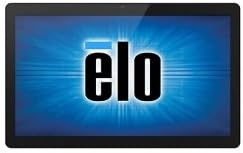
ภาพ: ด้านหน้า view of the Elo 10-inch I-Series for Android touchscreen display, showing the Elo logo on the screen.
This unit is designed to support various peripherals and offers robust performance for demanding applications requiring continuous operation.
3. อะไรอยู่ในกล่อง
เมื่อแกะกล่องโปรดตรวจสอบว่ามีส่วนประกอบทั้งหมดดังต่อไปนี้:
- Elo 10-inch I-Series for Android Device (Model E461790)
- อะแดปเตอร์แปลงไฟ
- Quick Start Guide (if included, not specified in input)
- Safety and Regulatory Information (if included, not specified in input)
If any items are missing or damaged, please contact Elo customer support immediately.
4. การตั้งค่า
- การแกะกล่อง: Carefully remove the device and all accessories from the packaging. Retain the packaging for future transport or storage.
- การจัดวาง: Place the device on a stable, flat surface. Ensure adequate ventilation around the unit to prevent overheating. Avoid placing it near heat sources or in direct sunlight.
- การเชื่อมต่อพลังงาน:
- Connect the power adapter cable to the power input port on the back of the device.
- เสียบอะแดปเตอร์จ่ายไฟเข้ากับเต้ารับไฟฟ้าที่เหมาะสม
- เปิดเครื่องครั้งแรก: Press the power button, usually located on the side or back of the unit. The device will boot up and display the Elo logo, followed by the Android operating system interface.
- การเชื่อมต่อเครือข่าย:
- For Wi-Fi: Navigate to Android Settings > Network & Internet > Wi-Fi. Select your network and enter the password.
- For Wired Ethernet: Connect an Ethernet cable from your network router/switch to the Ethernet port on the device (if available on your specific model).
- Google Play Services Setup: Follow the on-screen prompts to set up your Google account and access Google Play Services, if required for your application.
5. คู่มือการใช้งาน
5.1 การใช้งานหน้าจอสัมผัส
The device features a multi-touch display. Use standard touch gestures such as tap, double-tap, pinch-to-zoom, and swipe to navigate the Android interface and interact with applications.
5.2 Android Interface Navigation
- หน้าจอหลัก: หน้าจอหลักที่แสดงไอคอนแอปและวิดเจ็ต
- ลิ้นชักแอป: เข้าถึงแอปพลิเคชั่นที่ติดตั้งทั้งหมด
- แผงการแจ้งเตือน: ปัดลงจากด้านบนของหน้าจอไปที่ view การแจ้งเตือนและการตั้งค่าด่วน
- การตั้งค่า: Access system settings to configure Wi-Fi, display, sound, and other device options.
5.3 การติดตั้งแอพพลิเคชั่น
Applications can be installed via the Google Play Store (requires a Google account) or by sideloading APK files, depending on your deployment strategy and security policies.
5.4 การจัดการพลังงาน
- โหมดสลีป: Briefly press the power button to put the device into sleep mode. Press again to wake it up.
- Restart/Power Off: Press and hold the power button until a menu appears, then select "Restart" or "Power Off".
6. การบำรุงรักษา
6.1 การทำความสะอาดจอแสดงผล
To clean the touchscreen, power off the device and gently wipe the screen with a soft, lint-free cloth. For stubborn marks, slightly dampชุบผ้าด้วยน้ำหรือน้ำยาทำความสะอาดกระจกที่ไม่กัดกร่อนและปราศจากแอมโมเนีย ห้ามฉีดน้ำยาทำความสะอาดลงบนหน้าจอโดยตรง
6.2 การดูแลทั่วไป
- หลีกเลี่ยงการให้อุปกรณ์สัมผัสกับอุณหภูมิ ความชื้น หรือแสงแดดโดยตรง
- อย่าปิดกั้นช่องระบายอากาศ
- Do not attempt to disassemble the device. Refer all servicing to qualified personnel.
7 การแก้ไขปัญหา
| ปัญหา | สาเหตุที่เป็นไปได้ | สารละลาย |
|---|---|---|
| อุปกรณ์ไม่เปิดเครื่อง | ไม่มีไฟ อะแดปเตอร์ไฟชำรุด | Ensure power adapter is securely connected to device and outlet. Try a different outlet. |
| หน้าจอสัมผัสไม่ตอบสนอง | ซอฟต์แวร์มีปัญหา เกิดความเสียหายทางกายภาพ | Restart the device. Ensure screen is clean and free of obstructions. If problem persists, contact support. |
| ไม่มีการเชื่อมต่อ Wi-Fi | รหัสผ่านไม่ถูกต้อง, อยู่นอกช่วงที่กำหนด, ปัญหาจากเราเตอร์ | Verify Wi-Fi password. Move closer to the router. Restart router and device. |
| แอปพลิเคชันหยุดทำงานโดยไม่คาดคิด | App incompatibility, low memory. | Clear app cache/data. Update the app. Ensure sufficient storage space. |
For issues not listed here, or if solutions do not resolve the problem, please contact Elo customer support.
8. ข้อมูลจำเพาะ
| คุณสมบัติ | รายละเอียด |
|---|---|
| ชื่อรุ่น | E461790 |
| ขนาดหน้าจอ | 10 นิ้ว |
| ความละเอียดการแสดงผล | 1280 x 800 พิกเซล |
| โปรเซสเซอร์ | 2 GHz (Cortex A53) |
| โคโปรเซสเซอร์กราฟิก | ARM Mali T604 |
| ระบบปฏิบัติการ | แอนดรอยด์ |
| แรม | 3 GB (DDR3 SDRAM) |
| ความจุในการเก็บข้อมูล | หน่วยความจำแฟลช 32 GB |
| ประเภทไร้สาย | 802.11n |
| น้ำหนักสินค้า | 1.94 ปอนด์ |
| ขนาดสินค้า (กxยxส) | 9.45 x 13.39 x 5.91 นิ้ว |
| หลัง Webความละเอียดของกล้อง | 5 MP |
หมายเหตุ: ข้อมูลจำเพาะอาจเปลี่ยนแปลงได้โดยไม่ต้องแจ้งให้ทราบล่วงหน้า
9. การรับประกันและการสนับสนุน
Elo products are designed for reliability and come with a standard manufacturer's warranty. For specific warranty terms and conditions applicable to your region and purchase, please refer to the warranty card included with your product or visit the official Elo webเว็บไซต์.
For technical support, service, or to inquire about replacement parts, please contact Elo customer support. You can find contact information and additional resources on the official Elo webเว็บไซต์:
(This link directs to the Elo brand store on Amazon, which may contain links to official support resources.)


