1. บทนำ
This manual provides instructions for the Apple Smart Battery Case with Qi Wireless Charging, designed specifically for the iPhone 11 Pro. This accessory extends your iPhone's battery life and offers protection, while supporting Qi-compatible wireless charging.
2. สินค้าหมดview
The Smart Battery Case integrates an additional battery into a protective silicone shell. It features a soft microfiber lining to protect your iPhone and a flexible elastomer hinge for easy installation and removal.
คุณสมบัติหลัก:
- อายุการใช้งานแบตเตอรี่ที่ยาวนานขึ้น: Provides additional power for longer iPhone usage.
- Qi การชาร์จแบบไร้สาย: Supports wireless charging for both the case and the iPhone simultaneously.
- การออกแบบเชิงป้องกัน: Durable silicone exterior and soft microfiber interior safeguard the iPhone from daily wear.
- Integrated Battery Status: Battery status is displayed on the iPhone Lock screen and in Notification Center.
- ปุ่มกล้อง: A dedicated camera button on the case allows for quick camera launch and photo/video capture.

ภาพที่ 1: ด้านหลัง view of the Apple Smart Battery Case for iPhone 11 Pro. This image shows the smooth white silicone exterior with the Apple logo centered on the back, and the camera cutout at the top left.
3. การตั้งค่าและการติดตั้ง
Follow these steps to properly install your iPhone 11 Pro into the Smart Battery Case:
- เตรียมไอโฟนของคุณ: Ensure your iPhone 11 Pro is clean and free of debris.
- Flex the case: Gently bend the top edge of the Smart Battery Case backward at the elastomer hinge.
- Insert iPhone: Slide your iPhone 11 Pro into the case, ensuring the Lightning connector on the case aligns and connects with the iPhone's Lightning port.
- Secure the iPhone: Push the iPhone fully into the case until it is seated securely. The flexible hinge will return to its original position, holding the iPhone firmly.

ภาพที่ 2: ด้านหลัง view of an iPhone 11 Pro securely installed within the Smart Battery Case. The image highlights how the case fits around the phone, with the camera module visible through the case's cutout.
To remove the iPhone, gently flex the top edge of the case again and slide the iPhone out.
4. การดำเนินการ
การจัดการพลังงานอัตโนมัติ:
Once your iPhone is installed, the Smart Battery Case automatically begins charging your iPhone when its battery level is low. The case prioritizes charging the iPhone first, then itself.
การตรวจสอบสถานะแบตเตอรี่:
The battery status of both your iPhone and the Smart Battery Case can be viewed in two locations:
- ล็อกหน้าจอ: When you connect the case or wake your iPhone, the battery status will briefly appear on the Lock screen.
- ศูนย์แจ้งเตือน: Swipe down from the top-left corner of your iPhone screen to access the Notification Center. The battery widget will display the charge levels for both your iPhone and the Smart Battery Case.
Using the Camera Button:
The Smart Battery Case features a dedicated camera button on the right side. This button functions as follows:
- Quick Launch: Press the button once to quickly open the Camera app, even if your iPhone is locked.
- จับภาพ: Press the button once while in the Camera app to take a photo.
- การบันทึกวิดีโอ: Press and hold the button to record a QuickTake video. Release to stop recording.

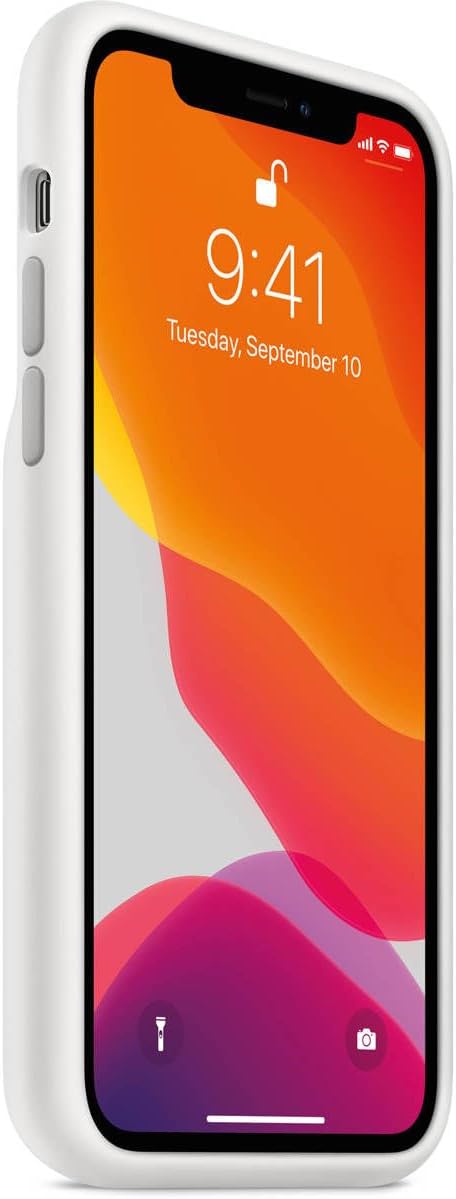
ภาพที่ 3: ด้านข้าง view of an iPhone 11 Pro within the Smart Battery Case, highlighting the volume buttons and the dedicated camera button on the right side of the case.
5. Charging the Smart Battery Case and iPhone
The Smart Battery Case and your iPhone can be charged simultaneously using either a Lightning cable or a Qi-compatible wireless charger.
การชาร์จแบบมีสาย:
- Connect a Lightning to USB cable (not included) to the Lightning port at the bottom of the Smart Battery Case.
- เชื่อมต่อปลายสายอีกด้านหนึ่งเข้ากับอะแดปเตอร์ไฟ USB (ไม่รวมอยู่ด้วย) หรือพอร์ต USB ของคอมพิวเตอร์
- Both the iPhone and the Smart Battery Case will begin charging. For faster charging, use an 18W or higher USB-PD compatible power adapter.
Wireless Charging (Qi-compatible):
- Place the Smart Battery Case with your iPhone installed onto a Qi-certified wireless charging mat or stand.
- Ensure the case is properly aligned with the charging mat's charging coil.
- Both the iPhone and the Smart Battery Case will begin charging wirelessly.
ภาพที่ 4: ด้านล่าง view of an iPhone 11 Pro within the Smart Battery Case, illustrating the Lightning port for wired charging and speaker/microphone cutouts.
6. การบำรุงรักษาและการดูแล
Proper care ensures the longevity and performance of your Smart Battery Case.
- การทำความสะอาดภายนอก: ใช้ผ้านุ่มไม่เป็นขุยเช็ดเบาๆampened with water, to wipe the silicone exterior. Avoid harsh chemicals or abrasive materials.
- ทำความสะอาดภายใน: Periodically remove your iPhone and gently wipe the microfiber lining with a dry, soft cloth to remove any dust or debris.
- หลีกเลี่ยงอุณหภูมิที่สูงหรือต่ำเกินไป: Do not expose the case to extreme heat or cold, as this can affect battery performance and case integrity.
- ป้องกันจากของเหลว: The case is not waterproof. Avoid contact with liquids.
7 การแก้ไขปัญหา
If you encounter issues with your Smart Battery Case, consider the following common solutions:
- Case Not Charging iPhone:
- Ensure the iPhone is properly seated in the case and the Lightning connector is fully engaged.
- Check the iPhone's battery widget to confirm the case's charge level.
- Remove and re-insert the iPhone into the case.
- Case Not Charging Itself:
- For wired charging, ensure the Lightning cable and power adapter are functioning correctly and securely connected. Try a different cable or adapter.
- For wireless charging, ensure the case is correctly positioned on a Qi-compatible charging mat. Try repositioning or using a different charging mat.
- Ensure the charging port on the case is free of debris.
- iPhone Not Recognizing Case:
- รีสตาร์ท iPhone ของคุณ
- Ensure your iPhone's software is up to date.
- Remove the iPhone from the case, clean the Lightning connector on both the iPhone and the case, then re-install.
หากปัญหายังคงอยู่ โปรดติดต่อฝ่ายสนับสนุนของ Apple เพื่อขอความช่วยเหลือเพิ่มเติม
8. ข้อมูลจำเพาะ
| ยี่ห้อ | แอปเปิล |
| หมายเลขรุ่น | MWVM2LL/A |
| รุ่นโทรศัพท์ที่รองรับ | ไอโฟน 11 โปร |
| วัสดุ | Silicone (exterior), Microfiber (interior) |
| สี | สีขาว |
| ขนาด (กว้าง x ยาว x สูง) | 6.97 x 3.7 x 0.91 นิ้ว |
| น้ำหนักสินค้า | 7.2 ออนซ์ |
| ประเภทแบตเตอรี่ | ลิเธียมไอออน (รวมอยู่ด้วย) |
| การชาร์จไฟ | Qi Wireless Charging, Lightning Port |
| คุณสมบัติพิเศษ | Slim Fit, Dedicated Camera Button |
9. การรับประกันและการสนับสนุน
Apple products are covered by a limited warranty. For detailed warranty information, please refer to the warranty documentation included with your product or visit the official Apple webเว็บไซต์.
การสนับสนุนลูกค้า:
For technical assistance, service, or additional information, please contact Apple Support:
- การสนับสนุนทางออนไลน์: เยี่ยม support.apple.com
- การสนับสนุนทางโทรศัพท์: Refer to the Apple Support webเว็บไซต์สำหรับเบอร์ติดต่อในพื้นที่
Please have your product's serial number (if applicable) and proof of purchase ready when contacting support.


