1. บทนำ
The HUAWEI B311-221 4G LTE WiFi Router is designed to provide high-speed internet access. It supports 4G LTE CAT4 with download speeds up to 150Mbps and Wi-Fi speeds up to 300Mbps (802.11n). This router allows you to share a 3G/4G network connection with up to 32 Wi-Fi enabled devices, including tablets, mobile phones, and laptops. Its plug-and-play functionality makes it suitable for various environments where traditional broadband internet may not be available. The HUAWEI HiLink app offers convenient management of your network and connected devices.
2. เนื้อหาบรรจุภัณฑ์
โปรดตรวจสอบสิ่งของภายในบรรจุภัณฑ์อย่างละเอียด หากสินค้าใดสูญหายหรือเสียหาย โปรดติดต่อผู้ค้าปลีกของคุณ
- 1 x HUAWEI B311-221 4G LTE WiFi Router
- 1 x Ethernet Cable
- อะแดปเตอร์ไฟฟ้า 1 ตัว
- คู่มือเริ่มต้นอย่างรวดเร็ว 1 ชุด
3. สินค้าหมดview
3.1 ด้านหน้า View

This image shows the front of the HUAWEI B311-221 router, featuring a clean white design with indicator lights for power, network status, Wi-Fi, and signal strength. The HUAWEI logo is visible at the bottom center.
3.2 ด้านหลัง View และท่าเรือ
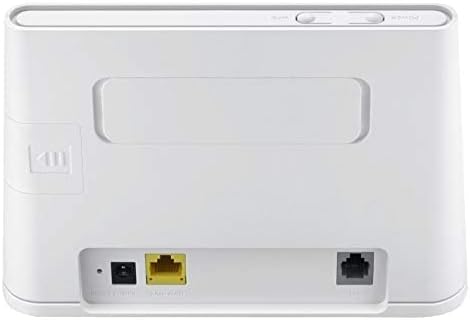
ด้านหลัง view of the router displays the various ports for connectivity. These include the power input, a Gigabit Ethernet LAN/WAN port (yellow), and an RJ11 port for voice services.
ช่องใส่ซิมการ์ด 3.3 ช่อง

This image highlights the integrated SIM card slot located on the side of the router, which is essential for 4G LTE connectivity. The slot is shown open, indicating where the SIM card should be inserted.
ไฟแสดงสถานะ 3.4 ดวง

A close-up of the router's top panel, showing the indicator lights for Power, Wi-Fi, Network Mode, and Signal Strength. These lights provide visual feedback on the router's operational status.
4. คำแนะนำในการตั้งค่า
ทำตามขั้นตอนต่อไปนี้เพื่อตั้งค่าเราเตอร์ HUAWEI B311-221 ของคุณ:
- ใส่ซิมการ์ด: Locate the SIM card slot on the side of the router. Carefully insert your standard-sized 3G/4G SIM card into the slot until it clicks into place. Ensure the SIM card is activated by your service provider.
- เชื่อมต่อพลังงาน: Connect the power adapter to the router's power input port and then plug it into a power outlet. The router will automatically power on.
- เปิดเครื่อง: Press the Power button on the router. The Power indicator light should turn on.
- การเชื่อมต่อเครือข่าย: Wait for the Network Mode and Signal Strength indicator lights to stabilize. A solid blue or green light typically indicates a successful 4G LTE connection.
- เชื่อมต่ออุปกรณ์:
- ไวไฟ : On your device (laptop, phone, tablet), search for available Wi-Fi networks. Select the network name (SSID) printed on the label at the bottom of your router. Enter the Wi-Fi password (Key) also found on the label.
- อีเธอร์เน็ต: For wired connections, connect an Ethernet cable from the router's LAN/WAN port to your computer or other network device.
- อินเทอร์เฟซการจัดการการเข้าถึง: เปิด web browser on a connected device and enter the default IP address (usually 192.168.8.1) to access the router's web management page. Log in using the default username and password (found on the router label or in the Quick Start Guide).
- HUAWEI HiLink App: For easier management, download the HUAWEI HiLink app from your device's app store. Connect your phone to the router's Wi-Fi and use the app to monitor network status, manage connected devices, and configure settings.
5. คู่มือการใช้งาน
5.1 การเชื่อมต่ออุปกรณ์
The router supports up to 32 Wi-Fi devices simultaneously. Ensure your devices are within the Wi-Fi coverage area for optimal performance.

This diagram illustrates the Wi-Fi coverage provided by the HUAWEI B311-221 router within a typical home environment, showing multiple devices connected wirelessly.
5.2 การเข้าถึงอินเทอร์เน็ต
Once connected, devices can access the internet via the 4G LTE network. The router provides high-speed data for streaming, browsing, and online activities.

This image demonstrates the router's capability to deliver 4G internet at speeds up to 150Mbps to a connected laptop, facilitating fast downloads and online activities.
5.3 Using the HUAWEI HiLink App
The HUAWEI HiLink app allows you to:
- Check network strength and status.
- Read SMS messages received on the router's SIM card.
- Set data usage limits.
- View และจัดการอุปกรณ์ที่เชื่อมต่อทั้งหมด
- Modify Wi-Fi settings (SSID, password).
Ensure your smartphone is connected to the router's Wi-Fi network to use the app.
6. การบำรุงรักษา
เพื่อให้แน่ใจว่าเราเตอร์ HUAWEI B311-221 ของคุณมีประสิทธิภาพสูงสุดและมีอายุการใช้งานยาวนาน โปรดปฏิบัติตามคำแนะนำการบำรุงรักษาดังต่อไปนี้:
- การจัดวาง: วางเราเตอร์ในที่โล่ง ห่างจากสิ่งกีดขวาง วัตถุโลหะขนาดใหญ่ และอุปกรณ์อิเล็กทรอนิกส์อื่นๆ ที่อาจก่อให้เกิดการรบกวน
- การทำความสะอาด: ใช้ผ้าแห้งนุ่มๆ เช็ดทำความสะอาดเราเตอร์ ห้ามใช้น้ำยาทำความสะอาดหรือสเปรย์กระป๋อง
- การระบายอากาศ : Ensure the router's ventilation openings are not blocked to prevent overheating.
- อัพเดตเฟิร์มแวร์: ตรวจสอบการอัปเดตเฟิร์มแวร์เป็นระยะผ่านเราเตอร์ web management interface or the HUAWEI HiLink app. Keeping the firmware updated ensures the best performance and security.
- วงจรไฟฟ้า: หากคุณพบปัญหาเล็กน้อย ให้ลองปิดและเปิดเราเตอร์ใหม่โดยถอดปลั๊กออกจากเต้าเสียบไฟเป็นเวลา 10 วินาที จากนั้นเสียบปลั๊กกลับเข้าไปอีกครั้ง
7 การแก้ไขปัญหา
หากคุณพบปัญหาเกี่ยวกับเราเตอร์ โปรดดูปัญหาทั่วไปและวิธีแก้ไขต่อไปนี้:
| ปัญหา | วิธีแก้ปัญหาที่เป็นไปได้ |
|---|---|
| ไม่มีการเชื่อมต่ออินเตอร์เน็ต |
|
| ความเร็ว Wi-Fi ช้า |
|
| ไม่สามารถเข้าถึงหน้าการจัดการเราเตอร์ได้ |
|
| สัญญาณ Wi-Fi หลุดบ่อย |
|
8. ข้อมูลจำเพาะ
| คุณสมบัติ | รายละเอียด |
|---|---|
| ยี่ห้อ | หัวเว่ย |
| ชื่อรุ่น | บี311-221 |
| หมายเลขรุ่นสินค้า | บี311-221 |
| ขนาดสินค้า | 18.1 x 12.6 x 3.6 ซม. |
| น้ำหนักสินค้า | 218 กรัม |
| สี | สีขาว |
| เทคโนโลยีการเชื่อมต่อ | ไวไฟ, 4G LTE |
| มาตรฐานการสื่อสารไร้สาย | 802.11n |
| ระดับย่านความถี่ | แบนด์เดี่ยว (2.4GHz) |
| ความเร็ว Wi-Fi สูงสุด | สูงสุดถึง 300 Mbps |
| ความเร็วสูงสุดของ 4G LTE | สูงสุดถึง 150 Mbps |
| พอร์ตอีเทอร์เน็ต | 1 x Gigabit Ethernet LAN/WAN port |
| Voice Port | พอร์ต RJ1 11 พอร์ต |
| ช่องใส่ซิมการ์ด | Integrated (Standard SIM) |
| คุณสมบัติพิเศษ | WPS, HUAWEI HiLink App Management |
| อุปกรณ์ที่รองรับ | Smart TV, Tablet, Personal Computer, Laptops, Phones, Gaming Devices |
| รวมแบตเตอรี่ | เลขที่ |
| Operating System (Compatibility) | Windows (and other OS via Wi-Fi/Ethernet) |
9. ข้อมูลการรับประกัน
This HUAWEI product is covered by a limited warranty. The specific terms and duration of the warranty may vary depending on your region and local regulations. Please refer to the warranty card included in your product package or visit the official HUAWEI webเพื่อดูข้อมูลการรับประกันโดยละเอียด โปรดเก็บหลักฐานการซื้อไว้เพื่อใช้ในการเรียกร้องการรับประกัน
10. การสนับสนุน
For technical support, product inquiries, or service requests, please contact HUAWEI customer support through one of the following methods:
- การสนับสนุนทางออนไลน์: เยี่ยมชมฝ่ายสนับสนุนอย่างเป็นทางการของ HUAWEI webไซต์สำหรับคำถามที่พบบ่อย คำแนะนำในการแก้ไขปัญหา และตัวเลือกการติดต่อ
- HUAWEI HiLink App: Use the support features available within the HiLink application.
- สายด่วนบริการ: Refer to your Quick Start Guide or HUAWEI's official website for regional service hotline numbers.
When contacting support, please have your product model (B311-221) and serial number ready.