1. บทนำ
This manual provides comprehensive instructions for the setup, operation, and maintenance of your CHESONA Wireless Keyboard Case. Designed to enhance your tablet experience, this case offers protection, versatile viewing angles, and a detachable Bluetooth keyboard for increased productivity.
2. ความเข้ากันได้
The CHESONA Wireless Keyboard Case is compatible with the following iPad models:
- iPad Pro 11-inch (4th Gen): A2759, A2759, A2761, A2762
- iPad Pro 11-inch (3rd Gen): A2377, A2301, A2459, A2460
- iPad Pro 11-inch (2nd Gen): A2228, A2068, A2230, A2231
- iPad Pro 11-inch (1st Gen): A1980, A2013, A1934
- iPad Air 10.9-inch (5th Gen 2022): A2588, A2589, A2591
- iPad Air 10.9-inch (4th Gen 2020): A2072, A2316, A2324, A2325
- iPad Air 11-inch (M3 2025): A3266, A3267, A3270
- iPad Air 11-inch (M2 2024): A2902, A2903, A2904

Image: Compatibility chart for CHESONA keyboard case.
To ensure proper fit, verify your iPad's model number by navigating to Settings > General > About > Model Number.
Video: Guide on how to identify your iPad Pro 11 or iPad Air 10.9/11 model.
3. เนื้อหาบรรจุภัณฑ์
ในแพ็คเกจประกอบด้วย:
- CHESONA Wireless Keyboard Case
- สาย USB
4. คุณสมบัติของผลิตภัณฑ์
- Magnetically Removable Keyboard: The wireless Bluetooth keyboard can be easily detached from the case, offering flexibility for various uses.
- Multiple Stand Angles: The case features built-in grooves to support your iPad at three different viewing angles, suitable for typing, reading, or gaming.
- การคุ้มครองพรีเมี่ยม: An anti-slide design and durable twill material provide 360° protection against scratches, bumps, and drops. Precise cutouts ensure full access to all ports, sensors, speakers, microphone, and cameras.
- Integrated Pencil Holder: A dedicated slot is included for storing and charging your Apple Pencil.
- แบตเตอรี่อายุการใช้งานยาวนาน: The built-in rechargeable battery provides over 80 hours of working time and 120 days of standby time on a 2-3 hour charge.

Image: CHESONA Wireless Keyboard Case with iPad and Apple Pencil.
วิดีโอ: จบแล้วview of the CHESONA Keyboard Case features, including detachable keyboard, multiple viewing angles, and pencil holder.
5. คำแนะนำในการตั้งค่า
5.1 Inserting Your iPad into the Case
- Align your iPad with the protective shell of the case.
- Gently press the iPad into the case, ensuring all corners and edges are securely fitted.
5.2 Connecting the Bluetooth Keyboard
- ตรวจสอบให้แน่ใจว่าแป้นพิมพ์มีประจุไฟแล้ว
- Turn on the keyboard using the power switch located on the top right. The Bluetooth indicator light will flash.
- บน iPad ของคุณไปที่ การตั้งค่า > บลูทูธ.
- เปิดบลูทูธ iPad ของคุณจะค้นหาอุปกรณ์ใกล้เคียง
- Select 'Bluetooth Keyboard' (or similar name) from the list of available devices.
- ทำตามคำแนะนำบนหน้าจอเพื่อทำการจับคู่ให้เสร็จสมบูรณ์ ไฟแสดงสถานะบนแป้นพิมพ์จะหยุดกะพริบเมื่อเชื่อมต่อแล้ว
6. คู่มือการใช้งาน
6.1 การใช้คีย์บอร์ด
The keyboard features a standard QWERTY layout with additional hotkeys customized for iPads, including volume control, music control, and brightness adjustment. These function keys are typically accessed by pressing the 'Fn' key in combination with the desired function key.

Image: Detachable wireless Bluetooth keyboard.
6.2 การปรับแต่ง Viewอิงแองเกิลส์
The case allows for multiple viewing angles. Position your iPad in one of the three built-in grooves on the case cover to achieve your preferred angle for typing, watching videos, or browsing.

Image: iPad case demonstrating adjustable viewมุมการเอียง
6.3 Using the Apple Pencil Holder
The case includes a specific slot designed to hold your Apple Pencil. This holder allows for convenient storage and supports wireless charging of the Apple Pencil when placed correctly.

Image: iPad case with Apple Pencil charging in the integrated holder.
7. การชาร์จไฟ
The keyboard features a built-in rechargeable battery. A full charge takes approximately 2-3 hours and provides over 80 hours of continuous use or 120 days of standby time. Use the provided USB cable to charge the keyboard.

Image: USB-C charging port on the wireless keyboard.
8. การบำรุงรักษา
ในการทำความสะอาดเคส ให้เช็ดเบาๆ ด้วยผ้าเนื้อนุ่มและแห้งamp cloth. Avoid using harsh chemicals or abrasive materials that could damage the surface. Ensure the keyboard is turned off and disconnected from your iPad before cleaning.
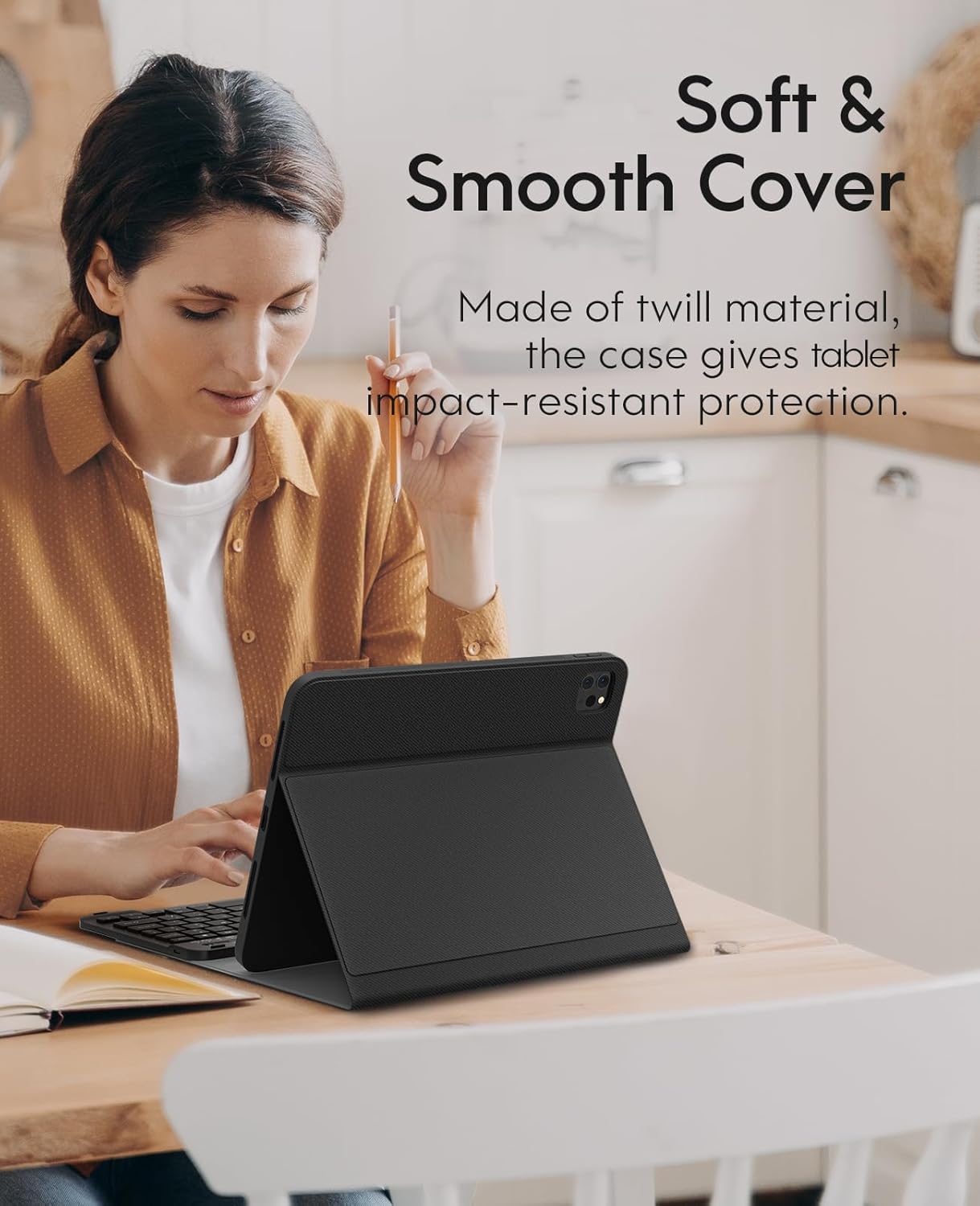
Image: Close-up of the soft and smooth cover material.
9 การแก้ไขปัญหา
9.1 คีย์บอร์ดไม่เชื่อมต่อ
- ตรวจสอบให้แน่ใจว่าคีย์บอร์ดเปิดใช้งานอยู่และชาร์จแบตเตอรี่เต็มแล้ว
- ตรวจสอบให้แน่ใจว่าได้เปิดใช้งานบลูทูธบน iPad ของคุณแล้ว
- If the keyboard was previously paired, try 'forgetting' the device in your iPad's Bluetooth settings and re-pairing it.
- Press the 'Connect' button on the keyboard to initiate pairing mode.
9.2 Keyboard Entering Sleep Mode
The keyboard is designed to enter sleep mode after 10 minutes of inactivity to conserve battery. To wake it up and reconnect to your iPad, simply press any key on the keyboard.
10. ข้อมูลจำเพาะ
| คุณสมบัติ | รายละเอียด |
|---|---|
| ขนาดสินค้า | 9.84 x 8.27 x 0.98 นิ้ว |
| น้ำหนักสินค้า | 1.49 ปอนด์ |
| หมายเลขรุ่นสินค้า | เอ2301, เอ2459, เอ2460 |
| แบตเตอรี่ | ต้องใช้แบตเตอรี่ลิเธียมโพลิเมอร์ 1 ก้อน (รวมอยู่ด้วย) |
| เทคโนโลยีการเชื่อมต่อ | บลูทูธ |
| คำอธิบายแป้นพิมพ์ | การยศาสตร์ |
| คุณสมบัติพิเศษ | การยศาสตร์ |
| สี | สีดำ |
| รองรับสีแบ็คไลท์ของคีย์บอร์ด | สีเดียว |
11. การรับประกันและการสนับสนุน
For warranty information or technical support, please refer to the contact details provided with your product packaging or visit the official CHESONA webไซต์นี้ โปรดเก็บใบเสร็จรับเงินที่ซื้อไว้เพื่อใช้เรียกร้องการรับประกัน


