การแนะนำ
Welcome to your new TERIOS Mobile Game Controller. This manual provides detailed instructions for setup, operation, and maintenance to ensure optimal performance and an enhanced gaming experience across various platforms including Android smartphones, Windows PCs, and PlayStation 3 consoles. Please read this manual thoroughly before using the device.
คุณสมบัติหลัก
- Innovative Gaming: Designed to enrich your mobile gaming experience with precision and responsiveness.
- ความเข้ากันได้กว้าง: Connects via Bluetooth 4.0 to Android smartphones, and is compatible with Windows PC and PlayStation 3. Supports popular games like PUBG, Call of Duty, and Mobile Legends.
- Gaming Joysticks: Features dual analog sticks for comprehensive and precise control.
- การออกแบบตามหลักสรีรศาสตร์: Comfortable grip with an integrated smartphone holder for extended gaming sessions.
- ฟังก์ชั่นเทอร์โบ: Allows for rapid, continuous input with a single button press.
- Responsive Active Buttons: Includes 2 quick access buttons on the back and numerous action buttons for enhanced accuracy.
- อายุการใช้งานแบตเตอรี่ยาวนาน: Up to 12 hours of continuous play on a single charge.
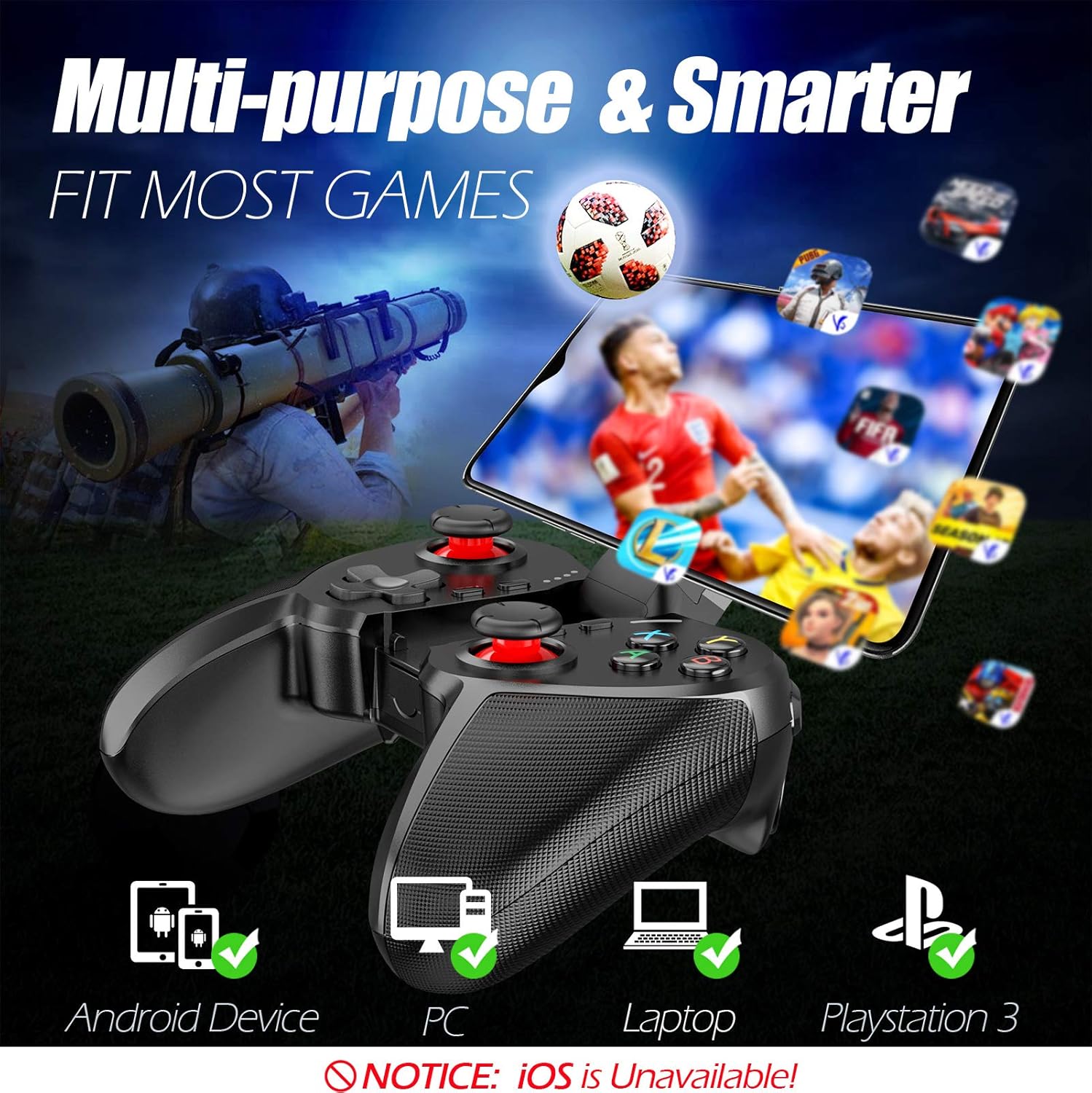
Figure 1: The TERIOS controller is compatible with Android devices, PCs, Laptops, and PlayStation 3.

Figure 2: Detail of the controller's built-in smartphone bracket, accurate buttons, and comfortable soft rubber grips.
การตั้งค่าและการเชื่อมต่อ
1. การชาร์จคอนโทรลเลอร์
Before first use, fully charge the controller. Connect the provided Micro USB cable to the controller's charging port and the other end to a USB power source (e.g., computer USB port, USB wall adapter). The indicator lights will show charging status and turn off when fully charged.

Figure 3: The controller features a 400mAh battery, providing 12-14 hours of playtime with a 2-3 hour charging time.
2. การเปิด/ปิดเครื่อง
- การเปิดเครื่อง: กดปุ่มค้างไว้ บ้าน button for 2 seconds. The indicator lights will flash.
- วิธีปิดเครื่อง: กดปุ่มค้างไว้ บ้าน button for 5 seconds until the indicator lights turn off. The controller will automatically power off after 5 minutes of inactivity.
3. Bluetooth Pairing (Android Smartphones / PS3)
- ตรวจสอบให้แน่ใจว่าตัวควบคุมปิดอยู่
- On your Android smartphone or PS3, enable Bluetooth.
- กดปุ่มค้างไว้ บ้าน button on the controller until the indicator lights flash rapidly, indicating pairing mode.
- On your device, search for new Bluetooth devices. Select "TERIOS Gamepad" or similar from the list.
- เมื่อเชื่อมต่อเสร็จแล้ว ไฟแสดงสถานะจะติดสว่างค้าง
4. การเชื่อมต่อพีซี
For PC connection, the controller typically uses a USB dongle (often included). Insert the USB dongle into an available USB port on your PC. The controller should automatically connect. If not, press the บ้าน button to initiate connection.
5. Initial Setup and App (V3 App)
For optimal customization and compatibility with certain mobile games, it is recommended to download the V3 app from the Google Play Store. This app allows you to map virtual keys on your screen to the physical buttons of the controller.
- Download the "V3" app from the Google Play Store.
- Connect the TERIOS gamepad to your smartphone via Bluetooth.
- Open the V3 app and follow the on-screen instructions to customize key mappings for your desired games.

Figure 4: The V3 app allows for easy customization of virtual keys to match controller buttons, creating more combinations.
คำแนะนำการใช้งาน
1. เค้าโครงปุ่มและฟังก์ชั่น

Figure 5: The TERIOS Mobile Game Controller with a smartphone securely mounted in its integrated holder.
- แท่งอนาล็อกซ้าย: การควบคุมการเคลื่อนไหวเบื้องต้น
- อนาล็อกสติ๊กขวา: การควบคุมกล้องหรือการเคลื่อนไหวรอง
- ปุ่มควบคุมทิศทาง (D-Pad): Precise directional input.
- ปุ่ม ABXY: Standard action buttons (A, B, X, Y).
- L1/L2, R1/R2 Buttons: Shoulder and trigger buttons for various in-game actions.
- ปุ่มเลือก: โดยทั่วไปใช้สำหรับการนำทางเมนูหรือฟังก์ชันเฉพาะของเกม
- ปุ่มเริ่มต้น: โดยทั่วไปใช้สำหรับหยุดเกมชั่วคราวหรือเข้าถึงเมนูต่างๆ
- ปุ่มหน้าแรก: Powers on/off, enters pairing mode, and returns to home screen on some devices.
- ปุ่มเทอร์โบ: Activates the turbo function for other buttons.
- ปุ่ม CLEAR: ปิดใช้งานฟังก์ชันเทอร์โบ

Figure 6: The dual analog sticks are designed for precise control and execution in games.
2. ฟังก์ชั่นเทอร์โบ
The Turbo function allows a button to be pressed repeatedly as long as you hold it down, which is useful for rapid-fire actions in games.
- ในการเปิดใช้งาน: กดปุ่มค้างไว้ เทอร์โบ button, then press the desired action button (e.g., A, B, X, Y, L1, R1). Release both buttons. Now, holding down the action button will activate turbo fire.
- วิธีปิดใช้งาน: กดปุ่มค้างไว้ ชัดเจน button, then press the action button for which turbo was activated. Release both buttons.

Figure 7: The dedicated Turbo button enables rapid-fire functionality with one click.
3. Smartphone Holder Usage
The integrated smartphone holder can accommodate most smartphone sizes. Gently extend the holder and place your smartphone securely within the clamps. Ensure the phone is centered for balance.
การซ่อมบำรุง
- การทำความสะอาด: ใช้ผ้านุ่มและแห้งทำความสะอาดคอนโทรลเลอร์ ห้ามใช้น้ำยาทำความสะอาดหรือตัวทำละลายที่มีฤทธิ์กัดกร่อน
- พื้นที่จัดเก็บ: เก็บตัวควบคุมไว้ในที่แห้งและเย็น ห่างจากแสงแดดโดยตรงและอุณหภูมิที่สูงหรือต่ำมาก
- การดูแลแบตเตอรี่ เพื่อยืดอายุการใช้งานแบตเตอรี่ ควรหลีกเลี่ยงการปล่อยประจุแบตเตอรี่จนหมดบ่อยๆ ควรชาร์จเป็นประจำ แม้จะไม่ได้ใช้งานเป็นเวลานานก็ตาม
การแก้ไขปัญหา
| ปัญหา | สาเหตุที่เป็นไปได้ | สารละลาย |
|---|---|---|
| ตัวควบคุมไม่สามารถเชื่อมต่อผ่านบลูทูธได้ | ตัวควบคุมไม่อยู่ในโหมดจับคู่; บลูทูธของอุปกรณ์ปิดอยู่; มีสัญญาณรบกวน | Ensure controller is in pairing mode (rapid flashing lights). Check device Bluetooth settings. Move closer to the device. Try restarting both controller and device. |
| ปุ่มไม่ตอบสนองหรือตอบสนองช้า | Low battery; software glitch; interference. | Charge the controller fully. Restart the controller. Ensure no other strong wireless signals are nearby. For mobile games, check V3 app settings. |
| ตัวควบคุมตัดการเชื่อมต่อบ่อยครั้ง | แบตเตอรี่อ่อน, อยู่ไกลจากอุปกรณ์มากเกินไป, มีสัญญาณรบกวน | Charge the controller. Stay within the recommended Bluetooth range. Minimize wireless interference. |
| ฟังก์ชันเทอร์โบใช้งานไม่ได้ | Incorrect activation sequence; button not supported. | Ensure you press and hold TURBO, then press the desired action button, then release both. Some games or buttons may not fully support turbo. |
ข้อมูลจำเพาะผลิตภัณฑ์
| คุณสมบัติ | รายละเอียด |
|---|---|
| ยี่ห้อ | เทริโอส |
| แบบอย่าง | ที-12 |
| เทคโนโลยีการเชื่อมต่อ | บลูทูธ 4.0 |
| อุปกรณ์ที่รองรับ | Android Smartphones, Windows PC, PlayStation 3 |
| แหล่งพลังงาน | ใช้พลังงานจากแบตเตอรี่ (ลิเธียมโพลิเมอร์) |
| ความจุของแบตเตอรี่ | 400mAh (approx. 1.48 Watt Hours) |
| เวลาเล่น | นานถึง 12-14 ชั่วโมง |
| เวลาในการชาร์จ | 2-3 ชั่วโมง |
| จำนวนปุ่ม | 16 (including ABXY, D-pad, analog sticks, L/R triggers/bumpers, Select, Start, Home, Turbo, Clear) |
| คุณสมบัติพิเศษ | Turbo Function, Dual Analog Sticks, In-built Smartphone Holder, Responsive Action Buttons |
| ขนาด (แพ็คเกจ) | 17 x 12.4 x 7.7 ซม. |
| น้ำหนัก (แพ็คเกจ) | 310 กรัม |
ข้อมูลการรับประกันและการสนับสนุน
The TERIOS Mobile Game Controller is designed for durability and performance. For any product-related inquiries, technical support, or warranty claims, please refer to the contact information provided with your purchase or visit the official TERIOS support webโปรดเก็บหลักฐานการซื้อไว้เพื่อใช้ในเรื่องการรับประกัน


