การแนะนำ
This manual provides detailed instructions for setting up, operating, maintaining, and troubleshooting your Alienware Low-Profile RGB Gaming Keyboard AW510K. Designed for performance, this full-featured gaming keyboard offers programmable keys, dedicated volume control, and customizable AlienFX RGB lighting.
คุณสมบัติผลิตภัณฑ์
- เชอร์รี่เอ็มเอ็กซ์โลว์โปรfile สวิตช์สีแดง: Experience linear switching characteristics, low actuation force, and shorter travel for quick and smooth key presses.
- AlienFX Per-Key RGB LED Color Backlighting: Customize lighting with 16.8 million colors via Alienware Command Center.
- Fully Programmable Keys & Macros: Assign macros and custom key functions.
- การควบคุมสื่อเฉพาะ: Conveniently manage audio with a volume roller and media keys.
- USB ส่งผ่าน: Connect additional peripherals directly through the keyboard.
- ดีไซน์เพรียวบางและถูกหลักสรีรศาสตร์: Provides enhanced ergonomics for comfortable use.
- โครงสร้างทนทาน: Features a 100 million keystroke life cycle and switches mounted directly onto a metal top plate.

Image: Alienware AW510K keyboard showcasing its asymmetrical shape and Cherry MX Low Profile Red switches.
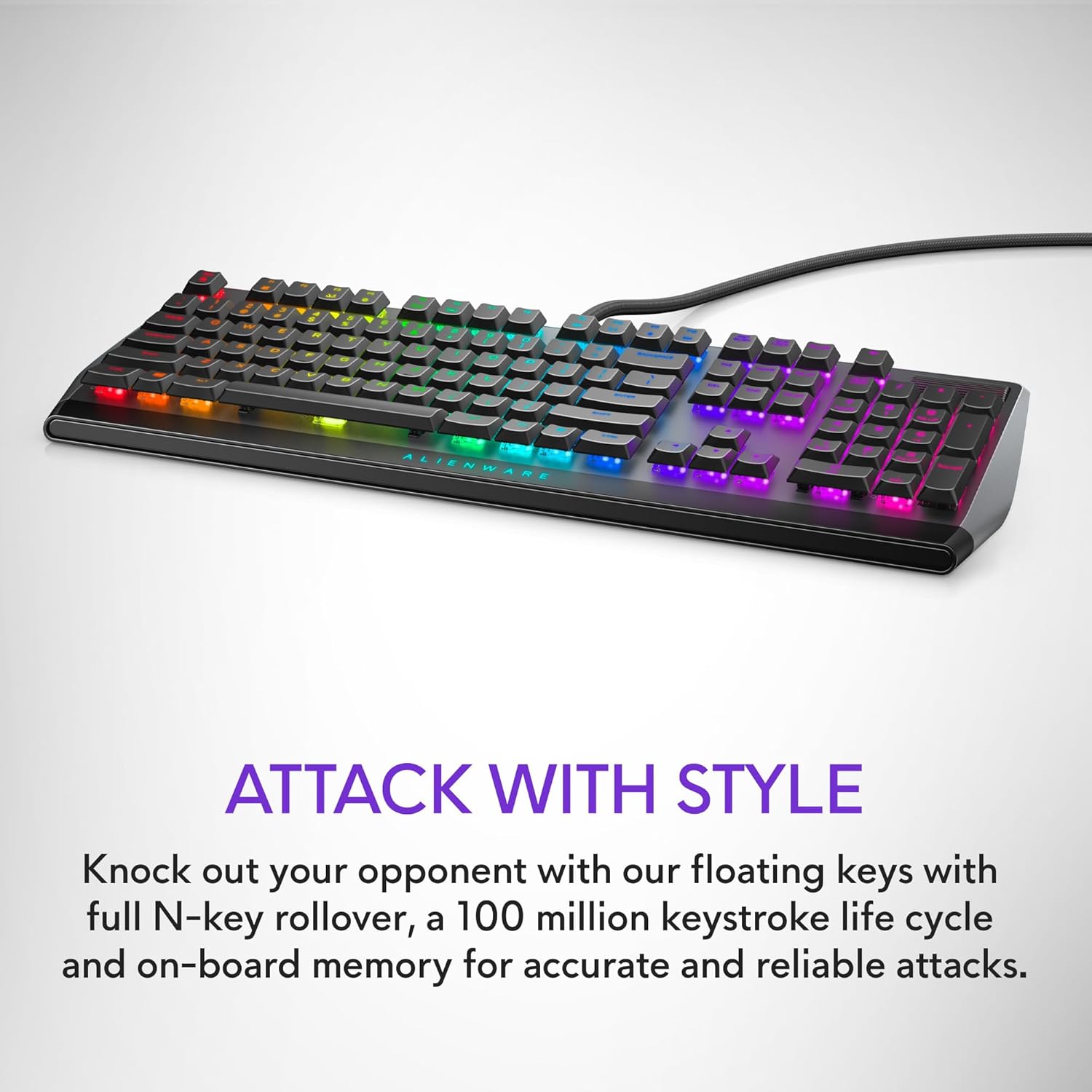
Image: Alienware AW510K keyboard displaying its floating key architecture and vibrant RGB lighting, emphasizing its stylish and durable design.

ภาพ: ไซด์โปรfile of the Alienware AW510K keyboard, highlighting its slim form factor and ergonomic design for comfortable palm posture.

ภาพ: จากบนลงล่าง view of the Alienware AW510K keyboard, illustrating its fully programmable keys for macros and custom assignments.

Image: Close-up of the Alienware AW510K keyboard showcasing its customizable per-key AlienFX RGB lighting with a rainbow effect.

Image: Diagram illustrating the dimensions of the Alienware AW510K keyboard, showing its length, width, and height.
การตั้งค่า
การเชื่อมต่อคีย์บอร์ดของคุณ
- Connect the keyboard's USB cable to an available USB port on your computer. The keyboard features two USB connectors: one for keyboard functionality and another for the integrated USB passthrough port.
- (Optional) If using a wired mouse or other USB peripheral, connect it to the USB passthrough port located on the keyboard.
- The keyboard is plug-and-play compatible with Windows 10. Drivers should install automatically.
การปรับมุมแป้นพิมพ์
The keyboard features two-tier adjustable feet on the underside. Gently flip out the desired tier of feet to adjust the typing angle for optimal comfort.
Video: This video demonstrates the physical features of the Alienware AW510K keyboard, including the USB passthrough port located at the back and the two-tier adjustable feet on the underside, allowing users to customize the typing angle.
การดำเนินการ
ฟังก์ชั่นพื้นฐาน
การควบคุมสื่อ
The keyboard includes dedicated media controls for convenient audio management.
- ลูกกลิ้งปรับระดับเสียง: Located on the top right, roll it up or down to adjust system volume.
- Media Keys (F9-F12): Use these keys for track backward, play/pause, stop, and track forward functions.
AlienFX RGB Lighting Customization
Personalize your keyboard's lighting effects using the Alienware Command Center software.
- Install Alienware Command Center on your Windows 10 PC.
- Launch the software and navigate to the "FX" tab.
- Select your keyboard to access lighting options. You can choose from various effects like Static Color, Pulse, Morph, Breathing, Spectrum, Single Color Wave, and Rainbow Wave.
- Customize colors, brightness, and tempo for each effect. You can apply effects to individual keys, groups of keys (e.g., WASD, number row), or the entire keyboard.
- Save your customized themes to the device for quick access.
Video: This official product video showcases the Alienware Low-Profile RGB Gaming Keyboard, highlighting its customizable AlienFX RGB lighting effects and the functionality of its dedicated media controls, including the volume roller.
Video: This video provides a demonstration of the Alienware AW510K Gaming Keyboard's sleek design, responsive Cherry MX Low Profile Red switches, and customizable RGB lighting. It also emphasizes the quiet operation of the keys.
ปุ่มที่ตั้งโปรแกรมได้และมาโคร
Utilize the Alienware Command Center to assign custom macros and key functions to enhance your gaming and productivity. Settings are stored in the onboard memory.
การซ่อมบำรุง
ทำความสะอาดคีย์บอร์ดของคุณ
The floating keycap design of the Alienware AW510K makes it easier to clean.
- ถอดแป้นพิมพ์ออกจากคอมพิวเตอร์ของคุณ
- ใช้ลมอัดเพื่อกำจัดฝุ่นละอองและเศษต่างๆ ออกจากระหว่างปุ่ม
- For stubborn dirt, carefully remove keycaps (refer to specialized tools if needed) and clean the switches and keycaps separately with a soft, damp ผ้า ตรวจสอบให้แน่ใจว่าส่วนประกอบทั้งหมดแห้งก่อนประกอบกลับเข้าที่
การแก้ไขปัญหา
ปัญหาทั่วไป
การเปลี่ยนปุ่มกด
Finding replacement keycaps for this specific low-profile mechanical keyboard can be challenging due to its unique design. It is recommended to contact Alienware support for official replacement parts.
ปัญหาด้านซอฟต์แวร์
If experiencing issues with Alienware Command Center (e.g., lighting synchronization, macro programming), ensure the software is updated to the latest version. Restarting the software or your computer may resolve minor glitches.
ข้อมูลจำเพาะ
ข้อมูลจำเพาะทางเทคนิค
| ยี่ห้อ | เอเลี่ยนแวร์ |
| ชุด | AW 510K |
| หมายเลขรุ่นสินค้า | AW510K |
| แพลตฟอร์มฮาร์ดแวร์ | PC |
| ระบบปฏิบัติการ | วินโดวส์ 10 |
| น้ำหนักสินค้า | 14.6 ออนซ์ |
| ขนาดสินค้า | 6.1 x 18.4 x 1.2 นิ้ว |
| เทคโนโลยีการเชื่อมต่อ | ยูเอสบี |
| คำอธิบายแป้นพิมพ์ | การเล่นเกม |
| การใช้งานที่แนะนำสำหรับผลิตภัณฑ์ | การเล่นเกม |
| คุณสมบัติพิเศษ | มีไฟแบ็คไลท์ |
| รองรับสีแบ็คไลท์ของคีย์บอร์ด | อาร์จีบี |
| ผู้ผลิต | เดลล์ |
| ภาษา | ภาษาอังกฤษ |
การรับประกันและการสนับสนุน
ข้อมูลการรับประกัน
สำหรับข้อมูลการรับประกันโดยละเอียด โปรดดูเอกสารที่มาพร้อมกับผลิตภัณฑ์ของคุณ หรือเยี่ยมชมเว็บไซต์ฝ่ายสนับสนุนอย่างเป็นทางการของ Alienware webเว็บไซต์.
การสนับสนุนลูกค้า
หากต้องการความช่วยเหลือด้านเทคนิคหรือมีข้อสงสัยเพิ่มเติม โปรดเยี่ยมชม [ที่อยู่เว็บไซต์] ร้าน Alienware บน Amazon or the official Dell/Alienware support portal.


