1. บทนำ
This manual provides detailed instructions for the installation, operation, and maintenance of your Aerocool Streak Mid-Tower ATX PC Gaming Case. Designed for both new and experienced PC builders, the Streak case offers a compact design with a polished aluminum front panel, vibrant RGB lighting, and a full tempered glass side panel to showcase your components. It supports various cooling configurations to ensure optimal performance for your system.
2. ข้อมูลด้านความปลอดภัย
Please read and understand all safety instructions before installing or operating the PC case. Failure to do so may result in personal injury or damage to the product.
- ควรตัดการเชื่อมต่อสายไฟออกจากเต้ารับที่ผนังทุกครั้งก่อนทำการติดตั้งหรือบำรุงรักษาใดๆ
- Be aware of sharp edges inside the case. Handle components with care to avoid cuts.
- เก็บชิ้นส่วนเล็กๆ และสกรูให้ห่างจากเด็ก
- ตรวจสอบให้แน่ใจว่ามีการต่อสายดินอย่างเหมาะสมเพื่อป้องกันไฟฟ้าช็อต
- Do not expose the case to water or excessive humidity.
3. เนื้อหาบรรจุภัณฑ์
ตรวจสอบว่ามีรายการทั้งหมดอยู่ในแพ็คเกจ:
- Aerocool Streak Mid-Tower ATX PC Gaming Case
- Accessory box (screws, standoffs, cable ties, etc.)
- คู่มือการใช้งาน (เอกสารนี้)
4. Case Components Overview
Familiarize yourself with the various parts of your Aerocool Streak case.

รูปที่ 4.1: มุม view of the Aerocool Streak PC case, showcasing the RGB front panel and tempered glass side panel.

รูปที่ 4.2: มองจากด้านบนลงมา view of the Aerocool Streak PC case, highlighting the top panel and front I/O ports.
4.1 พอร์ต I/O ด้านหน้า
The front I/O panel provides convenient access to essential connections.
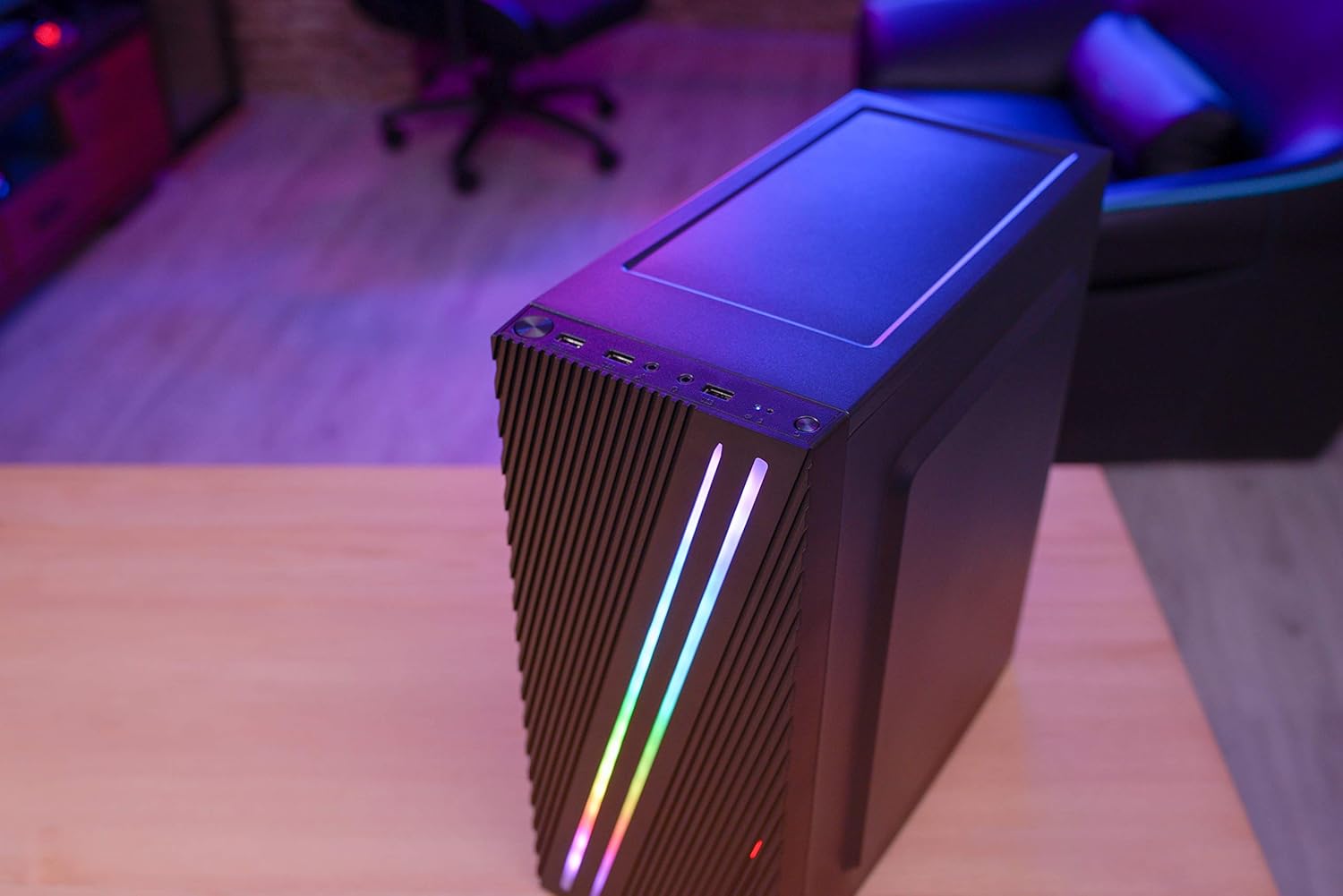
รูปที่ 4.3: Close-up of the front I/O panel, showing the power button, LED control button, USB 3.0 port, two USB 2.0 ports, and HD audio/microphone jacks.
- ปุ่มเปิด/ปิด: เพื่อเปิด/ปิดระบบ
- ปุ่มควบคุม LED: To cycle through RGB lighting modes.
- พอร์ต USB 3.0 (x1): เพื่อการถ่ายโอนข้อมูลความเร็วสูง
- พอร์ต USB 2.0 (x2): สำหรับอุปกรณ์ USB มาตรฐาน
- HD Audio & Mic Jacks: สำหรับการเชื่อมต่อหูฟังและไมโครโฟน
4.2 Interior Layout
The interior is designed for efficient component installation and cable management.

รูปที่ 4.4: ภายใน view of the Aerocool Streak PC case, showing the motherboard tray, drive bays, and cable routing cutouts.
5. การตั้งค่าและการติดตั้ง
Follow these steps to assemble your PC components within the Aerocool Streak case.
5.1 การเตรียมตัว
- Unpack the case and remove all packaging materials.
- วางเคสไว้บนพื้นผิวที่มั่นคงและเรียบ
- Gather necessary tools: Phillips head screwdriver, cable ties (included in accessory box).
- Remove the tempered glass side panel by unscrewing the four thumb screws.
5.2 การติดตั้งเมนบอร์ด
The Aerocool Streak supports ATX, Micro-ATX, and Mini-ITX motherboards.

รูปที่ 5.1: Diagram illustrating the compatible motherboard sizes (Mini-ITX, Micro-ATX, ATX) within the case.
- Install the necessary motherboard standoffs into the motherboard tray according to your motherboard's form factor.
- Place your motherboard carefully onto the standoffs, aligning the screw holes.
- ยึดเมนบอร์ดด้วยสกรูที่ให้มา
5.3 การติดตั้งหน่วยจ่ายไฟ (PSU)
The case features a bottom-mount PSU design.
- Slide the PSU into its designated compartment at the bottom rear of the case.
- Secure the PSU to the case rear with screws.
5.4 การติดตั้งไดรฟ์จัดเก็บข้อมูล
Install your 2.5" SSDs and 3.5" HDDs.
- SSD ขนาด 2.5 นิ้ว: Mount SSDs to the designated 2.5" drive trays or mounting points on the motherboard tray.
- ฮาร์ดดิสก์ขนาด 3.5 นิ้ว: Install HDDs into the drive cage located beneath the PSU shroud.
5.5 Expansion Card Installation (Graphics Card, etc.)
The case supports high-end graphics cards up to 335mm in length.
- ถอดฝาครอบสล็อต PCIe ที่จำเป็นออกจากด้านหลังของเคส
- Insert your expansion card into the corresponding PCIe slot on the motherboard.
- ยึดการ์ดด้วยสกรู
5.6 การติดตั้งระบบระบายความร้อน
The Aerocool Streak supports both air and liquid cooling solutions.

รูปที่ 5.2: Diagram showing air cooling options, including front 120mm fans (optional) and a rear 80mm fan (included).

รูปที่ 5.3: Diagram illustrating liquid cooling support, specifically a 240mm radiator at the front (optional).
- Air Cooling: The case supports up to two 120mm fans at the front (optional) and includes one 80mm fan at the rear.
- การระบายความร้อนด้วยของเหลว: A 240mm radiator can be installed at the front of the case (optional).
- Install fans or radiators into their respective mounting points and secure them with screws.
5.7 การจัดการสายเคเบิล
ใช้ช่องเจาะเก็บสายเคเบิลและจุดผูกยึดด้านหลังถาดเมนบอร์ดเพื่อจัดระเบียบสายเคเบิลเพื่อให้มีการไหลเวียนของอากาศที่ดีขึ้นและสวยงามยิ่งขึ้น
- Route all power and data cables through the designated cutouts.
- Use cable ties to bundle and secure cables neatly.
6. คู่มือการใช้งาน
6.1 การเปิดระบบของคุณ
- ตรวจสอบให้แน่ใจว่าได้ติดตั้งส่วนประกอบทั้งหมดอย่างถูกต้องและสายเคเบิลทั้งหมดเชื่อมต่อแน่นหนาดีแล้ว
- Connect the power cable to your PSU and then to a wall outlet.
- พลิกสวิตช์ไฟบน PSU ไปที่ตำแหน่ง 'ON'
- Press the power button on the front I/O panel of the case to start your system.
6.2 การควบคุมแสง RGB
The Aerocool Streak features 18 distinct RGB lighting modes on its front panel.

รูปที่ 6.1: The Aerocool Streak PC case with its vibrant RGB lighting illuminated on the front panel.
- กดปุ่ม ปุ่มควบคุม LED on the front I/O panel to cycle through the 18 available lighting modes.
- These modes include 11 RGB flow modes and 7 static color modes.
7. การบำรุงรักษา
Regular maintenance helps ensure the longevity and optimal performance of your PC case and components.
7.1 การทำความสะอาดเคส
- ภายนอก: ใช้แบบนุ่มๆamp ใช้ผ้าเช็ดทำความสะอาดพื้นผิวภายนอก หลีกเลี่ยงการใช้สารทำความสะอาดที่มีฤทธิ์กัดกร่อน
- ภายใน: Periodically use compressed air to remove dust buildup from inside the case, especially around fans and heatsinks.
7.2 การบำรุงรักษาตัวกรองฝุ่น
The case may include removable dust filters to prevent dust ingress. Clean these filters regularly.
- Locate and carefully remove any dust filters (e.g., top, bottom, front).
- Clean the filters with water and mild soap, or use compressed air.
- ตรวจสอบให้แน่ใจว่าตัวกรองแห้งสนิทก่อนติดตั้งกลับเข้าไปใหม่
8 การแก้ไขปัญหา
If you encounter issues with your Aerocool Streak case, refer to the following common problems and solutions.
- ระบบไม่เปิดใช้งาน:
- Check all power connections, including the PSU to the wall, PSU switch, and motherboard power cables.
- Ensure the front panel power switch cable is correctly connected to the motherboard.
- ไฟ RGB ไม่ทำงาน:
- Verify that the RGB lighting cables are properly connected to the power supply or motherboard RGB header.
- Press the LED control button to cycle through modes, as it might be on a static black mode.
- Poor airflow/overheating:
- ตรวจสอบให้แน่ใจว่าพัดลมเคสทุกตัวหมุนอย่างถูกต้อง
- ทำความสะอาดแผ่นกรองฝุ่นและชิ้นส่วนภายในทั้งหมด
- Verify proper fan orientation for optimal airflow (intake/exhaust).
9. ข้อมูลจำเพาะ
| คุณสมบัติ | ข้อมูลจำเพาะ |
|---|---|
| ชื่อรุ่น | สตรีค |
| หมายเลขรุ่น | ACCM-PV19012.11 |
| ประเภทเคส | หอคอยกลาง |
| ความเข้ากันได้ของเมนบอร์ด | ATX, ไมโคร-ATX, มินิ-ITX |
| วัสดุ | Tempered Glass (side panel) |
| สี | สีดำ |
| พอร์ต I / O ด้านหน้า | 1x USB 3.0, 2x USB 2.0, HD Audio, Mic, LED Control Button, Power Button |
| ไฟ RGB | 18 Lighting Modes (11 flow, 7 static) |
| การกวาดล้าง CPU Cooler | สูงถึง 151มม. |
| ความยาวของการ์ดจอ | สูงถึง 335มม. |
| การติดตั้ง PSU | การติดตั้งด้านล่าง |
| วิธีการทำความเย็น | อากาศ, น้ำ |
| พัดลมรวม | 1x 80mm Rear Fan |
| Optional Fan Support | ด้านหน้า: 2x 120mm |
| ฐานรองหม้อน้ำ | Front: 1x 240mm (optional) |
10. การรับประกันและการสนับสนุน
The Aerocool Streak PC Gaming Case comes with a 2-year warranty on parts. For technical support, warranty claims, or further assistance, please contact your retailer or the official Aerocool support channels. Keep your proof of purchase for warranty validation.


