การแนะนำ
Thank you for choosing the Macally Wireless Bluetooth Keyboard. This multi-device keyboard is designed to enhance your productivity across various platforms, including Mac, iOS, Windows, and Android devices. Featuring 110 keys, 20 Mac OS shortcuts, and a numeric keypad, it offers a comfortable and efficient typing experience. Its ultra-slim design and rechargeable battery make it an ideal companion for both work and leisure.

Image: The Macally Wireless Bluetooth Keyboard, showcasing its full layout and sleek silver design.
เนื้อหาแพ็คเกจ
- Macally Wireless Bluetooth Keyboard
- สายชาร์จ
- คู่มือการใช้งาน
การตั้งค่า
1. การชาร์จคีย์บอร์ด
Before initial use, fully charge the keyboard using the included charging cable. Connect the cable to the keyboard's charging port and a USB power source. The LED indicator will show charging status.

Image: Illustration showing the keyboard connected to a charging cable, emphasizing its rechargeable nature.
2. การจับคู่กับอุปกรณ์
The Macally Wireless Bluetooth Keyboard supports connecting up to three Bluetooth-enabled devices simultaneously. Follow these steps to pair your devices:
- เปิดแป้นพิมพ์โดยใช้สวิตช์เปิด/ปิด
- Press and hold one of the Bluetooth keys (BT1, BT2, or BT3) for a few seconds until the corresponding LED indicator starts blinking rapidly. This indicates pairing mode.
- On your device (computer, tablet, or smartphone), go to Bluetooth settings and search for available devices.
- Select "Macally Keyboard" (or similar name) from the list.
- If prompted, enter the pairing code displayed on your screen using the Macally keyboard and press Enter.
- เมื่อจับคู่สำเร็จแล้ว ไฟ LED จะหยุดกะพริบและติดสว่างอยู่สองสามวินาทีก่อนจะดับลง
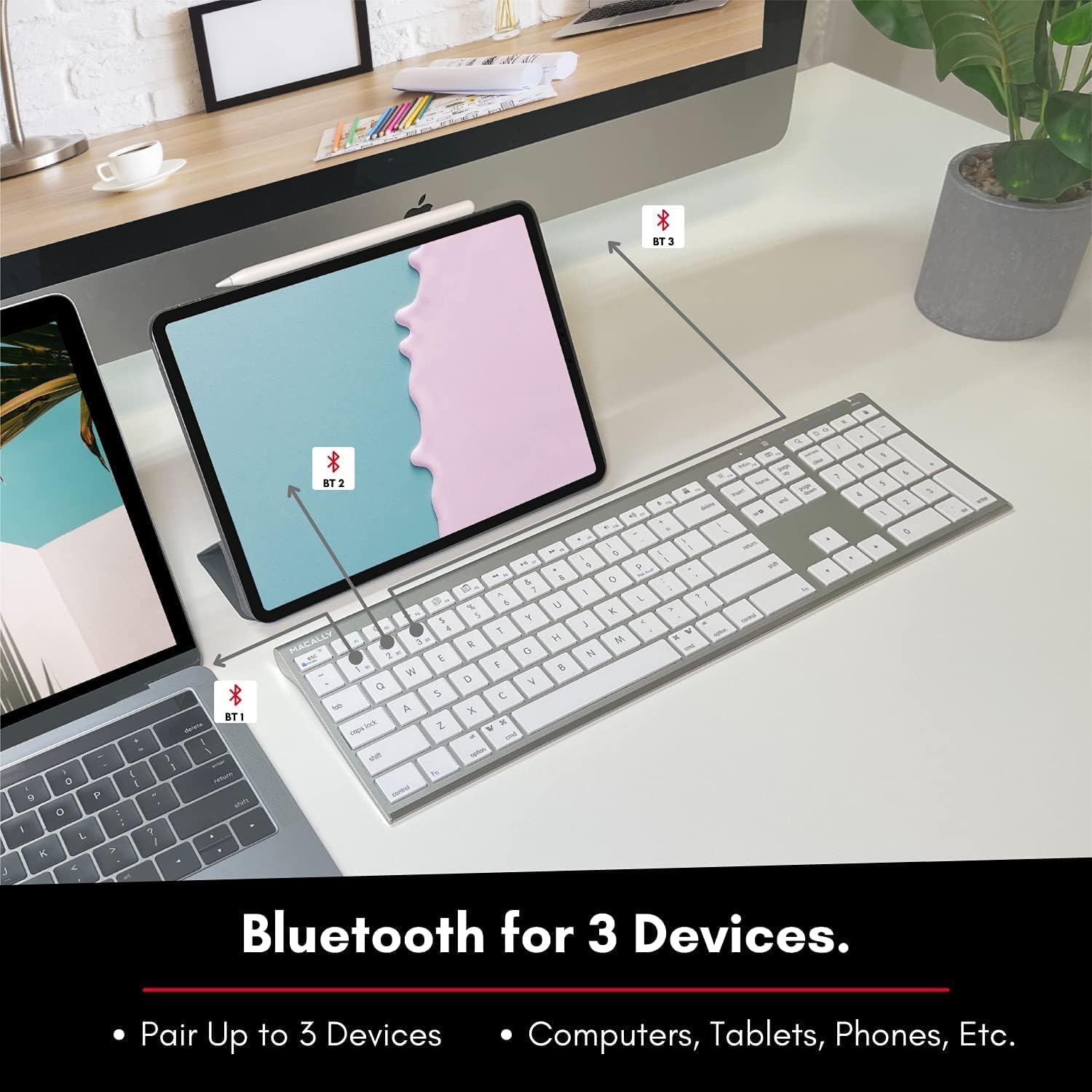
Image: The keyboard connected to a laptop and a tablet, illustrating its multi-device pairing capability.
คำแนะนำการใช้งาน
การสลับระหว่างอุปกรณ์
To switch between paired devices, simply press the corresponding Bluetooth key (BT1, BT2, or BT3) once. The keyboard will automatically connect to the selected device within a few seconds.

Image: Visual representation of the keyboard seamlessly switching between a smartphone, iMac, and laptop, highlighting the multi-sync feature.
ปุ่มฟังก์ชั่นและปุ่มลัด
The keyboard features a full set of 110 keys, including a numeric keypad and 20 dedicated Mac OS shortcut keys. These shortcuts provide quick access to various functions such as brightness control, volume adjustment, media playback, and more. Refer to your device's operating system documentation for specific shortcut functionalities.
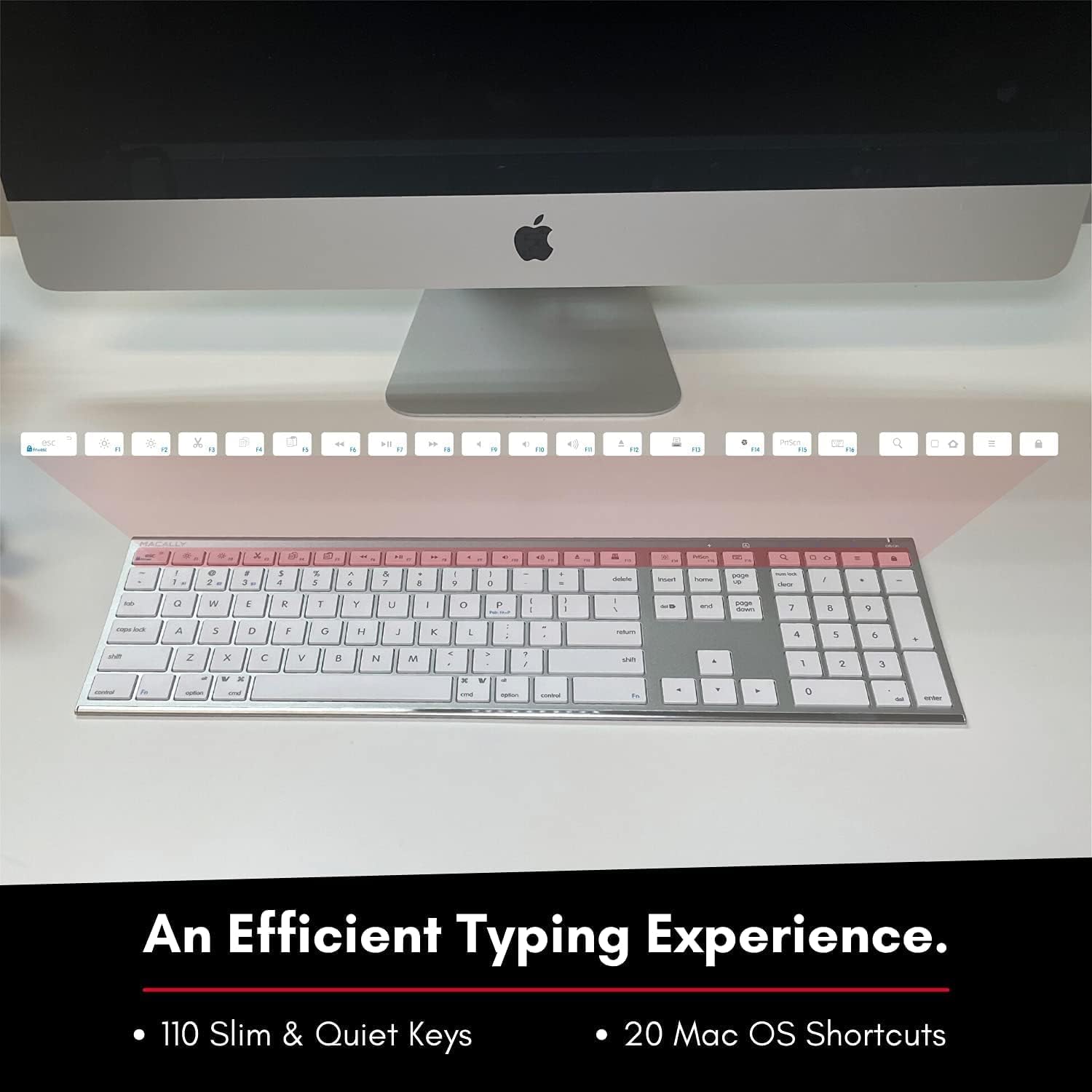
Image: Close-up of the keyboard's top row, highlighting the dedicated function and shortcut keys.
ความเข้ากันได้
This keyboard is broadly compatible with a range of operating systems and devices, including:
- แมคโอเอส
- หน้าต่าง
- ระบบปฏิบัติการ iOS (ไอโฟน, ไอแพด)
- แอนดรอยด์

Image: The keyboard positioned in front of an iMac, indicating its compatibility with Mac systems.
การซ่อมบำรุง
To ensure the longevity and optimal performance of your Macally Wireless Bluetooth Keyboard, follow these maintenance guidelines:
- การทำความสะอาด: ใช้ผ้านุ่มที่ไม่เป็นขุยเช็ดพื้นผิวแป้นพิมพ์ สำหรับคราบสกปรกฝังแน่น ให้เช็ดเบาๆampชุบผ้าด้วยน้ำหรือน้ำยาทำความสะอาดอ่อนๆ หลีกเลี่ยงความชื้นที่มากเกินไป
- การดูแลแบตเตอรี่ The keyboard features a built-in rechargeable battery. To maximize battery life, avoid fully discharging the battery frequently. Charge the keyboard when the low battery indicator appears.
- พื้นที่จัดเก็บ: เมื่อไม่ได้ใช้งานเป็นเวลานาน ให้ปิดคีย์บอร์ดเพื่อประหยัดพลังงานแบตเตอรี่ เก็บไว้ในที่แห้งและเย็น หลีกเลี่ยงแสงแดดโดยตรงและอุณหภูมิที่สูงหรือต่ำเกินไป
- หลีกเลี่ยงการหกเลอะ: เก็บของเหลวให้ห่างจากแป้นพิมพ์เพื่อป้องกันไม่ให้ส่วนประกอบภายในได้รับความเสียหาย
การแก้ไขปัญหา
Keyboard Not Responding or Typing Incorrectly
- ตรวจสอบให้แน่ใจว่าแป้นพิมพ์มีประจุไฟแล้ว
- Verify that the keyboard is powered on and the correct Bluetooth channel (BT1, BT2, or BT3) is selected for your device.
- ลองจับคู่คีย์บอร์ดกับอุปกรณ์ของคุณอีกครั้ง
- Check if the Fn lock is active. On the top right, there should be a lock symbol with an FN in the lock. If there is a Blue LED light on the panel which is on the top right, then press and hold Fn และกด เอสซีเอส to shut off the Fn lock.

Image: A troubleshooting tip for the Fn lock feature, showing the relevant keys.
Mouse Keys Issue (macOS)
- If your keyboard inputs are behaving like mouse movements, you may have "Mouse Keys" enabled.
- Go to System Preferences (or System Settings on newer macOS versions), then click on การเข้าถึงได้. After that, scroll to การควบคุมตัวชี้ และปิดการใช้งาน เปิดใช้งานปุ่มเมาส์.

Image: A troubleshooting tip for disabling Mouse Keys in system settings.
ปัญหาการเชื่อมต่อบลูทูธ
- โปรดตรวจสอบให้แน่ใจว่าบลูทูธของอุปกรณ์ของคุณเปิดใช้งานอยู่และสามารถค้นหาได้
- Move the keyboard closer to your device to ensure a strong signal.
- กำจัดแหล่งรบกวนที่อาจเกิดขึ้นทั้งหมด (เช่น อุปกรณ์ไร้สายอื่นๆ วัตถุโลหะขนาดใหญ่)
- รีสตาร์ททั้งคีย์บอร์ดและอุปกรณ์ของคุณ
ข้อมูลจำเพาะ
| ยี่ห้อ | แม็กกี้ |
| หมายเลขรุ่น | ACEBTKEY-US |
| ขนาดสินค้า | 18.11 x 6.3 x 0.91 นิ้ว |
| น้ำหนักสินค้า | 14.9 ออนซ์ |
| เทคโนโลยีการเชื่อมต่อ | บลูทูธ |
| จำนวนคีย์ | 110 |
| อุปกรณ์ที่รองรับ | MacOS, Windows, iOS, Android |
| แบตเตอรี่ | 3 Lithium Polymer batteries (included, rechargeable) |
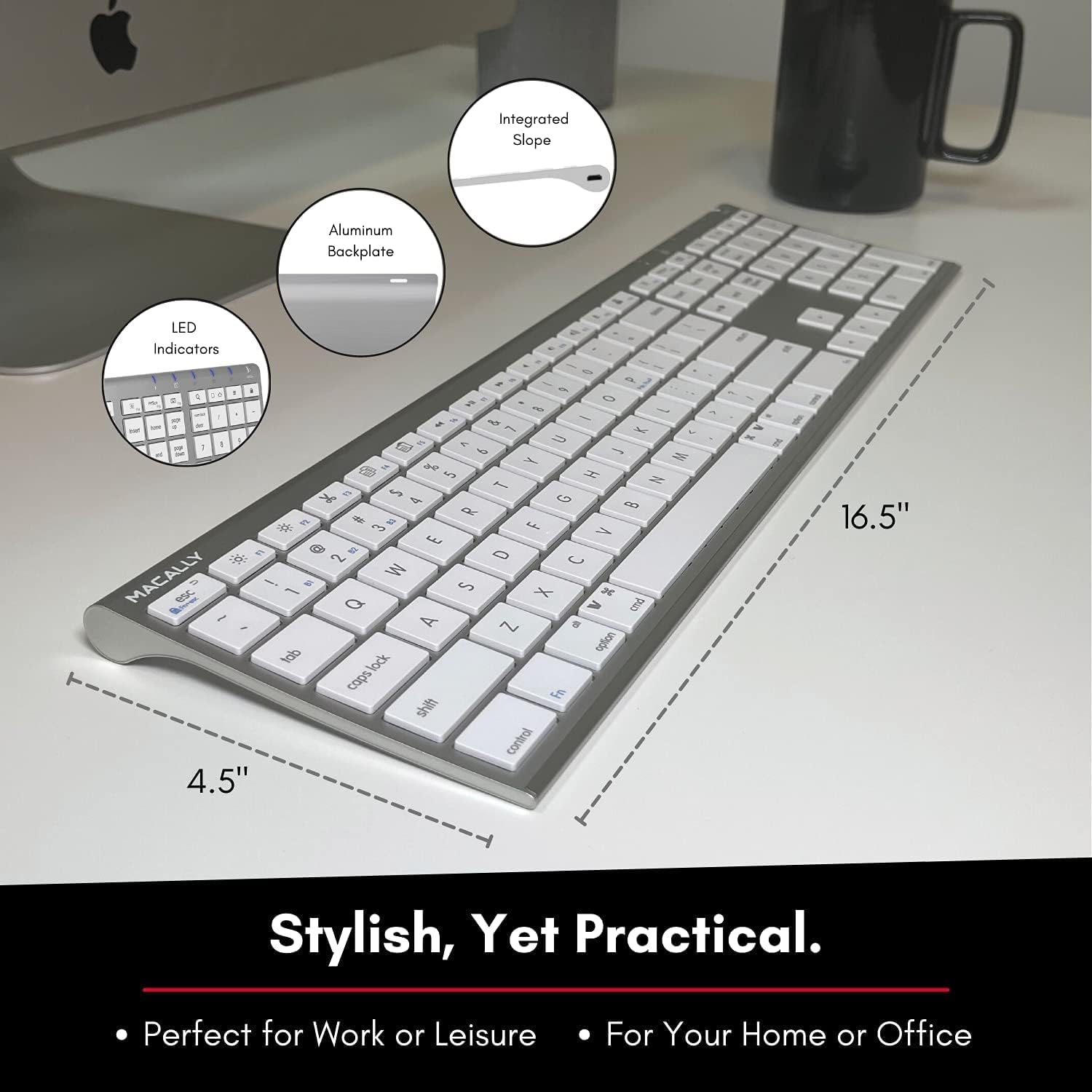
Image: Diagram illustrating the physical dimensions of the Macally Wireless Bluetooth Keyboard.
การรับประกันและการสนับสนุน
Macally is committed to delivering high-quality, user-friendly workflow solutions. For any product inquiries, technical support, or warranty information, please visit the official Macally webคุณสามารถค้นหาข้อมูลเพิ่มเติมและแหล่งข้อมูลสนับสนุนได้ที่เว็บไซต์ หรือติดต่อฝ่ายบริการลูกค้าของพวกเขา ร้าน Macally บน Amazon.


