การแนะนำ
The Logitech MX Keys is an advanced wireless illuminated keyboard designed for efficiency, stability, and precision. It features spherically dished keys for comfortable typing and smart backlighting that adjusts to your environment. This manual provides instructions for setting up, operating, maintaining, and troubleshooting your MX Keys keyboard.
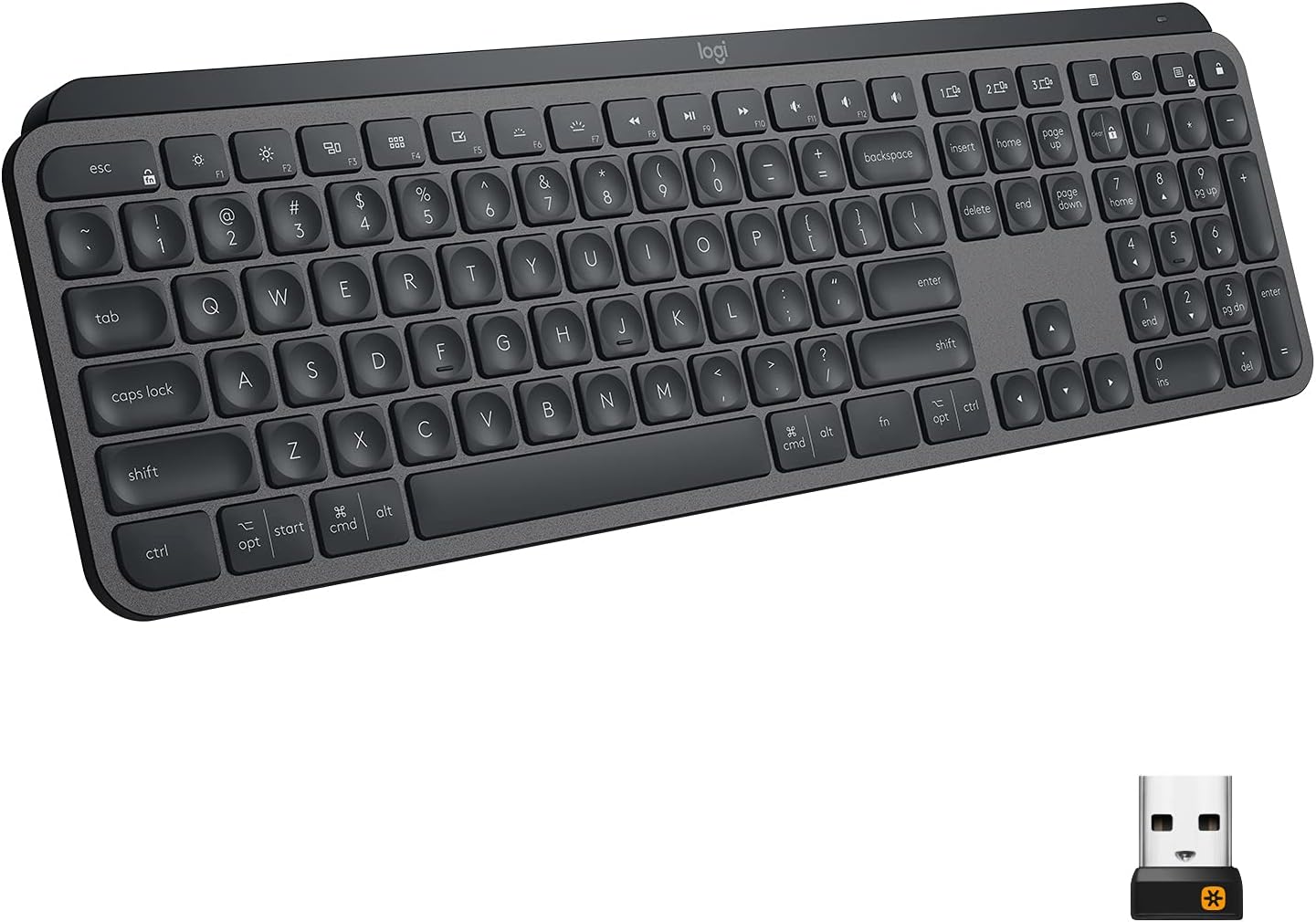
Image: The Logitech MX Keys Illuminated Wireless Keyboard, showcasinด้วยรูปแบบการจัดวางที่สมบูรณ์และการออกแบบที่ทันสมัย
การตั้งค่า
Your MX Keys keyboard can be connected to your device using either the included Unifying USB Receiver or via Bluetooth Low Energy technology.
Connecting via Unifying USB Receiver
- Locate the Unifying USB Receiver. It is a small USB dongle.
- Plug the Unifying USB Receiver into an available USB port on your computer.
- Turn on the keyboard using the power switch located on the back edge.
- The keyboard should automatically connect to the receiver. If not, use the Logitech Options software to pair the devices.
Image: The Logitech MX Keys keyboard with its accompanying Unifying USB receiver, which enables wireless connectivity.
การเชื่อมต่อผ่านบลูทูธ
- ตรวจสอบให้แน่ใจว่าอุปกรณ์ของคุณได้เปิดใช้งานบลูทูธแล้ว
- เปิดแป้นพิมพ์โดยใช้สวิตช์เปิด/ปิด
- กดปุ่ม Easy-Switch ปุ่มใดปุ่มหนึ่ง (1, 2 หรือ 3) ค้างไว้สามวินาทีจนกว่าไฟ LED บนปุ่มจะเริ่มกะพริบเร็ว นี่แสดงว่าแป้นพิมพ์อยู่ในโหมดจับคู่แล้ว
- On your device, go to Bluetooth settings and select "MX Keys" from the list of available devices to complete the pairing process.

Image: A close-up of the Logitech MX Keys keyboard highlighting the Easy-Switch buttons (1, 2, 3) used for connecting to multiple devices.
คำแนะนำการใช้งาน
คีย์ Perfect Stroke
ปุ่มต่างๆ ได้รับการออกแบบให้มีรูปทรงโค้งมนเข้ากับรูปทรงปลายนิ้วของคุณ มอบประสบการณ์การพิมพ์ที่สะดวกสบายและแม่นยำ เสถียรภาพของปุ่มที่เพิ่มขึ้นช่วยลดเสียงรบกวนและเพิ่มประสิทธิภาพในการตอบสนอง

ภาพ: ภาพระยะใกล้ view of the Logitech MX Keys' spherically dished keys, designed for comfortable and precise typing.
ไฟส่องสว่างอัจฉริยะ
The keyboard features smart backlighting that automatically adjusts to ambient light conditions. The backlighting also lights up when your hands approach the keyboard and fades when you move away, conserving battery life.

Image: The Logitech MX Keys keyboard with its smart backlighting illuminated, demonstrating how it adapts to the environment.
การควบคุมการไหลข้ามคอมพิวเตอร์
If you use multiple computers, the MX Keys keyboard supports Logitech Flow, allowing you to type on multiple computers in one fluid workflow. This feature requires a Logitech Flow-enabled mouse and the Logitech Options software.

Image: A setup showing the Logitech MX Keys keyboard and a Logitech Flow-enabled mouse seamlessly controlling multiple computers, illustrating the cross-computer control feature.
ความเข้ากันได้กับอุปกรณ์และระบบปฏิบัติการหลายประเภท
The keyboard can be paired with up to three devices and easily switched between them using the Easy-Switch keys. It is compatible with Windows, macOS, Linux, iOS, and Android systems.

Image: An illustration demonstrating the Logitech MX Keys' compatibility with various operating systems and its ability to connect to multiple devices simultaneously.
Function Keys and Customization
The top row of keys includes media controls, brightness adjustments, and other function keys. These can be customized using the Logitech Options software to suit your workflow.
การซ่อมบำรุง
การชาร์จคีย์บอร์ด
The MX Keys keyboard is USB-C rechargeable. A full charge can last up to 10 days with backlighting on, or up to 5 months with backlighting turned off. Connect the included USB-C cable to the keyboard's USB-C port and the other end to a USB power source.
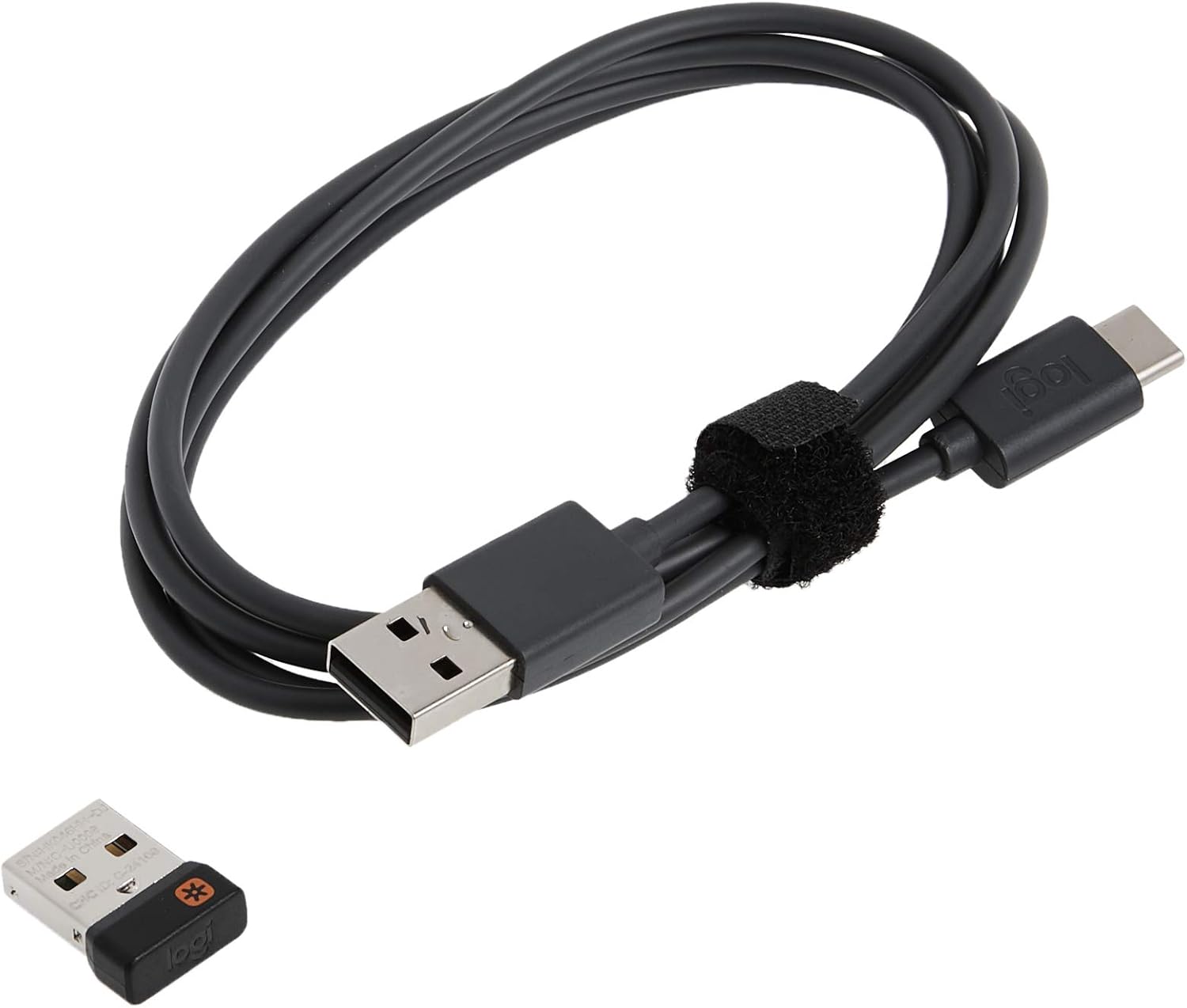
Image: The USB-C charging cable included with the Logitech MX Keys keyboard, used for recharging the internal battery.

Image: A close-up of the Logitech MX Keys keyboard's USB-C port, illustrating the quick charging capability.
การทำความสะอาด
ในการทำความสะอาดคีย์บอร์ด ให้ใช้ผ้าเนื้อนุ่มที่ไม่เป็นขุย สำหรับคราบสกปรกฝังแน่น ให้ใช้ผ้าชุบน้ำหมาดๆ เช็ดเบาๆampชุบผ้าด้วยน้ำ หลีกเลี่ยงการใช้สารเคมีรุนแรงหรือวัสดุที่มีฤทธิ์กัดกร่อน
การแก้ไขปัญหา
แป้นพิมพ์ไม่เชื่อมต่อ
- โปรดตรวจสอบให้แน่ใจว่าแป้นพิมพ์เปิดอยู่และชาร์จแบตเตอรี่เต็มแล้ว
- หากใช้ตัวรับสัญญาณ Unifying Receiver ให้ลองเสียบเข้ากับพอร์ต USB อื่นดู
- If using Bluetooth, ensure your device's Bluetooth is on and the keyboard is in pairing mode (blinking LED on Easy-Switch key).
- ลองรีสตาร์ทคอมพิวเตอร์หรืออุปกรณ์ของคุณ
- Re-pair the keyboard using the Logitech Options software.
ไฟแบ็คไลท์ไม่ทำงาน
- ตรวจสอบระดับแบตเตอรี่ แบตเตอรี่เหลือน้อยอาจทำให้ไฟแบ็คไลท์ดับได้
- ตรวจสอบให้แน่ใจว่าเซ็นเซอร์แสงโดยรอบไม่ถูกกีดขวาง
- Adjust backlighting brightness using the function keys (F5/F6 or OPT+F6/F7 depending on OS).
คีย์ไม่ตอบสนอง
- ทำความสะอาดรอบๆ คีย์ที่ได้รับผลกระทบเพื่อกำจัดเศษสิ่งสกปรกออก
- ตรวจสอบให้แน่ใจว่าแป้นพิมพ์เชื่อมต่ออย่างถูกต้อง
- หากปัญหายังคงมีอยู่ โปรดติดต่อฝ่ายสนับสนุน Logitech
ข้อมูลจำเพาะ
| คุณสมบัติ | รายละเอียด |
|---|---|
| ยี่ห้อ | โลจิเทค |
| ชื่อรุ่น | คีย์ MX |
| หมายเลขรุ่นสินค้า | 920-009294 |
| เทคโนโลยีการเชื่อมต่อ | บลูทูธ, USB (ตัวรับสัญญาณแบบรวม) |
| อุปกรณ์ที่รองรับ | Laptop, PC, Tablet (Windows, macOS, Linux, iOS, Android) |
| คำอธิบายแป้นพิมพ์ | Multi Functional, Membrane |
| คุณสมบัติพิเศษ | Ergonomic, Low-Profile Key, Rechargeable, Smart Illumination, Flow Compatible |
| สี | กราไฟท์ |
| จำนวนคีย์ | 104 |
| น้ำหนักสินค้า | 1.9 ปอนด์ |
| ขนาดสินค้า (กxยxส) | 16.9 x 0.8 x 5.1 นิ้ว |
| แหล่งพลังงาน | ใช้พลังงานจากแบตเตอรี่ (รวมแบตเตอรี่ลิเธียมโพลิเมอร์ 1 ก้อน) |
| อายุการใช้งานแบตเตอรี่ | ใช้งานได้นานสูงสุด 10 วัน (เมื่อเปิดไฟแบ็คไลท์), สูงสุด 5 เดือน (เมื่อปิดไฟแบ็คไลท์) |
| ช่วงสาย | 10 เมตร (33 ฟุต) |
การรับประกันและการสนับสนุน
The Logitech MX Keys keyboard comes with a การรับประกันฮาร์ดแวร์จำกัด 1 ปี. For warranty claims or technical support, please visit the official Logitech support webไซต์หรือดูข้อมูลการติดต่อที่ระบุไว้ในบรรจุภัณฑ์ผลิตภัณฑ์ของคุณ
You can also find additional resources and software downloads (like Logitech Options) on the หน้าสนับสนุน Logitech.


