1. บทนำ
This manual provides detailed instructions for the setup, operation, and troubleshooting of your Waveshare 4-inch HDMI LCD IPS Resistive Touch Screen. This display is designed for use with various Raspberry Pi models and can also function as a general computer HDMI monitor.
2. เนื้อหาบรรจุภัณฑ์
โปรดตรวจสอบว่ารายการทั้งหมดที่ระบุไว้ด้านล่างมีอยู่ในแพ็คเกจของคุณหรือไม่:
- 4-inch HDMI LCD x 1
- ช่องต่อ HDMI x 1
- ปากกาทัชสกรีน x 1
- RPi screws pack (4pcs) x 1
- Quick start sheet x 1
3. คุณสมบัติ
- จอแสดงผลความละเอียดสูง: Features an 800x480 hardware resolution on a 4-inch IPS screen, providing clear visuals and wide viewมุมการเอียง
- Resistive Touch Control: Equipped with resistive touch technology for interactive use, including a dedicated touch pen.
- ความเข้ากันได้กับ Raspberry Pi: Direct-connect compatible with most Raspberry Pi revisions (excluding Pi 1 Model B or Pi Zero, which require an HDMI cable).
- Versatile Monitor Functionality: Can be used as a standard computer HDMI monitor. Note that touch functionality is not available in this mode, and an HDMI cable is required.
- การสนับสนุนไดร์เวอร์: Drivers are provided for various operating systems including Raspbian, Ubuntu, Kali, and Retropie.
- แบ็คไลท์ที่ปรับได้: The display backlight can be turned off to reduce power consumption.
- อินเทอร์เฟซ HDMI: Utilizes an HDMI interface for display output, minimizing I/O requirements for video. Touch panel functionality still requires I/O connections.
4. การตั้งค่าและการติดตั้ง
4.1 การเชื่อมต่อทางกายภาพ
Connect the 4-inch HDMI LCD to your Raspberry Pi using the provided HDMI connector. For Raspberry Pi 1 Model B or Pi Zero, an external HDMI cable is required. Ensure all connections are secure.

Image: Waveshare 4-inch HDMI LCD connected to a Raspberry Pi, showing its compact size and direct connection capability.
4.2 การติดตั้งไดรเวอร์
The touch functionality of the LCD requires specific drivers. You have two primary methods for installation:
- การติดตั้งไดรเวอร์ด้วยตนเอง: Follow the detailed instructions provided in the online development resources.
- Using a Ready-to-Use Image: Utilize a pre-configured operating system image that includes the necessary drivers. This is often the simplest method.
For access to drivers, user manuals, and software, please contact Waveshare support via Amazon message.
4.3 ขนาดภายนอก
Refer to the diagram below for the precise external dimensions of the 4-inch HDMI LCD, measured in millimeters.

Image: Detailed diagram illustrating the external dimensions of the Waveshare 4-inch HDMI LCD, including mounting holes and port locations.
5. คู่มือการใช้งาน
5.1 การทำงานพื้นฐาน
Once connected and drivers are installed, the display will function as a primary or secondary monitor for your Raspberry Pi. Use the provided touch pen for resistive touch input.
การควบคุมแบ็คไลท์ 5.2
The backlight can be toggled on or off to conserve power. Refer to the quick start sheet or online resources for specific instructions on controlling the backlight.
5.3 การใช้งานเป็นจอคอมพิวเตอร์
When connected to a computer via HDMI, the display functions as a standard monitor. Note that the touch panel is not active in this mode. An HDMI cable is required for this connection.
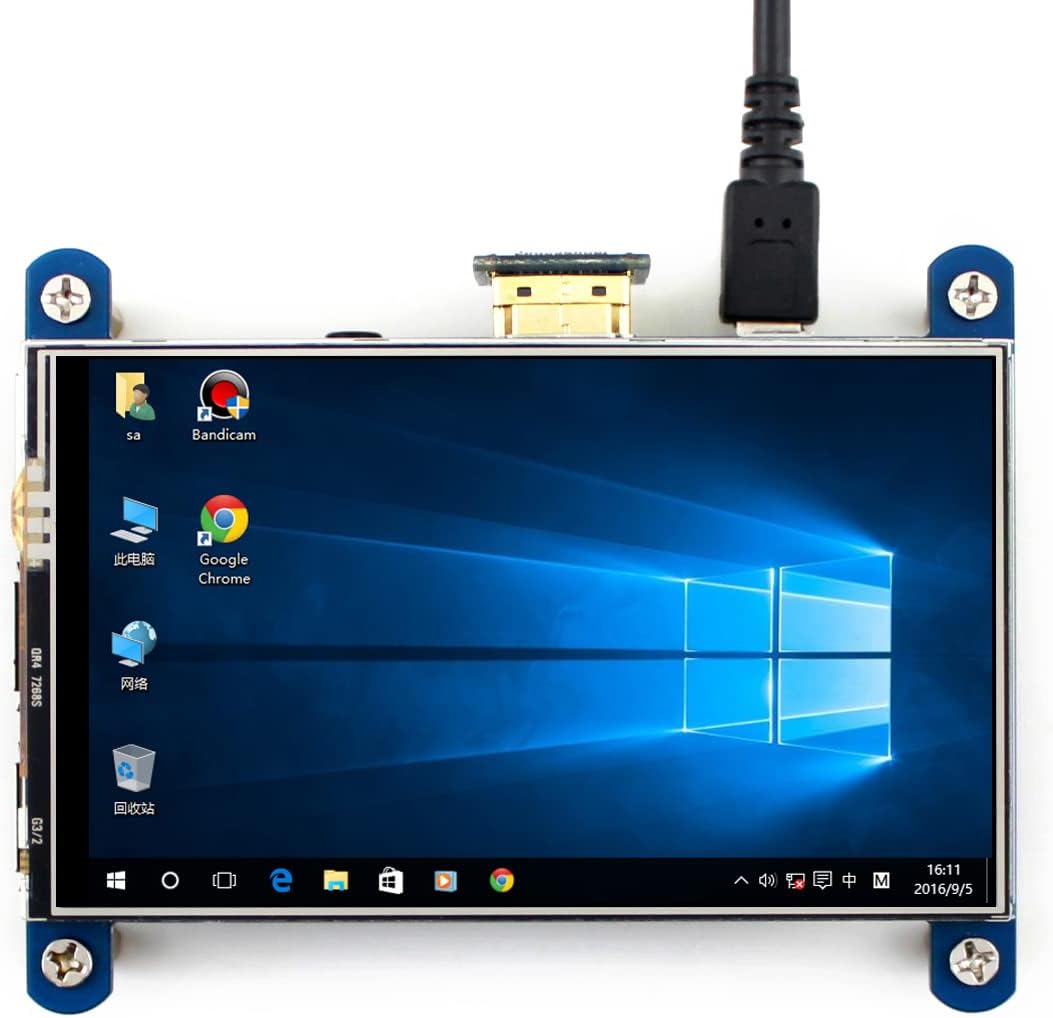
Image: The Waveshare 4-inch HDMI LCD displaying a Windows desktop, demonstrating its use as a compact computer monitor.
6 การแก้ไขปัญหา
6.1 Display Orientation Issues on Windows PC
If the display appears in an incorrect orientation when used with a Windows PC, you can adjust it through the operating system settings:
- Right-click on the desktop.
- Select "Display settings".
- Under "Orientation", choose "Portrait" or the desired orientation.
6.2 Disabling the Rainbow Screen on Raspberry Pi
To disable the rainbow screen that may appear during boot-up on your Raspberry Pi, add the following command to the /boot/config.txt file:
disable_splash=16.3 General Issues and Technical Support
For any other issues or technical assistance, please contact Waveshare support. Online development resources are also available and can be requested from support.
7. ข้อมูลจำเพาะ
| คุณสมบัติ | ข้อมูลจำเพาะ |
|---|---|
| ขนาดการแสดงผลหน้าจอยืน | 4 นิ้ว |
| ความละเอียดหน้าจอ | 800x480 (Hardware) / 480x800 (Reported) |
| ความละเอียดหน้าจอสูงสุด | ขนาด 480x800 |
| ประเภทไร้สาย | Infrared (for touch, if applicable) |
| ชุด | Waveshare 4 inch HDMI LCD |
| หมายเลขรุ่นสินค้า | 4inch HDMI LCD |
| น้ำหนักสินค้า | 3.2 ออนซ์ |
| ขนาดสินค้า (กxยxส) | 4.72 x 3.54 x 1.57 นิ้ว |
| เล่มที่tage | 5 โวลต์ |
| อัตราส่วนภาพ | 1.66:1 น. |
| คำอธิบายพื้นผิวหน้าจอ | มันเงา |
Note on Resolution: While the product is advertised with 800x480 hardware resolution, some system reports may show 480x800, indicating a default portrait orientation. This can typically be adjusted via software settings.
8. การรับประกันและการสนับสนุน
Waveshare provides online development resources and technical support for this product. If you encounter any problems or require assistance, please contact Waveshare directly through Amazon message for prompt support. Specific warranty details are subject to the terms and conditions at the point of purchase.


