การแนะนำ
This user manual provides comprehensive instructions for the setup, operation, maintenance, and troubleshooting of your Alienware M15 Gaming Laptop. Please read this manual thoroughly to ensure optimal performance and longevity of your device. For additional support, refer to the official Alienware support resources.
สินค้าเกินview
คุณสมบัติหลัก
- 8th Generation Intel Core i7-8750H (6-Core, 9MB Cache, up to 4.1GHz w/ Turbo Boost)
- 15.6" FHD (1920 x 1080) 60Hz Anti-glare IPS, 300-nits 72% Color gamut, narrow-border Display
- 16GB, 2x8GB, DDR4, 2666MHz RAM
- 128GB PCIe M.2 SSD + 1TB (+8GB SSHD) Hybrid Drive
- Nvidia GeForce GTX 1060 with 6GB GDDR5 Graphics Card
- ระบบปฏิบัติการ Windows 10 Home
ส่วนประกอบทางกายภาพ

รูปที่ 1: ด้านหน้า view of the Alienware M15 laptop, showcasing the display with the Alienware logo.

รูปที่ 2: จากบนลงล่าง view of the open Alienware M15 laptop, highlighting the keyboard layout and touchpad.

รูปที่ 3: ด้านซ้าย view of the Alienware M15 laptop, showing various ports such as USB 3.0.
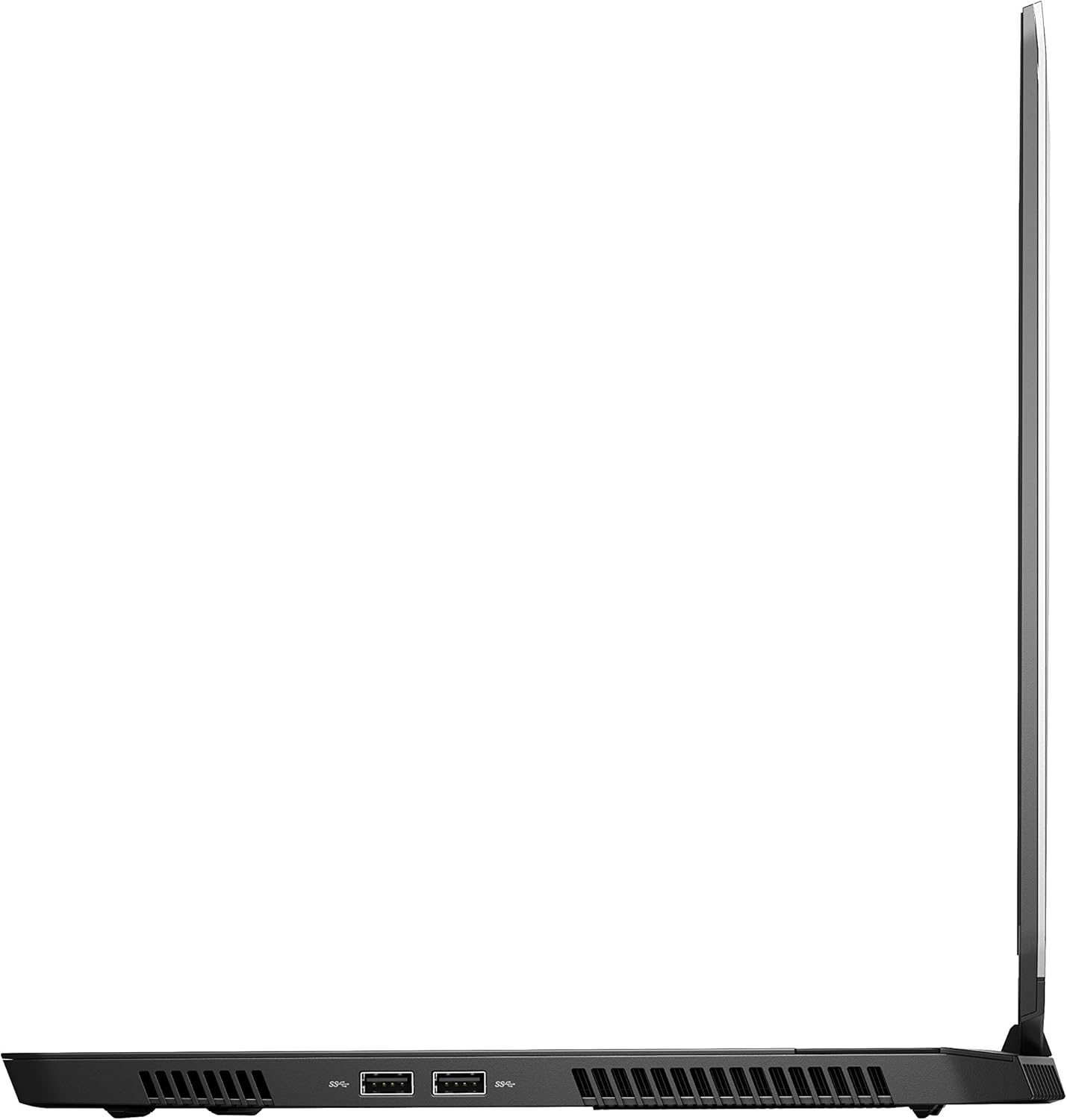
รูปที่ 4: ด้านขวา view of the Alienware M15 laptop, displaying additional ports and ventilation.

รูปที่ 5: ระเบิด view illustrating the internal cooling system of the Alienware M15 laptop, including fans and heat sinks.
การตั้งค่า
การแกะกล่อง
นำส่วนประกอบทั้งหมดออกจากบรรจุภัณฑ์อย่างระมัดระวัง ตรวจสอบให้แน่ใจว่ามีส่วนประกอบต่อไปนี้:
- Alienware M15 Gaming Laptop
- สายไฟ
- อะแดปเตอร์ 180W
การเปิดเครื่องครั้งแรก
- เชื่อมต่ออะแดปเตอร์ไฟเข้ากับพอร์ตอินพุตไฟของแล็ปท็อป
- เสียบสายไฟเข้ากับเต้ารับที่ผนัง
- Open the laptop lid and press the power button, typically located on the top right of the keyboard deck or a dedicated button on the chassis.
- ปฏิบัติตามคำแนะนำบนหน้าจอเพื่อดำเนินการตั้งค่า Windows 10 Home ให้เสร็จสิ้น รวมถึงการเลือกภาษา การเชื่อมต่อเครือข่าย และการสร้างบัญชีผู้ใช้
คำแนะนำการใช้งาน
การทำงานพื้นฐาน
Your Alienware M15 laptop runs on Windows 10 Home. Familiarize yourself with the operating system's interface. The keyboard features customizable backlighting via Alienware's software. The touchpad supports multi-touch gestures for navigation.
ประสิทธิภาพการเล่นเกม
The Alienware M15 is designed for high-performance gaming. For optimal gaming experience, ensure the laptop is connected to the power adapter. This allows the system to utilize its full power capabilities for the CPU and GPU. While gaming, the laptop may generate significant heat; this is normal for high-performance hardware. Consider using a cooling pad for extended gaming sessions to enhance thermal management.
การซ่อมบำรุง
การทำความสะอาด
- หน้าจอ: ใช้ผ้านุ่มไม่เป็นขุยเช็ดเล็กน้อยampล้างออกด้วยน้ำหรือน้ำยาทำความสะอาดหน้าจอ หลีกเลี่ยงสารเคมีรุนแรง
- แป้นพิมพ์และตัวเครื่อง: Use a soft brush or compressed air to remove dust from keys and vents. Wipe surfaces with a microfiber cloth.
- พอร์ต: Use compressed air to clear dust from USB, HDMI, and other ports.
การอัพเดตซอฟต์แวร์
Regularly update your Windows operating system, graphics drivers (NVIDIA GeForce), and Alienware software. Updates often include performance improvements, security patches, and bug fixes. Access Windows updates through Settings > Update & Security. Graphics drivers can be updated via the NVIDIA GeForce Experience application.
การดูแลแบตเตอรี่
To maximize battery lifespan, avoid consistently discharging the battery completely. For prolonged use while plugged in, consider using battery management features (if available in Alienware Command Center) to limit charging to 80-90% capacity.
การแก้ไขปัญหา
This section addresses common issues you might encounter with your Alienware M15 laptop.
| ปัญหา | สาเหตุที่เป็นไปได้ / วิธีแก้ไข |
|---|---|
| Laptop gets excessively hot during use. | High-performance components generate heat. Ensure ventilation vents are clear. Use a cooling pad. Update graphics drivers. |
| "No media present" error or SSD/HDD not detected. | This can sometimes be a temporary software glitch. Try restarting the laptop. If persistent, ensure the power cable is securely connected and try a hard reboot (unplug power, hold power button for 15 seconds, then reconnect and power on). If the issue persists, contact support. |
| Wi-Fi connection drops frequently. | Ensure Wi-Fi drivers are up to date. Check for interference from other devices. Restart your router and the laptop. If the issue persists, consider reinstalling Wi-Fi drivers or contacting support. |
| System performance is slow or lagging. | Ensure the laptop is plugged into power for full performance. Close unnecessary background applications. Check for malware. Ensure sufficient free space on the SSD/HDD. |
ข้อมูลจำเพาะ
Detailed technical specifications for the Alienware M15 Gaming Laptop (Model: AWM15-7830SLV-PUS).
| คุณสมบัติ | รายละเอียด |
|---|---|
| ขนาดหน้าจอยืน | 15.6 นิ้ว |
| ความละเอียดหน้าจอ | 1920 x 1080 พิกเซล |
| ความละเอียดหน้าจอสูงสุด | 1920x1080 พิกเซล |
| โปรเซสเซอร์ | 4.1 GHz core_i7_8750h |
| แรม | แรม 16GB DDR4 |
| ความเร็วหน่วยความจำ | 2666 เมกะเฮิรตซ์ |
| ฮาร์ดไดรฟ์ | 1000 GB 128GB PCIe M.2 SSD + 1TB (+8GB SSHD) Hybrid Drive |
| โคโปรเซสเซอร์กราฟิก | การ์ดจอ NVIDIA GeForce GTX 1060 |
| ยี่ห้อชิปเซ็ต | NVIDIA |
| คำอธิบายการ์ด | อุทิศ |
| ขนาดแรมการ์ดจอ | 6GB |
| ประเภทไร้สาย | 802.11a/b/g/n |
| จำนวนพอร์ต USB 3.0 | 3 |
| ยี่ห้อ | เอเลี่ยนแวร์ |
| ชุด | AWm15-7830SLV-PUS |
| หมายเลขรุ่นสินค้า | AWM15-7830SLV-PUS |
| ระบบปฏิบัติการ | วินโดวส์ 10 โฮม |
| น้ำหนักสินค้า | 4.8 ปอนด์ |
| ขนาดสินค้า | 10.8 x 14.3 x 0.8 นิ้ว |
| สี | สีดำ |
| ยี่ห้อโปรเซสเซอร์ | อินเทล |
| จำนวนโปรเซสเซอร์ | 6 |
| ประเภทหน่วยความจำคอมพิวเตอร์ | แรม DDR4 |
| ขนาดหน่วยความจำแฟลช | 16 |
| อินเทอร์เฟซฮาร์ดไดรฟ์ | โซลิดสเตต |
| ความเร็วในการหมุนของฮาร์ดไดรฟ์ | 5400 รอบต่อนาที |
| ประเภทไดรฟ์ออปติคัล | ไม่มีไดรฟ์ออปติคัล |
| เล่มที่tage | 240 โวลต์ |
| แบตเตอรี่ | ต้องใช้แบตเตอรี่ลิเธียมเมทัล 1 ก้อน (รวมอยู่ด้วย) |
| วันที่พร้อมใช้งานครั้งแรก | 5 มกราคม 2019 |
| ชื่อรุ่น | AWm15-7830SLV-PUS |
| ขนาดหน้าจอ | 15.6 นิ้ว |
| ขนาดฮาร์ดดิสก์ | 1000GB |
| รุ่นซีพียู | คอร์ i7 8750H |
| ขนาดหน่วยความจำแรมที่ติดตั้ง | 16GB |
| คุณสมบัติพิเศษ | เคลือบสารป้องกันแสงสะท้อน |
การรับประกันและการสนับสนุน
For detailed warranty information, please refer to the documentation included with your purchase or visit the official Alienware support website. For technical assistance, driver downloads, and further resources, please visit the Alienware support portal.
คู่มือผู้ใช้อย่างเป็นทางการ (PDF) พร้อมให้ดาวน์โหลดได้: ดาวน์โหลดคู่มือผู้ใช้ในรูปแบบ PDF


