1. สินค้าหมดview
The Waveshare 3.5-inch Resistive Touch Screen TFT LCD (model XPT2046) is a compact display designed for use with various Raspberry Pi revisions (B+/2B/3B/3B+). It features a 480x320 hardware resolution and resistive touch control, enabling direct interaction without a separate keyboard or mouse. The display utilizes 125MHz high-speed SPI for clear and stable signal transmission.
This display supports FBCP software drivers, allowing for configurable software resolution and dual-display setups. Drivers are provided for popular Raspberry Pi operating systems such as Raspbian, Ubuntu, Kali, and Retropie. Its immersion gold surface plating ensures high quality and durability.

Figure 1: Waveshare 3.5-inch RPi LCD (C) module, displaying its circuit board and components.
2. เนื้อหาบรรจุภัณฑ์
- 3.5inch RPi LCD (C) x1
- ปากกาทัชสกรีน x1
- RPi screws pack (2pcs) x1
3. คำแนะนำในการตั้งค่า
3.1. การเชื่อมต่อทางกายภาพ
The 3.5-inch RPi LCD (C) is designed for direct plug-in compatibility with Raspberry Pi models B+, 2B, 3B, and 3B+. Align the display's GPIO pins with the Raspberry Pi's GPIO header and gently press down to ensure a secure connection. The included screws can be used to further secure the display to the Raspberry Pi, providing stability.

Figure 2: The 3.5-inch LCD display securely mounted on a Raspberry Pi.
3.2. การกำหนดค่าซอฟต์แวร์
To enable the display and touch functionality, specific drivers are required. Waveshare provides drivers compatible with various Raspberry Pi operating systems, including Raspbian, Ubuntu, Kali, and Retropie. Refer to the official Waveshare product page or documentation for detailed instructions on driver installation for your specific OS. The display also supports FBCP (Frame Buffer Copy) software drivers, which allow for flexible configuration of software resolution and the setup of dual-display environments.
After installing the drivers, you may need to configure the system to output to the SPI display. This typically involves modifying configuration files (e.g., /boot/config.txt) to enable SPI and set the correct display parameters. Detailed steps are available in the Waveshare documentation.
4. คู่มือการใช้งาน
4.1. การทำงานพื้นฐาน
The 3.5-inch LCD features resistive touch control. Use the provided touch pen or a gentle finger press to interact with the screen. Resistive touch screens respond to pressure, so a light but firm touch is usually sufficient. Calibration may be required after initial setup to ensure accurate touch response.
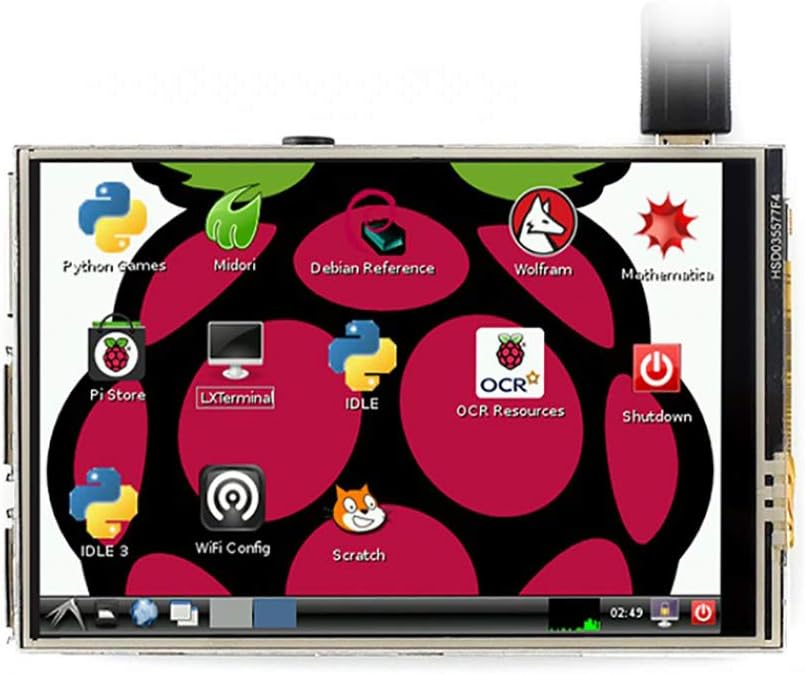
Figure 3: The display showing a typical Raspberry Pi desktop interface.
4.2. Key Features in Use
- การเล่นวิดีโอ: With a refresh rate up to 50Hz when combined with the Raspberry Pi, the display is capable of playing various video formats, such as MP4.
- การเล่นเกม: Enjoy playing video games, including those supported by RetroPie, directly on the compact screen.
- ถ่ายภาพ: Utilize the touch screen for camera control, supporting multiple camera modes if configured with a compatible camera module.
- ซอฟต์แวร์คีย์บอร์ด: Interact with the system using an on-screen software keyboard, eliminating the need for external keyboard and mouse peripherals.
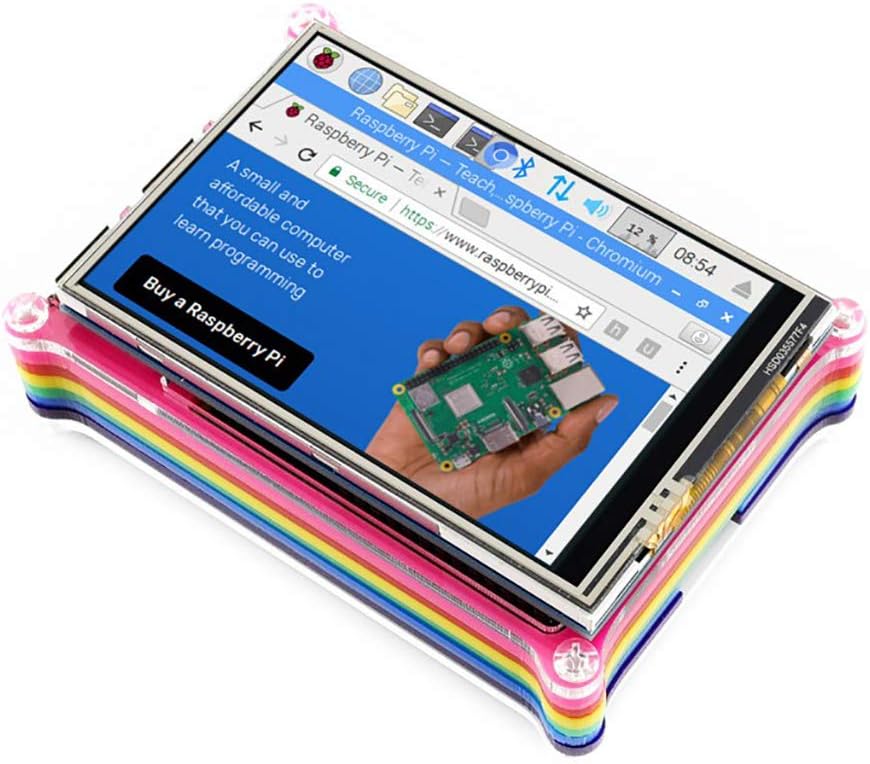
รูปที่ 4: Web browsing on the 3.5-inch display.

Figure 5: The display showcasing a high-quality image while mounted on a Raspberry Pi.
5. การบำรุงรักษา
5.1. การดูแลและทำความสะอาด
To maintain the longevity and performance of your Waveshare 3.5-inch LCD, follow these guidelines:
- การทำความสะอาดหน้าจอ: ใช้ผ้านุ่มไม่เป็นขุยเช็ดเบาๆampened with water or a screen-cleaning solution, to gently wipe the display surface. Avoid harsh chemicals, abrasive materials, or excessive moisture.
- การจัดการ: Avoid applying excessive pressure to the screen, especially with sharp objects, as this can damage the resistive touch layer. Always use the provided touch pen for best results.
- พื้นที่จัดเก็บ: When not in use, store the display in a clean, dry environment, away from direct sunlight and extreme temperatures.
- สภาพแวดล้อม : Operate the display within recommended temperature and humidity ranges to prevent damage.
6 การแก้ไขปัญหา
6.1. ปัญหาทั่วไป
- จอแสดงผลไม่ทำงาน:
- Ensure the display is correctly and securely plugged into the Raspberry Pi's GPIO header.
- Verify that the necessary drivers are installed and configured correctly for your operating system.
- Check the Raspberry Pi's power supply to ensure it provides sufficient current for both the Pi and the display.
- ระบบสัมผัสไม่ตอบสนอง:
- Confirm that the touch screen drivers are installed and loaded.
- Perform a touch screen calibration if available in your OS settings.
- Ensure you are using a suitable object (like the provided touch pen) and applying appropriate pressure.
- Incorrect Display Orientation/Resolution:
- Review your software configuration files (e.g.,
/boot/config.txt) for correct rotation and resolution settings. - Reinstall or update display drivers.
- Review your software configuration files (e.g.,
7. ข้อมูลจำเพาะทางเทคนิค
7.1. Key Parameters
| พารามิเตอร์ | ค่า |
|---|---|
| ประเภทจอแอลซีดี | ทีเอฟที |
| จอแอลซีดี | เอสพีไอ |
| ประเภทหน้าจอสัมผัส | ตัวต้านทาน |
| ตัวควบคุมหน้าจอสัมผัส | XPT2046 |
| สีสัน | 65536 |
| แสงไฟแบ็คไลท์ | นำ |
| ปณิธาน | 480x320 (Pixel) |
| อัตราส่วนภาพ | 1.50:1 (3:2) |
| ขนาดการแสดงผลหน้าจอยืน | 3.5 นิ้ว |
| คำอธิบายพื้นผิวหน้าจอ | มันเงา |
| หมายเลขรุ่นสินค้า | XPT2046 |
7.2. Interface Pinout
| หมายเลข PIN | เครื่องหมาย | คำอธิบาย |
|---|---|---|
| 1, 17 | 3.3โวลต์ | กำลังไฟฟ้าบวก (กำลังไฟ 3.3V) |
| 2, 4 | 5V | กำลังไฟฟ้าบวก (กำลังไฟ 5V) |
| 3, 5, 7, 8, 10, 12, 13, 15, 16 | NC | NC |
| 6, 9, 14, 20, 25 | ก.ย.ด. | พื้น |
| 11 | TP_IRQ | Touch Panel Interrupt, low level while the Touch Panel detects touching |
| 18 | LCD_RS | การเลือกคำสั่ง / การลงทะเบียนข้อมูล |
| 19 | LCD_SI / TP_SI | ป้อนข้อมูล SPI ของ LCD / Touch Panel |
| 21 | TP_SO | ข้อมูล SPI ของ Touch Panel |
| 22 | ร.ส.ท. | รีเซ็ต |
| 23 | LCD_SCK / TP_SCK | นาฬิกา SPI ของ LCD / Touch Panel |
| 24 | LCD_CS | การเลือกชิพ LCD ที่ใช้งานต่ำ |
| 26 | TP_CS | การเลือกชิประบบสัมผัสที่ใช้งานต่ำ |

Figure 6: Detailed technical specifications and pinout diagram.
7.3. มิติทางกายภาพ

Figure 7: Dimensions of the 3.5-inch RPi LCD (C).
8. การรับประกันและการสนับสนุน
8.1. ข้อมูลการรับประกัน
Specific warranty details for the Waveshare 3.5-inch Resistive Touch Screen TFT LCD XPT2046 are not provided in this manual. Please refer to the Waveshare official webตรวจสอบเงื่อนไขและข้อกำหนดการรับประกันปัจจุบันได้ที่เว็บไซต์หรือติดต่อจุดจำหน่ายสินค้า
8.2. การสนับสนุนด้านเทคนิค
For technical assistance, driver downloads, or further documentation, please visit the official Waveshare website. You may also contact Waveshare customer support directly for specialized help with product installation, configuration, or troubleshooting beyond the scope of this manual.


