The MOZA Air 2 is a professional 3-axis handheld gimbal stabilizer designed for DSLRs, mirrorless cameras, and pocket cinema cameras. It offers advanced stabilization, extended battery life, and intelligent features to enhance your videography experience. This manual provides essential information for setup, operation, and maintenance of your MOZA Air 2.
M3 x 10 hexagon socket countersunk flat cap head screw x 10
Follow focus support x 1
สินค้าเกินview
The MOZA Air 2 gimbal stabilizer is designed for professional filmmaking, offering robust support and precise control for various camera setups.
Figure 1: MOZA Air 2 Gimbal with a camera mounted, showcasing การออกแบบที่กะทัดรัดและตามหลักสรีรศาสตร์
Key features include a maximum payload capacity of 9 lbs (4.2 kg), supporting a wide range of cameras. It features an OLED display for easy parameter customization and offers 4-axis control with 8 follow modes for versatile shooting scenarios.
รูปที่ 2: รายละเอียด view of the MOZA Air 2's control panel, including the OLED display, multi-function dial, and various control buttons.
The gimbal also integrates with a newly developed ecosystem of accessories, such as the MOZA thumb controller, iFocus, camera cage, and camera backpack (sold separately), to provide comprehensive control over gimbal movement and camera functions.
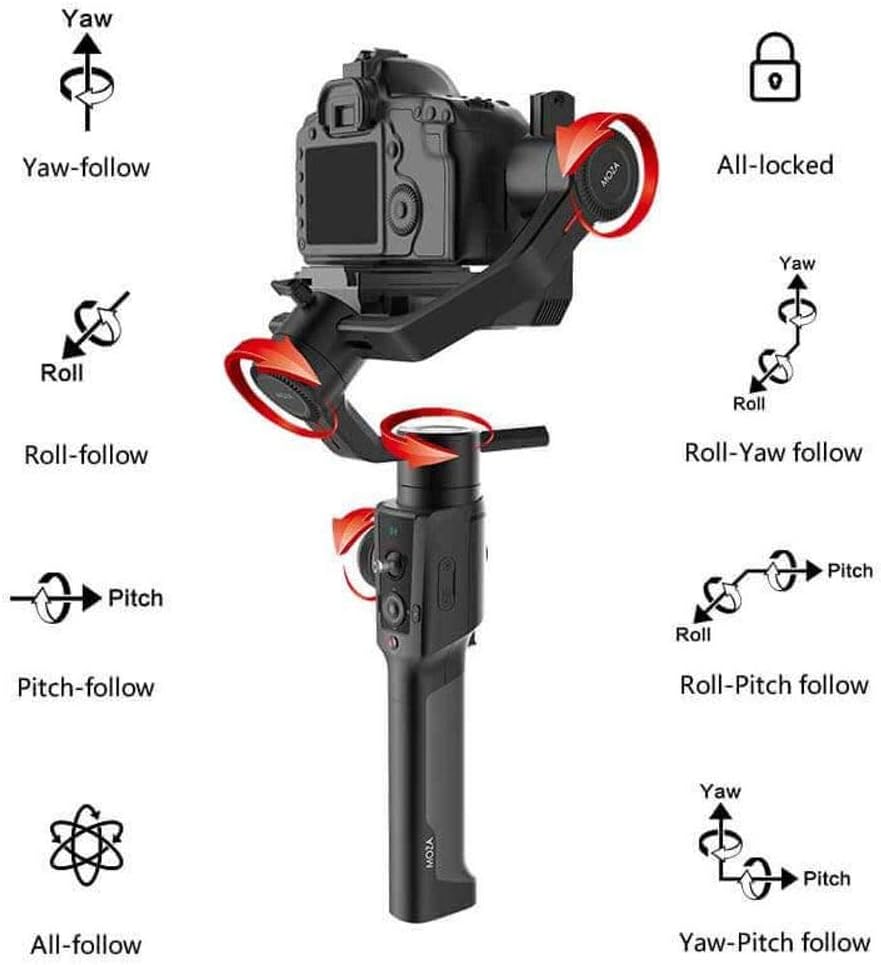
Figure 3: Visual representation of the MOZA Air 2's various operational modes, including Yaw, Roll, Pitch, and their respective follow modes, as well as All-locked and All-follow modes.
การตั้งค่า
1. การติดตั้งและการชาร์จแบตเตอรี่
The MOZA Air 2 is powered by four 18650 Li-on batteries. Ensure batteries are fully charged before first use.
Insert the four 18650 batteries into the battery compartment located in the handle. Ensure correct polarity.
Connect the intelligent charger to a power source and insert the batteries for charging. The charger's indicator lights will show charging status.
The MOZA Spark power supply system includes input and output ports for versatile power management. The input port allows for alternative power sources, while output ports can power the camera and other accessories.
2. Camera Mounting and Balancing
Proper balancing is crucial for optimal gimbal performance and battery efficiency. The MOZA Air 2 features quick-release plates and mechanical locks for easy setup.
Figure 4: The MOZA Air 2 gimbal highlighting the adjustable axes (tilt, roll, pan) for precise camera balancing.
Attach your camera to the MOZA quick release plate.
Mount the quick release plate with the camera onto the gimbal. Ensure it is securely locked.
Unlock each axis (tilt, roll, pan) one by one and adjust the camera position until it remains stable in any orientation without motor power. Use the lens support and screw if necessary for heavier lenses.
เมื่อปรับสมดุลเสร็จแล้ว ให้ล็อกแกนทั้งหมด
Figure 5: MOZA Air 2 Gimbal with a camera connected, demonstrating the cable connection for camera control and power.
3. การเชื่อมต่อกล้อง
Connect your camera to the gimbal using the appropriate camera control cable (Micro USB, Mini USB, Panasonic, or Sony) to enable camera control features via the gimbal.
Video 1: An official MOZA video demonstrating the features and capabilities of the MOZA Air 2 gimbal stabilizer, including its design and operational aspects.
โหมดการทำงาน
The MOZA Air 2 offers various operating modes to suit different shooting requirements:
Yaw-follow: The camera follows the pan movement of the gimbal while tilt and roll axes are locked.
Roll-follow: The camera follows the roll movement of the gimbal while pan and tilt axes are locked.
Pitch-follow: The camera follows the pitch movement of the gimbal while pan and roll axes are locked.
All-follow: The camera follows all pan, tilt, and roll movements of the gimbal.
Roll-Yaw follow: The camera follows roll and yaw movements.
Yaw-Pitch follow: The camera follows yaw and pitch movements.
โหมดเกียร์สปอร์ต: Provides rapid response for fast-moving scenes.
Switch between modes using the gimbal's control buttons or the MOZA Assistant App.
คุณสมบัติขั้นสูง
Smart Time-Lapse
The MOZA Air 2 features comprehensively upgraded time-lapse functions, offering up to 20 optimizations. This allows users to easily create various personalized and professional time-lapse videos, including motion-lapse, tracking time-lapse, and zoom time-lapse.
MOZA Spark Power Supply System
Equipped with four power ports, the MOZA Spark power supply system ensures extended working time. One input port allows for alternative power sources, while three output ports provide power to the camera and other accessories like follow focus systems, LED lights, and monitors. The integrated Battery Management System (BMS) enhances the gimbal's operational duration.
กล้องที่รองรับ
The MOZA Air 2 is compatible with a wide range of cameras, including but not limited to:
แคนนอน: 1D, 1DX, 1DX2, 5D Mark IV, 5D Mark III, 5D Mark II, 6D, 60D, 7D, 70D, 750D
Ensure batteries are charged periodically even when not in use to maintain battery health.
การแก้ไขปัญหา
This section addresses common issues you might encounter with your MOZA Air 2 gimbal.
Gimbal Not Powering On or Malfunctioning
ตรวจสอบแบตเตอรี่: Ensure all four 18650 batteries are fully charged and correctly inserted with proper polarity.
สุขภาพแบตเตอรี่: If batteries are old or frequently used, their capacity might degrade. Consider replacing them with new MOZA-approved 18650 batteries.
อัพเดตเฟิร์มแวร์: Ensure the gimbal's firmware is up to date. Outdated firmware can sometimes cause operational issues.
การสอบเทียบใหม่: If the gimbal behaves erratically or drifts, perform a re-calibration through the MOZA Assistant App.
Difficulty Balancing Camera
ขีดจำกัดน้ำหนักบรรทุก: Verify that your camera and lens setup does not exceed the 9 lbs (4.2 kg) payload capacity.
Axis Locks: Ensure all axis locks are disengaged when attempting to balance.
การปรับแต่งอย่างละเอียด: Use the fine-tuning knobs and sliding plates for precise balance adjustments on each axis.
ที่รองรับเลนส์: For longer or heavier lenses, utilize the included lens support to prevent front-heavy imbalance.
Camera Control Issues
สายเคเบิลที่ถูกต้อง: Ensure you are using the correct camera control cable for your specific camera model.
การเชื่อมต่อที่ปลอดภัย: Check that the control cable is securely connected to both the gimbal and the camera.
การตั้งค่ากล้อง: Some cameras require specific settings (e.g., USB mode) to enable external control. Refer to your camera's manual.
For persistent issues not covered here, please refer to the official MOZA support resources or contact customer service.
การรับประกันและการสนับสนุน
MOZA products are covered by a limited warranty. For detailed warranty information, product registration, and technical support, please visit the official MOZA webหรือติดต่อฝ่ายบริการลูกค้า เก็บใบเสร็จรับเงินไว้เป็นหลักฐานการซื้อสำหรับการเคลมประกัน
For any questions regarding the use of your MOZA Air 2 Gimbal with your camera, please contact MOZA directly.
เอกสารที่เกี่ยวข้อง - เอ็มซีจี01
คู่มือการใช้งาน MOZA Air Professional Handheld Gimbal | Gudsen Technology ศึกษาคู่มือการใช้งาน MOZA Air สำหรับอุปกรณ์กันสั่นแบบถือด้วยมือระดับมืออาชีพจาก Gudsen Technology เรียนรู้เกี่ยวกับคุณสมบัติขั้นสูง การตั้งค่า การควบคุม และการบำรุงรักษาสำหรับการเคลื่อนไหวของกล้องแบบภาพยนตร์ด้วยกล้องมิเรอร์เลสและกล้อง DSLR ที่มีน้ำหนักไม่เกิน 5.5 ปอนด์
MOZA AirCross 3 User Manual - 3-Axis Gimbal Stabilizer Guide Comprehensive user manual for the MOZA AirCross 3 3-axis gimbal stabilizer, covering setup, preparation, balance adjustment, operation, advanced features, MOZA Master app control, specifications, and warranty information.
MOZA AirCross 3 User Manual: Setup, Operation, and Specifications Comprehensive user manual for the MOZA AirCross 3 gimbal stabilizer, detailing setup, balancing, operation, advanced features, specifications, and safety guidelines for professional videography.
MOZA Mini MX 2 User Manual: Setup, Operation, and Features Explore the MOZA Mini MX 2 smartphone gimbal with this comprehensive user manual. Learn about setup, app integration, controls, troubleshooting, and specifications for professional mobile videography.