1. บทนำ
This manual provides essential instructions for the setup, operation, maintenance, and troubleshooting of your Konica Minolta Bizhub C224 multifunction printer. The Bizhub C224 is designed for office environments, offering comprehensive copying, printing, scanning, and finishing capabilities.
Please read this manual thoroughly before using the device to ensure proper operation and to maximize its lifespan.
2. การตั้งค่า
2.1 การแกะและการจัดวาง
Carefully remove the Bizhub C224 and all included components from its packaging. The package typically includes the printer unit, a finisher, and a USB cable. Ensure the device is placed on a stable, level surface with adequate ventilation. Avoid direct sunlight and areas with extreme temperature or humidity fluctuations.

ภาพที่ 2.1: ด้านหน้า view of the Konica Minolta Bizhub C224 multifunction printer with the attached finisher unit.
2.2 การเชื่อมต่อสายไฟ
Connect the power cord securely to the device and then to a grounded electrical outlet. Do not use extension cords or power strips that are not rated for the device's power requirements.
2.3 Initial Software and Driver Installation
For printing and scanning functions, install the necessary drivers and software on your computer. The Bizhub C224 supports USB connectivity. Refer to the included software CD or the Konica Minolta support website for the latest drivers and installation guides.
3. คู่มือการใช้งาน
3.1 กำลังโหลดกระดาษ
The Bizhub C224 supports various paper sizes, including A4 NA, and has a maximum input sheet capacity of 500 sheets. Open the paper tray, adjust the guides to the correct paper size, and load the paper stack. Ensure the paper is not creased or bent.

ภาพที่ 3.1: ด้านข้าง view of the Bizhub C224, illustrating the paper trays and their typical configuration.
3.2 การใช้แผงควบคุม
The device features an intuitive control panel for accessing various functions. The main screen displays options for Copy, Print, Scan, and Other functions. Use the touch screen and physical buttons (Power, Start, Stop, Reset) to navigate and execute tasks.
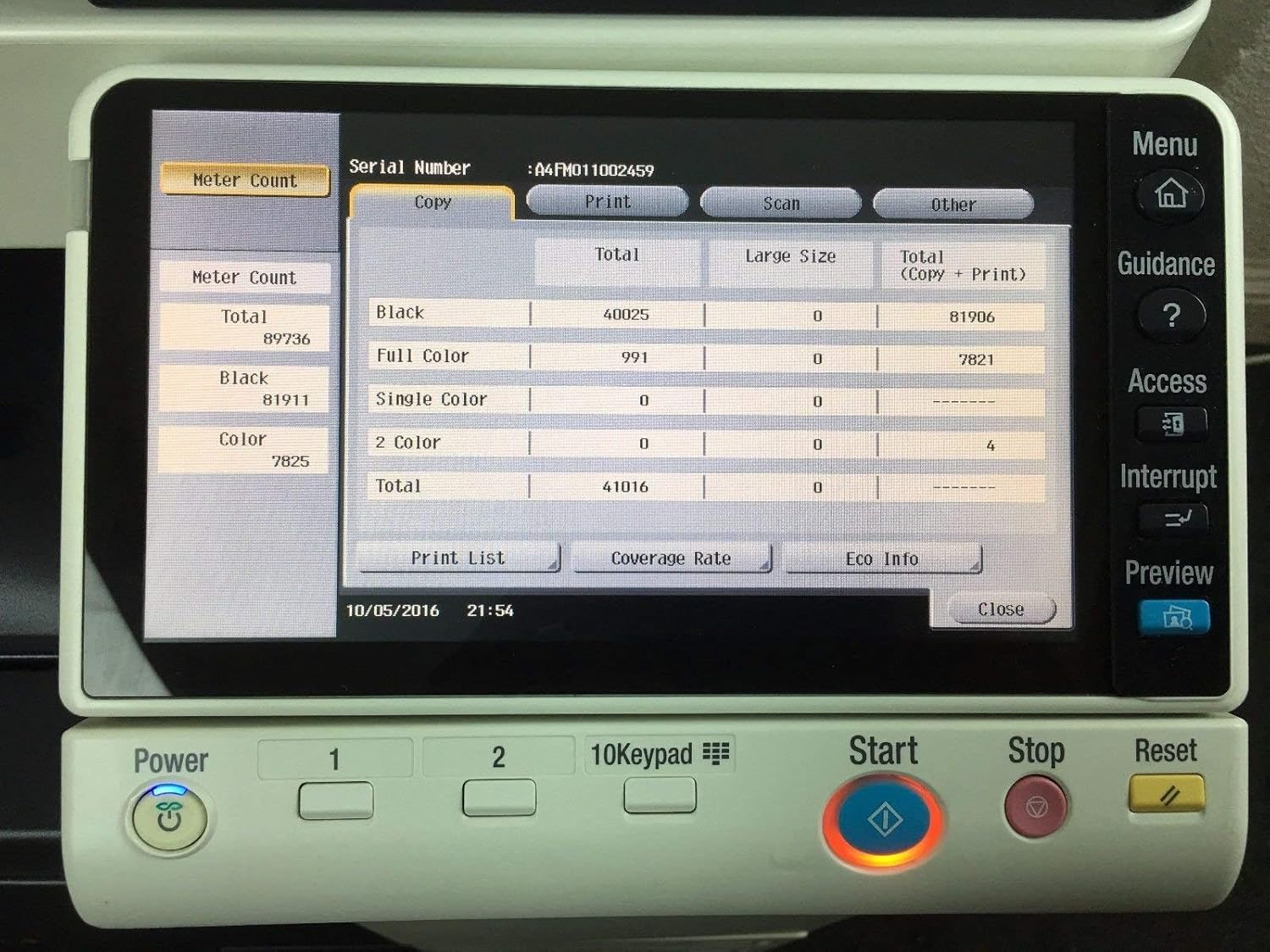
Image 3.2: The control panel showing the 'Meter Count' screen, which displays total and color page counts.
3.3 การคัดลอกเอกสาร
- วางเอกสารต้นฉบับลงบนกระจกสแกนเนอร์หรือในช่องป้อนเอกสารอัตโนมัติ (ADF)
- On the control panel, select the 'Copy' function.
- Adjust settings such as quantity, color/monochrome, and duplex options.
- กดปุ่ม 'เริ่ม' เพื่อเริ่มการคัดลอก

Image 3.3: The Bizhub C224 with the scanner lid open, revealing the flatbed scanner glass.
3.4 การพิมพ์เอกสาร
Send print jobs from your computer to the Bizhub C224 using the installed printer drivers. The device supports both color and monochrome output, as well as automatic dual-sided (duplex) printing. Configure print settings such as paper source, print quality, and finishing options directly from your computer's print dialogue.
3.5 การสแกนเอกสาร
- วางเอกสารต้นฉบับลงบนกระจกสแกนเนอร์หรือในช่องป้อนเอกสารอัตโนมัติ (ADF)
- On the control panel, select the 'Scan' function.
- Choose scan destination (e.g., email, network folder, USB drive) and adjust scan settings (e.g., resolution, color mode).
- กดปุ่ม 'เริ่ม' เพื่อเริ่มการสแกน
3.6 Using the Finisher
The integrated finisher allows for advanced document handling, such as stapling or sorting. Ensure documents are properly aligned in the output tray for correct finishing operations. Specific finisher functions can be selected via the control panel or print driver settings.

ภาพที่ 3.4: ภาพระยะใกล้ view of the finisher unit, showing output paper stacked in the tray.
4. การบำรุงรักษา
4.1 Checking Consumable Life
Regularly check the status of consumables such as toner (Cyan, Magenta, Yellow, Black), developing units, drum units, fusing unit, and image transfer belt unit. This can be done through the control panel's 'Utility' menu under 'Check Consumable Life'.

Image 4.1: The control panel displaying the first page of 'Check Consumable Life', showing the status of developing and drum units.

Image 4.2: The control panel displaying the second page of 'Check Consumable Life', showing the status of the fusing unit, transfer roller unit, and image transfer belt unit.
4.2 การเปลี่ยนตลับหมึก
When a toner cartridge is low or empty, the device will display a notification. Follow the on-screen instructions or refer to the service manual for specific steps on how to safely replace toner cartridges. Use only genuine Konica Minolta toner for optimal performance.
4.3 ขั้นตอนการทำความสะอาด
Periodically clean the exterior of the device with a soft, dry cloth. For the scanner glass, use a lint-free cloth and a mild glass cleaner. Ensure the device is powered off before cleaning any internal components.
5 การแก้ไขปัญหา
5.1 ปัญหาทั่วไป
- กระดาษติด: If a paper jam occurs, the control panel will display an error message indicating the location. Carefully open the specified covers and gently remove any jammed paper.
- คุณภาพการพิมพ์ไม่ดี: Check toner levels and consumable life. Perform a print quality calibration from the utility menu if available. Ensure you are using appropriate paper for your print settings.
- อุปกรณ์ไม่ตอบสนอง: Verify power connection and network/USB cable connection. Restart the device and your computer.
5.2 รหัสข้อผิดพลาด
If an error code appears on the control panel, note the code and refer to the comprehensive service manual or Konica Minolta's support website for detailed explanations and solutions. Some errors may require professional service.
6. ข้อมูลจำเพาะ
| คุณสมบัติ | รายละเอียด |
|---|---|
| ยี่ห้อ | โคนิก้า มินอลต้า |
| ชื่อรุ่น | ซี224 |
| เทคโนโลยีการพิมพ์ | อิงค์เจ็ท |
| เอาท์พุตเครื่องพิมพ์ | สี, โทนขาวดำ |
| ความละเอียดการพิมพ์ขาวดำสูงสุด | 600 จุดต่อนิ้ว |
| สีหมึก | สีฟ้า, สีแดงอมม่วง, สีเหลือง, สีดำ |
| การพิมพ์สองด้าน | ใช่ (ระบบกล้องสองทางอัตโนมัติ) |
| ประเภทสแกนเนอร์ | รถบรรทุกพื้นเรียบ |
| ความจุแผ่นอินพุตสูงสุด | 500 |
| ขนาดแผ่น | เอ4 เอ็นเอ |
| เทคโนโลยีการเชื่อมต่อ | ยูเอสบี |
| พอร์ต USB รวม | 1 |
| ส่วนประกอบที่รวมอยู่ | Finisher, USB Cable, Printer |
| การใช้งานเฉพาะของผลิตภัณฑ์ | สำนักงาน |
| หมายเลขรุ่นสินค้า | ซี224 |
| ยูพีซี | 748926424851 |
7. ข้อมูลการรับประกัน
This Konica Minolta Bizhub C224 is a Certified Refurbished product and comes with a 90-day limited warranty. This warranty covers functionality and ensures the product looks and works like new. For specific terms and conditions, please refer to the warranty documentation provided at the time of purchase or contact the seller.
8. การสนับสนุน
For further assistance, technical support, or service inquiries, please contact your authorized Konica Minolta dealer or the seller from whom you purchased this renewed product. Ensure you have your model number (C224) and any relevant serial numbers available when seeking support.


