การแนะนำ
This manual provides instructions for the use and care of Avery Durable Labels, Model 61503. These labels are designed for use in various environments, including warehouses, offices, and factories. They feature a specialized adhesive for secure attachment and clean removal from smooth, hard surfaces such as metal, plastic, and glass. The durable material is resistant to water, chemicals, and abrasion, making them suitable for demanding applications.
For additional information and templates, please visit the official เอเวอรี่ webเว็บไซต์.
Setup and Printing
Avery Durable Labels are compatible with both inkjet and laser printers. To prepare your labels for printing, follow these steps:
- การเลือกซอฟต์แวร์: Utilize Avery Design & Print software or compatible word processing programs (e.g., Microsoft Word) to design your labels. Avery offers free templates and a barcode generator on their webเว็บไซต์.
- Template Download: Download the specific template for Avery Model 61503 from the Avery website. This ensures correct alignment and sizing.
- Design Customization: Customize your labels with text, graphics, or barcodes as needed for your application (e.g., inventory tracking, bin identification).
- การตั้งค่าเครื่องพิมพ์: Before printing on the actual label sheets, perform a test print on a plain sheet of paper. Compare the test print against a label sheet to verify alignment. Adjust printer settings (e.g., paper type, tray selection) as necessary to match the label sheet specifications.
- กำลังโหลดป้ายกำกับ: Load the Avery label sheets into your printer's paper tray according to your printer's instructions, ensuring the correct orientation for printing on the label side.
- การพิมพ์: Print your customized labels. Allow printed sheets to dry completely before handling to prevent smudging.

Image: Packaging for Avery Durable Labels 61503, highlighting features like clean removal, tear resistance, water resistance, chemical resistance, and abrasion resistance. The label size is 2" x 3-1/2".
Application and Removal
These labels are designed for secure application and clean removal from appropriate surfaces.
แอปพลิเคชัน
- การเตรียมพื้นผิว: Ensure the target surface is clean, dry, and free of dust, grease, or other contaminants. For optimal adhesion, apply labels to smooth, hard surfaces such as metal, plastic, or glass.
- Peeling the Label: Carefully peel the printed label from its backing sheet. Avoid touching the adhesive side excessively to maintain its integrity.
- การจัดวาง: Position the label accurately on the desired surface.
- การยึดเกาะ: Once placed, firmly press down on the entire label, working from the center outwards, to ensure full contact with the surface and to remove any air bubbles.
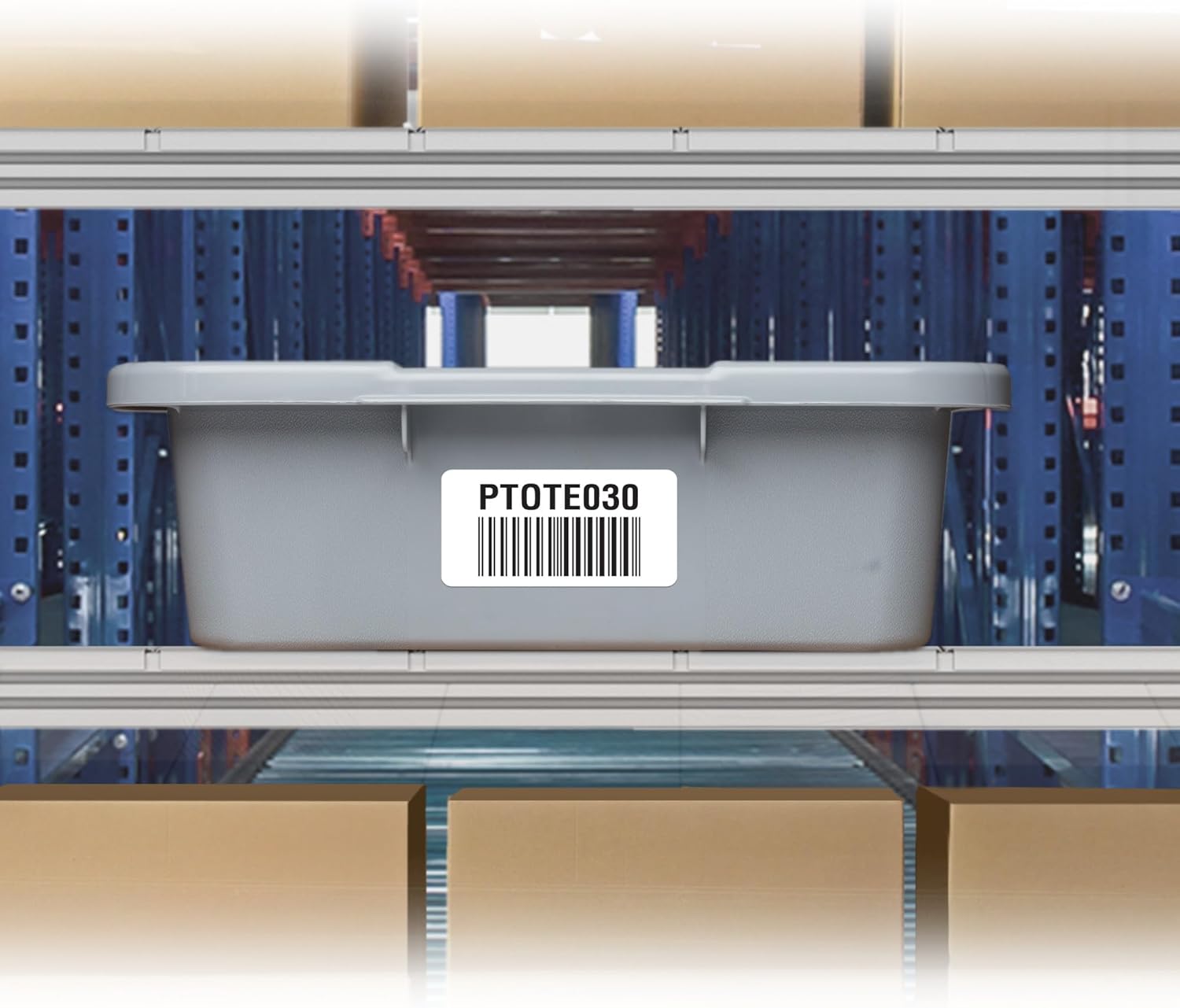
Image: An Avery Durable Label with a barcode applied to a grey storage tote bin, demonstrating typical application in a warehouse or storage setting.

Image: A red storage bin featuring Avery Durable Labels, used for organizing folders by color and displaying part numbers with barcodes.

Image: A hand using a barcode scanner to read an Avery Durable Label affixed to a red metal shelving unit, illustrating inventory management.

Image: Several blue storage bins on a shelf, each with an Avery Durable Label displaying a barcode and location information, illustrating organized storage.

Image: Avery Durable Labels used on large industrial paper rolls, providing clear inventory identification and tracking information.

Image: A stack of clear storage bins, each labeled with an Avery Durable Label, demonstrating effective organization for various items.
การถอดถอน
- การปอกเปลือก: Gently lift one corner of the label.
- ช้าๆ และมั่นคง: Slowly peel the label away from the surface at a consistent angle. The Surface Safe adhesive is designed to remove cleanly without leaving residue.
- Residue Check: After removal, inspect the surface for any adhesive residue. In most cases, no residue will be left. If a minimal amount remains, it can typically be wiped away with a soft cloth.

Image: A hand demonstrating the clean removal of an Avery Durable Label from a red metal shelf, showing no adhesive residue left behind.
การดูแลรักษาและการเก็บรักษา
To ensure the longevity and performance of your Avery Durable Labels, observe the following guidelines:
- พื้นที่จัดเก็บ: Store unused label sheets in their original packaging in a cool, dry place, away from direct sunlight and extreme temperatures. This prevents premature adhesive degradation and curlการไอเอ็นจี
- การจัดการ: Handle label sheets by the edges to avoid transferring oils or dirt to the printable surface or adhesive.
- Cleaning Labels: Once applied, the labels are resistant to water and chemicals. For cleaning, gently wipe the label surface with a damp cloth or mild cleaning solution. Avoid abrasive cleaners or scrubbing, which could damage the print or label material.
การแก้ไขปัญหา
| ปัญหา | สาเหตุที่เป็นไปได้ | สารละลาย |
|---|---|---|
| Labels not sticking properly | Surface is dirty, oily, or textured; label applied in extreme temperatures. | Clean and dry the surface thoroughly before application. Ensure application within recommended temperature ranges. Apply to smooth, hard surfaces. |
| Labels leaving residue upon removal | Surface not suitable for clean removal; label left on for extended periods in harsh conditions. | Ensure labels are applied to recommended surfaces (metal, plastic, glass). While designed for clean removal, extreme conditions or very long-term application might affect performance. |
| การจัดตำแหน่งการพิมพ์ที่ไม่ถูกต้อง | Incorrect printer settings; wrong template used; labels loaded incorrectly. | Use the correct Avery template for Model 61503. Verify printer settings (paper type, tray). Perform test prints on plain paper before using label sheets. |
| Print smudging or fading | Ink not dry; incorrect printer settings for label material. | Allow sufficient drying time after printing. Ensure printer settings are optimized for labels or film material. |
ข้อมูลจำเพาะผลิตภัณฑ์
- หมายเลขรุ่น: 61503
- ขนาดฉลาก: 2" x 3-1/2"
- ประเภทวัสดุ : Film (Durable Polyester)
- ประเภทกาว: Surface Safe (Removable)
- สี: สีขาว
- เสร็จ: แมทต์
- ความเข้ากันได้: Laser and Inkjet Printers
- ความต้านทาน: Water, Chemicals, Abrasion, Tears
- คำแนะนำการใช้: ในร่ม
- น้ำหนักสินค้า: 13.7 ออนซ์
- ขนาดสินค้า (บรรจุภัณฑ์): 12.09 x 9.44 x 0.11 นิ้ว
การรับประกันและการสนับสนุน
For specific warranty information and customer support regarding Avery products, please refer to the official Avery website or contact their customer service directly. Details are typically available on the product packaging or the manufacturer's webเว็บไซต์.
Avery Customer Support: เยี่ยม avery.com/support for FAQs, contact information, and additional resources.


