1. บทนำ
This manual provides detailed instructions for the DIERYA DK63 Wireless Mechanical Gaming Keyboard. Please read this manual thoroughly before using the product to ensure proper operation and to maximize your user experience. The DK63 is a compact 60% mechanical keyboard designed for versatility across various platforms, offering both wired and wireless connectivity options.

Image 1.1: DIERYA DK63 60% Mechanical Keyboard showcasing its compact layout and dimensions (292.8mm width, 101mm height).
2. คุณสมบัติหลัก
- 60% รูปแบบกะทัดรัด: The DK63 features a streamlined 60% layout, optimizing desk space while retaining essential functionality through function layer keys.
- โหมดการเชื่อมต่อแบบคู่: Seamlessly switch between wired (USB-C) and wireless (Bluetooth 5.1) connections.
- รองรับหลายอุปกรณ์: Connects to up to 3 devices via Bluetooth, compatible with Mac, Windows, and Android operating systems.
- สวิตช์เชิงกลแท้: Equipped with durable mechanical switches (available in Blue, Brown, or Red variants) for a responsive typing and gaming experience.
- ไฟแบ็คไลท์ RGB แบบไดนามิก: Features 8 distinct lighting effects and supports 16.8 million colors for personalized aesthetics.
- ซอฟต์แวร์ที่ปรับแต่งได้: Utilize the DIERYA customizable software for macro recording and remapping keyboard buttons.

Image 2.1: The DIERYA DK63 keyboard demonstrating its ability to connect to up to 3 devices via Bluetooth, compatible with Mac, Windows, and Android.

ภาพที่ 2.2: ภาพระยะใกล้ view of the true mechanical switches on the DIERYA DK63 keyboard, highlighting their design for durability and responsiveness.
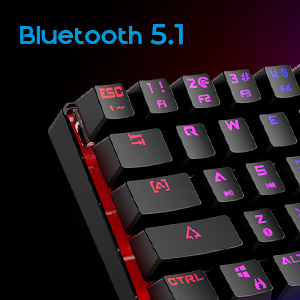
Image 2.3: Detail shot indicating Bluetooth 5.1 connectivity on the DIERYA DK63 keyboard.
3. คู่มือการติดตั้ง
3.1 การเชื่อมต่อแบบมีสาย
- ค้นหาพอร์ต USB-C บนแป้นพิมพ์
- เชื่อมต่อสาย USB-C ที่ให้มาเข้ากับแป้นพิมพ์
- เสียบปลายอีกด้านหนึ่งของสาย USB-C เข้ากับพอร์ต USB ที่ว่างอยู่บนคอมพิวเตอร์ของคุณ
- ระบบของคุณจะตรวจจับแป้นพิมพ์โดยอัตโนมัติและพร้อมใช้งาน
3.2 การเชื่อมต่อไร้สายบลูทูธ
- ตรวจสอบให้แน่ใจว่าคีย์บอร์ดได้รับการชาร์จหรือเชื่อมต่อผ่าน USB-C ในเบื้องต้น
- To switch to wireless mode, press Fn + ร. The keyboard's indicator light will change to signify Bluetooth mode.
- หากต้องการจับคู่กับอุปกรณ์ ให้กดค้างไว้ Fn+Z, Fn + X, หรือ เอฟเอ็น + ซี for 3-5 seconds. The corresponding key's backlight will flash rapidly, indicating pairing mode.
- บนอุปกรณ์ของคุณ (คอมพิวเตอร์ แท็บเล็ต หรือสมาร์ทโฟน) เปิดใช้งานบลูทูธและค้นหาอุปกรณ์ที่ใช้งานได้
- Select "DIERYA DK63" from the list of available devices to complete the pairing process.
- เมื่อจับคู่แล้ว ไฟแบ็คไลท์ของคีย์จะหยุดกะพริบและยังคงสว่างคงที่
- หากต้องการสลับระหว่างอุปกรณ์บลูทูธที่จับคู่แล้ว ให้กด Fn+Z, Fn + X, หรือ เอฟเอ็น + ซี (short press) to select the desired device.
4. คู่มือการใช้งาน
4.1 การรวมคีย์ฟังก์ชัน
The DK63 utilizes the Fn key to access secondary functions printed on the keycaps. Hold down the Fn key and press the desired key to activate its secondary function.
- Fn + 1! to 0): F1 to F10 keys.
- Fn + -_ and =+: F11 and F12 keys.
- Fn + P: พิมพ์หน้าจอ
- Fn + [: บ้าน.
- Fn + ]: จบ.
- ฟน + ;: ขึ้นหน้า.
- ฟน + ': เลื่อนหน้าลง.
- Fn + ปุ่มลูกศร: Navigation (e.g., Fn + Up Arrow for Page Up, Fn + Down Arrow for Page Down, etc., depending on specific keycap legends).
4.2 การควบคุมไฟแบ็คไลท์ RGB
The keyboard offers various lighting effects and customization options:
- ฟน + \|: หมุนเวียนผ่านเอฟเฟกต์แสงที่แตกต่างกัน
- Fn + ลูกศรขึ้น: เพิ่มความสว่างของไฟแบ็คไลท์
- Fn + ลูกศรลง: ลดความสว่างของแสงไฟด้านหลัง
- ปุ่ม Fn + ลูกศรซ้าย: ปรับความเร็วของเอฟเฟกต์แสง
- ปุ่ม Fn + ลูกศรขวา: ปรับความเร็วของเอฟเฟกต์แสง
- Specific keys may have additional lighting controls indicated on their keycaps.

Image 4.1: Screenshot of the DIERYA customizable software, showing options for lighting effects, color selection, macro recording, and key remapping.
4.3 ซอฟต์แวร์ที่ปรับแต่งได้
The DIERYA DK63 supports dedicated software for advanced customization. This software allows users to:
- Record and assign macros to specific keys.
- Remap individual key functions.
- Fine-tune RGB lighting effects, colors, and patterns.
Please refer to the DIERYA official website for software download and detailed instructions on its usage.
วิดีโอ 4.2: วิดีโอแสดงผลิตภัณฑ์อย่างเป็นทางการasing the DIERYA DK63 60% Mechanical Gaming Keyboard, highlighting its design and RGB lighting effects.
5. การบำรุงรักษา
To ensure the longevity and optimal performance of your DIERYA DK63 keyboard, follow these maintenance guidelines:
- การทำความสะอาด: Regularly clean the keyboard with a soft, dry cloth. For deeper cleaning, use a can of compressed air to remove dust and debris from between the keycaps. If necessary, gently wipe keycaps with a slightly damp cloth and mild soap solution, ensuring no liquid enters the keyboard.
- หลีกเลี่ยงของเหลว: ห้ามทำของเหลวหกใส่แป้นพิมพ์ หากเกิดการหก ให้ถอดปลั๊กแป้นพิมพ์ทันทีและปล่อยให้แห้งสนิทก่อนเสียบปลั๊กใหม่
- พื้นที่จัดเก็บ: เก็บแป้นพิมพ์ไว้ในที่แห้งและเย็น หลีกเลี่ยงแสงแดดโดยตรงและอุณหภูมิที่สูงหรือต่ำเกินไป
- การดูแลสายเคเบิล: ควรหลีกเลี่ยงการงอหรือบิดสาย USB-C มากเกินไปเพื่อป้องกันความเสียหาย
6 การแก้ไขปัญหา
If you encounter issues with your DIERYA DK63 keyboard, refer to the following common solutions:
6.1 Keyboard Not Responding (Wired)
- ตรวจสอบให้แน่ใจว่าสาย USB-C เชื่อมต่อกับคีย์บอร์ดและคอมพิวเตอร์อย่างแน่นหนา
- ลองเชื่อมต่อคีย์บอร์ดกับพอร์ต USB อื่นบนคอมพิวเตอร์ของคุณ
- Test the keyboard with a different USB-C cable if available.
- รีสตาร์ทเครื่องคอมพิวเตอร์ของคุณ
6.2 ปัญหาการเชื่อมต่อบลูทูธ
- Ensure the keyboard is in Bluetooth mode (Fn + ร).
- ตรวจสอบว่าเปิดใช้งาน Bluetooth บนอุปกรณ์ของคุณแล้ว
- Make sure the keyboard is sufficiently charged. Low battery can affect Bluetooth performance.
- If already paired, try unpairing the keyboard from your device's Bluetooth settings and then re-pairing it.
- ตรวจสอบให้แน่ใจว่าแป้นพิมพ์อยู่ภายในระยะการใช้งานที่มีประสิทธิภาพของอุปกรณ์บลูทูธของคุณ (โดยทั่วไปสูงสุด 10 เมตร)
- หลีกเลี่ยงการรบกวนจากอุปกรณ์ไร้สายอื่น ๆ
6.3 ไฟแบ็คไลท์ไม่ทำงานหรือทำงานผิดปกติ
- เพิ่มความสว่างโดยใช้ Fn + ลูกศรขึ้น.
- หมุนเวียนผ่านเอฟเฟกต์แสงโดยใช้ Fn + \|.
- Ensure the keyboard is not in a mode where backlighting is intentionally off or dimmed.
- If using the customizable software, check the lighting settings within the application.
7. ข้อมูลจำเพาะผลิตภัณฑ์
| คุณสมบัติ | รายละเอียด |
|---|---|
| หมายเลขรุ่น | ดีเค63 |
| ยี่ห้อ | เดียร์ยา |
| ประเภทไร้สาย | บลูทูธ 5.1 |
| เทคโนโลยีการเชื่อมต่อ | USB-C, บลูทูธ |
| แพลตฟอร์มฮาร์ดแวร์ | แล็ปท็อปพีซี |
| น้ำหนักสินค้า | 1.5 ปอนด์ (ประมาณ 0.68 กก.) |
| ขนาดสินค้า (กxยxส) | 12 x 5.6 x 1.9 นิ้ว (ประมาณ 30.5 x 14.2 x 4.8 ซม.) |
| แหล่งพลังงาน | ใช้พลังงานจากแบตเตอรี่ (รวมแบตเตอรี่ลิเธียมไอออน 1 ก้อน) |
| Switch Type Options | สีน้ำเงิน (แบบกด), สีน้ำตาล (แบบสัมผัส), สีแดง (แบบเส้นตรง) |
| ส่วนประกอบที่รวมอยู่ | สาย USB |
8. การรับประกันและการสนับสนุน
DIERYA products are manufactured to high-quality standards. For information regarding warranty coverage, technical support, or service inquiries, please refer to the official DIERYA webหรือติดต่อฝ่ายสนับสนุนลูกค้าโดยตรง โปรดเก็บใบเสร็จรับเงินไว้เป็นหลักฐานการซื้อสำหรับการเรียกร้องการรับประกัน