1. บทนำ
The HUION Inspiroy H610X is a versatile drawing tablet designed for digital artists, graphic designers, and online educators. It features a large 10x6.25 inch work area, a battery-free stylus with 8192 pressure levels and ±60° tilt support, and 8 customizable press keys for enhanced efficiency. Compatible with Windows, macOS, Linux, and Android, the H610X offers a natural pen-on-paper drawing experience.

Image: The HUION Inspiroy H610X drawing tablet with its battery-free stylus, showcasing its sleek design and large work area.
สินค้าเกินview วีดีโอ
วิดีโอ: จบแล้วview of the HUION Inspiroy H610X, highlighting its features and applications in various creative and educational scenarios.
2. เนื้อหาบรรจุภัณฑ์
Verify that all items are present in your Inspiroy H610X package:
- Digital Pen (PW100 Battery-Free Stylus)
- Pen Holder (PH03)
- Replacement Nibs (PN04 x 8)
- สาย USB (USB-C ถึง USB-A)
- OTG Adapter (for Android connectivity)
- คู่มือเริ่มต้นอย่างรวดเร็ว
- Inspiroy H610X Pen Tablet

Image: All components included in the HUION Inspiroy H610X package, neatly arranged.
วิดีโอแกะกล่อง
Video: A demonstration of unboxing the HUION Inspiroy H610X, showing each item as it is removed from the packaging.
3. คู่มือการติดตั้ง
3.1 การเชื่อมต่อแท็บเล็ต
- Connect the USB-C end of the provided cable to the Inspiroy H610X tablet.
- เชื่อมต่อปลายสาย USB-A เข้ากับพอร์ต USB ที่ว่างอยู่บนคอมพิวเตอร์ของคุณ
- For Android devices, use the included OTG adapter to connect the tablet to your phone or tablet.

Image: Illustration showing how to connect the Inspiroy H610X tablet to a laptop via the USB cable.
3.2 การติดตั้งไดรเวอร์
For optimal performance and customization, install the latest driver from the official HUION webเว็บไซต์.
- เยี่ยม www.huion.com/ดาวน์โหลด/.
- Select your product model (Inspiroy H610X) and operating system (Windows, macOS, or Linux).
- Download and run the installer. Follow the on-screen instructions to complete the installation.
- หลังจากติดตั้งเสร็จแล้ว โปรดรีสตาร์ทคอมพิวเตอร์หากได้รับแจ้ง
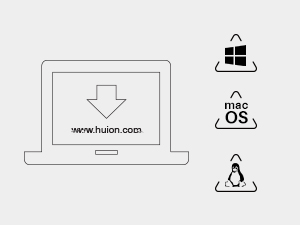
Image: Graphic depicting a laptop screen with the HUION website address, indicating where to download drivers for Windows, macOS, and Linux.
3.3 Driver Interface Overview
The HUION driver interface allows you to customize the tablet's settings, including pen pressure, button functions, and working area.

Image: Screenshot of the HUION driver interface, showing options for customizing press keys and working area.
4. Operating Your Inspiroy H610X
4.1 Using the Battery-Free Stylus (PW100)
The PW100 stylus offers a natural drawing experience without the need for charging. It features 8192 levels of pressure sensitivity and ±60° tilt function, allowing for precise and expressive strokes.
- ความไวต่อแรงกด: Adjust the pressure curve in the driver settings to match your drawing style.
- ฟังก์ชั่นเอียง: The stylus supports ±60° tilt, providing smoother and more natural lines when using brushes that respond to tilt.
- ปุ่มปากกา: The two customizable buttons on the stylus can be assigned to various functions like right-click, eraser, or undo/redo.

Image: Close-up of the PW100 battery-free stylus, highlighting its design and buttons.

Image: Diagram illustrating the key features of the PW100 stylus, including battery-free operation, 8192 pressure levels, >220PPS report rate, and ±60° tilt support.
4.2 Customizing Programmable Press Keys
The Inspiroy H610X features 8 programmable press keys on the tablet, allowing you to assign frequently used functions for increased efficiency.
- Open the HUION driver software.
- Navigate to the 'Press Key' tab.
- Click on each key to assign a custom function (e.g., keyboard shortcuts, mouse clicks, program launches).
- You can also set application-specific shortcuts.

Image: Close-up of the 8 programmable press keys on the Inspiroy H610X tablet, with icons indicating common functions.
How to Set Press Key Functions Video
Video: A step-by-step guide on how to customize the functions of the programmable press keys on your HUION Inspiroy H610X tablet.
4.3 Working Area and Ergonomics
The tablet offers a large 10x6.25 inch active drawing area. Its ergonomic design with a narrow frame and rounded corners helps reduce hand fatigue during long work sessions. The tablet can also be rotated to 90°, 180°, or 270° in the driver settings to suit your preferred orientation, including left-hand mode.
Image: Diagram illustrating the 10x6.25 inch active working area of the Inspiroy H610X tablet with its dimensions.

Image: Illustration showing the Inspiroy H610X tablet rotated to different angles (0°, 90°, 180°, 270°) to accommodate various user preferences, including left-handed use.
4.4 ความเข้ากันได้
The Inspiroy H610X is compatible with a wide range of operating systems and creative software:
- ระบบปฏิบัติการ: Windows 7 or later, macOS 10.12 or later, Linux (Ubuntu), Android 6.0 or later.
- ซอฟต์แวร์: Supports major creative applications such as Adobe Photoshop, SAI, Illustrator, CorelDRAW, Corel Painter, Sketchbook, and more. It is also suitable for online teaching and learning platforms like Word, PDF, OneNote, and Zoom.

Image: Visual representation of the Inspiroy H610X's compatibility with Windows, macOS, Android, and Linux operating systems, as well as various creative software applications.
5. ข้อมูลจำเพาะผลิตภัณฑ์
| คุณสมบัติ | ข้อมูลจำเพาะ |
|---|---|
| ขนาดสินค้า | 12.7 x 8.1 x 0.3 นิ้ว |
| น้ำหนักสินค้า | 1.13 ปอนด์ |
| หมายเลขรุ่นสินค้า | H610X |
| เทคโนโลยีการเชื่อมต่อ | ยูเอสบี |
| ความไวต่อแรงกด | 8192 ระดับ |
| ความเข้ากันได้ของระบบปฏิบัติการ | Android 6.0 and above, Mac OS 10.12 and above, Windows 7 and above, Linux (Ubuntu) |
| คุณสมบัติพิเศษ | 60° Tilt Support, Large Drawing Area, Programmable Press Key, Stylus Dock, Support Android Device |
6. การบำรุงรักษา
To ensure the longevity and optimal performance of your Inspiroy H610X tablet and stylus, follow these maintenance guidelines:
- การทำความสะอาด: Use a soft, dry cloth to wipe the tablet surface and stylus. Avoid using harsh chemicals or abrasive materials.
- พื้นที่จัดเก็บ: เก็บแท็บเล็ตและปากกาไว้ในที่แห้งและเย็น หลีกเลี่ยงแสงแดดโดยตรงและอุณหภูมิที่สูงหรือต่ำเกินไป
- การเปลี่ยนปลายปากกา: Replace the stylus nib when it becomes worn to maintain drawing precision. Extra nibs are provided in the pen holder. Use the nib clip to carefully remove and insert new nibs.
- การดูแลสายเคเบิล: หลีกเลี่ยงการงอหรือบิดสาย USB มากเกินไปเพื่อป้องกันความเสียหาย
7 การแก้ไขปัญหา
If you encounter issues with your Inspiroy H610X, try the following steps:
- No Pen Pressure/Functionality:
- Ensure the driver is correctly installed and updated to the latest version.
- Check if the tablet is properly connected to your computer.
- รีสตาร์ทคอมพิวเตอร์ของคุณและลองอีกครั้ง
- Test the tablet on a different USB port or computer.
- การเคลื่อนที่ของเคอร์เซอร์ไม่แม่นยำ:
- Recalibrate the working area in the HUION driver settings.
- Ensure there are no other drawing tablet drivers installed that might conflict.
- Press Keys Not Working:
- Verify that the press keys are enabled and correctly configured in the HUION driver.
- Check for any software conflicts with your drawing application.
For further assistance, refer to the official HUION support webเว็บไซต์หรือติดต่อฝ่ายบริการลูกค้า
8. การรับประกันและการสนับสนุน
The HUION Inspiroy H610X comes with a standard manufacturer's warranty. For detailed information regarding warranty coverage, terms, and conditions, please visit the official HUION webตรวจสอบรายละเอียดเพิ่มเติมได้ที่เว็บไซต์ หรือดูจากบัตรรับประกันที่อยู่ในบรรจุภัณฑ์
การสนับสนุนลูกค้า:
- การสนับสนุนทางออนไลน์: เยี่ยมชม HUION Support Center for FAQs, drivers, and troubleshooting guides.
- ติดต่อ: For direct assistance, you can contact HUION customer service through their webเว็บไซต์.


