1. สินค้าหมดview
The ENHANCE PBT Keycaps Set is designed to upgrade your mechanical gaming keyboard. This kit features durable double-shot PBT keycaps with textured and contoured surfaces for improved grip and finger positioning. The keycaps are backlit compatible, allowing your keyboard's illumination to shine through. The set includes essential tools for installation and maintenance.

Image: The complete ENHANCE PBT Keycaps Set in blue, ready for installation.
2. เนื้อหาบรรจุภัณฑ์
ตรวจสอบว่ามีรายการทั้งหมดอยู่ในแพ็คเกจของคุณ:
- ENHANCE PBT Keycaps (Blue)
- ตัวดึงกุญแจ
- แปรงฝุ่น
- ผ้าทำความสะอาดไมโครไฟเบอร์
- Drawstring Storage Pouch

Image: The ENHANCE PBT Keycap Mod Kit packaging, displaying the included keycaps and tools.
3. การตั้งค่าและการติดตั้ง
This section guides you through the process of replacing your existing keycaps with the ENHANCE PBT Keycaps. The keycaps are compatible with Cherry MX switches, Kailh, Gateron, Outemu, Greetech, KBT, and any MX Style switch, including those with dust shield stems.
3.1 Removing Existing Keycaps
- Identify the keycaps you wish to replace.
- Gently place the included keycap puller over the keycap, ensuring the two loops hook underneath the keycap's edges.
- Apply even upward pressure to carefully pull the keycap off the switch stem. Avoid excessive force to prevent damage to the switch.
- Repeat for all keycaps you intend to replace.

Image: A red keycap puller being used to remove a keycap from a mechanical keyboard, demonstrating the removal process.
3.2 การติดตั้งปุ่มกดใหม่
- Align the new ENHANCE PBT keycap with the corresponding switch stem on your keyboard. The keycaps feature a cross-shaped stem for secure attachment.
- Press down firmly and evenly on the keycap until it clicks into place on the switch stem.
- Ensure the keycap is seated properly and does not wobble.
- Install the WASD and arrow keycaps in their respective positions.
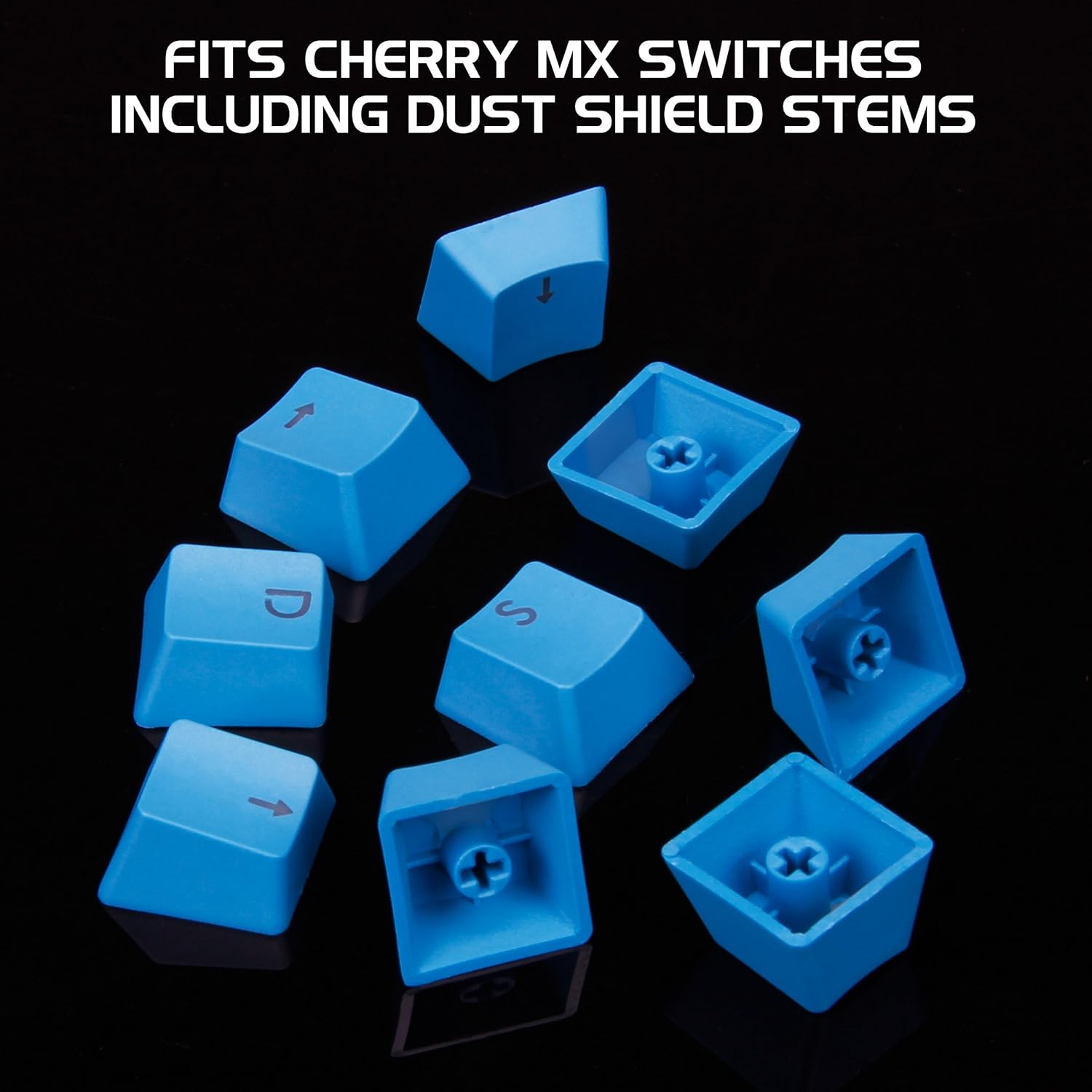
ภาพ: ภาพระยะใกล้ view of the blue keycaps, highlighting the cross-shaped stems designed for mechanical keyboard switches.

Image: The blue WASD and arrow keycaps arranged, ready for installation on a gaming keyboard.

Image: Blue arrow keycaps successfully installed on a mechanical keyboard, with the keyboard's backlighting visible.

Image: Blue WASD and ESC keycaps installed on a mechanical keyboard, showcasing their distinct appearance and placement.
3.3 Video Guide: Keycap Installation
Video: A detailed demonstration of how to install keycaps on a mechanical keyboard, including removal and placement techniques.
4. การใช้งานและการใช้งาน
The ENHANCE PBT Keycaps are designed to enhance your gaming and typing experience through several key features:
- ความทนทานที่ดียิ่งขึ้น: Made from double-shot PBT plastic, these keycaps are resistant to wear, fading, and shine, ensuring longevity even with high usage.
- การยึดเกาะที่เพิ่มขึ้น: The textured surface provides a better tactile feel, reducing slippage during intense gaming sessions.
- Optimized Finger Positioning: Contoured key profiles help maintain consistent finger placement, improving typing accuracy and speed.
- Backlit Compatibility: The translucent legends allow your keyboard's backlighting to shine through, maintaining visibility in low-light conditions.

Image: Hands demonstrating active use of a mechanical keyboard featuring the installed blue WASD keycaps, highlighting ergonomic positioning.
5. การบำรุงรักษา
Regular cleaning helps maintain the appearance and functionality of your keycaps and keyboard.
- การกำจัดฝุ่น: Use the included dust brush to gently sweep away dust and debris from between the keycaps and around the keyboard switches.
- การทำความสะอาดพื้นผิว: สำหรับคราบเปื้อนหรือรอยนิ้วมือ ให้เช็ดเบาๆampen the microfiber cleaning cloth with water (or a mild, keyboard-safe cleaner) and wipe the keycap surfaces. Avoid harsh chemicals.
- ทำความสะอาดล้ำลึก: For a more thorough clean, you may remove the keycaps using the keycap puller (refer to Section 3.1) and clean them individually. Ensure keycaps are completely dry before reinstallation.
- พื้นที่จัดเก็บ: When not in use, store spare keycaps and cleaning tools in the provided drawstring pouch to keep them clean and organized.

Image: A hand utilizing the provided dust brush to clean a mechanical keyboard, with the microfiber cleaning cloth positioned nearby for convenience.
6 การแก้ไขปัญหา
If you encounter issues with your ENHANCE PBT Keycaps, consider the following:
- ฝาครอบปุ่มไม่พอดี: Ensure your keyboard uses MX-style switches (Cherry MX, Kailh, Gateron, Outemu, Greetech, KBT). These keycaps are not compatible with other switch types. Verify the keycap orientation before pressing it onto the switch.
- Keycap Feels Loose: Re-seat the keycap by pressing down firmly and evenly. If it continues to feel loose, inspect the switch stem for damage.
- Backlighting Not Visible: Confirm your keyboard has backlighting functionality. The keycaps are designed for translucent legends, but the keyboard itself must emit light.
- Difficulty Removing Keycaps: Ensure the keycap puller is correctly hooked under the keycap. Apply steady, even pressure. Avoid twisting or prying aggressively.
7. ข้อมูลจำเพาะ
| ยี่ห้อ | ยกระดับ |
| หมายเลขรุ่น | B07DMB1XTB |
| วัสดุ | โพลีบิวทิลีนเทเรฟทาเลต (PBT) |
| สี | สีฟ้า |
| ความเข้ากันได้ | Cherry MX, Kailh, Gateron, Outemu, Greetech, KBT, and any MX Style switch |
| น้ำหนักสินค้า | 2 ออนซ์ |
| ขนาดสินค้า | 7.5 x 4.5 x 1 นิ้ว |
| ยูพีซี | 637836603855 |
8. การรับประกันและการสนับสนุน
For warranty information or technical support, please refer to the official ENHANCE webหรือติดต่อฝ่ายบริการลูกค้าโดยตรง เก็บใบเสร็จรับเงินไว้เพื่อใช้ในการเคลมประกัน


