การแนะนำ
This manual provides essential information for the proper setup, operation, and maintenance of your Rapoo N1600 3-Button Quiet Wired Mouse. Designed for comfort and efficiency, the N1600 features a quiet click mechanism, ergonomic shape, and precise 1000 DPI optical tracking for a smooth user experience.
The Rapoo N1600 mouse is built for endurance, versatility, and comfort, helping you power through tasks with ease on various computer systems.
วิดีโอ: จบแล้วview of the Rapoo Wired Silent Mouse, highlighting its quiet operation and design.
Video: Demonstration of the RX100WH Rapoo Wired Silent Mouse, showcasinก. คุณสมบัติของมัน
การตั้งค่า
The Rapoo N1600 mouse is designed for simple plug-and-play functionality, requiring no additional software or drivers for most operating systems.
- เชื่อมต่อสาย USB: Locate an available USB port on your computer (desktop or laptop). Insert the USB-A connector of the mouse cable into the USB port.
- การจดจำระบบ: Your operating system (Windows, Mac OS, Linux, Chrome OS) will automatically detect and install the necessary drivers. This process usually takes a few seconds.
- เริ่มใช้งาน: เมื่อระบบจดจำอุปกรณ์ได้แล้ว เมาส์ก็พร้อมใช้งานได้ทันที

Image: The Rapoo N1600 wired mouse in white, showcasinด้วยดีไซน์ที่เรียบง่ายและสะอาดตา

Image: A graphic illustrating the USB connection feature of the mouse.

Image: The Rapoo N1600 mouse featuring its 5-foot long cable, providing ampเข้าถึงการตั้งค่าต่างๆ
คำแนะนำการใช้งาน
The Rapoo N1600 mouse offers standard 3-button functionality with a focus on quiet operation and ergonomic comfort.
- ปุ่มซ้าย: Primary click function for selecting items, opening applications, and interacting with user interfaces. Features a 95% reduced click sound.
- ปุ่มขวา: Secondary click function, typically used for accessing context menus or special functions within applications. Also features a 95% reduced click sound.
- ล้อเลื่อน: ใช้สำหรับเลื่อนเอกสารแนวตั้งและ web pages. The grille anti-slip pattern ensures accurate scrolling. The scroll wheel itself is designed for quiet operation.
- การติดตามด้วยแสง: The 1000 DPI high-definition optical tracking engine provides responsive and smooth cursor control on various surfaces.

Image: A diagram illustrating the soft click buttons (Left, Right, and Middle Roller) of the Rapoo N1600 mouse.

Image: The white Rapoo N1600 mouse with a graphic indicating that silent switches reduce click noise.

Image: A layered diagram showing the Rapoo N1600 mouse's high-performance engine can be used on various surfaces like resin, wood, paper, cloth, and cortex.
การซ่อมบำรุง
To ensure the longevity and optimal performance of your Rapoo N1600 mouse, follow these simple maintenance guidelines:
- การทำความสะอาด: ใช้ผลิตภัณฑ์ที่มีความนุ่ม แห้ง หรือเล็กน้อยงamp cloth to wipe the exterior of the mouse. Avoid using harsh chemicals, solvents, or abrasive cleaners, as these can damage the surface.
- ออปติคัลเซนเซอร์: Periodically inspect the optical sensor on the underside of the mouse for dust or debris. Use a soft brush or compressed air to gently clean the sensor area. Do not touch the sensor directly with your fingers.
- การดูแลสายเคเบิล: Avoid sharp bends or excessive pulling on the USB cable to prevent internal damage. Store the cable neatly when not in use.
- พื้นที่จัดเก็บ: เมื่อไม่ได้ใช้งานเป็นเวลานาน ควรเก็บเมาส์ไว้ในสภาพแวดล้อมที่สะอาดและแห้ง ห่างจากอุณหภูมิที่สูงหรือต่ำเกินไป
การแก้ไขปัญหา
If you encounter issues with your Rapoo N1600 mouse, try the following troubleshooting steps:
- เมาส์ไม่ตอบสนอง:
- ตรวจสอบให้แน่ใจว่าเสียบสาย USB เข้ากับพอร์ต USB ที่ใช้งานได้บนคอมพิวเตอร์ของคุณอย่างแน่นหนา
- ลองเสียบเมาส์เข้ากับพอร์ต USB อื่น
- รีสตาร์ทเครื่องคอมพิวเตอร์ของคุณ
- การเคลื่อนที่ของเคอร์เซอร์ผิดปกติหรือกระโดดไปมา:
- Clean the optical sensor on the underside of the mouse for any dust or debris.
- ตรวจสอบให้แน่ใจว่าคุณกำลังใช้เมาส์บนพื้นผิวที่เหมาะสม พื้นผิวที่มีการสะท้อนแสงสูงหรือโปร่งใสอาจส่งผลต่อการติดตาม แนะนำให้ใช้แผ่นรองเมาส์
- ปุ่มหรือล้อเลื่อนไม่ทำงาน:
- ตรวจสอบให้แน่ใจว่าเชื่อมต่อเมาส์อย่างถูกต้อง
- ทดสอบเมาส์บนคอมพิวเตอร์เครื่องอื่นเพื่อตรวจสอบว่าปัญหาอยู่ที่เมาส์หรือการตั้งค่าของคอมพิวเตอร์
- Noisy Clicks:
- The N1600 is designed for quiet clicks. If you experience unexpected noise, ensure the buttons are not obstructed.
ข้อมูลจำเพาะ
| คุณสมบัติ | รายละเอียด |
|---|---|
| หมายเลขรุ่น | 1014-07X03-800 (N1600) |
| ขนาดสินค้า | 4.65 x 2.48 x 1.57 นิ้ว (118 มม. x 63 มม. x 40 มม.) |
| น้ำหนักสินค้า | 3.46 ออนซ์ (84.46 กรัม) |
| เทคโนโลยีการเชื่อมต่อ | สาย USB |
| เทคโนโลยีตรวจจับการเคลื่อนไหว | ออฟติคอล |
| ดีพีไอ | 1000 จุดต่อนิ้ว |
| ปุ่ม | 3 (ซ้าย, ขวา, ล้อเลื่อน/ปุ่มกลาง) |
| คุณสมบัติพิเศษ | Ergonomic Design, Soundless (Quiet Click) |
| ความเข้ากันได้ | Mac OS, Linux, Windows, Chrome OS |
| ผู้ผลิต | เซินเจิ้น Rapoo Technology Co., Ltd. |

Image: A diagram showing the dimensions of the Rapoo N1600 mouse: 118mm (4.65 inches) length, 63mm (2.48 inches) width, and 40mm (1.57 inches) height, with an item weight of 84.46g.
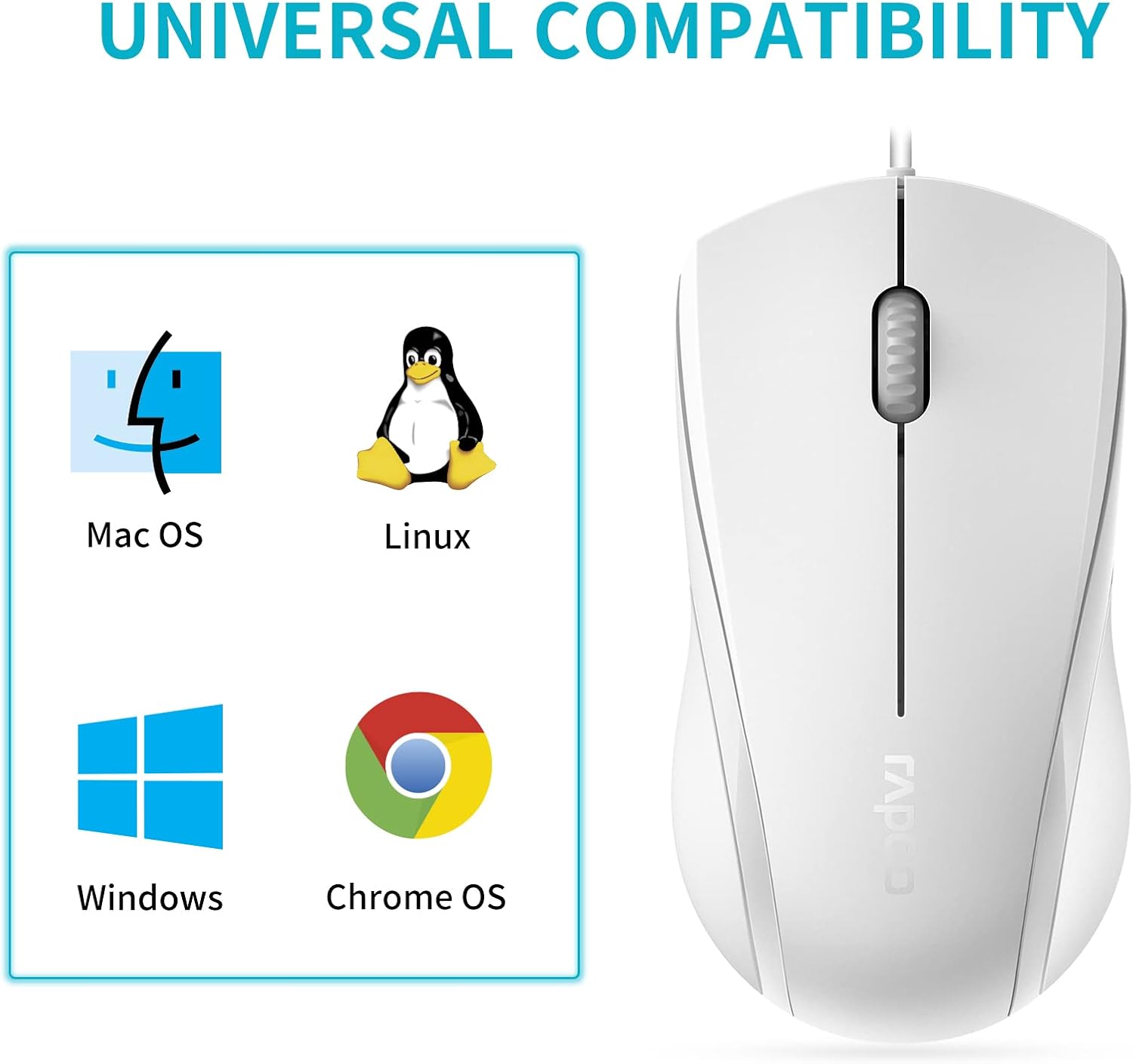
Image: A graphic illustrating the universal compatibility of the Rapoo N1600 mouse with Mac OS, Linux, Windows, and Chrome OS.
การรับประกันและการสนับสนุน
Rapoo is committed to providing quality products and customer satisfaction. The Rapoo N1600 mouse comes with a standard warranty, details of which can be found on the official Rapoo webเว็บไซต์หรือติดต่อฝ่ายสนับสนุนลูกค้า
For any inquiries, technical assistance, or warranty claims, please contact Rapoo customer support. Rapoo offers 7/24 customer support to assist you with your product needs.
หากต้องการข้อมูลเพิ่มเติมกรุณาเยี่ยมชม ร้านค้าอย่างเป็นทางการของ Rapoo.


