1. บทนำ
The VisionTek VT1000 Universal Dual Full HD USB 3.0 Laptop Monitor Docking Station is designed to expand the connectivity of your laptop, whether it runs Windows, macOS, or Chrome OS. This docking station allows you to connect to dual displays and a variety of peripherals through a single USB connection, transforming your laptop into a complete workstation.
สินค้าเกินview
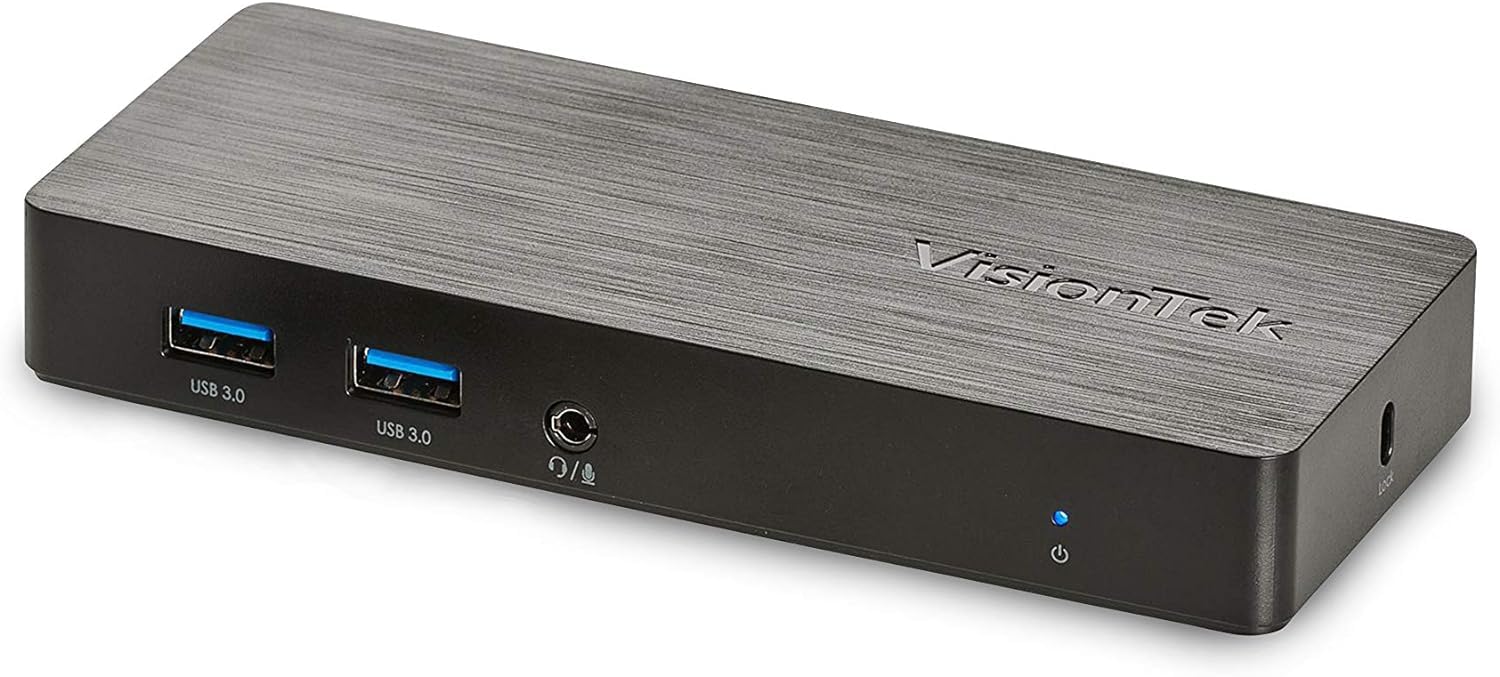
ภาพ: ด้านหน้า view of the VisionTek VT1000 docking station.
มีอะไรอยู่ในกล่อง
- VT1000 สถานีเชื่อมต่อ USB 3.0 แบบจอแสดงผลคู่
- สายเคเบิล USB 3.0
- User Manual (Quick Installation Guide)
- อะแดปเตอร์แปลงไฟ

Image: The VisionTek VT1000 docking station and its included accessories.
2. คุณสมบัติหลัก
- Dual Full HD Displays: Connect two monitors to your laptop with full HD resolution (1920 x 1080 @ 60Hz) via 1x DisplayPort, 1x HDMI, and 1x 1080P VGA.
- ขยายการเชื่อมต่อ: Features 3x USB 3.0 ports (5 Gbps transfer speed), 1x RJ45 (10/100/1000) Gigabit Ethernet port, and a headphone audio line in/out jack.
- Plug and Display: Utilizes DisplayLink drivers for plug-and-play functionality, simplifying setup for various workspaces.
- ความเข้ากันได้ของระบบปฏิบัติการในวงกว้าง: Compatible with Ultrabook, MacBook, Microsoft Surface Pro, Chromebook, Windows 11, Windows 10, Windows 8.1, Windows 7, and Mac OS 10.13 and up operating systems.
- การออกแบบที่กะทัดรัด: Designed to be compact, taking up minimal desk space while providing extensive functionality.
3. พอร์ตและตัวบ่งชี้
The VT1000 docking station provides a comprehensive set of ports for various connectivity needs. Refer to the video below for a visual guide to the ports.
แผงด้านหน้า
- พอร์ต USB 3.0 จำนวน 2 ช่อง: สำหรับเชื่อมต่ออุปกรณ์ USB ความเร็วสูง
- เอาต์พุตเสียง (ช่องเสียบหูฟัง): สำหรับการเชื่อมต่อหูฟังหรือลำโพงภายนอก
- ไมค์ใน: สำหรับการเชื่อมต่อไมโครโฟน
- ไฟ LED แสดงสถานะการทำงาน: Illuminates when the dock is powered on.
แผงด้านหลัง
- 1x VGA Port: For connecting a VGA monitor.
- 1x HDMI Port: For connecting an HDMI monitor.
- 1x DisplayPort: For connecting a DisplayPort monitor.
- 1x RJ45 Gigabit Ethernet Port: สำหรับการเชื่อมต่อเครือข่ายแบบใช้สาย
- พอร์ต USB 3.0 จำนวน 1 ช่อง: สำหรับเชื่อมต่ออุปกรณ์ USB ความเร็วสูง
- USB-B Port (Upstream): For connecting the dock to your laptop via the included USB 3.0 cable.
- กำลังไฟเข้า DC 5V: สำหรับการเชื่อมต่ออะแดปเตอร์ไฟฟ้า
- ช่องล็อคเพื่อความปลอดภัย: สำหรับยึดแท่นวางให้แน่น
Official Product Video: VisionTek VT1000 Universal Dual Display USB 3.0 Dock
Video: This official VisionTek video provides a visual overview of the VT1000 docking station, highlighting its features, ports, and connectivity options. It demonstrates how the dock can expand your laptop's capabilities into a full workstation.
4. คำแนะนำในการตั้งค่า
- เชื่อมต่อพลังงาน: Plug the included power adapter into the DC 5V input port on the rear of the VT1000 docking station, then plug the adapter into a power outlet. The power indicator LED on the front of the dock should illuminate.
- เชื่อมต่อกับแล็ปท็อป: Use the provided USB 3.0 cable to connect the USB-B port on the rear of the docking station to an available USB 3.0 port on your laptop.
- เชื่อมต่อจอภาพ: Connect your external monitors to the desired video output ports on the rear of the docking station (HDMI, DisplayPort, or VGA). The VT1000 supports dual displays.
- เชื่อมต่ออุปกรณ์ต่อพ่วง: Connect your keyboard, mouse, external hard drives, printers, webcams, or other USB devices to the USB 3.0 ports on the front and rear of the docking station.
- เชื่อมต่อเครือข่าย (ทางเลือก): For a wired internet connection, connect an Ethernet cable from your router or network switch to the RJ45 Gigabit Ethernet port on the rear of the docking station.
- เชื่อมต่อเสียง (อุปกรณ์เสริม): If desired, connect headphones or speakers to the audio out jack and a microphone to the mic in jack on the front of the docking station.
- การติดตั้งไดร์เวอร์: The VT1000 features DisplayLink Plug and Play technology, typically requiring no manual driver installation on compatible operating systems. If prompted, follow on-screen instructions or visit the VisionTek support website for the latest DisplayLink drivers.
5. คู่มือการใช้งาน
Once the VT1000 docking station is set up, it operates seamlessly with your connected laptop.
- การกำหนดค่าการแสดงผล: After connecting your monitors, your operating system should automatically detect them. You can configure display settings (e.g., extend, duplicate, primary display) through your computer's display settings.
- การใช้งานอุปกรณ์ USB: Connected USB devices will function as if directly connected to your laptop.
- การเข้าถึงเครือข่าย: พอร์ต Gigabit Ethernet ให้การเชื่อมต่อเครือข่ายแบบใช้สายที่เสถียรและรวดเร็ว
- ฟังก์ชั่นเสียง: The audio ports allow for external audio output and microphone input. Ensure your operating system's sound settings are configured to use the docking station's audio device.
- การจัดการพลังงาน: The docking station requires external power and does not supply power to your laptop. Ensure your laptop's power adapter is connected for charging.
6. ข้อมูลจำเพาะ
| คุณสมบัติ | รายละเอียด |
|---|---|
| ยี่ห้อ | วิชั่นเทค |
| หมายเลขรุ่น | 901147 (VT1000 Series) |
| ความเข้ากันได้ของระบบปฏิบัติการ | Windows 11, Windows 10, Windows 8.1, Windows 7, macOS 10.13 and later, Chrome OS |
| น้ำหนักสินค้า | 8 ออนซ์ |
| ขนาดสินค้า (กxยxส) | 5.95 x 2.8 x 0.8 นิ้ว |
| ฮาร์ดแวร์อินเตอร์เฟซ | DisplayPort, Ethernet, HDMI, USB, USB 3.0, VGA |
| อุปกรณ์ที่รองรับ | แล็ปท็อป |
| พอร์ต USB รวม | 3 (ยูเอสบี 3.0) |
| พอร์ต HDMI ทั้งหมด | 1 |
| วัดtage | 20 วัตต์ |
7 การแก้ไขปัญหา
- ไม่มีการแสดงผล:
- Ensure the docking station's power adapter is securely connected and the power indicator LED is on.
- Verify that the USB 3.0 cable connecting the dock to your laptop is firmly seated at both ends.
- Check that monitor cables (HDMI, DisplayPort, VGA) are securely connected to both the dock and the monitors.
- ตรวจสอบให้แน่ใจว่าจอภาพของคุณเปิดใช้งานอยู่และตั้งค่าแหล่งสัญญาณเข้าถูกต้องแล้ว
- รีสตาร์ทแล็ปท็อปและแท่นวางเชื่อมต่อ
- Ensure DisplayLink drivers are installed and up-to-date, if necessary. Although typically plug-and-play, some systems may benefit from manual driver installation from the DisplayLink webเว็บไซต์.
- อุปกรณ์ USB ไม่ทำงาน:
- ตรวจสอบให้แน่ใจว่าแท่นวางเปิดอยู่และเชื่อมต่อกับแล็ปท็อปของคุณ
- Try connecting the USB device to a different USB port on the dock or directly to your laptop to rule out device issues.
- Some high-power USB devices may require their own external power supply.
- ปัญหาการเชื่อมต่อเครือข่าย:
- Verify the Ethernet cable is securely connected to both the dock and your network.
- Check your laptop's network settings to ensure the Ethernet adapter is enabled.
- Restart your router/modem, the docking station, and your laptop.
- เสียงไม่ทำงาน:
- Check your laptop's sound settings to ensure the docking station's audio output is selected as the default playback device.
- Ensure headphones/speakers are properly connected to the audio out jack.
- Adjust volume levels on both your laptop and the connected audio device.
8. การบำรุงรักษา
- การทำความสะอาด: ใช้ผ้าแห้งเนื้อนุ่มเช็ดทำความสะอาดภายนอกของแท่นวาง หลีกเลี่ยงการใช้น้ำยาทำความสะอาดหรือสารละลาย
- พื้นที่จัดเก็บ: Store the docking station in a cool, dry place away from direct sunlight and extreme temperatures when not in use for extended periods.
- การจัดการสายเคเบิล: ตรวจสอบให้แน่ใจว่าสายเคเบิลไม่งอหรือพันกันมากเกินไปเพื่อป้องกันความเสียหาย
9. การรับประกันและการสนับสนุน
The VisionTek VT1000 Universal Dual Full HD USB 3.0 Laptop Monitor Docking Station comes with a รับประกันจำกัด 2 ปี. To ensure coverage, register your product with VisionTek within 30 days of purchase.
VisionTek offers excellent US-based customer support for any technical assistance or inquiries you may have. For support, please visit the official VisionTek webไซต์หรือดูข้อมูลการติดต่อที่ระบุไว้ในบรรจุภัณฑ์ผลิตภัณฑ์ของคุณ
For further information and driver downloads, please visit: การสนับสนุน VisionTek


