1. บทนำ
This manual provides detailed instructions for the setup, operation, and maintenance of your Waveshare 13.3-inch Capacitive Touch Screen LCD (V1). This display features a 1920x1080 resolution, HDMI input, IPS panel for wide viewing angles, and a durable toughened glass cover. Please read this manual thoroughly before using the product to ensure proper functionality and longevity.
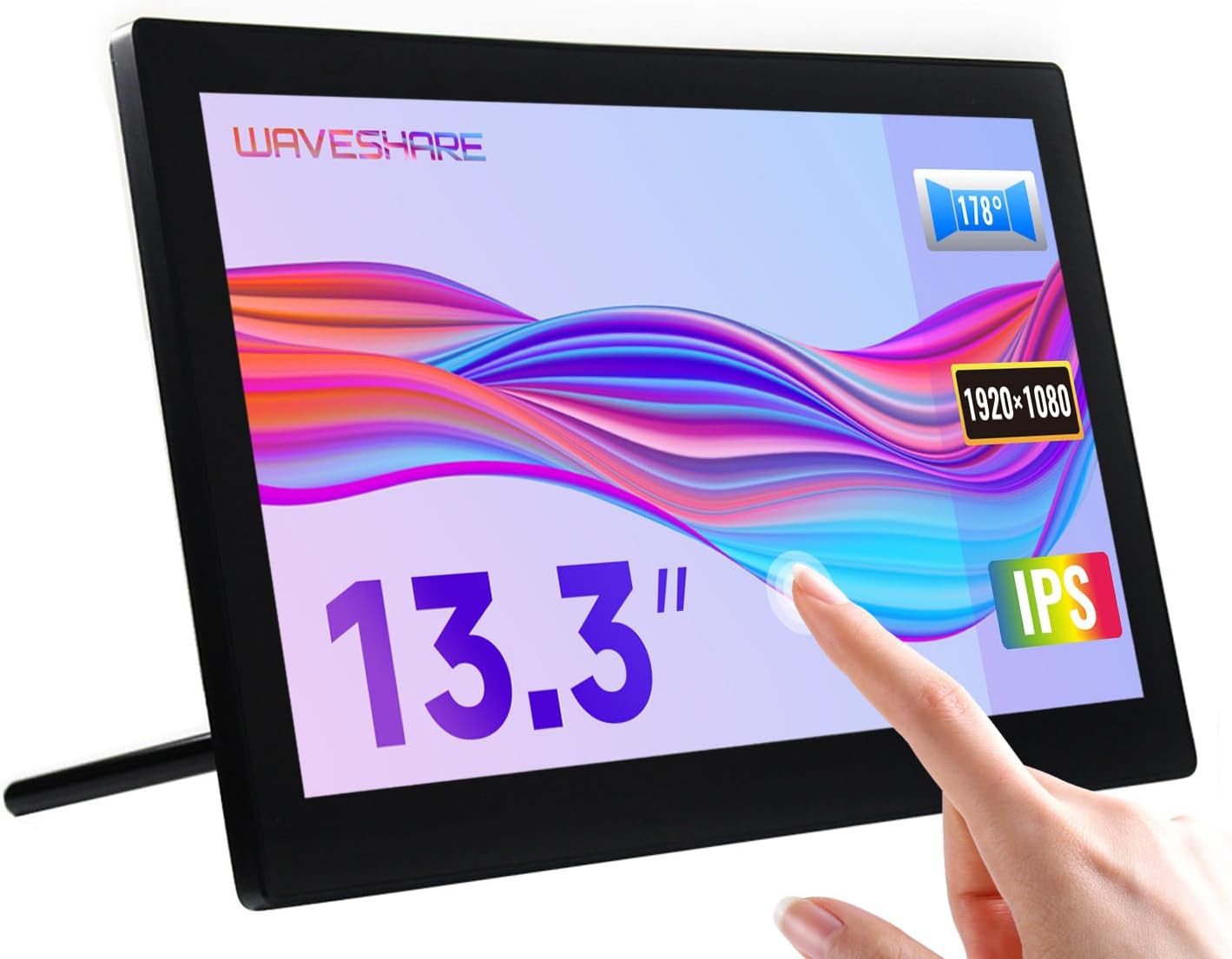
Image 1.1: The Waveshare 13.3-inch Capacitive Touch Screen LCD, showcasing its touch functionality and sleek design.
2. ข้อมูลด้านความปลอดภัย
- ตรวจสอบแหล่งจ่ายไฟ voltage matches the product's requirements to prevent damage.
- Avoid exposing the display to extreme temperatures, humidity, or direct sunlight.
- ห้ามถอดชิ้นส่วนเครื่อง ควรส่งเครื่องเข้ารับบริการจากช่างผู้ชำนาญการเท่านั้น
- Keep the screen away from strong magnetic fields.
- Handle with care to avoid dropping or impacting the screen, especially the toughened glass panel.
3. เนื้อหาบรรจุภัณฑ์
ตรวจสอบว่ามีรายการทั้งหมดอยู่ในแพ็คเกจ:
- Waveshare 13.3-inch HDMI LCD (H) Display
- อะแดปเตอร์แปลงไฟ
- สาย HDMI
- USB-A to Micro-USB Cable (for touch functionality)
- คู่มือการใช้งาน (เอกสารนี้)
4. สินค้าหมดview
4.1. คุณสมบัติ
- 13.3-inch IPS panel with 1920x1080 resolution.
- Capacitive 10-point touch control (operating system dependent).
- Toughened glass panel with up to 6H hardness.
- HDMI and VGA display interfaces.
- Built-in Hi-Fi speakers and 3.5mm audio jack.
- Supports various devices including Raspberry Pi, Jetson Nano, PCs, and game consoles.
- Integrated case with a 75° back stand and VESA mounting holes (75x75mm).

Image 4.1: Detailed features and system compatibility of the display.
4.2. ส่วนประกอบทางกายภาพ
The display includes various ports and control buttons:
- VGA Display Port: For video input via VGA.
- พอร์ต HDMI: For video input via HDMI.
- แจ็คเสียงขนาด 3.5 มม.: สำหรับเอาต์พุตเสียง
- Touch Port (USB): For connecting the touch functionality to your device.
- แหล่งจ่ายไฟ 12V: สำหรับการเชื่อมต่ออะแดปเตอร์ไฟฟ้า
- ปุ่มย้อนกลับ: Power, direction controls, and Menu/Enter/Return buttons for OSD navigation.

ภาพที่ 4.2: ด้านหลัง view of the display with ports and a Raspberry Pi connection exampเล.
5. คำแนะนำในการตั้งค่า
5.1. การเชื่อมต่อเริ่มต้น
- เชื่อมต่อวิดีโอ: Use the provided HDMI cable to connect the display's HDMI port to your source device (e.g., Raspberry Pi, PC). If using VGA, connect a VGA cable.
- Connect Touch (USB): Connect the USB-A to Micro-USB cable from your source device's USB port to the display's Touch Port. This enables touch functionality.
- เชื่อมต่อพลังงาน: Plug the power adapter into the display's 12V Power Input, then connect it to a power outlet.
- เปิดเครื่อง: Press the power button on the back of the display. The screen should illuminate and display content from your source device.

Image 5.1: Display showing a Windows desktop after successful connection.
5.2. การเชื่อมต่อ เช่นampเลส
The display supports various connection configurations:
- Working with Raspberry Pi 4: Connect HDMI for video and USB for touch. Power the display with its 12V adapter.
- Working with Raspberry Pi Zero W: Requires additional mini HDMI adapter and USB cable. Connect mini HDMI for video and USB for touch. Power the display with its 12V adapter.
- Working with AI Computer Jetson Nano: Connect HDMI for video and USB for touch. Power the display with its 12V adapter.
- Working with Mini PC: Connect HDMI for video and USB for touch. Power the display with its 12V adapter.

Image 5.2: Visual guide for connecting the display to different devices.
6. คู่มือการใช้งาน
6.1. เมนูการแสดงผลบนหน้าจอ (OSD)
The OSD menu allows you to adjust display settings such as brightness, contrast, and input source. Use the back buttons (direction controls and Menu/Enter/Return) to navigate and select options.
- กดปุ่ม เมนู ปุ่มสำหรับเปิดเมนู OSD
- ใช้ ทิศทาง ปุ่มสำหรับเลื่อนดูตัวเลือกในเมนู
- กด เมนู again (or the designated Enter button) to select an option or confirm a setting.
- ใช้ กลับ ปุ่มสำหรับย้อนกลับหรือออกจากเมนู
6.2. Displaying Content
Once connected and powered on, the display will automatically detect the active video input. Ensure your source device is outputting video to the selected HDMI or VGA port.

Image 6.1: The display showing multimedia content from a web เบราว์เซอร์
6.3. การควบคุมแบบสัมผัส
The display features capacitive 10-point touch control. Ensure the USB touch cable is connected to your source device for touch functionality. Driver-free operation is supported on most compatible operating systems.

Image 6.2: Illustration of touch control and audio features.
6.4. เอาต์พุตเสียง
The display includes built-in Hi-Fi speakers for audio output. Alternatively, you can connect external speakers or headphones to the 3.5mm audio jack for private listening or higher quality audio.
7. Device & System Support
The Waveshare 13.3-inch display offers broad compatibility:
- ราสเบอร์รี่ Pi: Supports all versions of Raspberry Pi.
- Supports Raspberry Pi OS, 10-point touch, driver free.
- Supports Ubuntu / Kali / WIN10 IoT, single point touch, driver free.
- Supports Retropie, driver free.
- Jetson Nano: Supports Ubuntu, single point touch, driver free.
- พีซี: Supports Windows 11 / 10 / 8.1 / 8 / 7, 10-point touch, driver free.
- คอนโซลเกม: Supports Xbox360, PS4, Switch (display and sound only).

ภาพที่ 7.1: จบแล้วview of supported devices and operating systems.
8. การบำรุงรักษา
- การทำความสะอาดหน้าจอ: ใช้ผ้านุ่มไม่เป็นขุยเช็ดเล็กน้อยampล้างด้วยน้ำหรือน้ำยาทำความสะอาดหน้าจอ หลีกเลี่ยงสารเคมีรุนแรงหรือวัสดุที่มีฤทธิ์กัดกร่อน
- การดูแลทั่วไป: Keep the display free from dust. When not in use for extended periods, consider covering it to prevent dust accumulation.
- พื้นที่จัดเก็บ: Store the display in a cool, dry place, away from direct sunlight and extreme temperatures.
9 การแก้ไขปัญหา
| ปัญหา | สาเหตุที่เป็นไปได้ | สารละลาย |
|---|---|---|
| ไม่มีจอแสดงผล/หน้าจอสีดำ |
|
|
| Touch not working |
|
|
| ไม่มีเสียง |
|
|
10. ข้อมูลจำเพาะ
| คุณสมบัติ | รายละเอียด |
|---|---|
| ขนาดหน้าจอ | 13.3 นิ้ว |
| ปณิธาน | 1920x1080 (FHD1080p) |
| แผงแสดงผล | ไอพีเอส |
| Viewอิงแองเกิล | 178° |
| ประเภทสัมผัส | Capacitive, 10-point touch |
| Touch Panel Hardness | Up to 6H Toughened Glass |
| หน้าจอแสดงผล | hdmi, vga |
| เอาท์พุตเสียง | Built-in Hi-Fi Speakers, 3.5mm Audio Jack |
| กำลังไฟเข้า | กระแสตรง 12 โวลต์ |
| ขนาดสินค้า (กxยxส) | ขนาด 7.09 x 3.94 x 3.54 นิ้ว (ประมาณ 180 x 100 x 90 มม.) |
| น้ำหนักสินค้า | 2.2 ปอนด์ (ประมาณ 1 กิโลกรัม) |
| วัสดุของตู้หุ้ม | โพลีคาร์บอเนต / เอบีเอส |

Image 10.1: Physical dimensions of the display.
11. การรับประกันและการสนับสนุน
Waveshare products are designed for reliability and performance. For warranty information, technical support, or further assistance, please visit the official Waveshare webหรือติดต่อฝ่ายบริการลูกค้าโดยตรง โปรดเก็บใบเสร็จรับเงินไว้เป็นหลักฐานการซื้อสำหรับการเรียกร้องการรับประกัน
Waveshare อย่างเป็นทางการ Webเว็บไซต์: www.waveshare.com


