การแนะนำ
Thank you for choosing the Macally USB Wired Keyboard. This compact and versatile keyboard is designed to enhance your productivity on both Mac and Windows PC systems. Featuring 78 scissor switch keys and 13 shortcut keys, it offers a comfortable and efficient typing experience. This manual provides detailed instructions for setup, operation, maintenance, and troubleshooting to ensure optimal performance of your new keyboard.

Image: The Macally USB Wired Keyboard, showcasinด้วยดีไซน์ที่กะทัดรัดและการตกแต่งด้วยสีขาว
คุณสมบัติหลัก
- Versatile Compact Design: Boosts productivity and saves desk space, ideal for both home and office environments.
- Easy Plug and Play Setup: Simple USB connection for immediate use with Mac and Windows PCs.
- ความเข้ากันได้กับ Mac และ Windows: Seamless operation across different operating systems.
- 13 One-Touch Shortcut Keys: Dedicated keys for Mac functions (cut/copy/paste/iTunes) and multimedia hotkeys for Windows.
- สวิตช์แบบกรรไกร: Provides a responsive, tactile, and quiet typing experience.
- มุมการพิมพ์แบบบูรณาการ: Subtle angle for improved comfort during extended use.
คู่มือการติดตั้ง
1. การแกะกล่อง
Carefully remove the keyboard from its packaging. Ensure all components, including the keyboard and user guide, are present.
2. การเชื่อมต่อคีย์บอร์ด
- Locate an available USB-A port on your Mac or Windows PC.
- Plug the USB connector of the Macally keyboard into the USB-A port.
- For Mac users with only USB-C ports, a USB-C to USB-A adapter (not included) will be required.

Image: The Macally USB Wired Keyboard with its USB-A cable, illustrating the simple wired connection for Mac and PC.
3. Driver Installation (Automatic)
The Macally USB Wired Keyboard is plug-and-play. Your operating system (Mac OS or Windows) will automatically detect the keyboard and install the necessary drivers. No manual driver installation is required.
คำแนะนำการใช้งาน
การพิมพ์ขั้นพื้นฐาน
Once connected, the keyboard is ready for immediate use. Simply begin typing as you would with any standard keyboard.
Using Shortcut Keys
The keyboard features 13 dedicated shortcut keys for enhanced productivity. These keys are located on the top row of the keyboard (F1-F12 and an additional key).
| สำคัญ | Function (Mac) |
|---|---|
| F1 | ลดความสว่าง |
| F2 | เพิ่มความสว่าง |
| F3 | การควบคุมภารกิจ |
| F4 | แท่นปล่อยจรวด |
| F5 | Keyboard Backlight Decrease (if applicable) |
| F6 | Keyboard Backlight Increase (if applicable) |
| F7 | Previous Track (Media) |
| F8 | Play/Pause (Media) |
| F9 | Next Track (Media) |
| เอฟ10 | ปิดเสียง |
| เอฟ11 | ลดระดับเสียง |
| เอฟ12 | เพิ่มปริมาณ |
| Eject Key | Power Off / Eject (depending on system configuration) |
For Windows PC users, these keys function as standard multimedia hotkeys (e.g., play/pause, volume control).
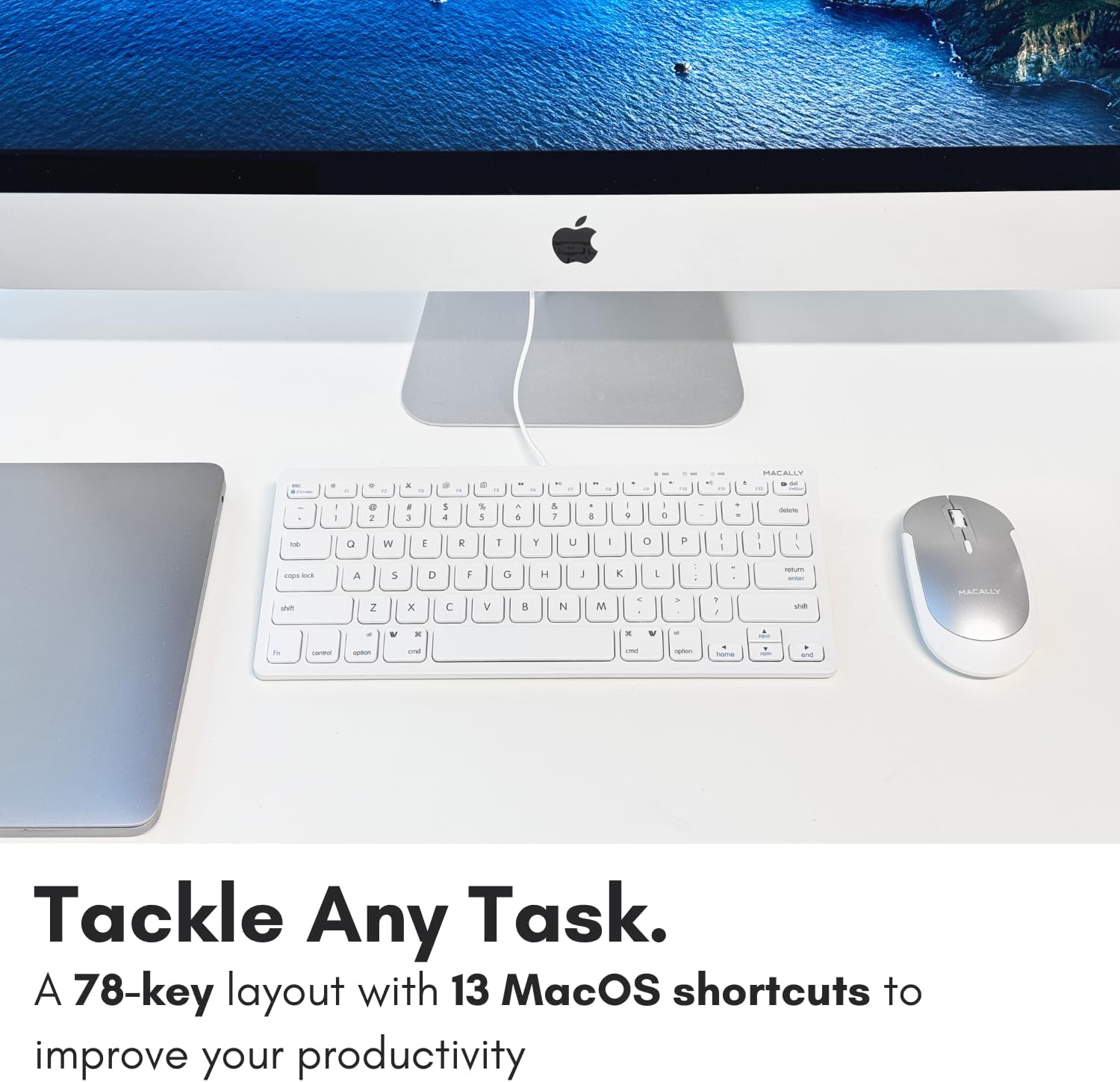
ภาพ: ภาพระยะใกล้ view of the Macally keyboard, highlighting the 13 shortcut keys designed for efficiency.
การซ่อมบำรุง
ทำความสะอาดคีย์บอร์ด
- ถอดแป้นพิมพ์ออกจากคอมพิวเตอร์ของคุณก่อนทำความสะอาด
- ใช้ผ้านุ่มไม่เป็นขุยเช็ดเล็กน้อยampลงด้วยน้ำหรือน้ำยาทำความสะอาดอ่อนๆ
- หลีกเลี่ยงความชื้นที่มากเกินไปและอย่าฉีดน้ำยาทำความสะอาดลงบนแป้นพิมพ์โดยตรง
- สำหรับฝุ่นละอองและเศษต่างๆ ระหว่างคีย์ ให้ใช้ลมอัด
พื้นที่จัดเก็บ
เมื่อไม่ได้ใช้งานเป็นเวลานาน ควรเก็บแป้นพิมพ์ไว้ในที่แห้งและเย็น หลีกเลี่ยงแสงแดดโดยตรงและอุณหภูมิที่สูงหรือต่ำเกินไป
การแก้ไขปัญหา
| ปัญหา | สารละลาย |
|---|---|
| แป้นพิมพ์ไม่ตอบสนอง |
|
| Keys are not typing correctly or are sticky |
|
| Shortcut keys not working on Mac |
|
ข้อมูลจำเพาะ
| คุณสมบัติ | รายละเอียด |
|---|---|
| หมายเลขรุ่น | SLIMKEYC |
| การเชื่อมต่อ | USB Wired (USB-A) |
| จำนวนคีย์ | 78 |
| ปุ่มลัด | 13 (Mac functions / Windows multimedia) |
| ประเภทกุญแจ | สวิตช์กรรไกร |
| ความเข้ากันได้ | Mac OS, Windows OS, Linux, Chrome OS |
| ขนาด (กxยxส) | 11.2 x 4.7 x 0.2 นิ้ว |
| น้ำหนัก | 10.4 ออนซ์ |
| ความยาวสายเคเบิล | ประมาณ 4.7 ฟุต |
การรับประกันและการสนับสนุน
Macally stands behind its products. The Macally USB Wired Keyboard comes with up to a รับประกัน 2 ปี และ LIFETIME tech support.
For technical assistance, warranty claims, or further inquiries, please visit the official Macally webไซต์หรือติดต่อฝ่ายสนับสนุนลูกค้าโดยตรง
คุณสามารถค้นหาข้อมูลเพิ่มเติมและทรัพยากรสนับสนุนได้ที่: www.maally.com
วิดีโอสินค้า
Compact USB Wired Keyboard for Mac and PC
Video: An official product video from Jukegear (Seller) demonstrating the compact design and wired connectivity of the Macally USB keyboard for both Mac and PC systems. This video highlights the ease of use and compatibility.


