สินค้าเกินview
The ARGOM TECH Combat Gaming Mouse is designed for an enhanced gaming experience, featuring a robust structure, ergonomic design, and dynamic lighting. It offers precise control and comfort for extended use.
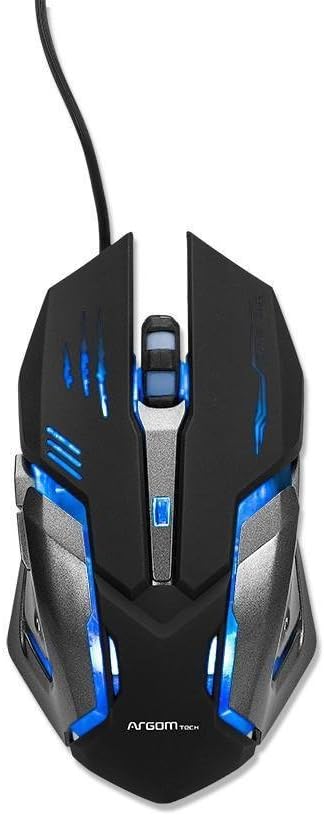
รูปที่ 1: ด้านบน view of the Combat Gaming Mouse, highlighting its illuminated design and USB connection.
คุณสมบัติหลัก:
- Robust structure and ergonomic design for gamers. Background rainbow changing light.
- Plug & Play compatible with most Operating Systems.
- DPI switch (1000/1200/1600/2400 DPI) for adjustable sensitivity.
- Built-in weighted Iron Plate for enhanced stability.
- 1.5m extra long and durable braided USB cable.
คู่มือการติดตั้ง
- แกะกล่องเมาส์: Carefully remove the Combat Gaming Mouse from its packaging.
- เชื่อมต่อกับคอมพิวเตอร์: Locate an available USB port on your computer. Insert the USB connector of the mouse firmly into the USB port.
- การติดตั้งไดรเวอร์ (Plug & Play): The mouse is designed for Plug & Play functionality. Your operating system (Windows, macOS, Linux, etc.) should automatically detect and install the necessary drivers. This process typically takes a few seconds.
- ตรวจสอบการทำงาน: Once connected, the mouse's rainbow lights should illuminate, indicating it is powered on. Move the mouse to confirm cursor movement on your screen.
No additional software installation is required for basic functionality.
คำแนะนำการใช้งาน
การปรับ DPI:
The Combat Gaming Mouse features a dedicated DPI switch button, usually located behind the scroll wheel. Pressing this button allows you to cycle through different sensitivity settings:
- 1000 DPI (ค่าเริ่มต้น)
- 1200 จุดต่อนิ้ว
- 1600 จุดต่อนิ้ว
- 2400 จุดต่อนิ้ว
Adjusting the DPI allows you to change the cursor speed to suit your preference for different tasks, from precise aiming in games to fast navigation on the desktop.
เอฟเฟกต์แสง:
The mouse features a background rainbow changing light effect, which activates automatically upon connection. This provides an aesthetic enhancement to your gaming setup.
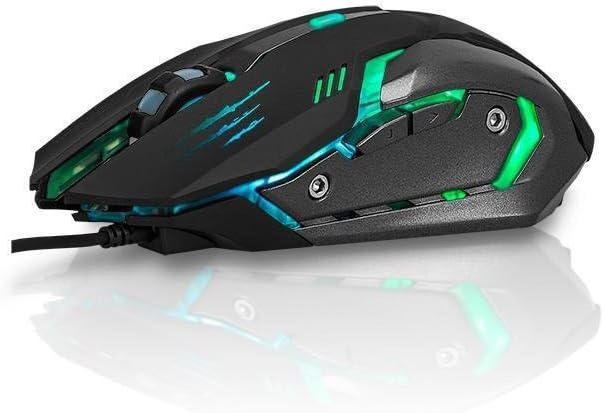
รูปที่ 2: ด้านข้าง view of the Combat Gaming Mouse, illustrating its ergonomic design and dynamic lighting.
การซ่อมบำรุง
To ensure the longevity and optimal performance of your Combat Gaming Mouse, follow these simple maintenance guidelines:
- การทำความสะอาด: ใช้ผ้าแห้งนุ่มๆ ที่ไม่มีขนเช็ดทำความสะอาดพื้นผิวของเมาส์ สำหรับคราบสกปรกที่ติดแน่น ให้ใช้ผ้าชุบน้ำหมาดๆ เช็ดเบาๆampชุบผ้าด้วยน้ำหรือน้ำยาทำความสะอาดอ่อนๆ แล้วเช็ดให้แห้งทันที หลีกเลี่ยงการใช้สารเคมีรุนแรงหรือวัสดุที่มีฤทธิ์กัดกร่อน
- การดูแลเซ็นเซอร์: Keep the optical sensor on the underside of the mouse clean and free from dust or debris. A cotton swab can be used gently if needed.
- การจัดการสายเคเบิล: หลีกเลี่ยงการโค้งงออย่างแรงหรือการดึงสาย USB มากเกินไปเพื่อป้องกันความเสียหาย
- พื้นที่จัดเก็บ: เมื่อไม่ได้ใช้งานเป็นเวลานาน ควรเก็บเมาส์ไว้ในสภาพแวดล้อมที่สะอาดและแห้ง ห่างจากอุณหภูมิที่สูงหรือต่ำเกินไป
การแก้ไขปัญหา
| ปัญหา | สาเหตุที่เป็นไปได้ | สารละลาย |
|---|---|---|
| เมาส์ไม่ตอบสนอง / เคอร์เซอร์ไม่ขยับ |
|
|
| ไฟดับ |
|
|
| Cursor movement is erratic. |
|
|
ข้อมูลจำเพาะ
| คุณสมบัติ | รายละเอียด |
|---|---|
| หมายเลขรุ่น | เอ00251 |
| ยี่ห้อ | ARGOM TECH |
| เทคโนโลยีการเชื่อมต่อ | USB (แบบมีสาย) |
| เทคโนโลยีตรวจจับการเคลื่อนไหว | ออฟติคอล |
| การตั้งค่า DPI | 1000 / 1200 / 1600 / 2400 จุดต่อนิ้ว |
| ความยาวสายเคเบิล | 1.5 เมตร (แบบถัก) |
| สี | สีดำ |
| ขนาดสินค้า (กว้าง x ยาว x สูง) | 7.48 x 2.36 x 5.51 นิ้ว |
| น้ำหนักสินค้า | 0.011 ounces (approx. 0.34 lbs as per feature bullets) |
| คุณสมบัติพิเศษ | Ergonomic Design, Built-in Weighted Iron Plate, Rainbow Changing Light |
| ความเข้ากันได้ | Most Operating Systems (Plug & Play) |
การรับประกันและการสนับสนุน
ข้อมูลการรับประกัน:
Specific warranty terms and conditions for the ARGOM TECH Combat Gaming Mouse are typically provided with your purchase documentation or can be found on the official ARGOM TECH webไซต์ โปรดเก็บหลักฐานการซื้อไว้เพื่อใช้ในการเรียกร้องการรับประกัน
การสนับสนุนลูกค้า:
For further assistance, technical support, or inquiries regarding your ARGOM TECH Combat Gaming Mouse, please visit the official ARGOM TECH website or contact their customer service department through the channels provided on their site. Always refer to the manufacturer's official resources for the most accurate and up-to-date support information.
วิดีโอผลิตภัณฑ์อย่างเป็นทางการ
ไม่พบวิดีโอผลิตภัณฑ์อย่างเป็นทางการจากผู้ขายสำหรับผลิตภัณฑ์นี้ในข้อมูลที่ให้ไว้


