1. สินค้าหมดview
The Waveshare 4.2-inch E-Ink Display Module (B) is a low-power, high-resolution display solution designed for various embedded applications. It features a 400x300 pixel resolution and supports a three-color display (red, black, and white). The module includes an embedded controller and communicates via an SPI interface, making it compatible with popular development boards such as Raspberry Pi, Arduino, and Nucleo.
Key characteristics of this E-Ink display include:
- การใช้พลังงานต่ำมาก: Power is primarily required only during display refresh cycles.
- กว้าง viewอิงมุม: Provides clear visibility from various perspectives.
- Bistable display: Retains the displayed content indefinitely without continuous power supply, eliminating the need for a backlight.
- ออนบอร์ดฉบับtage translator: Ensures compatibility with both 3.3V and 5V microcontrollers.
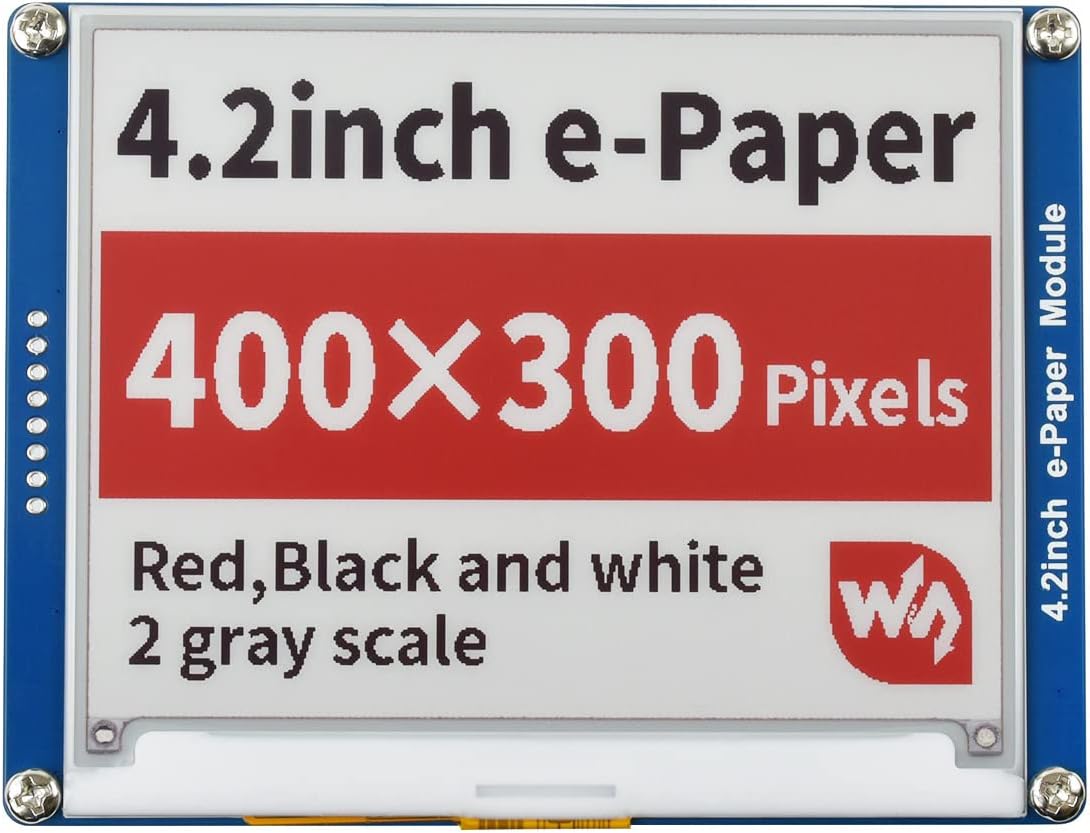
Figure 1: The Waveshare 4.2-inch E-Ink Display Module (B) displaying its specifications and capabilities in red, black, and white.
2. เนื้อหาบรรจุภัณฑ์
ตรวจสอบว่ารายการทั้งหมดที่ระบุไว้ด้านล่างนี้รวมอยู่ในแพ็คเกจของคุณ:
- 1x 4.2inch e-Paper Module (B)
- 1x PH2.0 20cm 8Pin Cable
- Development Resources (accessible via online Wiki)

Figure 2: The 4.2-inch E-Ink Display Module (B) alongside the included 8-pin PH2.0 connection cable.
3. คำแนะนำในการตั้งค่า
This section outlines the general steps for connecting and preparing your E-Ink display module. For detailed, platform-specific instructions and code examples, refer to the official Waveshare Wiki.
3.1 การเชื่อมต่อฮาร์ดแวร์
- ระบุพิน: The module uses an SPI interface. Identify the corresponding SPI pins (MOSI, MISO, SCK, CS, DC, RST, BUSY) on your microcontroller (e.g., Raspberry Pi, Arduino).
- เชื่อมต่อพลังงาน: Connect the VCC pin of the E-Ink module to a 3.3V or 5V power supply on your microcontroller. Connect the GND pin to the ground. The onboard voltage translator ensures compatibility with both voltagระดับอี
- Connect SPI Interface: Use the provided PH2.0 8-pin cable to connect the E-Ink module to your microcontroller's SPI pins. Ensure correct pin mapping as per your microcontroller's documentation and the Waveshare Wiki.

รูปที่ 3: ภาพระยะใกล้ view of the 8-pin PH2.0 cable, typically used for connecting the display module to a microcontroller.
3.2 การตั้งค่าซอฟต์แวร์
The Waveshare Wiki provides comprehensive development resources, including example code for Raspberry Pi, Jetson Nano, Arduino, and STM32. These examples demonstrate how to initialize the display and render content.
- Download Libraries: Obtain the necessary E-Ink display libraries from the Waveshare Wiki.
- โหลดตัวอย่างampเลส: Load the provided example code onto your microcontroller.
- กำหนดค่า: Adjust the example code as needed for your specific application and pin configuration.
4. Operating the Display Module
Once connected and programmed, the E-Ink display operates by receiving data through the SPI interface to update its content. The display supports red, black, and white colors.
4.1 Display Refresh Cycle
E-Ink displays have a distinct refresh cycle. For the 4.2-inch module, a full refresh typically takes approximately 15 seconds. During this time, the display may flash or show intermediate patterns as the pigments are rearranged to form the new image. After the refresh, the image remains stable without consuming power.
4.2 Content Display
You can display various types of content, including text, graphics, and images. The provided software examples illustrate how to prepare and send image data to the display buffer for rendering.

Figure 4: The 4.2-inch E-Ink Display Module (B) displaying a graphic of a sleeping panda, demonstrating its image rendering capability.
5. การบำรุงรักษา
The E-Ink display module requires minimal maintenance due to its robust design and low power consumption characteristics.
- การทำความสะอาด: Use a soft, dry, anti-static cloth to gently clean the display surface. Avoid using liquid cleaners or abrasive materials.
- สภาพแวดล้อม : Operate and store the module within its specified temperature and humidity ranges to ensure optimal performance and longevity. Avoid exposure to direct sunlight for prolonged periods, as this can affect the display's lifespan.
- การจัดการทางกายภาพ: Handle the module by its edges. Avoid applying pressure directly to the display area, as this can cause damage.
- การจัดการพลังงาน: Since the display retains its image without power, you can disconnect power after a refresh if the content does not need to change, further conserving energy.
6 การแก้ไขปัญหา
If you encounter issues with your E-Ink display module, consider the following troubleshooting steps:
- ไม่มีจอแสดงผล/หน้าจอว่าง:
- Verify all power and SPI connections are secure and correctly wired.
- Ensure your microcontroller is powered on and the code is running.
- ตรวจสอบแหล่งจ่ายไฟ voltage (3.3V or 5V) to the module.
- แสดงผลไม่ถูกต้อง/ผิดเพี้ยน:
- Confirm that the SPI communication protocol and pin assignments in your code match your hardware connections.
- Ensure the display resolution (400x300) is correctly configured in your software.
- Check for any timing issues or incorrect data formatting in your display refresh routine.
- อัตราการรีเฟรชช้า:
- The 15-second full refresh time is inherent to this E-Ink technology. This is normal operation.
- Display Artifacts/Ghosting:
- Ensure a full refresh cycle is completed when changing content significantly.
- Some minor ghosting can occur with partial updates; a full refresh typically clears this.
For more advanced troubleshooting and specific error codes, consult the Waveshare Wiki or community forums.
7. ข้อมูลจำเพาะ
| คุณสมบัติ | ข้อมูลจำเพาะ |
|---|---|
| ปฏิบัติการฉบับที่tage | 3.3V ~ 5V |
| อินเทอร์เฟซ | SPI 3 สาย, SPI 4 สาย |
| มิติโครงร่าง | 103.0mm × 78.5mm |
| ขนาดจอแสดงผล | 84.8mm × 63.6mm |
| dot pitch | 0.212 × 0.212 มม. |
| ปณิธาน | 400 × 300 พิกเซล |
| สีจอแสดงผล | แดง, ดำ, ขาว |
| ระดับสีเทา | 2 |
| เวลารีเฟรชเต็ม | ประมาณ 15 วินาที |
| รีเฟรชพลัง | 26.4mW (typical) |
| พลังงานสแตนด์บาย | <0.017มิลลิวัตต์ |
| Viewอิงแองเกิล | >170° |
| น้ำหนักสินค้า | 0.352 ออนซ์ |
| ขนาดแพ็คเกจ | 4.25 x 4.21 x 1.3 นิ้ว |

Figure 5: Dimensional drawing of the 4.2-inch E-Ink Display Module (B), with measurements in millimeters.
8. การสนับสนุนและทรัพยากร
For the most up-to-date documentation, development resources, and community support, please visit the official Waveshare Wiki:
www.waveshare.com/wiki/4.2inch_e-Paper_Module_(B)
The Wiki includes:
- Detailed hardware connection diagrams.
- Example code for various microcontrollers (Raspberry Pi, Arduino, Jetson Nano, STM32).
- Datasheets and technical information.
- FAQs and troubleshooting guides.
9. ข้อมูลการรับประกัน
Specific warranty details for this product are not provided in the available information. Please refer to the Waveshare official webเว็บไซต์หรือติดต่อฝ่ายสนับสนุนลูกค้าเพื่อรับทราบข้อกำหนดและเงื่อนไขการรับประกัน


