1. บทนำ
This manual provides detailed instructions for the setup, operation, and maintenance of your Xerox VersaLink C505/X Color Laser Multifunction Printer. The C505/X is designed for efficient performance in fast-paced work environments, offering print, copy, scan, and fax functionalities.
Key features include a customizable 7-inch color touchscreen for intuitive control, mobile and cloud connectivity, and robust security measures.
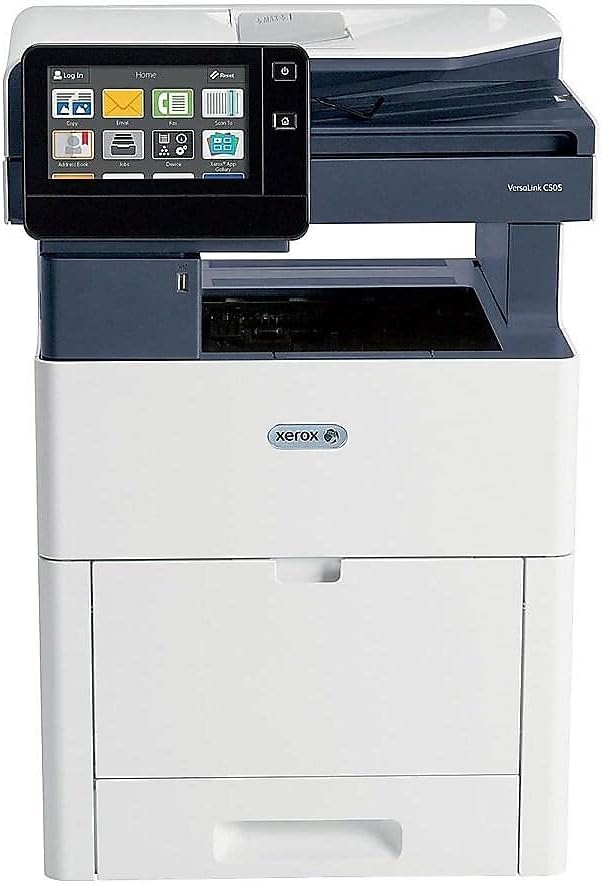
รูปที่ 1 : ด้านหน้า view of the Xerox VersaLink C505/X Multifunction Printer.
2. การตั้งค่า
2.1 การแกะกล่องและการตรวจสอบเบื้องต้น
Carefully remove the printer from its packaging. Verify that all components listed below are present and undamaged:
- Xerox VersaLink C505 Color MFP
- Starter capacity toner cartridges (one each of cyan, magenta, yellow: 2,400 capacity; black: 5,000 capacity)
- ซีดีซอฟต์แวร์และเอกสารประกอบ
- คู่มือการติดตั้ง
- Quick User Guides
- สายไฟ
2.2 การเชื่อมต่อสายไฟ
- วางเครื่องพิมพ์บนพื้นผิวที่มั่นคงและเรียบเสมอกัน
- Connect the provided power cord to the printer's power input and then to a grounded electrical outlet.
- Do not power on the device until all other connections are made.
2.3 การติดตั้งตลับหมึก
Install the starter toner cartridges into their respective slots. Refer to the Quick User Guides for specific instructions on opening the toner access panel and inserting cartridges.

Figure 2: Toner cartridge access panel open, showing toner installation.
2.4 การเชื่อมต่อเครือข่ายและ USB
The printer supports both Ethernet and USB connectivity.
- อีเธอร์เน็ต: เชื่อมต่อสายอีเธอร์เน็ตจากพอร์ตอีเธอร์เน็ตของเครื่องพิมพ์เข้ากับเราเตอร์หรือสวิตช์เครือข่ายของคุณ
- ยูเอสบี: เชื่อมต่อสาย USB จากพอร์ต USB ของเครื่องพิมพ์เข้ากับคอมพิวเตอร์ของคุณ
2.5 การติดตั้งซอฟต์แวร์
Insert the provided software and documentation CD into your computer's CD/DVD drive. Follow the on-screen instructions to install the necessary drivers and utilities. Alternatively, visit the official Xerox support webเว็บไซต์สำหรับไดรเวอร์ล่าสุด
3. การใช้งานเครื่องพิมพ์
อินเทอร์เฟซหน้าจอสัมผัส 3.1
The 7-inch color touchscreen provides access to all printer functions. Navigate through menus by tapping and swiping, similar to a smartphone. The home screen displays icons for various functions such as Print, Copy, Scan, and Fax.

Figure 3: Close-up of the 7-inch color touchscreen control panel.
3.2 การพิมพ์
To print documents:
- Ensure the printer is connected to your computer or network.
- Open the document on your computer and select the print option.
- Choose the Xerox VersaLink C505/X from the list of available printers.
- Adjust print settings (e.g., color/monochrome, duplex printing, paper size) as needed. The printer supports up to 43 ppm color and 45 ppm monochrome, with automatic duplexing.
- Confirm the print job.
3.3 การคัดลอก
วิธีการทำสำเนา:
- Place the original document on the scanner glass or in the automatic document feeder (ADF).
- On the touchscreen, tap the "Copy" icon.
- Select desired settings such as number of copies, color/black and white, and two-sided copying. The maximum copy speed is 45 ppm (black & white) with resolutions up to 1200 x 2400 dpi.
- กดปุ่ม "เริ่ม"
3.4 การสแกน
To scan documents:
- วางเอกสารลงบนกระจกสแกนเนอร์หรือในช่องป้อนเอกสารอัตโนมัติ (ADF)
- On the touchscreen, tap the "Scan" icon.
- Choose the scan destination (e.g., email, network folder, USB drive) and adjust scan settings.
- กดปุ่ม "เริ่ม"
3.5 การส่งแฟกซ์
To send a fax:
- วางเอกสารลงบนกระจกสแกนเนอร์หรือในช่องป้อนเอกสารอัตโนมัติ (ADF)
- On the touchscreen, tap the "Fax" icon.
- ป้อนหมายเลขแฟกซ์ของผู้รับ
- ปรับการตั้งค่าแฟกซ์ตามความจำเป็น
- กดปุ่ม "เริ่ม"
3.6 Mobile and Cloud Connectivity
The VersaLink C505/X offers out-of-the-box connectivity to cloud services like Google Drive, Microsoft OneDrive, and DropBox. Additional options are available through the Xerox App Gallery, allowing for flexible workflow integration.
4. การบำรุงรักษา
4.1 การเปลี่ยนตลับหมึก
When a toner cartridge is low or empty, the printer's display will indicate which cartridge needs replacement. Always use genuine Xerox toner cartridges for optimal performance and print quality.
- Open the front access panel of the printer.
- Carefully remove the empty toner cartridge by pulling it straight out.
- แกะตลับหมึกใหม่ออกจากบรรจุภัณฑ์แล้วเขย่าเบาๆ เพื่อกระจายผงหมึกให้ทั่ว
- Insert the new cartridge into the corresponding slot until it clicks into place.
- Close the front access panel.
4.2 การทำความสะอาด
การทำความสะอาดอย่างสม่ำเสมอจะช่วยรักษาคุณภาพการพิมพ์และยืดอายุการใช้งานของเครื่องพิมพ์ของคุณ
- ภายนอก: เช็ดพื้นผิวภายนอกด้วยผ้านุ่ม dampผ้าที่ไม่เป็นขุย
- กระจกสแกนเนอร์: Use a soft cloth moistened with glass cleaner to clean the scanner glass. Ensure no residue remains.
- ส่วนประกอบภายใน: Refer to the detailed user manual on the software and documentation CD for instructions on cleaning internal components, such as the print heads or rollers, if necessary.
5 การแก้ไขปัญหา
This section addresses common issues you might encounter with your Xerox VersaLink C505/X. For more complex problems, consult the full user manual or contact support.
5.1 กระดาษติด
If a paper jam occurs, the touchscreen will display an error message indicating the location of the jam. Follow the on-screen instructions to clear the jammed paper. Always pull paper in the direction of the paper path to avoid tearing.
5.2 ปัญหาคุณภาพการพิมพ์
If printouts show streaks, faded areas, or incorrect colors:
- Check toner levels and replace any low cartridges.
- โปรดตรวจสอบให้แน่ใจว่าคุณใช้กระดาษที่เหมาะสมกับงานพิมพ์ของคุณ
- Perform a print quality diagnostic from the printer's control panel.
- Clean the print heads or other internal components as instructed in the detailed manual.
5.3 ปัญหาการเชื่อมต่อ
If the printer is not communicating with your computer or network:
- Verify that all cables (power, USB, Ethernet) are securely connected.
- รีสตาร์ทเครื่องพิมพ์และคอมพิวเตอร์/เราเตอร์ของคุณ
- Check network settings on the printer's touchscreen.
- ตรวจสอบให้แน่ใจว่าได้ติดตั้งไดรเวอร์เครื่องพิมพ์ที่ถูกต้องบนคอมพิวเตอร์ของคุณแล้ว
6. ข้อมูลจำเพาะ
| คุณสมบัติ | รายละเอียด |
|---|---|
| ชื่อรุ่น | Xerox C505/X VersaLink |
| ฟังก์ชั่น | พิมพ์ ถ่ายเอกสาร สแกน แฟกซ์ |
| เทคโนโลยีการพิมพ์ | เลเซอร์สี |
| ความเร็วในการพิมพ์สูงสุด (ขาวดำ) | 45 หน้าต่อนาที |
| ความเร็วในการพิมพ์สูงสุด (สี) | 43 หน้าต่อนาที |
| ความละเอียดการพิมพ์สูงสุด (ขาวดำ) | 2400 จุดต่อนิ้ว |
| ความละเอียดการพิมพ์สูงสุด (สี) | 1200 x 2400 จุดต่อนิ้ว |
| การพิมพ์สองหน้า | อัตโนมัติ |
| ประเภทสแกนเนอร์ | เอกสาร |
| ความเร็วในการคัดลอกสูงสุด (ขาวดำ) | 45 หน้าต่อนาที |
| ความละเอียดสูงสุดในการคัดลอก (สี) | สูงสุด 1200 x 2400 dpi |
| วิธีการควบคุม | App, Touch (7-inch display) |
| การเชื่อมต่อ | USB, อีเธอร์เน็ต |
| ความจุแผ่นอินพุตสูงสุด | 3250 แผ่น |
| ถาดมาตรฐาน | 2 (550 Sheet Tray, 150 Sheet Multi Purpose Tray) |
| ขนาดสื่อที่รองรับ | Letter (8.5 x 11 inches), Legal (8.5 x 14 inches) |
| ประเภทหมึก | Toner (Black, Cyan, Magenta, Yellow) |
| ความจุของหน่วยความจำ | 4096MB |
| ขนาดสินค้า | ลึก 26 นิ้ว x กว้าง 23 นิ้ว x สูง 31 นิ้ว |
| น้ำหนักสินค้า | 77.2 ปอนด์ |
| วัดtage | 600 วัตต์ |
7. การรับประกันและการสนับสนุน
7.1 การรับประกันสินค้า
The Xerox VersaLink C505/X Color Laser MFP comes with a standard one-year full warranty from the date of purchase. This warranty covers defects in materials and workmanship under normal use. For detailed terms and conditions, please refer to the warranty documentation included with your product or visit the official Xerox webเว็บไซต์.
7.2 การสนับสนุนลูกค้า
For technical assistance, troubleshooting, or service requests, please contact Xerox customer support. Support contact information can be found on the Xerox webตรวจสอบได้จากเว็บไซต์หรือเอกสารประกอบที่มาพร้อมกับเครื่องพิมพ์ของคุณ
แหล่งข้อมูลออนไลน์: Visit the official Xerox support website for FAQs, driver downloads, and additional user guides.


