1. บทนำ
The Sengled Smart Light Bulbs A19 are Zigbee-compatible LED bulbs designed for integration into smart home systems. These bulbs provide soft white (2700K) illumination, are dimmable, and offer control via voice commands or a mobile application when connected to a compatible Zigbee hub. This manual provides instructions for installation, setup, operation, and troubleshooting.

Image 1.1: Sengled Smart Light Bulbs A19 (4-Pack)
2. ข้อมูลด้านความปลอดภัย
- ความปลอดภัยทางไฟฟ้า: Always ensure power is turned off at the switch before installing or removing bulbs.
- สำหรับใช้ภายในอาคารเท่านั้น: These bulbs are designed for indoor use in dry locations. Do not expose to water or excessive humidity.
- อุณหภูมิในการทำงาน: Do not install in enclosed fixtures that restrict airflow, as this may reduce bulb lifespan.
- ความเข้ากันได้ของเครื่องหรี่ไฟ: These bulbs are dimmable via the smart home system. Do not use with standard incandescent dimmers.
- การกำจัด: กำจัดขยะอิเล็กทรอนิกส์อย่างถูกวิธีตามกฎระเบียบของท้องถิ่น
3. เนื้อหาบรรจุภัณฑ์
ในแพ็คเกจประกอบด้วย:
- 4 x Sengled Smart LED Light Bulbs (A19, Soft White 2700K)
4. ข้อมูลจำเพาะ
| คุณสมบัติ | รายละเอียด |
|---|---|
| หมายเลขรุ่น | E21-N13A |
| ประเภทหลอดไฟ | นำ |
| ขนาดรูปร่างหลอดไฟ | เอ19 |
| ฐานหลอดไฟ | E26 |
| วัดtage | 9 วัตต์ |
| เทียบเท่าหลอดไส้ | 60 วัตต์ |
| ความสว่าง | 800 ลูเมน |
| อุณหภูมิสี | 2700 เคลวิน (สีขาวนวล) |
| เล่มที่tage | 120 Volts (100-120V, 60Hz) |
| วิธีการควบคุม | เสียง, แอป |
| การเชื่อมต่อ | Zigbee Protocol (Hub Required) |
| ชีวิตเฉลี่ย | 25,000 ชั่วโมง |
| การใช้งานภายใน/ภายนอกอาคาร | ในร่ม |
| ขนาด | กว้าง 2.4 นิ้ว x สูง 4.5 นิ้ว |
5. คำแนะนำในการตั้งค่า
These Sengled Smart Light Bulbs require a compatible Zigbee hub for full functionality. Compatible hubs include Sengled Smart Hub, Amazon Echo devices with a built-in Zigbee hub (e.g., Echo 4th Gen, Echo Plus, Echo Show 10, Echo Studio), SmartThings Hub, Wink Hub, or Hubitat Hub.
5.1. ขั้นตอนการตั้งค่าเริ่มต้น
- ติดตั้งหลอดไฟ: Screw the Sengled Smart Light Bulb into a standard E26 light socket. Ensure the power to the fixture is turned off before installation.
- เปิดเครื่อง: เปิดไฟที่โคมไฟ หลอดไฟควรจะสว่าง
- ดาวน์โหลดแอป: Download the Sengled Home App from the Apple App Store or Google Play Store. Alternatively, use the app for your chosen compatible hub (e.g., Amazon Alexa App, SmartThings App).
- ลงทะเบียน/เข้าสู่ระบบ: Open the app and register for an account or log in if you already have one.
- เพิ่มอุปกรณ์: Follow the in-app instructions to add a new device. This typically involves scanning a QR code on the bulb or packaging, or initiating a device search within the app.
- เชื่อมต่อกับฮับ: The bulb will connect to your Zigbee hub. This process usually completes within one minute.
5.2. Hub-Specific Setup Options
The following images illustrate common setup configurations:

Image 5.1: Setup with Sengled Smart Hub

Image 5.2: Setup with Samsung SmartThings Hub

Image 5.3: Setup with Amazon Echo (Built-in Hub)
6. การดำเนินการ
Once successfully paired with your smart hub, the Sengled Smart Light Bulbs offer various control options.
6.1. การควบคุมด้วยเสียง
Control your lights hands-free using voice commands with compatible assistants like Amazon Alexa or Google Home Assistant.

Image 6.1: Voice control example with Alexa
6.2. Dimming and Remote Control
Adjust the brightness from 1% to 100% and control your lights from anywhere using the Sengled Home App or your smart home platform's app.

Image 6.2: Dimming functionality from 100% to 30%

Image 6.3: Remote control from any location
6.3 การจัดตารางเวลาและกิจวัตรประจำวัน
Set schedules for your lights to turn on/off or adjust brightness at specific times, such as dusk or sunrise. Create routines for automated lighting scenarios.
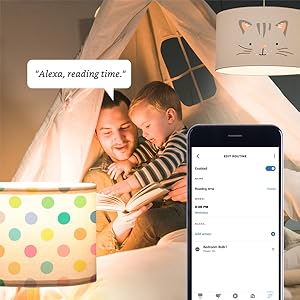
Image 6.4: Setting up a reading time routine
6.4. การควบคุมกลุ่ม
Add multiple smart bulbs (up to 64) to your smart hub system and control them individually or as a group within the app.
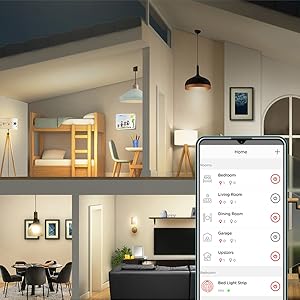
Image 6.5: Managing lights by room for group control
7. การบำรุงรักษา
- การทำความสะอาด: ตรวจสอบให้แน่ใจว่าหลอดไฟปิดอยู่และเย็นสนิทก่อนทำความสะอาด เช็ดด้วยผ้าแห้งนุ่มๆ ห้ามใช้น้ำยาทำความสะอาดชนิดเหลว
- พื้นที่จัดเก็บ: หากต้องการเก็บรักษาหลอดไฟ ควรเก็บไว้ในที่แห้งและเย็น หลีกเลี่ยงแสงแดดโดยตรงและอุณหภูมิที่สูงหรือต่ำเกินไป
- ไม่มีชิ้นส่วนที่ผู้ใช้สามารถซ่อมบำรุงได้: Do not attempt to disassemble or repair the bulb. This will void the warranty.
8 การแก้ไขปัญหา
8.1. Bulb Not Responding/Connecting
- ตรวจสอบพลังงาน: Ensure the light fixture switch is in the ON position and the bulb is receiving power.
- Hub Connection: Verify that your Zigbee hub is powered on and connected to your network.
- ความใกล้ชิด: Ensure the bulb is within range of your Zigbee hub or another Zigbee device acting as a repeater.
- จับคู่ใหม่: If the bulb loses connection, try removing it from your app and re-pairing it according to the setup instructions. Power cycling the bulb (turning it off and on 5 times) can sometimes reset it for re-pairing.
- อัปเดตแอป: Ensure your Sengled Home App or smart home platform app is updated to the latest version.
8.2. ปัญหาเกี่ยวกับการควบคุมด้วยเสียง
- Assistant Link: Confirm that your Sengled account (or smart hub) is correctly linked to your voice assistant (Alexa, Google Home).
- การค้นพบอุปกรณ์: Ask your voice assistant to "Discover devices" to ensure all bulbs are recognized.
- Command Clarity: Speak commands clearly and ensure the device name used in the command matches the name in your app.
8.3. Unstable Connection
- เครือข่ายซิกบี: A strong Zigbee mesh network is crucial. Adding more Zigbee devices (like smart plugs or other bulbs) can strengthen the network.
- การรบกวน: Keep your Zigbee hub away from Wi-Fi routers, microwaves, or other devices that might cause wireless interference.
9. ข้อมูลการรับประกัน
Sengled Smart Light Bulbs are covered by a รับประกันจำกัด 3 ปี from the date of purchase. This warranty covers defects in materials and workmanship under normal use. For warranty claims or detailed terms, please refer to the official Sengled webไซต์หรือติดต่อฝ่ายสนับสนุนลูกค้า
10. การสนับสนุนลูกค้า
For further assistance, technical support, or to report issues, please visit the official Sengled support website or contact their customer service department. Contact information can typically be found on the Sengled website or within the Sengled Home App.


