1. บทนำ
This manual provides essential information for the safe and efficient use of your Brother DCP-L8410CDW Color Laser Multifunction Printer. This 3-in-1 device is designed for professional environments, offering printing, copying, and scanning functionalities. It features an intuitive touchscreen, Wi-Fi, and Ethernet connectivity, making it suitable for various work settings.
คุณสมบัติที่สำคัญ ได้แก่:
- Print, copy, and scan capabilities
- High-quality color laser printing (up to 2400 dpi)
- การพิมพ์สองหน้าอัตโนมัติ
- Flexible paper handling with a maximum capacity of 300 sheets
- Integrated Wi-Fi and Gigabit Ethernet for versatile connectivity

ภาพที่ 1.1: ด้านหน้า view of the Brother DCP-L8410CDW printer.
2. การตั้งค่า
Follow these steps to set up your Brother DCP-L8410CDW printer:
- การแกะกล่อง: Carefully remove the printer from its packaging. Ensure all protective tapes and packing materials are removed from the exterior and interior of the device.
- ติดตั้งตลับหมึก: Open the front cover and install the toner cartridges into their respective slots. Refer to the labels for correct color placement.
- ใส่กระดาษ: Open the paper tray and adjust the paper guides to fit your paper size (e.g., A4). Load paper into the tray and close it securely.
- เชื่อมต่อพลังงาน: เชื่อมต่อสายไฟเข้ากับเครื่องพิมพ์ แล้วจึงเสียบเข้ากับเต้ารับไฟฟ้าที่มีสายดิน
- Connect to Network/Computer:
- ไร้สาย (Wi-Fi): On the printer's touchscreen, navigate to Network settings and follow the prompts to connect to your Wi-Fi network.
- แบบมีสาย (อีเธอร์เน็ต): เชื่อมต่อสายอีเธอร์เน็ตจากพอร์ต LAN ของเครื่องพิมพ์เข้ากับเราเตอร์หรือสวิตช์เครือข่ายของคุณ
- ยูเอสบี: เชื่อมต่อสาย USB 2.0 จากเครื่องพิมพ์ไปยังคอมพิวเตอร์ของคุณ
- ติดตั้งไดรเวอร์: Insert the installation CD (if provided) into your computer or download the latest drivers and software from the official Brother support webไซต์ ทำตามคำแนะนำบนหน้าจอเพื่อติดตั้งให้เสร็จสมบูรณ์

ภาพที่ 2.1: ด้านข้าง view of the Brother DCP-L8410CDW, showing the paper tray.
3. คู่มือการใช้งาน
The Brother DCP-L8410CDW features an intuitive touchscreen for easy operation.
3.1. การพิมพ์
- โปรดตรวจสอบให้แน่ใจว่าเครื่องพิมพ์เปิดอยู่และเชื่อมต่อกับเครือข่ายหรือคอมพิวเตอร์ของคุณแล้ว
- เปิดเอกสารหรือรูปภาพที่คุณต้องการพิมพ์บนคอมพิวเตอร์หรืออุปกรณ์มือถือของคุณ
- Select the 'Print' option from your application.
- Choose the Brother DCP-L8410CDW from the list of available printers.
- Adjust print settings (e.g., number of copies, color/mono, duplex) as needed.
- คลิก 'พิมพ์'
3.2. การทำสำเนา
- วางเอกสารคว่ำหน้าลงบนกระจกสแกนเนอร์ หรือหงายหน้าขึ้นในช่องป้อนเอกสารอัตโนมัติ (ADF)
- On the printer's touchscreen, select the 'Copy' function.
- Adjust settings such as number of copies, color/mono, and enlargement/reduction.
- กด 'เริ่ม' เพื่อเริ่มการคัดลอก
3.3. การสแกน
- วางเอกสารคว่ำหน้าลงบนกระจกสแกนเนอร์ หรือหงายหน้าขึ้นในช่องป้อนเอกสารอัตโนมัติ (ADF)
- On the printer's touchscreen, select the 'Scan' function.
- Choose your desired scan destination (e.g., Scan to PC, Scan to USB, Scan to Email).
- ปรับการตั้งค่าการสแกน (เช่น ความละเอียด) file type) if necessary.
- กด 'เริ่ม' เพื่อเริ่มการสแกน

Image 3.1: The intuitive touchscreen control panel of the DCP-L8410CDW.

Image 3.2: Using the Automatic Document Feeder for scanning or copying, and the USB port for direct printing/scanning.
4. การบำรุงรักษา
การบำรุงรักษาอย่างสม่ำเสมอจะช่วยให้เครื่องพิมพ์ทำงานได้อย่างมีประสิทธิภาพสูงสุดและยืดอายุการใช้งานของเครื่องพิมพ์
4.1. การเปลี่ยนตลับหมึก
- When a 'Low Toner' or 'Replace Toner' message appears on the display, order new genuine Brother toner cartridges.
- เปิดฝาครอบด้านหน้าของเครื่องพิมพ์
- ถอดตลับหมึกและชุดดรัมเก่าออก
- Separate the toner cartridge from the drum unit.
- Unpack the new toner cartridge and install it into the drum unit until it clicks into place.
- Insert the new toner and drum unit assembly back into the printer.
- ปิดฝาครอบด้านหน้า
4.2. การทำความสะอาดเครื่องพิมพ์
- ภายนอก: Wipe the exterior of the printer with a soft, lint-free cloth. Do not use abrasive cleaners.
- กระจกสแกนเนอร์: เช็ดทำความสะอาดกระจกสแกนเนอร์ด้วยผ้าแห้งเนื้อนุ่ม สำหรับคราบฝังแน่น ให้ใช้ผลิตภัณฑ์ทำความสะอาดกระจกปริมาณเล็กน้อยชุบลงบนผ้า (อย่าใช้โดยตรงกับกระจก)
- สายไฟโคโรนา: Periodically clean the corona wire inside the drum unit to prevent print quality issues. Refer to the printer's internal instructions or the full user guide for detailed steps.
5 การแก้ไขปัญหา
หัวข้อนี้จะกล่าวถึงปัญหาทั่วไปที่คุณอาจพบกับเครื่องพิมพ์ของคุณ
5.1. กระดาษติด
If a 'Paper Jam' message appears:
- ปิดเครื่องพิมพ์และถอดปลั๊กไฟ
- Open the rear cover or other access points as indicated on the display or in the full user guide.
- Carefully pull out any jammed paper in the direction of the paper path. Avoid tearing the paper.
- Check all paper trays and internal areas for small pieces of torn paper.
- ปิดฝาครอบทั้งหมด เสียบสายไฟ และเปิดเครื่องพิมพ์
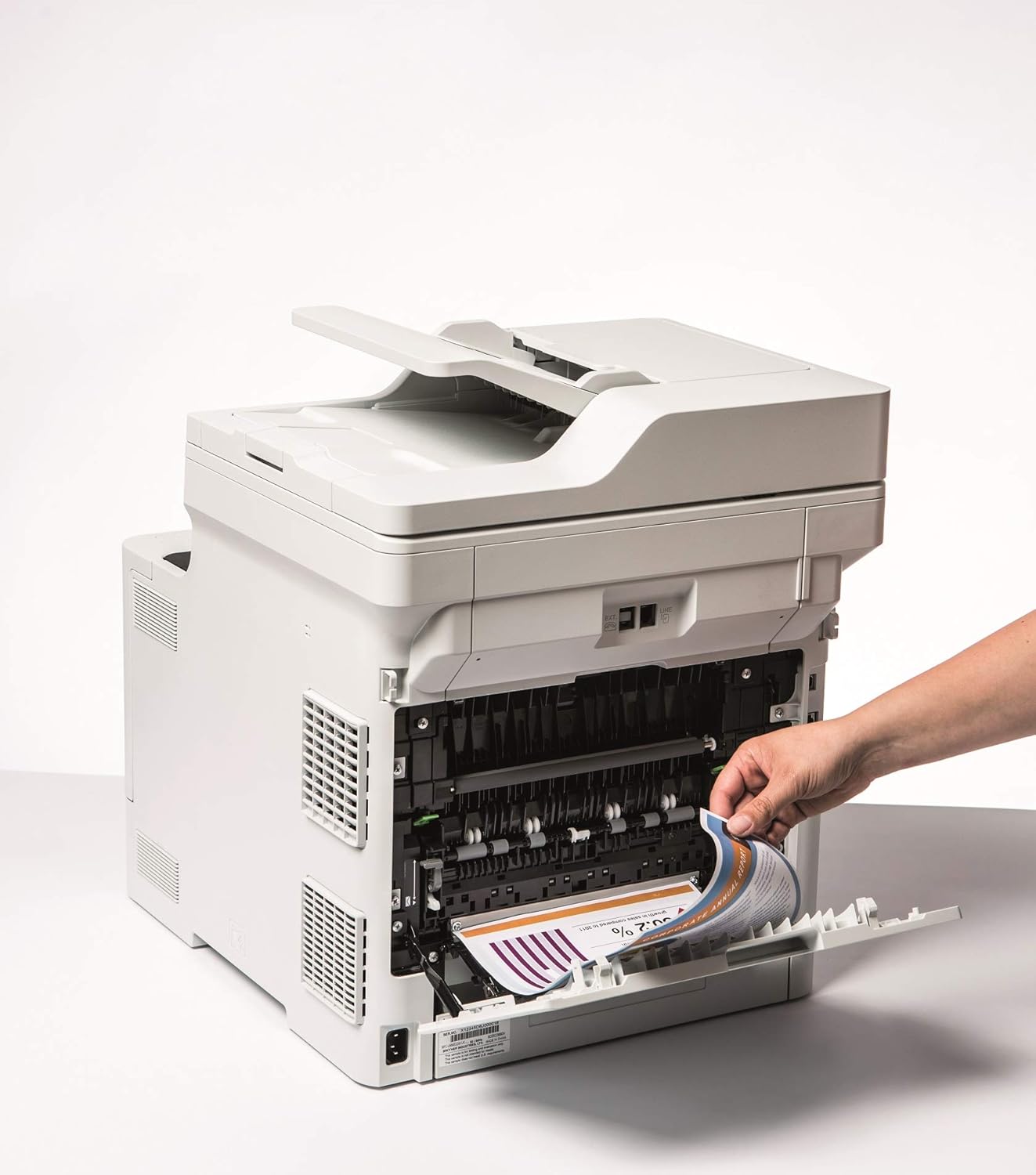
Image 5.1: Clearing a paper jam from the rear of the printer.
5.2. ปัญหาเกี่ยวกับคุณภาพการพิมพ์
- ภาพพิมพ์ที่ซีดจาง: Toner cartridge may be low. Replace if necessary.
- รอยด่างหรือจุด: Clean the corona wire or check for foreign objects on the drum unit.
- สีไม่ถูกต้อง: Ensure genuine Brother toner cartridges are used and perform a color calibration from the printer's menu.
5.3. ปัญหาการเชื่อมต่อ
- Wi-Fi Disconnected: Check network settings on the printer and ensure your router is functioning correctly. Restart both devices if needed.
- Cannot Print from PC: Verify that the printer drivers are correctly installed and updated. Check cable connections for wired setups.
6. ข้อมูลจำเพาะ
| คุณสมบัติ | ข้อมูลจำเพาะ |
|---|---|
| ชื่อรุ่น | DCP-L8410CDW |
| ขนาดสินค้า (ลxกxส) | ขนาด 43.5P x 53.9W x 52.6H ซม. |
| ขนาดสื่อสูงสุด | A4 |
| ความจุแผ่นสูงสุด | 300 แผ่น |
| ความเร็วในการคัดลอกสูงสุด (ขาวดำ) | 31 หน้าต่อนาที |
| ความละเอียดการพิมพ์สีสูงสุด | 61 dpcm |
| ความละเอียดการพิมพ์ขาวดำสูงสุด | 2400 จุดต่อนิ้ว |
| การพิมพ์สองหน้า | ใช่ |
| เทคโนโลยีการเชื่อมต่อ | Ethernet, USB 2.0, Wireless LAN (Wi-Fi) |
| เทคโนโลยีการพิมพ์ | เลเซอร์ |
| เอาท์พุตเครื่องพิมพ์ | สี |
| ความเร็วในการพิมพ์สูงสุด (สี) | 31 หน้าต่อนาที |
| น้ำหนักสินค้า | 27.6 กิโลกรัม |
| การใช้พลังงาน | 500 วัตต์ |
| ประเภทสแกนเนอร์ | รถบรรทุกพื้นเรียบ |
7. ข้อมูลการรับประกัน
This Brother DCP-L8410CDW printer comes with a การรับประกันแบบจำกัด. For detailed information regarding the terms, conditions, and duration of your warranty, please refer to the warranty card included with your product or visit the official Brother webไซต์นี้ โปรดเก็บหลักฐานการซื้อไว้เพื่อใช้ยืนยันการรับประกัน
8. การสนับสนุนลูกค้า
หากต้องการความช่วยเหลือเพิ่มเติม รวมถึงการดาวน์โหลดไดรเวอร์ คำถามที่พบบ่อย และข้อมูลติดต่อสำหรับฝ่ายสนับสนุนด้านเทคนิค โปรดเยี่ยมชมเว็บไซต์ฝ่ายสนับสนุนอย่างเป็นทางการของ Brother webเว็บไซต์:
You can also find additional resources and troubleshooting guides specific to your model on the support page.


