1. บทนำและเรื่องอื่นๆview
The eSSL KartString Biometric Time Attendance Machine is designed to provide efficient and secure time management and access control for organizations. This device utilizes fingerprint recognition technology to accurately record employee attendance, ensuring only authorized individuals are tracked. It features a clear display, a user-friendly keypad, and robust data storage capabilities, making it an essential tool for modern workforce management.
This manual provides detailed instructions for the setup, operation, and maintenance of your eSSL KartString Biometric Time Attendance Machine.
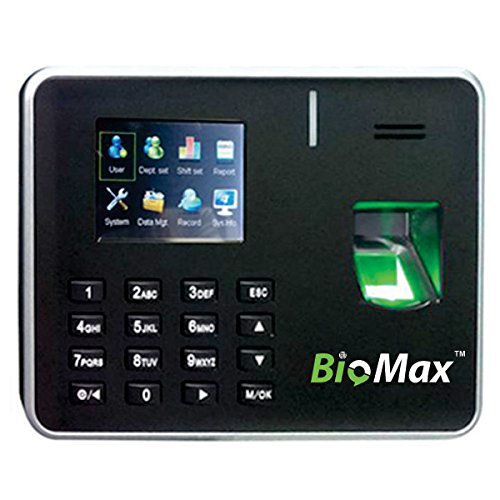
รูปที่ 1: ด้านหน้า view of the eSSL KartString Biometric Time Attendance Machine, showing the display, keypad, and fingerprint sensor.
2. คุณสมบัติของผลิตภัณฑ์
- การจดจำลายนิ้วมือ: Secure and accurate biometric identification for attendance.
- High Transaction Storage: Capable of storing up to 100,000 attendance records.
- Color TFT Display: A 2.8-inch color display for clear user interface and information display.
- Multiple Communication Methods: Supports TCP/IP for network connectivity and USB-host for data transfer.
- Integrated Keypad: Soft buttons for password entry and menu navigation.
- การออกแบบที่กะทัดรัด: Measures approximately 183 x 45 x 138 mm, suitable for various installation environments.
- Cloud-Based Software: Includes 6 months of cloud-based attendance management software by KartString for enhanced data management and reporting.
3. คำแนะนำในการตั้งค่า
Follow these steps to set up your eSSL KartString Biometric Time Attendance Machine:
- การแกะกล่อง: Carefully remove the device from its packaging and ensure all components are present.
- การติดตั้ง (ทางเลือก): Choose a suitable location for installation, typically near an entrance or exit. Secure the device to a wall using appropriate mounting hardware (not included, consult a professional if unsure).
- การเชื่อมต่อไฟฟ้า: Connect the provided power adapter to the device's power input port and then plug it into a standard electrical outlet. The device will power on automatically.
- การเชื่อมต่อเครือข่าย (TCP/IP): For network-based data management, connect an Ethernet cable from your network router or switch to the device's LAN port.
- การกำหนดค่าเริ่มต้น: Upon first power-on, the device may prompt for initial setup, such as date, time, and administrator registration. Follow the on-screen instructions.
4. คู่มือการใช้งาน
4.1 การลงทะเบียนผู้ดูแลระบบ
Before employees can use the system, an administrator must be registered to manage settings and user data.
- กดปุ่ม โอเค ปุ่มเพื่อเข้าสู่เมนูหลัก
- นำทางไปที่ การจัดการผู้ใช้ or ลงทะเบียนผู้ใช้ โดยใช้ปุ่มลูกศร
- เลือก Register Admin หรือตัวเลือกที่คล้ายคลึงกัน
- Follow the on-screen prompts to scan the administrator's fingerprint multiple times for accurate registration.
- Assign administrator privileges as required.
4.2 Employee Fingerprint Enrollment
Each employee needs to register their fingerprint(s) to use the attendance system.
- Access the main menu as an administrator.
- นำทางไปที่ การจัดการผู้ใช้ or ลงทะเบียนผู้ใช้.
- เลือก ผู้ใช้ใหม่ or ลงทะเบียนลายนิ้วมือ.
- Enter the employee ID (if prompted) and then instruct the employee to place their finger on the sensor.
- The device will prompt the employee to lift and place their finger several times for a complete scan.
- Confirm successful enrollment.
4.3 การบันทึกการเข้าเรียน
Employees can record their attendance by simply placing their registered finger on the sensor.
- ตรวจสอบให้แน่ใจว่าอุปกรณ์เปิดอยู่และอยู่ในโหมดสแตนด์บาย
- The employee places their registered finger firmly on the fingerprint sensor.
- Upon successful recognition, the device will display a confirmation message (e.g., "Thank You" or "Punch In/Out Successful") and an audible prompt.
4.4 การจัดการข้อมูล
Attendance data can be retrieved via TCP/IP network or USB-host.
- Via TCP/IP: Connect the device to your network. Use the provided cloud-based attendance management software or compatible third-party software to connect to the device and download attendance logs. Refer to the software's documentation for specific instructions.
- Via USB-Host: Insert a USB flash drive into the device's USB-host port. Navigate to การจัดการข้อมูล or ดาวน์โหลดข้อมูล in the menu. Select the desired data (e.g., attendance logs, user data) and initiate the transfer to the USB drive.
5. การบำรุงรักษา
การบำรุงรักษาอย่างสม่ำเสมอจะช่วยให้มั่นใจได้ว่าอุปกรณ์ของคุณจะทำงานได้อย่างมีประสิทธิภาพสูงสุดและมีอายุการใช้งานยาวนานขึ้น
- การทำความสะอาดเซ็นเซอร์: Gently wipe the fingerprint sensor with a soft, dry, lint-free cloth. Avoid using abrasive materials or liquid cleaners directly on the sensor.
- การทำความสะอาดอุปกรณ์: ใช้แปรงนุ่มๆ ปัดเบาๆamp cloth to clean the exterior of the device. Do not allow water or cleaning solutions to enter the device.
- การสำรองข้อมูล: Regularly back up attendance data to an external storage device (USB) or through the network software to prevent data loss.
- การอัปเดตซอฟต์แวร์: Check the eSSL website or contact support for any available firmware or software updates to ensure your device operates with the latest features and security enhancements.
6 การแก้ไขปัญหา
หัวข้อนี้จะกล่าวถึงปัญหาทั่วไปที่คุณอาจพบเจอ
- อุปกรณ์ไม่ได้เปิดเครื่อง:
- ตรวจสอบให้แน่ใจว่าได้เสียบอะแดปเตอร์แปลงไฟเข้ากับอุปกรณ์และเต้ารับไฟฟ้าที่ใช้งานได้สนิทแล้ว
- ตรวจสอบว่าเต้ารับไฟฟ้าใช้งานได้โดยเสียบอุปกรณ์อื่น
- ไม่รู้จักลายนิ้วมือ:
- ตรวจสอบให้แน่ใจว่านิ้วสะอาดและแห้ง
- Place the entire pad of the registered finger firmly on the sensor.
- Try re-enrolling the fingerprint if recognition issues persist.
- Clean the fingerprint sensor as described in the Maintenance section.
- Cannot Connect to Network (TCP/IP):
- Verify the Ethernet cable is properly connected to both the device and the network router/switch.
- Check network settings on the device to ensure correct IP address, subnet mask, and gateway.
- Ensure your network router is functioning correctly.
- USB Data Transfer Failure:
- Ensure the USB flash drive is properly inserted and formatted to a compatible file system (e.g., FAT32).
- ลองใช้แฟลชไดรฟ์ USB อันอื่นดู
- Verify there is sufficient space on the USB drive.
หากคุณพบปัญหาที่ไม่ได้กล่าวถึงในที่นี้ โปรดดูที่ส่วนการสนับสนุน
7. ข้อมูลจำเพาะ
| แบบอย่าง | KartString Biomax K 21 |
| ยี่ห้อ | อีเมล |
| เซ็นเซอร์ลายนิ้วมือ | เซ็นเซอร์ออปติคอล |
| ความสามารถในการทำธุรกรรม | 100,000 บันทึก |
| แสดง | 2.8 Inch Color TFT |
| การสื่อสาร | TCP/IP, USB-host |
| ขนาด (กว้าง x ยาว x สูง) | 183 x 45 x 138 มม. (โดยประมาณ) |
| น้ำหนักสินค้า | 650 กรัม |
| สี | สีดำ |
8. การรับประกันและการสนับสนุน
The eSSL KartString Biometric Time Attendance Machine comes with standard manufacturer warranty. Please refer to your purchase documentation for specific warranty terms and conditions.
For technical assistance, troubleshooting, or inquiries regarding the included 6-month cloud-based attendance management software by KartString, please contact eSSL customer support or your authorized dealer. Contact information can typically be found on the eSSL official webไซต์หรือบนบรรจุภัณฑ์ผลิตภัณฑ์ของคุณ
When contacting support, please have your product model (KartString Biomax K 21) and any relevant purchase details ready.


