1. บทนำ
The Zebra DS2208-Series SR is a corded handheld standard range imager designed for efficient barcode scanning. This kit includes the DS2208 scanner, a stand, and a shielded USB cable. It is capable of reading both 1D and 2D barcodes, including those displayed on mobile devices, printed coupons, and loyalty cards. The device features an ergonomic design for comfortable use in various environments, from retail to hospitality.
This manual provides instructions for the proper setup, operation, and maintenance of your DS2208-Series SR barcode scanner.
2. เนื้อหาบรรจุภัณฑ์
ตรวจสอบว่ามีส่วนประกอบทั้งหมดอยู่ในแพ็คเกจ:
- Zebra DS2208-Series SR Handheld Barcode Scanner
- ที่วางเครื่องสแกน
- Shielded USB Cable
- คู่มือเริ่มต้นใช้งานฉบับย่อ (อาจรวมแยกต่างหาก)

Figure 2.1: Zebra DS2208-Series SR Handheld Barcode Scanner
This image shows the main unit of the Zebra DS2208-Series SR handheld barcode scanner, a black device with an ergonomic grip and scanning window.
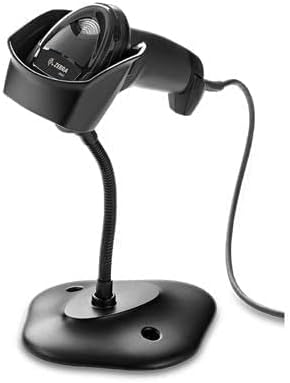
Figure 2.2: Zebra DS2208-Series SR Barcode Scanner with Stand
This image displays the Zebra DS2208-Series SR barcode scanner placed in its flexible stand, connected by a cable.
3. การตั้งค่าและการติดตั้ง
The DS2208-Series SR is designed for plug-and-play simplicity. Follow these steps to set up your scanner:
- เชื่อมต่อสาย USB: Insert the smaller end of the shielded USB cable into the port at the base of the DS2208 scanner.
- เชื่อมต่อกับอุปกรณ์โฮสต์: Plug the larger USB end of the cable into an available USB port on your computer or Point of Sale (POS) system.
- การกำหนดค่าอัตโนมัติ: The scanner features auto-host detection and will typically configure itself automatically with your POS interface.
- Place in Stand (Optional): If using the stand, place the scanner securely into the stand. The stand allows for hands-free scanning.
No additional drivers are usually required for basic operation. If issues arise, refer to the troubleshooting section or the official Zebra support webเว็บไซต์.
4. คู่มือการใช้งาน
4.1 การสแกนแบบใช้มือถือ
- ถือเครื่องสแกนไว้: จับเครื่องสแกนให้ถนัดมือ
- Aim at Barcode: Point the scanning window towards the barcode you wish to scan. The scanner features an aim line to guide you.
- กดไกปืน: Press and hold the trigger button located on the handle. The scanner will emit a scanning beam.
- ยืนยันการสแกน: Upon successful scan, the scanner will provide feedback through a blinking laser line (Direct Decode Indicator), a beep tone, a red/green LED indicator, or a combination of these, depending on its configuration.
- ตัวกระตุ้นการปล่อย: ปล่อยปุ่มไกปืน
4.2 Presentation Scanning (with Stand)
When the scanner is placed in its stand, it can operate in presentation mode, allowing for hands-free scanning.
- Place Scanner in Stand: Ensure the scanner is securely seated in the stand.
- Present Barcode: Hold the barcode in front of the scanner's window. The scanner will automatically detect and scan the barcode.
- ยืนยันการสแกน: Successful scans are indicated by the same feedback mechanisms as handheld scanning.
4.3 Scanning 1D and 2D Barcodes
The DS2208 is capable of reading a wide range of 1D and 2D barcodes, including those on physical labels and digital displays (e.g., mobile phones). Ensure the barcode is clear and well-lit for optimal performance.
5. การบำรุงรักษาและการดูแล
- การทำความสะอาดหน้าต่างการสแกน: ใช้ผ้านุ่มไม่เป็นขุยค่อยๆ งampened with water or a mild glass cleaner to clean the scanning window. Avoid abrasive materials or harsh chemicals.
- การดูแลสายเคเบิล: อย่าดัดหรือบิดสาย USB มากเกินไป ตรวจสอบให้แน่ใจว่าสายไม่ถูกหนีบหรือวางไว้ใต้ของหนัก
- พื้นที่จัดเก็บ: เก็บสแกนเนอร์ไว้ในสภาพแวดล้อมที่สะอาดและแห้งเมื่อไม่ได้ใช้งาน
- การป้องกันการตก: While designed for durability, avoid unnecessary drops or impacts to prolong the life of the device.
6 การแก้ไขปัญหา
| ปัญหา | สาเหตุที่เป็นไปได้ | สารละลาย |
|---|---|---|
| เครื่องสแกนเนอร์ไม่สามารถเปิดเครื่องได้ | USB cable not properly connected or power issue. | Ensure the USB cable is securely connected to both the scanner and the host device. Try a different USB port. |
| เครื่องสแกนไม่สามารถอ่านบาร์โค้ดได้ | Barcode damaged, scanner window dirty, incorrect symbology enabled, or scanner not configured. |
|
| ข้อมูลที่สแกนแสดงผลไม่ถูกต้อง | Incorrect keyboard layout or data formatting. |
|
| เครื่องสแกนส่งเสียงดัง แต่ไม่มีการส่งข้อมูลใดๆ | Host device not recognizing the scanner as an input device. |
|
7. ข้อมูลจำเพาะ
| คุณสมบัติ | รายละเอียด |
|---|---|
| หมายเลขรุ่น | DS2208-SR |
| ยี่ห้อ | บริษัท ซีบรา เทคโนโลยี |
| เทคโนโลยีการเชื่อมต่อ | USB Cable, RS232 (via compatible cable, not included in this kit) |
| แหล่งพลังงาน | Corded Electric (via USB host) |
| อุปกรณ์ที่รองรับ | Desktop, Laptop, Point of Sale (POS) Systems |
| ขนาดสินค้า | 3.35 x 2.5 x 7.3 นิ้ว |
| น้ำหนักสินค้า | 14.1 ออนซ์ |
| ประเภทสแกนเนอร์ | 1D/2D Area Imager |
| เนื้อหาชุด | Scanner, Stand, Shielded USB Cable |
8. ข้อมูลการรับประกัน
For detailed warranty information, please refer to the warranty card included with your product or visit the official Zebra Technologies website. Standard warranty terms typically cover manufacturing defects for a specified period from the date of purchase. Keep your proof of purchase for warranty claims.
9. การสนับสนุนด้านเทคนิค
If you encounter issues not covered in this manual or require further assistance, please contact Zebra Technologies technical support.
- การสนับสนุนทางออนไลน์: Visit the official Zebra Technologies support website for drivers, documentation, and FAQs.
- ข้อมูลติดต่อ: Refer to the contact details provided in your product packaging or on the Zebra Technologies webไซต์สำหรับการสนับสนุนทางโทรศัพท์หรืออีเมล


