การแนะนำ
This manual provides essential information for the installation, operation, maintenance, and troubleshooting of your NVIDIA 699-51030-0501-101 graphics card. This component is designed for desktop computer systems to enhance graphics processing capabilities. Please read this manual thoroughly before proceeding with installation or use.
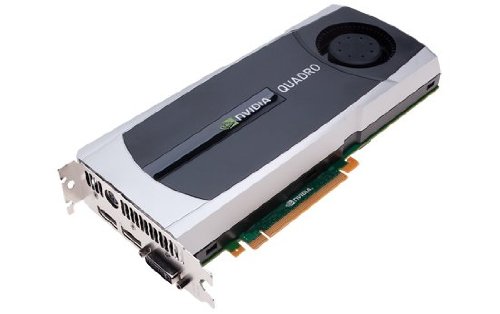
Image: NVIDIA 699-51030-0501-101 Graphics Card. This image displays the graphics card from an angled perspective, showing the cooling fan, heatsink, and the PCIe connector.
แนวทางปฏิบัติเพื่อความปลอดภัย
โปรดปฏิบัติตามข้อควรระวังด้านความปลอดภัยต่อไปนี้ เพื่อป้องกันความเสียหายต่อผลิตภัณฑ์หรือการบาดเจ็บต่อตัวคุณเอง:
- ควรตัดการเชื่อมต่อพลังงานจากคอมพิวเตอร์ของคุณทุกครั้งก่อนติดตั้งหรือถอดส่วนประกอบใดๆ
- สวมสายรัดข้อมือป้องกันไฟฟ้าสถิตย์หรือสัมผัสวัตถุโลหะที่มีสายดินบ่อยๆ เพื่อระบายไฟฟ้าสถิตย์
- จับการ์ดจอโดยจับที่ขอบเพื่อหลีกเลี่ยงการสัมผัสส่วนประกอบที่อ่อนไหว
- ตรวจสอบให้แน่ใจว่ามีการระบายอากาศที่เหมาะสมภายในเคสคอมพิวเตอร์ของคุณเพื่อป้องกันความร้อนสูงเกินไป
- เก็บผลิตภัณฑ์ให้ห่างจากความชื้นและอุณหภูมิที่สูงเกินไป
การตั้งค่า
1. การตรวจสอบก่อนการติดตั้ง
- ตรวจสอบให้แน่ใจว่าหน่วยจ่ายไฟ (PSU) ของคุณมีกำลังไฟเพียงพอtage and appropriate connectors for the graphics card.
- Ensure your motherboard has an available PCI Express (PCIe) x16 slot.
- Confirm your computer case has adequate space for the graphics card dimensions.
- เตรียมอุปกรณ์ที่จำเป็น: ไขควงหัวฟิลิปส์, สายรัดข้อมือป้องกันไฟฟ้าสถิต (แนะนำ)
2. การติดตั้งฮาร์ดแวร์
- ปิดและตัดการเชื่อมต่อ: ปิดคอมพิวเตอร์ของคุณอย่างสมบูรณ์และถอดสายไฟออกจากเต้าเสียบที่ผนัง
- เปิดเคส: ถอดแผงด้านข้างของเคสคอมพิวเตอร์ของคุณเพื่อเข้าถึงเมนบอร์ด
- ค้นหาสล็อต PCIe: ค้นหาสล็อต PCI Express x16 ที่ว่างอยู่บนเมนบอร์ดของคุณ โดยปกติแล้วสล็อตนี้จะเป็นสล็อตที่ยาวที่สุด
- ถอดฝาครอบช่อง: Remove the metal slot cover(s) from the back of your computer case corresponding to the PCIe slot you will use.
- ใส่การ์ดจอ : Carefully align the graphics card with the PCIe slot. Press down firmly and evenly on both ends of the card until it is fully seated in the slot. You should hear a click from the retention clip.
- บัตรที่ปลอดภัย: Secure the graphics card to the computer case using the screw(s) removed from the slot cover(s).
- เชื่อมต่อแหล่งจ่ายไฟ (ถ้ามี): If your graphics card requires additional power, connect the appropriate PCIe power cables from your PSU to the graphics card. This model (NVIDIA 699-51030-0501-101) may not require external power, but always check the card itself for connectors.
- ปิดคดี: เปลี่ยนแผงด้านข้างของเคสคอมพิวเตอร์ของคุณ
- เชื่อมต่ออุปกรณ์ต่อพ่วงอีกครั้ง: Reconnect your monitor cable to one of the display outputs on the new graphics card. Reconnect all other peripherals and the power cord.
3. การติดตั้งไดร์เวอร์
- เปิดเครื่อง: เปิดคอมพิวเตอร์ของคุณ
- ดาวน์โหลดไดรเวอร์: เข้าไปที่เว็บไซต์อย่างเป็นทางการของ NVIDIA webงาน (www.nvidia.com/drivers) and download the latest drivers compatible with your NVIDIA 699-51030-0501-101 graphics card and operating system.
- ติดตั้งไดรเวอร์: เรียกใช้โปรแกรมติดตั้งไดรเวอร์ที่ดาวน์โหลดมาและทำตามคำแนะนำบนหน้าจอ แนะนำให้ทำการติดตั้งใหม่ทั้งหมดหากมีข้อความแจ้งเตือน
- เริ่มต้นใหม่อีกครั้ง: รีสตาร์ทเครื่องคอมพิวเตอร์ของคุณหลังจากการติดตั้งไดรเวอร์เสร็จสมบูรณ์
การดำเนินงาน
Once installed and drivers are updated, your NVIDIA 699-51030-0501-101 graphics card will automatically handle graphics processing for your system. You can verify its operation through your operating system's device manager or NVIDIA Control Panel.
- แผงควบคุม NVIDIA: Access the NVIDIA Control Panel (usually via right-click on desktop or through Windows Control Panel) to adjust display settings, 3D settings, and monitor various aspects of your graphics card.
- การอัปเดตไดรเวอร์: ตรวจสอบ NVIDIA เป็นประจำ website for driver updates to ensure optimal performance and compatibility with new software and games.
การซ่อมบำรุง
การบำรุงรักษาอย่างเหมาะสมจะช่วยให้การ์ดจอของคุณมีอายุการใช้งานยาวนานและมีประสิทธิภาพเหมาะสมที่สุด
- การกำจัดฝุ่น: Periodically (e.g., every 6-12 months), power off and unplug your computer. Open the case and use compressed air to gently clear dust from the graphics card's heatsink and fan. Hold the fan blades to prevent over-spinning during cleaning.
- สภาพแวดล้อม : Operate your computer in a clean, dry, and well-ventilated environment. Avoid extreme temperatures and humidity.
การแก้ไขปัญหา
หากคุณพบปัญหา โปรดดูขั้นตอนการแก้ไขปัญหาทั่วไปต่อไปนี้:
- ไม่มีการแสดงผล:
- ตรวจสอบให้แน่ใจว่าสายเคเบิลจอภาพเชื่อมต่อกับการ์ดจอและจอภาพอย่างแน่นหนา
- ตรวจสอบให้แน่ใจว่าจอภาพตั้งค่าแหล่งสัญญาณเข้าถูกต้องแล้ว
- Check if the graphics card is fully seated in its PCIe slot.
- If applicable, ensure all PCIe power connectors are securely attached.
- ทดสอบด้วยจอภาพหรือสายเคเบิลอื่นหากเป็นไปได้
- ปัญหาไดร์เวอร์:
- Reinstall the latest drivers from the NVIDIA webเว็บไซต์.
- Try rolling back to a previous driver version if issues started after an update.
- ใช้โปรแกรม Display Driver Uninstaller (DDU) ในโหมดปลอดภัยเพื่อลบไดรเวอร์เก่าออกให้หมดก่อนติดตั้งไดรเวอร์ใหม่
- Performance Problems (Low FPS, Stuttering):
- ตรวจสอบให้แน่ใจว่าไดร์เวอร์ได้รับการอัปเดตแล้ว
- Check for overheating using monitoring software (e.g., MSI Afterburner, HWMonitor). Clean dust if necessary.
- Verify that your system meets the minimum requirements for the applications or games you are running.
- ตรวจสอบกำลังไฟของหน่วยจ่ายไฟ (PSU)tage; an insufficient PSU can cause performance issues.
- System Instability (Crashes, Blue Screens):
- Check for driver conflicts or corruption.
- Monitor temperatures to rule out overheating.
- Ensure the graphics card is properly seated and secured.
- เรียกใช้เครื่องมือตรวจสอบหน่วยความจำเพื่อตรวจสอบปัญหาเกี่ยวกับ RAM
ข้อมูลจำเพาะทางเทคนิค
Key specifications for the NVIDIA 699-51030-0501-101 graphics card:
| หมายเลขรุ่น | NVIDIA 699-51030-0501-101 |
| ยี่ห้อ | NVIDIA |
| โคโปรเซสเซอร์กราฟิก | NVIDIA 699-51030 |
| ผู้ผลิตโปรเซสเซอร์กราฟิก | NVIDIA |
| อุปกรณ์ที่รองรับ | เดสก์ท็อป |
| ASIN | B01NBI92VC |
| วันที่พร้อมใช้งานครั้งแรก | วันที่ 8 ธันวาคม 2016 |
การรับประกันและการสนับสนุน
This NVIDIA graphics card is covered by the manufacturer's standard warranty. For specific warranty terms, duration, and to register your product, please refer to the official NVIDIA website or contact NVIDIA customer support directly.
For technical assistance, driver downloads, and further support resources, visit the official NVIDIA support portal:
- ฝ่ายสนับสนุนของ NVIDIA: www.nvidia.com/support


