1. สินค้าหมดview
The Logitech MK850 Performance Wireless Keyboard and Mouse Set offers a comfortable and productive computing experience. This versatile set features dual connectivity options (Logitech Unifying USB receiver or Bluetooth Smart technology) and Easy-Switch functionality, allowing seamless transition between multiple devices. The keyboard includes a padded palm rest and carefully designed keys for extended comfort, while the ergonomically shaped mouse for right-handers boasts a hyper-fast scroll wheel and customizable buttons via Logitech DuoLink software.

รูปที่ 1.1: The Logitech MK850 Performance Wireless Keyboard and Mouse Set, showcasing the full-size keyboard with integrated palm rest and the ergonomic mouse.
2. คู่มือการติดตั้ง
2.1 เนื้อหาบรรจุภัณฑ์
- คีย์บอร์ดไร้สาย Logitech MK850
- เมาส์ไร้สาย Logitech MK850
- ตัวรับ USB Logitech Unifying
- แบตเตอรี่ AA (สำหรับเมาส์)
- แบตเตอรี่ AAA (สำหรับคีย์บอร์ด)
2.2 การติดตั้งแบตเตอรี่
The keyboard requires 2 AAA batteries and the mouse requires 1 AA battery. Batteries are typically included.
- ค้นหาช่องใส่แบตเตอรี่ที่ด้านล่างของคีย์บอร์ดและเมาส์
- เปิดฝาครอบแบตเตอรี่
- ใส่แบตเตอรี่เพื่อให้แน่ใจว่ามีขั้วที่ถูกต้อง (+/-)
- ปิดฝาครอบแบตเตอรี่ให้แน่น
2.3 การเชื่อมต่ออุปกรณ์ของคุณ
The MK850 set offers two connection methods: Logitech Unifying USB Receiver or Bluetooth Smart technology.
2.3.1 Using the Logitech Unifying Receiver
- เสียบตัวรับสัญญาณ Logitech Unifying USB เข้ากับพอร์ต USB ที่ว่างอยู่บนคอมพิวเตอร์ของคุณ
- เปิดคีย์บอร์ดและเมาส์โดยใช้สวิตช์เปิด/ปิดตามลำดับ
- The devices should automatically connect to the receiver. If not, press and hold one of the Easy-Switch buttons (1, 2, or 3) on the keyboard and mouse until the LED blinks rapidly, then release. The device is now in pairing mode.
- For advanced pairing, download and install the Logitech Options software from the official Logitech webเว็บไซต์.
2.3.2 Using Bluetooth Smart Technology
- เปิดคีย์บอร์ดและเมาส์โดยใช้สวิตช์เปิด/ปิดตามลำดับ
- Press and hold one of the Easy-Switch buttons (1, 2, or 3) on the keyboard and mouse until the LED blinks rapidly. This indicates pairing mode.
- เปิดการตั้งค่าบลูทูธบนคอมพิวเตอร์หรืออุปกรณ์ของคุณ
- Select "Logitech MK850 Keyboard" and "Logitech MK850 Mouse" from the list of available devices to pair.
- ปฏิบัติตามคำแนะนำบนหน้าจอเพื่อดำเนินการจับคู่ให้เสร็จสมบูรณ์
3. คู่มือการใช้งาน
3.1 ฟังก์ชั่นคีย์บอร์ด
- Padded Palm Rest: Provides ergonomic support for comfortable typing over extended periods.
- ปุ่มฟังก์ชั่น (F1-F12): Perform various system functions. Some keys may have secondary functions accessible via the 'Fn' key.
- QWERTZ Layout: Standard German keyboard layout.
- Easy-Switch Buttons (1, 2, 3): Located above the numeric keypad, these buttons allow you to instantly switch the keyboard's connection between up to three paired devices.
3.2 ฟังก์ชันเมาส์
- รูปทรงตามหลักสรีรศาสตร์: Designed for comfortable use by right-handed users.
- ล้อเลื่อนความเร็วสูง: ช่วยให้สามารถเลื่อนดูเอกสารขนาดยาวได้อย่างรวดเร็ว หรือ web หน้าต่างๆ กดปุ่มด้านหลังวงล้อเลื่อนเพื่อสลับระหว่างการเลื่อนแบบเร็วมากและการเลื่อนแบบทีละคลิก
- ปุ่มที่สามารถตั้งโปรแกรมได้: The mouse features additional buttons that can be customized using Logitech Options software for specific functions.
- Easy-Switch Buttons (1, 2, 3): Located on the side of the mouse, these buttons allow you to instantly switch the mouse's connection between up to three paired devices.
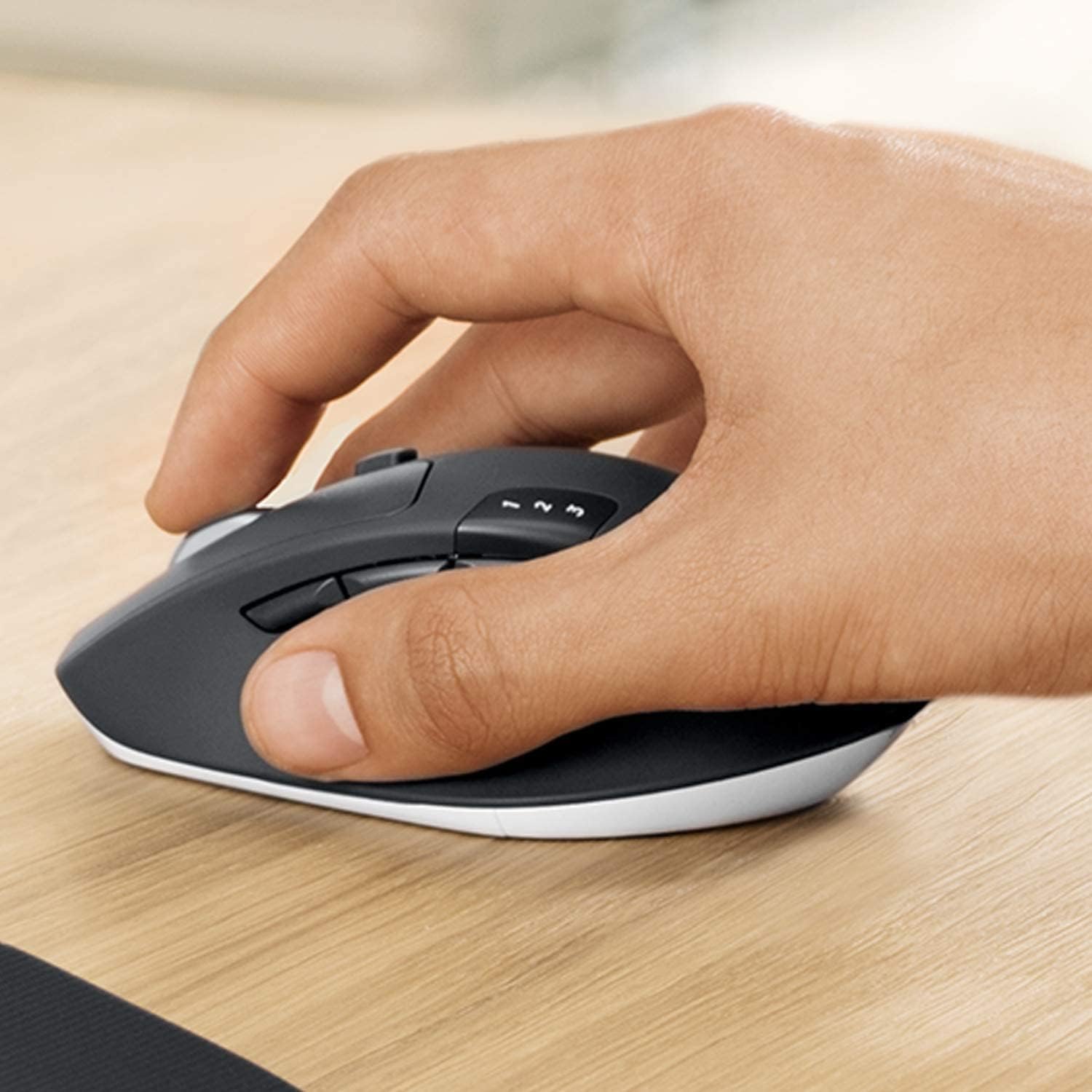
รูปที่ 3.1: A hand demonstrating the ergonomic grip on the Logitech MK850 mouse.

รูปที่ 3.2: รายละเอียด view of the Logitech MK850 mouse, highlighting its scroll wheel and Easy-Switch buttons.
3.3 DuoLink Software
Logitech DuoLink is a feature within Logitech Options software that allows the mouse and keyboard to work together for enhanced functionality. For example, holding the Fn key on the keyboard can change the mouse's button functions.
Download Logitech Options from the official Logitech website to customize your device settings, program buttons, and enable DuoLink.
4. การดูแลรักษา
- การทำความสะอาด: ใช้ผ้านุ่มไม่เป็นขุยเช็ดเล็กน้อยampened with water or a mild cleaning solution to clean the surfaces of the keyboard and mouse. Avoid harsh chemicals or abrasive materials.
- การเปลี่ยนแบตเตอรี่: Replace batteries when the low battery indicator light illuminates. Ensure to use the correct battery type (AAA for keyboard, AA for mouse).
- พื้นที่จัดเก็บ: เมื่อไม่ได้ใช้งานเป็นเวลานาน ควรปิดอุปกรณ์เพื่อประหยัดแบตเตอรี่ เก็บไว้ในที่แห้งและเย็น
5 การแก้ไขปัญหา
5.1 ปัญหาการเชื่อมต่อ
- ไม่มีการเชื่อมต่อ: Ensure the keyboard and mouse are turned on. Check battery levels. For Unifying receiver, try plugging it into a different USB port. For Bluetooth, ensure Bluetooth is enabled on your device and the devices are in pairing mode.
- การรบกวน: Move the devices closer to the receiver or Bluetooth-enabled device. Avoid placing them near other wireless devices that might cause interference (e.g., Wi-Fi routers, cordless phones).
- จับคู่ใหม่: If connection is lost, try re-pairing the devices using the steps in Section 2.3.
5.2 ปัญหาประสิทธิภาพการทำงาน
- ความหน่วงหรือความล่าช้า: Ensure sufficient battery power. Reduce distance between devices and receiver/Bluetooth host. Close other applications that might be consuming system resources.
- ปัญหาการติดตามเมาส์: Clean the mouse sensor. Use the mouse on a suitable surface (non-reflective, non-transparent).
6. ข้อมูลจำเพาะทางเทคนิค
| คุณสมบัติ | ข้อมูลจำเพาะ |
|---|---|
| ยี่ห้อ | โลจิเทค |
| แบบอย่าง | MK850 |
| เทคโนโลยีการเชื่อมต่อ | Bluetooth Smart, Logitech Unifying (2.4 GHz wireless) |
| อุปกรณ์ที่รองรับ | PC (Windows 10/11 or later), Mac (macOS 10.15 or later), Chrome OS, Linux, iPadOS 13.4 or later, Android 7 or later |
| ขนาดแป้นพิมพ์ (ยาว x กว้าง x สูง) | ประมาณ 43 x 21 x 2.5 ซม. |
| ขนาดเมาส์ (ยาว x กว้าง x สูง) | ประมาณ 99 x 60 x 39 มม. |
| น้ำหนักสินค้า | Approx. 845 g (total for set) |
| ประเภทแบตเตอรี่ | Keyboard: 2 x AAA; Mouse: 1 x AA |
| อายุการใช้งานแบตเตอรี่ | Up to 36 months (keyboard), up to 24 months (mouse) - May vary based on usage. |
| สี | สีดำ |

รูปที่ 6.1: Dimensions of the Logitech MK850 mouse.
7. การรับประกันและการสนับสนุน
Logitech products are manufactured to high quality standards and are designed to provide reliable performance. For detailed warranty information specific to your region and product, please refer to the warranty card included with your product or visit the official Logitech support webเว็บไซต์.
For technical support, FAQs, and driver downloads, please visit the Logitech support webเว็บไซต์:
- ฝ่ายสนับสนุนของ Logitech Webเว็บไซต์: support.logi.com
When contacting support, please have your product model (MK850) and serial number ready.


