Kensington MicroSaver 2.0 Keyed Ultra Cable Lock (K64432WW) Instruction Manual
Comprehensive instructions for the Kensington MicroSaver 2.0 Keyed Ultra Cable Lock (K64432WW), detailing setup, operation, features, compatibility, and specifications for securing laptops and other devices.
1. บทนำ
The Kensington MicroSaver 2.0 Keyed Ultra Laptop Lock is designed to provide robust security for laptops and other compatible devices. Engineered with a strong ultra carbon steel cable and a compact lock head, it offers reliable protection against theft in various environments. This manual provides essential information for the proper installation, operation, and maintenance of your security lock.

Image 1.1: The Kensington MicroSaver 2.0 Keyed Ultra Cable Lock, showing the coiled cable, lock head, and two accompanying keys.
2. อะไรอยู่ในกล่อง
ตรวจสอบว่ามีส่วนประกอบทั้งหมดอยู่ในแพ็คเกจ:
- MicroSaver 2.0 Keyed Ultra Lock
- 2 คีย์
- คู่มือการใช้งาน (เอกสารนี้)
- บัตรรับประกัน
3. คุณสมบัติของผลิตภัณฑ์
The MicroSaver 2.0 Keyed Ultra Cable Lock incorporates several features designed for enhanced security and ease of use:
- Strong 10mm Twin Lock Heads: Offers uncompromised security, suitable for even the thinnest laptops and devices.
- Patented Hidden Pin Technology: Provides advanced anti-pick features unique to Kensington security solutions.
- T-Bar Locking Technology: Designed to attach securely to the Kensington Security Slot, a standard feature on most laptops and other devices.
- Ultra Carbon Steel Cable: An extra-thick cable engineered to provide a high level of cut resistance, resisting minimum cutting forces of 1,500 lbf.
- Anti-Shearing Sleeve: Offers additional security and allows for greater mobility while protecting surfaces from scratches.
- Six-Foot (1.8m) Cable: จัดเตรียมให้ ample length for securing devices to a fixed object.
- 5mm Keying System: A robust keying system for reliable locking and unlocking.

Image 3.1: Visual comparison highlighting the thicker Ultra Carbon Steel Cable of the MicroSaver 2.0 versus a standard cable, demonstrating enhanced cut resistance.

ภาพที่ 3.2: รายละเอียด view of the Kensington lock head, showcasing its robust construction and T-Bar locking mechanism.
4. ความเข้ากันได้
The MicroSaver 2.0 Keyed Ultra Cable Lock is designed for devices equipped with a standard Kensington Security Slot (K-slot). It is important to verify your device's lock slot type before use.
- Standard (K-slot) Compatibility: This lock is compatible with the standard Kensington Security Slot, typically measuring 1/4 x 1/8 inch (7 x 3 mm).
- Important Note on Dell Devices: กุญแจนี้คือ ไม่เข้ากัน with several 2016 Dell laptops and tablets, including some Inspiron, Latitude, Venue, XPS, and Chromebook 13 models that utilize the Noble lock slot. Please review your device’s technical specifications to confirm the lock slot type.
To ensure correct lock selection, measure the lock slot on your laptop or device. Not all lock slots are the same size.

Image 4.1: A visual guide to lock slot sizes, showing the dimensions for Standard (K-slot), Nano, and Wedge-Shaped slots, and indicating compatibility for the MicroSaver 2.0 with the Standard (K-slot).
5. การตั้งค่าและการติดตั้ง
Follow these steps to secure your device:
- Identify the Security Slot: Locate the Kensington Security Slot on your laptop or device. This is typically a small, rectangular slot on the side or back of the device.
- ยึดสายเคเบิล: Loop the cable around a sturdy, immovable object such as a table leg, desk anchor, or heavy furniture. Ensure the object is robust enough to prevent removal.
- Insert the Lock Head: Insert the T-Bar lock head into the Kensington Security Slot on your device.
- Rotate and Lock: Turn the key clockwise to engage the T-Bar mechanism inside the slot. You will feel a click as the lock secures.
- ถอดกุญแจออก: Once locked, remove the key. Keep your keys in a safe and memorable location.
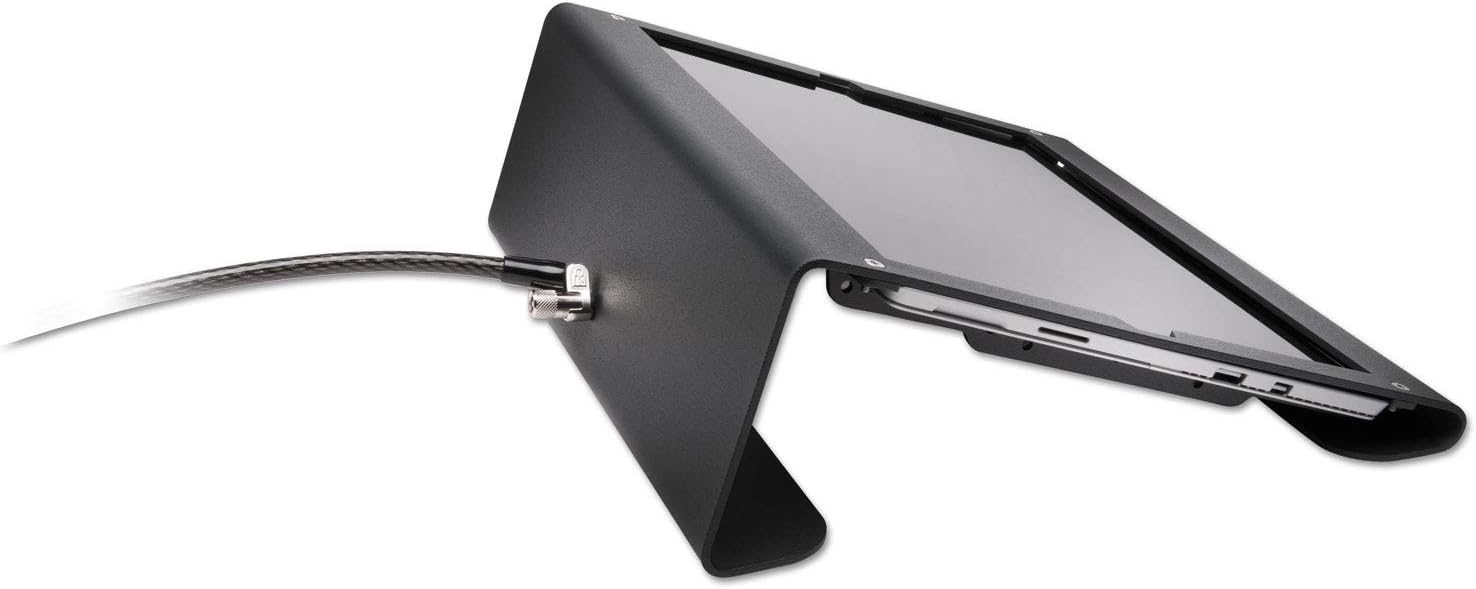
Image 5.1: The MicroSaver 2.0 lock head inserted into a device's security slot, with the cable secured to a fixed point, demonstrating proper installation.

Image 5.2: A laptop secured with the Kensington MicroSaver 2.0, illustrating the lock's application for device protection.
6. การดำเนินการ
Operating your Kensington MicroSaver 2.0 lock is straightforward:
- ล็อค: Insert the lock head into the security slot and turn the key clockwise until the lock engages. Remove the key.
- การปลดล็อค: Insert the key into the lock head and turn it counter-clockwise. The T-Bar mechanism will retract, allowing you to remove the lock head from the security slot.
Always ensure the lock is fully engaged before leaving your device unattended.
7. การบำรุงรักษา
To ensure the longevity and proper function of your security lock:
- Keep Keys Safe: Store your spare key in a secure location separate from the primary key.
- ทำความสะอาดเป็นประจำ: Wipe the lock and cable with a soft, dry cloth to remove dust and debris. Avoid using harsh chemicals or abrasive cleaners.
- การหล่อลื่น (ไม่จำเป็น): If the locking mechanism becomes stiff, a small amount of graphite lubricant can be applied to the keyhole. Do not use oil-based lubricants.
- ตรวจสอบความเสียหาย: Periodically check the cable and lock head for any signs of wear or damage. If significant damage is observed, discontinue use and consider replacement.
8 การแก้ไขปัญหา
- Lock Does Not Fit Slot:
Ensure your device has a standard Kensington Security Slot (K-slot). This lock is not compatible with Nano or Wedge-Shaped slots. Refer to Section 4: Compatibility for details. Also, confirm your device is not one of the incompatible 2016 Dell models.
- กุญแจแข็งหรือหมุนยาก:
Ensure the key is fully inserted into the lock. If stiffness persists, apply a small amount of graphite lubricant to the keyhole. Do not force the key.
- Lock Head Cannot Be Removed:
Ensure the key is turned completely counter-clockwise to fully retract the T-Bar mechanism. Gently wiggle the lock head while pulling it out of the slot.
9. ข้อมูลจำเพาะ
| คุณลักษณะ | รายละเอียด |
|---|---|
| ยี่ห้อ | เคนซิงตัน |
| ชื่อรุ่น | K64432WW |
| ประเภทสายเคเบิล | Ultra Carbon Steel Cable (stronger) |
| ความยาวสายเคเบิล | 6 ฟุต (1.8 เมตร) |
| Lock Head Type | T-Bar Locking Technology |
| ระบบกุญแจ | 5mm Keyed |
| วัสดุ | Steel (outer material) |
| น้ำหนักสินค้า | 2.56 ออนซ์ |
| ขนาดสินค้า (กxยxส) | 72 x 0.9 x 0.4 นิ้ว |
| การใช้ที่แนะนำ | Securing laptops and other devices in various environments |
10. การรับประกันและการสนับสนุน
Your Kensington MicroSaver 2.0 Keyed Ultra Cable Lock comes with a warranty. Please refer to the included Warranty Card for specific terms and conditions, including warranty period and coverage details.
For product support, frequently asked questions, or to register your keys for replacement services, please visit the official Kensington website. Key registration allows for free key replacement in case of loss.
For further assistance, contact Kensington customer support through their official channels.


