1. บทนำ
The Logitech Z625 THX Certified 2.1 Speaker System is designed to deliver a powerful audio experience for various entertainment needs, including gaming, movies, and music. This system features two satellite speakers and a subwoofer, providing 400 Watts Peak power for crisp sound and deep bass. It supports multiple input options, allowing connection to up to three compatible devices simultaneously.

Image 1.1: The Logitech Z625 THX Certified 2.1 Speaker System, showcasing the subwoofer and two satellite speakers.
2. อะไรอยู่ในกล่อง
Carefully unpack the contents of your Logitech Z625 speaker system. The package should contain the following items:
- ซับวูฟเฟอร์
- Two Satellite Speakers
- สายสัญญาณเสียงขนาด 3.5 มม.
- สายใยแก้วนำแสง
- คู่มือเริ่มต้นอย่างรวดเร็ว

Image 2.1: Contents of the Logitech Z625 package, showing the subwoofer, satellite speakers, and connection cables.
3. คำแนะนำในการตั้งค่า
Follow these steps to set up your Logitech Z625 speaker system:
- การจัดวาง: Position the subwoofer on the floor, ideally near a wall for enhanced bass. Place the two satellite speakers on either side of your monitor or television, ensuring they are equidistant from your listening position for optimal stereo imaging.
- เชื่อมต่อลำโพงดาวเทียม: เชื่อมต่อสายเคเบิลจากลำโพงดาวเทียมเข้ากับพอร์ตที่ด้านหลังของซับวูฟเฟอร์ ตรวจสอบให้แน่ใจว่าการเชื่อมต่อแน่นหนา
- เชื่อมต่อแหล่งเสียง: The Z625 system supports multiple input options. Choose the appropriate cable for your device:
- อินพุต 3.5 มม.: Use the included 3.5mm audio cable to connect your computer, smartphone, or other devices with a 3.5mm audio output to the AUX input on the right satellite speaker or the 3.5mm input on the subwoofer.
- อินพุตออปติคัล: Use an optical cable (included) to connect your television, game console, or other devices with an optical audio output to the OPTICAL input on the subwoofer.
- อาร์ซีเออินพุต: Use an RCA cable (not included) to connect devices with RCA audio outputs to the RCA inputs on the subwoofer.
- การเชื่อมต่อไฟฟ้า: Plug the subwoofer's power cable into a wall outlet.
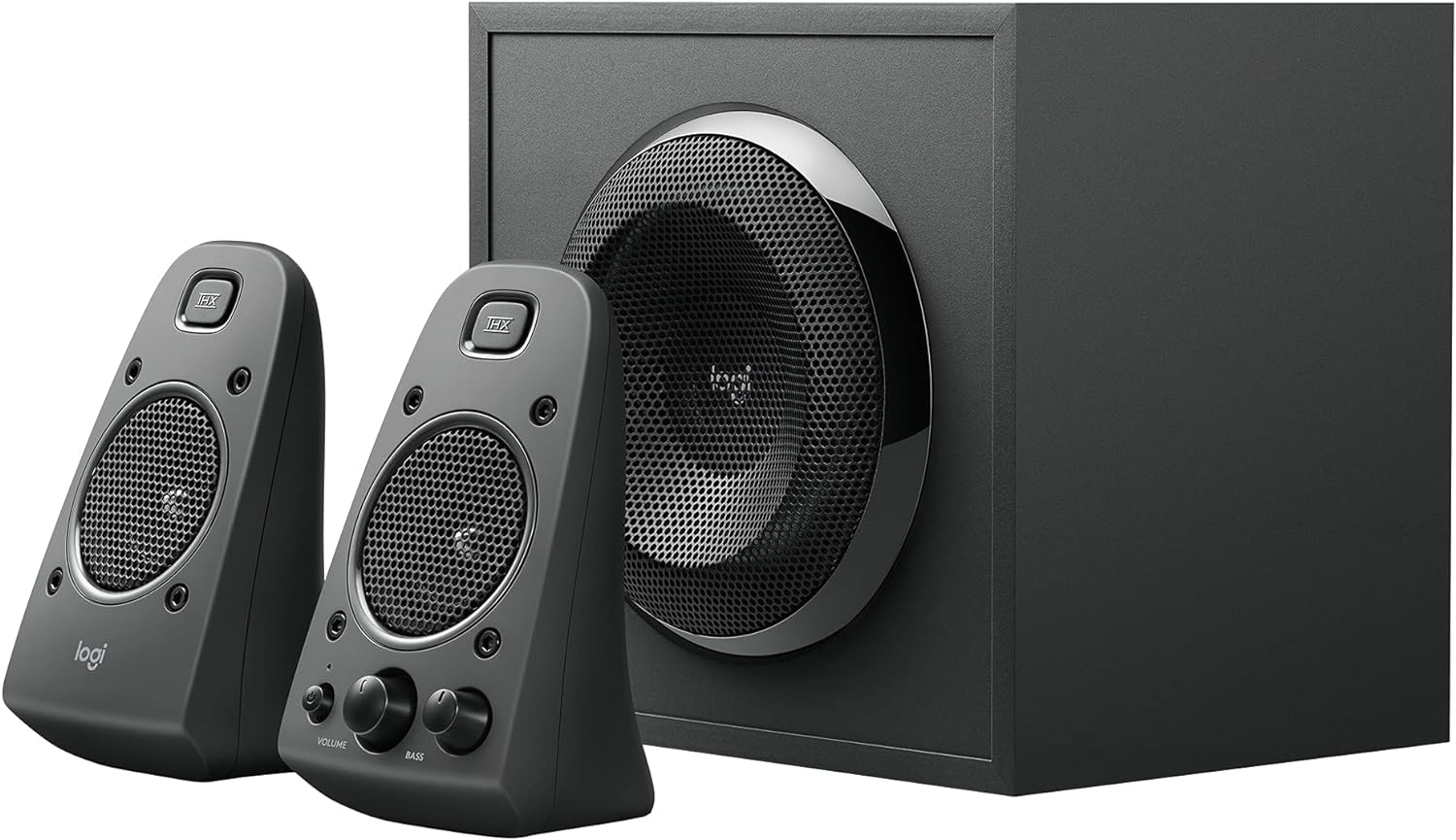
Image 3.1: Rear panel of the Z625 subwoofer, illustrating the various audio input options and satellite speaker connections.
4. คู่มือการใช้งาน
All primary controls for the Logitech Z625 system are conveniently located on the right satellite speaker.
- ปุ่มเปิด/ปิด: Press the power button to turn the speaker system on or off. An indicator light will confirm the power status.
- การควบคุมระดับเสียง: Rotate the large volume knob to adjust the overall audio level.
- การควบคุมเสียงเบส: Rotate the bass knob to increase or decrease the subwoofer's output. Adjust this to your preference for optimal bass response.
- แจ็คหูฟัง: Connect headphones to this 3.5mm jack for private listening. When headphones are connected, audio output from the speakers will be muted.
- อินพุตเสริม: This 3.5mm input allows for quick connection of portable audio devices.
The system supports simultaneous connection of up to three devices. To switch between audio sources, simply play audio from the desired connected device. The system will automatically prioritize the active input.

Image 4.1: Controls located on the right satellite speaker of the Z625 system.
5. การบำรุงรักษา
To ensure the longevity and optimal performance of your Logitech Z625 speaker system, follow these maintenance guidelines:
- การทำความสะอาด: Use a soft, dry cloth to clean the surfaces of the speakers and subwoofer. Avoid using liquid cleaners or abrasive materials, as these can damage the finish or internal components.
- การระบายอากาศ : Ensure that the subwoofer and satellite speakers have adequate ventilation. Do not block any vents, especially on the subwoofer, to prevent overheating.
- สิ่งแวดล้อม: Keep the speaker system away from direct sunlight, excessive heat, humidity, and dust. Avoid placing it near strong magnetic fields.
- การจัดการสายเคเบิล: Periodically check all cable connections to ensure they are secure and free from damage. Avoid bending cables sharply.
6 การแก้ไขปัญหา
If you encounter issues with your Logitech Z625 speaker system, refer to the following common troubleshooting steps:
- ไม่มีไฟฟ้า:
- Ensure the power cable is securely plugged into both the subwoofer and a working wall outlet.
- Verify that the power button on the right satellite speaker is pressed.
- ไม่มีเสียง:
- Check all audio cable connections (3.5mm, optical, RCA) between the speaker system and your audio source.
- Increase the volume on both the speaker system and your audio source device.
- Ensure no headphones are plugged into the headphone jack on the right satellite speaker.
- Confirm that the correct audio output is selected on your source device (e.g., PC sound settings, TV audio output).
- เสียงผิดเพี้ยนหรือไม่ชัดเจน:
- Reduce the volume on both the speaker system and your audio source.
- Adjust the bass control knob on the right satellite speaker.
- Test with a different audio source or cable to rule out source-specific issues.
- เสียงไม่สม่ำเสมอ:
- ตรวจสอบการเชื่อมต่อสายเคเบิลหลวม
- Ensure the speaker system is not in standby mode. If it enters standby, power cycling the unit may resolve the issue.
For more detailed troubleshooting or persistent issues, please refer to the official Logitech support resources or the complete user guide PDF.
7. ข้อมูลจำเพาะ
| คุณสมบัติ | ข้อมูลจำเพาะ |
|---|---|
| ยี่ห้อ | โลจิเทค |
| ชื่อรุ่น | Z625 Powerful THX Sound |
| หมายเลขรุ่นสินค้า | 980-001258 |
| ประเภทลำโพง | Monitor, Satellite |
| การกำหนดค่าช่องเสียงรอบทิศทาง | 2.1 |
| เทคโนโลยีการเชื่อมต่อ | Auxiliary, Optical, RCA |
| โหมดเอาต์พุตเสียง | สเตอริโอ, เซอร์ราวด์ |
| กำลังขับสูงสุดของลำโพง | สูงสุด 400 วัตต์ / 200 วัตต์ RMS |
| การตอบสนองความถี่ | 35 เฮิรตซ์ - 20 กิโลเฮิรตซ์ |
| อินพุต Voltage | 120 โวลต์ |
| อุปกรณ์ที่รองรับ | Personal Computer, Phones, Television, Gaming Consoles |
| วิธีการควบคุม | Touch (on right satellite) |
| ขนาดสินค้า | ลึก 10.4 นิ้ว x กว้าง 11.9 นิ้ว x สูง 11.1 นิ้ว |
| น้ำหนักสินค้า | 18.1 ปอนด์ |
| วัสดุ | พลาสติก, ไม้ |
| สี | สีดำ |
8. การรับประกันและการสนับสนุน
The Logitech Z625 THX Certified 2.1 Speaker System comes with a การรับประกันแบบจำกัด. For specific terms and conditions of your warranty, please refer to the documentation included with your product or visit the official Logitech webเว็บไซต์.
For further assistance, detailed product information, or to download the complete user guide, please visit the official Logitech support page:
ดาวน์โหลดคู่มือผู้ใช้อย่างเป็นทางการ (PDF)
คุณยังสามารถเยี่ยมชม ร้านค้า Logitech บน Amazon สำหรับผลิตภัณฑ์และข้อมูลเพิ่มเติม


