การแนะนำ
This manual provides comprehensive instructions for the setup, operation, and maintenance of your MICROWARE VuPoint Solutions ST415 Handheld Magic Wand Portable Scanner. Please read this manual thoroughly before using the device to ensure proper functionality and to maximize your scanning experience.
คุณสมบัติหลัก
- Portable handheld design for on-the-go scanning.
- High-resolution scanning up to 900 DPI.
- Supports JPG and PDF file รูปแบบ
- Color and monochrome scanning capabilities.
- Includes OCR (Optical Character Recognition) software for text-editable files (Windows only).
- Direct saving to Micro SD card (up to 32GB supported).
- USB connectivity for easy file โอน.
เนื้อหาแพ็คเกจ
โปรดตรวจสอบว่าสินค้าทั้งหมดมีอยู่ในแพ็คเกจของคุณ:
- VuPoint Solutions ST415 Handheld Scanner
- สาย USB
- 8GB Micro SD Card (or similar capacity as included)
- กระเป๋าใส่อุปกรณ์
- ผ้าเช็ดทำความสะอาด
- OCR Software CD (Windows compatible)
- คู่มือการใช้งาน
- แบตเตอรี่ AA (2 ก้อน)
การตั้งค่า
1. การติดตั้งแบตเตอรี่
The scanner requires two AA batteries for operation. Ensure correct polarity when inserting.
- Locate the battery compartment cover on the scanner.
- Slide or push the cover open.
- ใส่แบตเตอรี่ AA สองก้อน โดยให้ขั้วบวก (+) และขั้วลบ (-) ตรงกันตามที่ระบุไว้ภายในช่องใส่แบตเตอรี่
- ปิดฝาช่องใส่แบตเตอรี่ให้แน่น

รูปที่ 1: Battery installation and other setup steps for the scanner. The image illustrates inserting batteries, connecting the USB cable, and the general scanning motion.
2. การใส่การ์ด Micro SD
The scanner saves all scanned images to a Micro SD card. An 8GB card is typically included.
- ค้นหาช่องเสียบการ์ด Micro SD ที่ด้านข้างของเครื่องสแกนเนอร์
- Insert the Micro SD card into the slot until it clicks into place. Ensure the card is oriented correctly.
- To remove, gently push the card further in until it springs out.

รูปที่ 2: Detailed diagram highlighting the Micro SD card slot, USB port, DPI button, JPG/PDF switch, and other controls on the scanner.
3. เปิดเครื่องครั้งแรก
Press and hold the power button (usually labeled "SCAN" or "POWER") for a few seconds until the display screen illuminates.
คำแนะนำการใช้งาน
1. Setting Scan Mode and Resolution
Before scanning, you can adjust the scan mode (Color/Mono) and resolution (DPI).
- Color/Mono Switch: Use the dedicated switch (often labeled "JPG/PDF" or similar, but controls color/mono) to toggle between color and monochrome scanning.
- การตั้งค่า DPI: Press the "DPI" button to cycle through available resolutions: 300 DPI, 600 DPI, and 900 DPI. Higher DPI settings result in better image quality but larger file ขนาด
- File รูปแบบ: Use the "FORMAT" button or switch to select between JPG and PDF output formats.
2. การดำเนินการสแกน
To achieve optimal scan quality, maintain a steady and even motion.
- Place the document or image on a flat, stable surface.
- Position the scanner at the top edge of the item to be scanned, ensuring the scanning window is aligned.
- Press the "SCAN" button once to start scanning. The scan indicator light will illuminate.
- Slowly and steadily glide the scanner downwards across the document. Avoid tilting or lifting the scanner.
- Once you reach the end of the document, press the "SCAN" button again to stop scanning. The scan indicator light will turn off.
- The scanned image will be automatically saved to the Micro SD card.
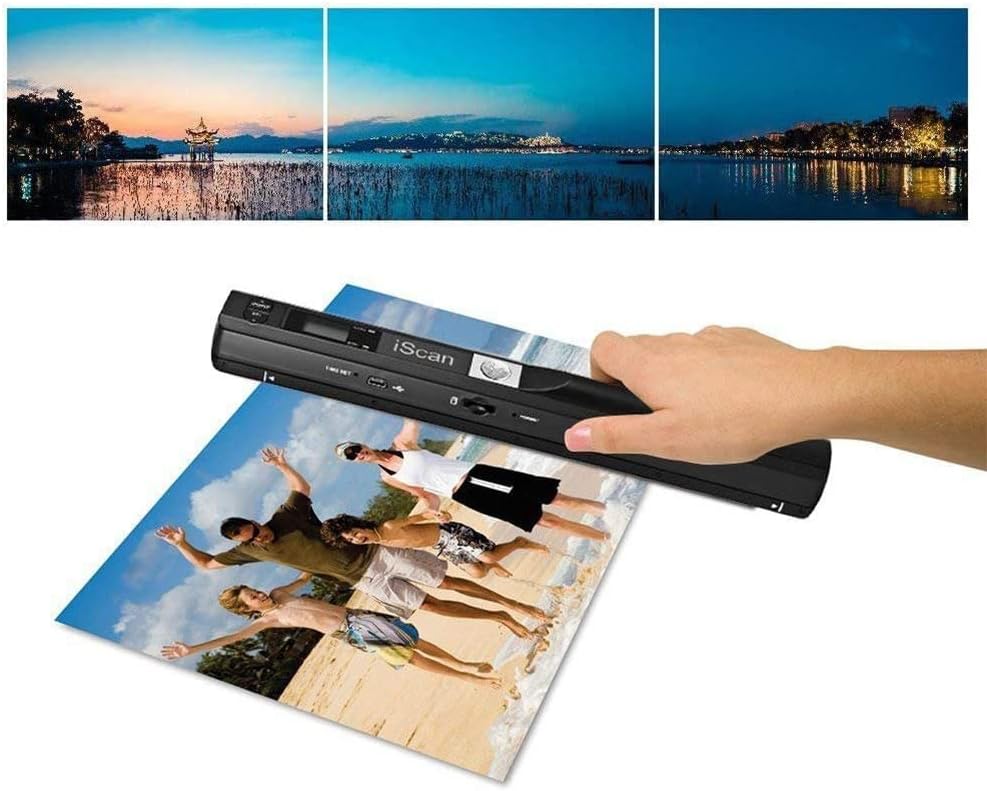
รูปที่ 3: Demonstrates the handheld scanner in action, capturing a large photograph. The top portion of the image shows examples of scanned output.

รูปที่ 4: The scanner positioned over a magazine page, illustrating its use for scanning documents and printed materials.
3. Transferring Scans to Computer
You can transfer your scanned files to a computer using the provided USB cable or by directly inserting the Micro SD card.
- การใช้งานผ่านสาย USB:
- Connect the smaller end of the USB cable to the scanner's USB port.
- เชื่อมต่อปลายด้านที่ใหญ่กว่าของสาย USB เข้ากับพอร์ต USB ที่มีอยู่ในคอมพิวเตอร์ของคุณ
- The scanner will appear as a removable disk drive. You can then access and copy your scanned files.
- ใช้การ์ด Micro SD:
- Remove the Micro SD card from the scanner.
- Insert the Micro SD card into a compatible card reader connected to your computer.
- Access the card as a removable drive to transfer files.

รูปที่ 5: Illustration of the scanner's connectivity options, including the Micro SD card, USB cable, and a laptop, demonstrating how scanned files can be transferred.
4. Using OCR Software
ซอฟต์แวร์ Optical Character Recognition (OCR) ที่รวมอยู่ช่วยให้คุณแปลงเอกสารที่สแกนเป็นข้อความที่แก้ไขได้ files. Note: This software is Windows-only and not compatible with Mac OS.
- Install the OCR software from the provided CD or download link (if applicable) onto your Windows computer.
- Follow the software's instructions to import your scanned PDF or JPG documents.
- Use the OCR function to convert the images into searchable and editable text formats (e.g., TXT, DOC, XLS).

รูปที่ 6: Visual representation of the OCR software's capability to convert scanned images (JPG, PDF) into editable text formats (TXT, Excel, Word).
การซ่อมบำรุง
1. การทำความสะอาดสแกนเนอร์
Regular cleaning ensures optimal scan quality.
- Use the included cleaning cloth or a soft, lint-free cloth to wipe the exterior of the scanner.
- For the scanning window, gently wipe with a clean, dry, soft cloth. Avoid abrasive materials or harsh chemicals.
- Ensure no dust or debris accumulates on the scanning lens.
2. การดูแลแบตเตอรี่
- เปลี่ยนแบตเตอรี่เมื่อไฟแสดงสถานะแบตเตอรี่อ่อนปรากฏบนจอแสดงผล
- Remove batteries if the scanner will not be used for an extended period to prevent leakage.
- Use high-quality AA alkaline batteries for best performance.
3. การจัดการการ์ด Micro SD
- Periodically transfer scanned files to your computer to free up space on the Micro SD card.
- Format the Micro SD card occasionally (after backing up files) to maintain optimal performance. This can usually be done via the scanner's menu or a computer.
การแก้ไขปัญหา
| ปัญหา | สาเหตุที่เป็นไปได้ | สารละลาย |
|---|---|---|
| เครื่องสแกนเนอร์ไม่สามารถเปิดเครื่องได้ | แบตเตอรี่อ่อนหรือหมด; ใส่แบตเตอรี่ไม่ถูกต้อง | Replace batteries with fresh ones. Ensure correct polarity (+/-). |
| Scanned images are blurry or distorted. | Scanner moved too fast or unevenly; dirty scanning lens; item not flat. | Scan slowly and steadily. Ensure the document is flat. Clean the scanning lens with a soft cloth. Practice maintaining a steady hand. |
| คอมพิวเตอร์ไม่รู้จักเครื่องสแกน | Loose USB connection; faulty USB cable; driver issue (unlikely for plug-and-play). | Ensure USB cable is securely connected. Try a different USB port or cable. Restart computer and scanner. |
| Cannot save scans. | Micro SD card full; card not inserted correctly; card error. | โอนย้าย files to computer to free space. Reinsert Micro SD card. Try a different Micro SD card. Format the card (after backing up data). |
| ซอฟต์แวร์ OCR ไม่ทำงาน | Incorrect installation; incompatible operating system (Mac OS); corrupted files. | Ensure software is correctly installed on a Windows OS. Reinstall the software. Try scanning the document again. |
| Scan quality settings reset after power off. | This model may not retain certain settings after power cycle. | Re-select desired DPI and color mode before each scanning session. |
ข้อมูลจำเพาะ
| คุณสมบัติ | รายละเอียด |
|---|---|
| ชื่อรุ่น | ST415 |
| ยี่ห้อ | ไมโครเวฟ |
| ประเภทสแกนเนอร์ | Photo, Text, Document |
| เทคโนโลยีเซ็นเซอร์ออปติคัล | ซีซีดี |
| ปณิธาน | 300 จุดต่อนิ้ว, 600 จุดต่อนิ้ว, 900 จุดต่อนิ้ว |
| เทคโนโลยีการเชื่อมต่อ | ยูเอสบี |
| ประเภทสื่อ | สไลด์, ภาพถ่าย |
| ขนาดแผ่น | Legal (up to 8.27 inches wide and 98 inches long) |
| น้ำหนักสินค้า | 1.2 ปอนด์ (โดยประมาณ) |
| ขนาดสินค้า | 12.38 x 8 x 2 นิ้ว (โดยประมาณ) |
| แบตเตอรี่ | ต้องใช้แบตเตอรี่ AA 2 ก้อน |
| พื้นที่จัดเก็บ | Micro SD card (up to 32GB supported) |
| File รูปแบบ | JPG, PDF |
| ข้อกำหนดขั้นต่ำของระบบ | Windows 7 (for OCR software) |
การรับประกันและการสนับสนุน
ข้อมูลการรับประกัน
For specific warranty details, please refer to the warranty card included with your product or visit the official MICROWARE webไซต์ เงื่อนไขการรับประกันโดยทั่วไปครอบคลุมถึงข้อบกพร่องในการผลิตเป็นระยะเวลาหนึ่งนับจากวันที่ซื้อ
การสนับสนุนลูกค้า
If you encounter any issues not covered in this manual or require further assistance, please contact MICROWARE customer support. Contact information can usually be found on the product packaging, the manufacturer's webเว็บไซต์ หรือเอกสารการรับประกัน
When contacting support, please have your product model (ST415) and purchase information ready.


