การแนะนำ
This manual provides instructions for the installation and operation of your Satechi Aluminum USB-C 2.5-inch HDD/SSD Enclosure. This enclosure allows you to convert any 2.5-inch SATA hard drive (HDD) or solid-state drive (SSD) into a portable external storage device, utilizing a USB-C connection for data transfer speeds up to 10 Gbps.
เนื้อหาแพ็คเกจ
- Satechi Aluminum USB-C 2.5-inch HDD/SSD Enclosure
- สาย USB-C ถึง USB-C
- ไขควงขนาดเล็ก
- สกรูยึด
การติดตั้งและการตั้งค่า
Follow these steps to install your 2.5-inch HDD or SSD into the enclosure:
- เปิดสิ่งที่แนบมา: Use the provided mini screwdriver to remove the two small screws located on the side of the enclosure. Carefully slide the internal tray out from the aluminum casing.
- ใส่ไดรฟ์: Align your 2.5-inch SATA HDD or SSD with the SATA connector on the internal tray. Gently push the drive into the connector until it is firmly seated.
- รักษาความปลอดภัยของไดรฟ์: Use the provided mounting screws to secure the HDD/SSD to the internal tray. Ensure the drive is stable and does not move.
- ปิดสิ่งที่แนบมา: Carefully slide the internal tray, with the installed drive, back into the aluminum casing. Re-insert and tighten the two small screws to secure the enclosure.

Image: Enclosure disassembled, revealing the internal tray and screws.
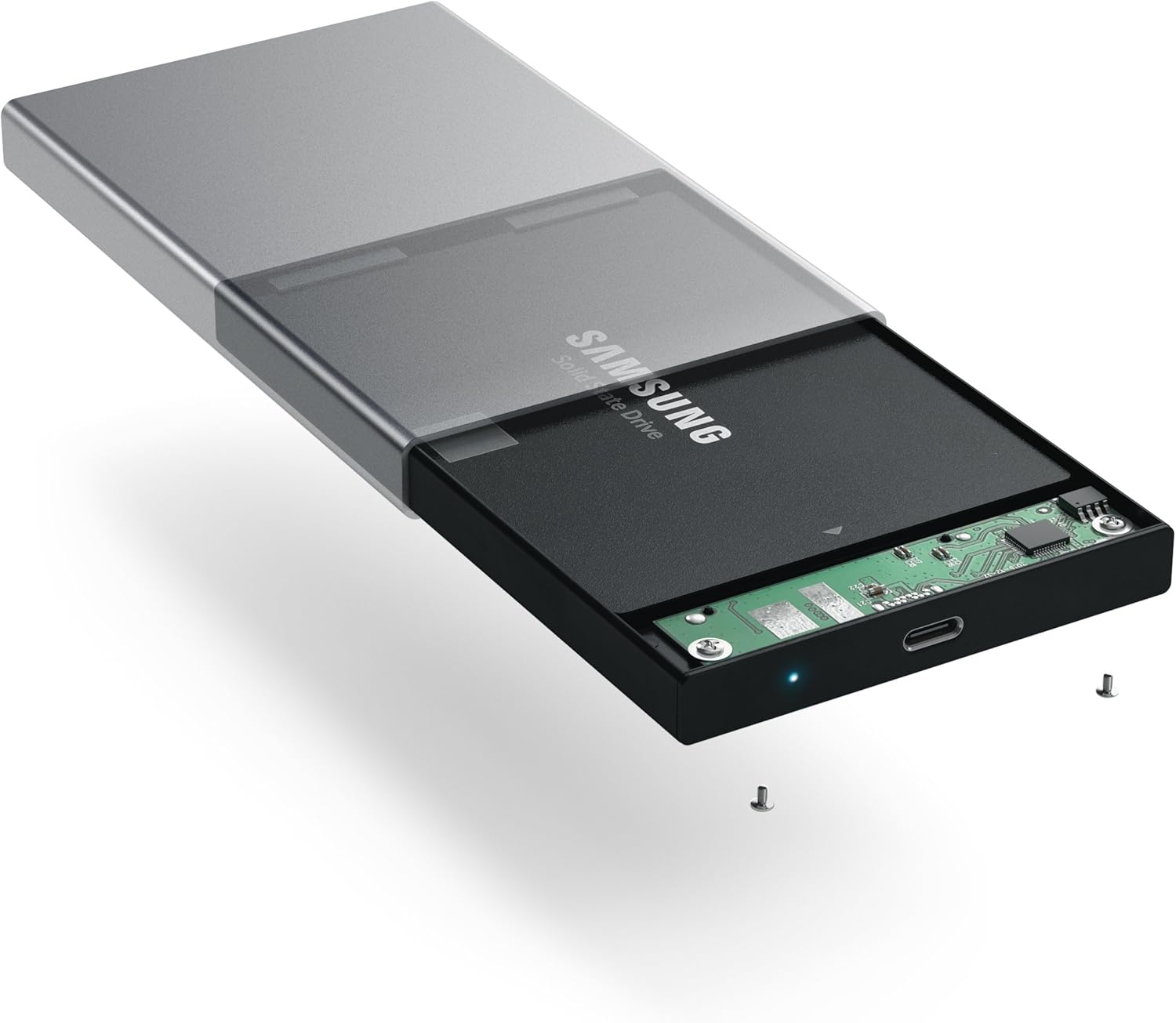
Image: Inserting a 2.5-inch SSD into the internal tray.

Image: SSD fully inserted and secured in the tray.
คำแนะนำการใช้งาน
- เชื่อมต่อกับคอมพิวเตอร์: Use the included USB-C to USB-C cable to connect the enclosure to an available USB-C port on your computer.
- ไฟแสดงสถานะพลังงาน: A blue LED indicator light on the enclosure will illuminate when connected and powered, indicating readiness for use. The LED will blink during data transfer activity.
- การเข้าถึงไดรฟ์: Your computer should automatically detect the external drive. If it is a new drive, you may need to format it before use. Refer to your operating system's documentation for drive formatting procedures.
- การถ่ายโอนข้อมูล: ลากและวาง files to and from the external drive as you would with any other storage device. The enclosure supports data transfer speeds up to 10 Gbps, depending on your drive and computer's USB-C port capabilities.
- การกำจัดอย่างปลอดภัย: Always safely eject the external drive from your operating system before disconnecting the cable to prevent data corruption.

Image: Enclosure connected to a laptop.

Image: Enclosure with cable connected, showing the blue LED.
การซ่อมบำรุง
- รักษาความสะอาดของกล่องให้ปราศจากฝุ่น ใช้ผ้านุ่มและแห้งเช็ดทำความสะอาด
- หลีกเลี่ยงการให้อุปกรณ์สัมผัสกับอุณหภูมิ ความชื้น หรือแสงแดดโดยตรง
- Do not attempt to disassemble the enclosure beyond the initial drive installation, as this may void the warranty.
การแก้ไขปัญหา
- ไม่พบไดรฟ์:
- ตรวจสอบให้แน่ใจว่าได้เสียบสาย USB-C เข้ากับตัวเคสและคอมพิวเตอร์ของคุณอย่างแน่นหนาแล้ว
- ลองเสียบเข้ากับพอร์ต USB-C อื่นบนคอมพิวเตอร์ของคุณดู
- Verify that the HDD/SSD is correctly seated within the enclosure's SATA connector.
- If it is a new drive, ensure it has been formatted for your operating system.
- ความเร็วในการถ่ายโอนข้อมูลช้า:
- Ensure your computer's USB-C port supports USB 3.1 Gen 2 (10 Gbps) for optimal performance.
- The performance of the drive itself (HDD vs. SSD) will impact transfer speeds.
- Consider using a high-quality, certified USB-C cable, especially if experiencing intermittent disconnections or slower-than-expected speeds.
- ตัวเครื่องตัดการเชื่อมต่อโดยไม่ทราบสาเหตุ:
- This can sometimes be caused by an incompatible or low-quality USB-C cable. Try using a different, certified USB-C cable.
- ตรวจสอบให้แน่ใจว่าการตั้งค่าพลังงานของคอมพิวเตอร์ไม่ได้ตั้งค่าให้ปิดพอร์ต USB เพื่อประหยัดพลังงาน
ข้อมูลจำเพาะ
| หมายเลขรุ่น | ST-TCDEM |
| ยูพีซี | 879961006242 |
| วัสดุ | อลูมิเนียม |
| ประเภทไดรฟ์ที่เข้ากันได้ | ฮาร์ดดิสก์/SSD SATA ขนาด 2.5 นิ้ว |
| จำนวนอุปกรณ์ที่รองรับสูงสุด | 1 |
| อัตราการถ่ายโอนข้อมูล | สูงสุด 10 กิกะบิตต่อวินาที (USB 3.1 Gen 2) |
| เทคโนโลยีการเชื่อมต่อ | ยูเอสบี-ซี |
| น้ำหนักสินค้า | 6.4 ออนซ์ (181 กรัม) |
| สี | สีเทาสเปซเกรย์ |
การรับประกันและการสนับสนุน
For warranty information and technical support, please refer to the official Satechi webหรือติดต่อฝ่ายบริการลูกค้าโดยตรง เก็บใบเสร็จรับเงินไว้เพื่อใช้ในการเคลมประกัน


