การแนะนำ
This manual provides essential information for setting up, operating, and maintaining your Dell Professional P2217H 21.5" FHD 1080p LED-Lit Monitor. Please read these instructions carefully before using your monitor.
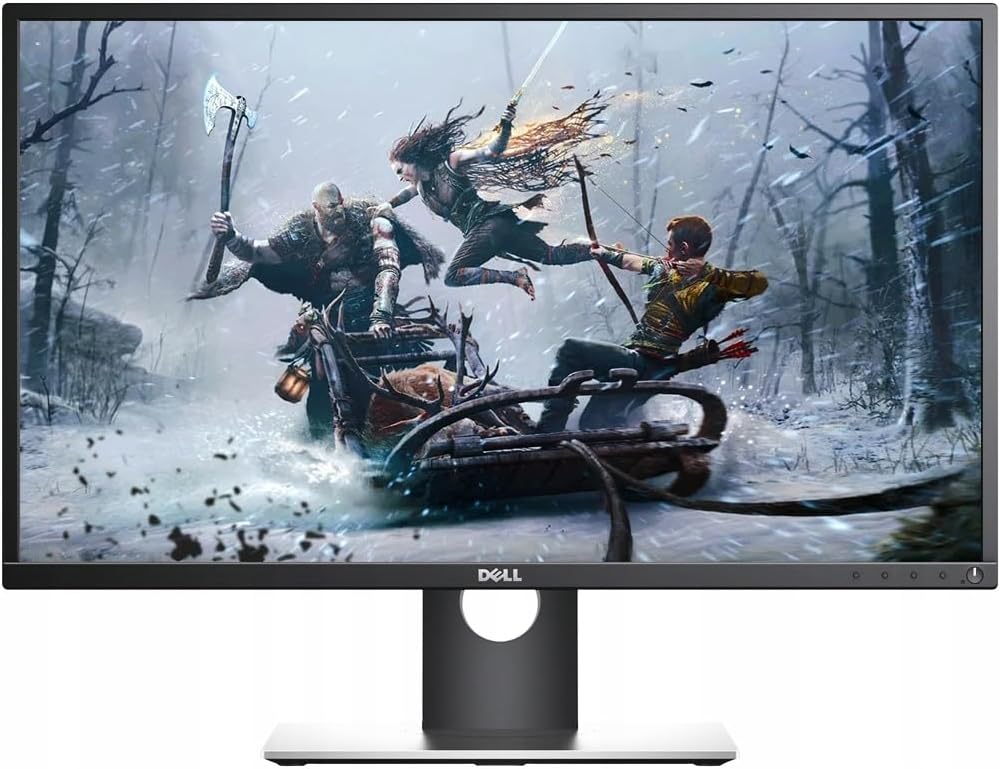
Figure 1: Dell Professional P2217H Monitor
คำแนะนำการตั้งค่า
1. แกะกล่องและประกอบ
Carefully remove all components from the packaging. The monitor comes with a stand that requires simple, tool-less assembly. Attach the stand base to the stand riser, then connect the assembled stand to the back of the monitor until it clicks securely into place.

รูปที่ 2: ด้านหลัง view ของจอภาพพร้อมพื้นที่ติดขาตั้ง
The monitor is also VESA mount compatible, allowing for alternative mounting solutions if desired.
2. การเชื่อมต่อสายเคเบิล
Connect the power cable to the monitor and a power outlet. Use the provided HDMI cable to connect your computer to the monitor. The monitor also supports DisplayPort and VGA connections. For optimal display quality, HDMI or DisplayPort is recommended.

Figure 3: Available ports on the back of the monitor.
The monitor features a cable management system on the stand to keep your workspace tidy.
3. การเปิดเครื่องครั้งแรก
Press the power button located on the bottom right of the monitor to turn it on. Ensure your computer is also powered on. The monitor should automatically detect the input signal. If not, you may need to manually select the input source using the on-screen display (OSD) menu.
คำแนะนำการใช้งาน
1. Adjusting Monitor Position
The Dell P2217H monitor offers flexible adjustability for enhanced viewเพิ่มความสะดวกสบายและประสิทธิภาพในการทำงาน:
- การปรับความสูง: ยกหรือลดจอภาพให้ได้ตามต้องการ viewความสูงของไอเอ็นจี
- เอียง: Adjust the screen's vertical angle (forward or backward).
- หมุน: หมุนหน้าจอ 90 องศาเพื่อสลับระหว่างโหมดแนวนอนและแนวตั้ง
- หมุน: หมุนจอภาพในแนวนอนบนฐาน

Figure 4: Monitor adjustability features.
2. เมนูการแสดงผลบนหน้าจอ (OSD)
The OSD menu allows you to configure various display settings. The control buttons are located on the bottom bezel of the monitor. Press any button (except the power button) to bring up the OSD menu. Use the navigation buttons to browse options and adjust settings such as:
- ความสว่าง/คอนทราสต์: ปรับระดับความสว่างและความคมชัดโดยรวม
- แหล่งสัญญาณเข้า: Manually select between HDMI, DisplayPort, or VGA inputs.
- การตั้งค่าสี: Customize color temperature (Warm, Cool, Custom) or select preset modes.
- การตั้งค่าการแสดงผล: Adjust aspect ratio, sharpness, and other image properties.
ข้อมูลจำเพาะทางเทคนิค
| คุณสมบัติ | ข้อมูลจำเพาะ |
|---|---|
| ยี่ห้อ | เดลล์ |
| หมายเลขรุ่น | P2217H |
| ขนาดการแสดงผลหน้าจอยืน | 21.5 นิ้ว |
| ความละเอียดหน้าจอ | 1920x1080 (FHD1080p) |
| อัตราส่วนภาพ | 16:9 น. |
| คำอธิบายพื้นผิวหน้าจอ | มันเงา |
| จำนวนพอร์ต USB 2.0 | 2 |
| จำนวนพอร์ต USB 3.0 | 3 |
| น้ำหนักสินค้า | 10.8 ปอนด์ |
| ขนาดสินค้า (กxยxส) | 19.64 x 7.09 x 18.81 นิ้ว |
| สี | สีดำ |
| ผู้ผลิต | Dell Marketing USA, LP |
| วันที่พร้อมใช้งานครั้งแรก | 10 พฤษภาคม 2016 |
การซ่อมบำรุง
To ensure the longevity and optimal performance of your Dell P2217H monitor, follow these maintenance guidelines:
- การทำความสะอาดหน้าจอ: เช็ดหน้าจอเบาๆ ด้วยผ้านุ่มๆ ที่ไม่เป็นขุย สำหรับคราบฝังแน่น ให้ใช้น้ำยาทำความสะอาดเฉพาะสำหรับจอภาพเช็ดลงบนผ้า อย่าเช็ดลงบนหน้าจอโดยตรง
- การทำความสะอาด Casing: ใช้ผ้าแห้งนุ่มๆ เช็ดทำความสะอาดจอภาพasinก. หลีกเลี่ยงการใช้น้ำยาทำความสะอาดที่มีฤทธิ์กัดกร่อน
- การระบายอากาศ : ตรวจสอบให้แน่ใจว่าช่องระบายอากาศบนจอภาพไม่ได้ถูกปิดกั้นเพื่อป้องกันความร้อนสูงเกินไป
- หมดแรง: ควรปิดจอภาพทุกครั้งเมื่อไม่ได้ใช้งานเป็นเวลานาน
การแก้ไขปัญหา
If you encounter issues with your Dell P2217H monitor, refer to the following common troubleshooting steps:
- No Display/Dim Screen:
- ตรวจสอบว่าสายไฟเชื่อมต่ออย่างแน่นหนากับทั้งจอภาพและเต้ารับไฟฟ้า
- Verify that the video cable (HDMI, DisplayPort, or VGA) is firmly connected to both the monitor and your computer.
- ตรวจสอบให้แน่ใจว่าได้เลือกแหล่งอินพุตที่ถูกต้องในเมนู OSD
- Adjust brightness and contrast settings in the OSD menu.
- If the screen remains dim or shows a faint image, try unplugging the video input and turning the monitor on to see if the initial configuration screen appears. If not, the monitor may require service.
- ปัญหาคุณภาพของภาพ:
- Adjust resolution settings on your computer to match the monitor's native resolution (1920x1080).
- ตรวจสอบสายวิดีโอว่าชำรุดหรือมีการเชื่อมต่อหลวมหรือไม่
- ปรับการตั้งค่าสีในเมนู OSD
- จอภาพไม่เปิดใช้งาน:
- ตรวจสอบให้แน่ใจว่าเสียบสายไฟแล้วและปลั๊กไฟใช้งานได้ปกติ
- กดปุ่มเปิดปิดอย่างแน่นหนา
การรับประกันและการสนับสนุน
Your Dell Professional P2217H monitor may come with a 90-day warranty. For specific warranty details and support, please refer to your purchase documentation or contact Dell customer service.
การปฏิเสธความรับผิดทางกฎหมาย: The product box may have been opened for inspection, but the item is confirmed to be new and unused.
วิดีโอผลิตภัณฑ์อย่างเป็นทางการ
Video 1: Dell Social Media Support. This video provides general support information from Dell.


