การแนะนำ
The Amcrest HDSeries 720p Wi-Fi Security Camera (model IPM-721W) provides comprehensive indoor surveillance, allowing you to monitor your home, children, pets, or business remotely. This camera features a quick mobile setup process, ensuring secure access to your video stream. Key functionalities include two-way audio communication, infrared night vision, remote pan/tilt control, and smart motion alerts.
มีอะไรอยู่ในกล่อง
ตรวจสอบว่ามีรายการทั้งหมดต่อไปนี้อยู่ในบรรจุภัณฑ์ผลิตภัณฑ์ของคุณ:
- Amcrest IPM-721W Camera Unit
- Power Adapter (AC to USB Type-A)
- USB to Micro USB Power Cable (approximately 10 feet)
- สายแพทช์อีเทอร์เน็ต
- ตัวยึด
- อุปกรณ์สำหรับติดตั้ง (สกรูและพุก)
- คู่มือเริ่มต้นอย่างรวดเร็ว
- Amcrest Cloud Subscription Offer (1 month free)
- Important Security Notice

คำอธิบายภาพ: แบบบน-ล่าง view of the Amcrest IPM-721W camera unit along with its included accessories: power adapter, USB cable, Ethernet cable, mounting bracket, and documentation.
การตั้งค่า
1. การตั้งค่าทางกายภาพ
- การเชื่อมต่อไฟฟ้า: Connect the provided USB cable to the camera's Micro USB port and the power adapter. Plug the adapter into a standard electrical outlet.
- การบูตครั้งแรก: The camera will perform an initial rotation as it initializes. Wait for the LED indicator on the back of the camera to start blinking green, indicating it's ready for app setup.
- การติดตั้งการ์ด MicroSD: To install a MicroSD card (up to 256GB, not included) for local storage, tilt the camera lens upwards until the MicroSD card slot is revealed. Carefully insert the card.
- ตัวเลือกการติดตั้ง: The camera can be placed on a flat surface (desk, shelf) or mounted on a wall or ceiling using the included mounting bracket and hardware. The bracket allows for flexible positioning.
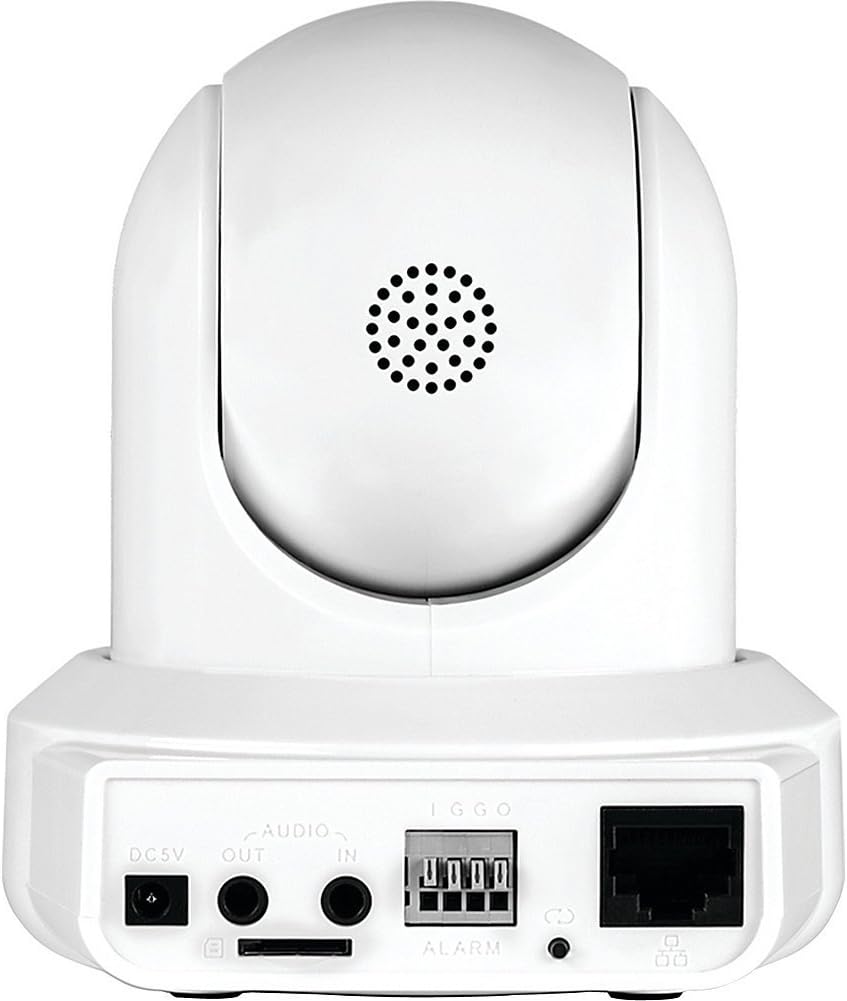
คำอธิบายภาพ: ด้านหลัง view of the Amcrest IPM-721W camera showing the DC 5V power input, audio in/out ports, alarm terminal, MicroSD card slot, Ethernet port, and LED indicator.
2. App Installation & Initial Configuration
- Download Amcrest View Pro App: Download the "Amcrest View Pro" app from the Apple App Store (for iOS devices) or Google Play Store (for Android devices).
- เชื่อมต่อกับ WiFi ความถี่ 2.4GHz: Ensure your smartphone or tablet is connected to a 2.4GHz WiFi network. Amcrest cameras primarily connect to 2.4GHz networks.
- เพิ่มอุปกรณ์: Open the Amcrest View Pro app. Tap the "+" icon or "Add Device" button. Select "WiFi Camera" as the device type.
- สแกนรหัส QR: The app will prompt you to scan the QR code located on the bottom of your camera. Position your phone's camera to capture the entire QR code. If scanning fails, you can manually enter the serial number (S/N).
- Camera Login: Enter a descriptive name for your camera (e.g., "Kitchen", "Office"). The default username is "admin" and the default password is "admin". It is highly recommended to change the default password immediately for security.
- การกำหนดค่า WiFi: The app will guide you through connecting the camera to your WiFi network. This typically involves the app emitting a sound to transmit WiFi credentials to the camera. Ensure your phone's volume is high.
- การยืนยันการเชื่อมต่อ: Once successfully connected, the app will display a confirmation message. You can then tap "Start Live View" to access your camera's feed.

คำอธิบายภาพ: A three-step diagram illustrating the Amcrest View Pro app setup: 1) Power on the camera, 2) Get the app, 3) Watch live view บนอุปกรณ์เคลื่อนที่ของคุณ
3. Official Setup Video
คำอธิบายวิดีโอ: An official Amcrest video demonstrating the setup process for the Amcrest HDSeries 720P Wi-Fi IP Video Security Surveillance Camera, including plug-and-play features, pan/tilt, and two-way audio.
การใช้งานกล้อง
1. สด View อินเทอร์เฟซ
แอมเครสต์ View Pro app provides a comprehensive interface for controlling and monitoring your camera:
- แพน/เอียง/ซูม (PTZ): Swipe left/right on the live view to pan the camera horizontally. Swipe up/down to tilt the camera vertically. Pinch to zoom digitally.
- ปณิธาน: Switch between HD (High Definition) and SD (Standard Definition) resolution for live viewการไอเอ็นจี
- Snapshot & Recording: Capture still images or record video clips directly from the live view. These are saved to your mobile device.
- Mirror & Flip: Adjust the image orientation if the camera is mounted upside down or in an unusual position.
- การมองเห็นตอนกลางคืน: Toggle infrared night vision on or off. The camera provides clear visibility up to 32 feet in low-light conditions.
- การปรับภาพ: Fine-tune brightness, contrast, and hue settings for optimal image quality.
- โหมดความเป็นส่วนตัว: Activate privacy mode to automatically point the camera lens downwards, preventing any viewไอเอ็นจีหรือการบันทึก
- ติดตามอัตโนมัติ: Enable auto-tracking for the camera to automatically follow moving objects within its field of view.
- การพูดคุยแบบสองทาง: Use the microphone icon to speak through your mobile device, and your voice will be projected through the camera's speaker. The speaker icon allows you to hear audio from the camera's environment.
- แยก View: If you have multiple Amcrest cameras, you can view up to four live feeds simultaneously on a single screen.
2. Push Notifications
Configure push notifications to receive alerts on your mobile device for various events:
- ตรวจจับการเคลื่อนไหว: Receive alerts when general motion is detected.
- Smart Motion (Human/Vehicle): Filter alerts to only trigger when human or vehicle motion is detected, reducing false alarms.
- Audio Detected: Get alerts when sound is detected in the camera's vicinity.
- การแจ้งเตือนอื่นๆ: The app also supports IVS Detect, Cam Masking, Face Detection, and HDD Alarm notifications, depending on camera capabilities.
การซ่อมบำรุง
- อัพเดตเฟิร์มแวร์: Regularly check the Amcrest website (www.amcrest.com/firmware) for the latest firmware updates to ensure optimal performance and security.
- การทำความสะอาด: ใช้ผ้าแห้งเนื้อนุ่มเช็ดทำความสะอาดเลนส์และตัวกล้อง หลีกเลี่ยงสารเคมีรุนแรงหรือวัสดุที่มีฤทธิ์กัดกร่อน
การแก้ไขปัญหา
- ปัญหาการเชื่อมต่อ WiFi: Ensure your mobile device is connected to a 2.4GHz WiFi network during setup. If issues persist, try using the Ethernet WiFi setup option in the app.
- ลืมรหัสผ่าน: If you forget your camera's password, you can reset it by pressing the reset button on the back of the camera. Refer to the Quick Start Guide for exact location and procedure.
- ปัญหาเกี่ยวกับแอป: If the Amcrest View Pro app crashes or experiences glitches, try restarting the app or reinstalling it.
- การสนับสนุนทั่วไป: For further assistance, refer to the Quick Start Guide, visit the Amcrest support website, or contact Amcrest customer service.
ข้อมูลจำเพาะ
| คุณสมบัติ | ข้อมูลจำเพาะ |
|---|---|
| หมายเลขรุ่น | IPM-721W |
| ความละเอียดในการจับภาพวิดีโอ | 720p (1280TVL) at 30fps |
| Viewอิงแองเกิล | 85 องศา |
| ช่วงการมองเห็นตอนกลางคืน | สูงถึง 32 ฟุต |
| การเชื่อมต่อ | Wi-Fi (2.4GHz), อีเธอร์เน็ต |
| ตัวเลือกการจัดเก็บข้อมูล | MicroSD Card (up to 256GB), Amcrest Cloud, NVR, FTP |
| เสียง | การสนทนาสองทาง (ไมโครโฟนและลำโพงในตัว) |
| แพน/เอียง | Yes (360° pan, 90° tilt) |
| แหล่งพลังงาน | ใช้ไฟฟ้าแบบมีสาย (DC 5V) |
| ขนาด | 8 x 10 x 12 นิ้ว |
| น้ำหนัก | 0.01 ออนซ์ |
การรับประกันและการสนับสนุน
The Amcrest IPM-721W camera comes with a full 1-Year US Warranty and Lifetime Support directly from Amcrest. For technical assistance, product registration, or to access user forums, please visit the official Amcrest webดูรายละเอียดเพิ่มเติมได้ที่เว็บไซต์ หรือดูข้อมูลติดต่อที่ระบุไว้ในคู่มือเริ่มต้นใช้งานฉบับย่อของคุณ


