HTC 10 User Manual
Model: HTC 10
1. บทนำ
This manual provides essential information for the safe and efficient use of your HTC 10 smartphone. Please read it thoroughly before operating your device.

Figure 1: HTC 10 Front View. This image shows the front of the HTC 10 smartphone, highlighting its 5.2-inch display, front camera, and capacitive buttons. The screen displays the current time, date, and weather information.
2. อะไรอยู่ในกล่อง
ตรวจสอบว่ามีสินค้าทั้งหมดอยู่ในบรรจุภัณฑ์ผลิตภัณฑ์:
- สมาร์ทโฟน HTC 10
- สาย USB
- Charger (may be foreign, a FREE US adapter will be included if so)
- Documentation (User Manual, Safety Guide)
3. การตั้งค่า
3.1. การใส่ซิมการ์ดและการ์ด microSD
Locate the SIM card tray on the side of the device. Use the provided SIM ejector tool to open the tray. Insert your Nano-SIM card and, if desired, a microSD card into their respective slots on the tray. Ensure the cards are correctly oriented before reinserting the tray into the phone.
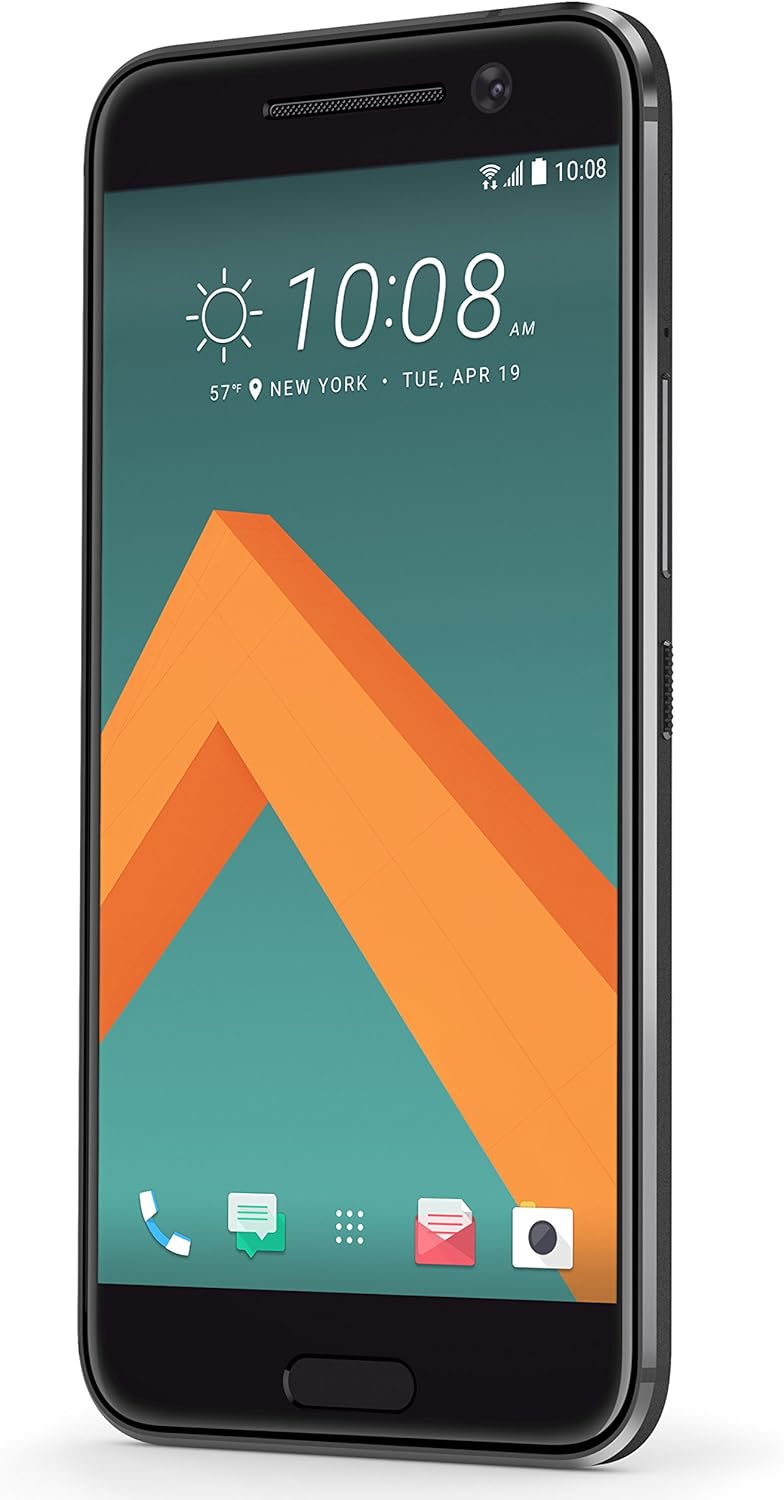
Figure 2: HTC 10 Side View. This image displays the right side of the HTC 10, where the power button and volume rocker are located. The SIM/microSD card tray is typically on the opposite side or top/bottom, but this view helps visualize the phone's profile.
3.2. ตัวช่วยเปิดเครื่องและการตั้งค่าเบื้องต้น
Press and hold the power button located on the right side of the device until the HTC logo appears. Follow the on-screen instructions to complete the initial setup, including language selection, Wi-Fi connection, Google account sign-in, and security settings.
4. Operating Your HTC 10
4.1. การแสดงผลและการนำทาง
The HTC 10 features a 5.2-inch Super LCD5 capacitive touchscreen. Navigation is primarily touch-based. Use gestures such as tap, swipe, pinch-to-zoom, and long-press. The device includes capacitive navigation buttons below the screen for Back, Home, and Recent Apps.
4.2. การทำงานของกล้อง
Your HTC 10 is equipped with a 12 MP main camera (f/1.8, 26mm, OIS, laser autofocus, dual-LED flash) and a 5 MP front camera. To open the camera app, tap the camera icon on the home screen or lock screen. Tap the screen to focus, and press the shutter button to capture photos. Swipe left or right to switch between photo and video modes.

Figure 3: HTC 10 Rear View. This image shows the back panel of the HTC 10, featuring the prominent main camera lens, dual-LED flash, and the HTC brand logo.
4.3. การเชื่อมต่อ
The HTC 10 supports various connectivity options:
- ไวไฟ : เชื่อมต่อกับเครือข่ายไร้สายเพื่อการเข้าถึงอินเทอร์เน็ต
- บลูทูธ: จับคู่กับอุปกรณ์เสริมไร้สายเช่นหูฟังหรือลำโพง
- ยูเอสบี: Connect to a computer for data transfer or charging.
- GSM Cellular: Compatible with GSM carriers such as AT&T and T-Mobile. Note: This is an international model and may not support LTE in the USA.
5. การบำรุงรักษา
5.1. การทำความสะอาดอุปกรณ์ของคุณ
Use a soft, lint-free cloth to clean the screen and body of your HTC 10. Avoid using abrasive cleaners or solvents, as they may damage the device's finish. For stubborn smudges, slightly dampเทน้ำลงบนผ้า
5.2. การดูแลแบตเตอรี่
The HTC 10 contains a non-removable Lithium Ion battery. To prolong battery life, avoid exposing the device to extreme temperatures. Charge the device using only the provided charger and USB cable. Avoid completely draining the battery frequently.
5.3. การอัปเดตซอฟต์แวร์
Regularly check for and install software updates to ensure optimal performance and security. Updates can be found in the device's settings menu under "About phone" or "System updates."
6 การแก้ไขปัญหา
| ปัญหา | วิธีแก้ปัญหาที่เป็นไปได้ |
|---|---|
| อุปกรณ์ไม่ได้เปิด | ตรวจสอบให้แน่ใจว่าแบตเตอรี่ชาร์จเต็มแล้ว เสียบที่ชาร์จและรอสักครู่ก่อนลองเปิดเครื่องอีกครั้ง |
| สัญญาณเครือข่ายไม่ดีหรือไม่มีบริการ | Check if your SIM card is properly inserted. Verify that your cellular carrier supports the bands for this international model. Restart the device. |
| แอปพลิเคชันขัดข้องหรือค้าง | Close and reopen the application. Clear the app's cache in settings. If the issue persists, restart the phone. |
| แบตเตอรี่หมดเร็ว | ลดความสว่างของหน้าจอ ปิดใช้งานคุณสมบัติที่ไม่ได้ใช้งาน เช่น Wi-Fi หรือ Bluetooth และปิดแอปพื้นหลัง |
7. ข้อมูลจำเพาะ
- แบบอย่าง: เอชทีซี 10
- ระบบปฏิบัติการ: แอนดรอยด์ 6.0.1 มาร์ชเมลโลว์
- แสดง: 5.2 inches Super LCD5 capacitive touchscreen, 1440 x 2560 resolution
- โปรเซสเซอร์: Dual-core 2.15 GHz & Dual-core 1.6 GHz, Qualcomm MSM8996 Snapdragon 820 CPU
- แรม : 4GB
- พื้นที่เก็บข้อมูลภายใน: 32GB
- กล้องหลัก: 12 MP, f/1.8, 26mm, OIS, laser autofocus, dual-LED (dual tone) flash
- กล้องหน้า: 5 MP
- แบตเตอรี่: 1 Lithium Ion battery (included), Phone Talk Time: 27 Hours
- ขนาด : 7.64 x 5.91 x 0.14 นิ้ว
- น้ำหนัก: 14.8 ออนซ์ (0.42 กิโลกรัม)
- การเชื่อมต่อ: GSM, HSDPA, LTE (international bands), Wi-Fi, Bluetooth, USB, GPS
8. การรับประกันและการสนับสนุน
This device is an international version. Please note that it may not include a US warranty, as some manufacturers do not honor warranties for international items. For specific warranty information and support, please contact the seller from whom you purchased the device.
For general product information and support resources, you may visit the official HTC website or the HTC Store on Amazon: HTC Store.