1. บทนำ
This manual provides essential instructions for the setup, operation, and maintenance of your NVIDIA 3DVIZ PRO- ONE RF Glasses and accompanying RF emitter. Designed for professional 3D visualization environments such as caves, VR setups, and auditoriums, this system utilizes radio frequency (RF) technology, offering superior flexibility compared to infrared (IR) based systems. The RF system eliminates line-of-sight limitations and provides an extended operating range of approximately 100 feet in all directions. It is specifically compatible with NVIDIA Quadro Plex Scalable Visualization Solutions, Quadro SDI, and G-Sync Solutions, ensuring reliable performance for demanding professional applications.
2. สินค้าหมดview และบรรจุภัณฑ์
The NVIDIA 3DVIZ PRO- ONE RF Glasses system includes the following components:
- One (1) 3DVIZ PRO-E RF Glasses
- One (1) RF Emitter
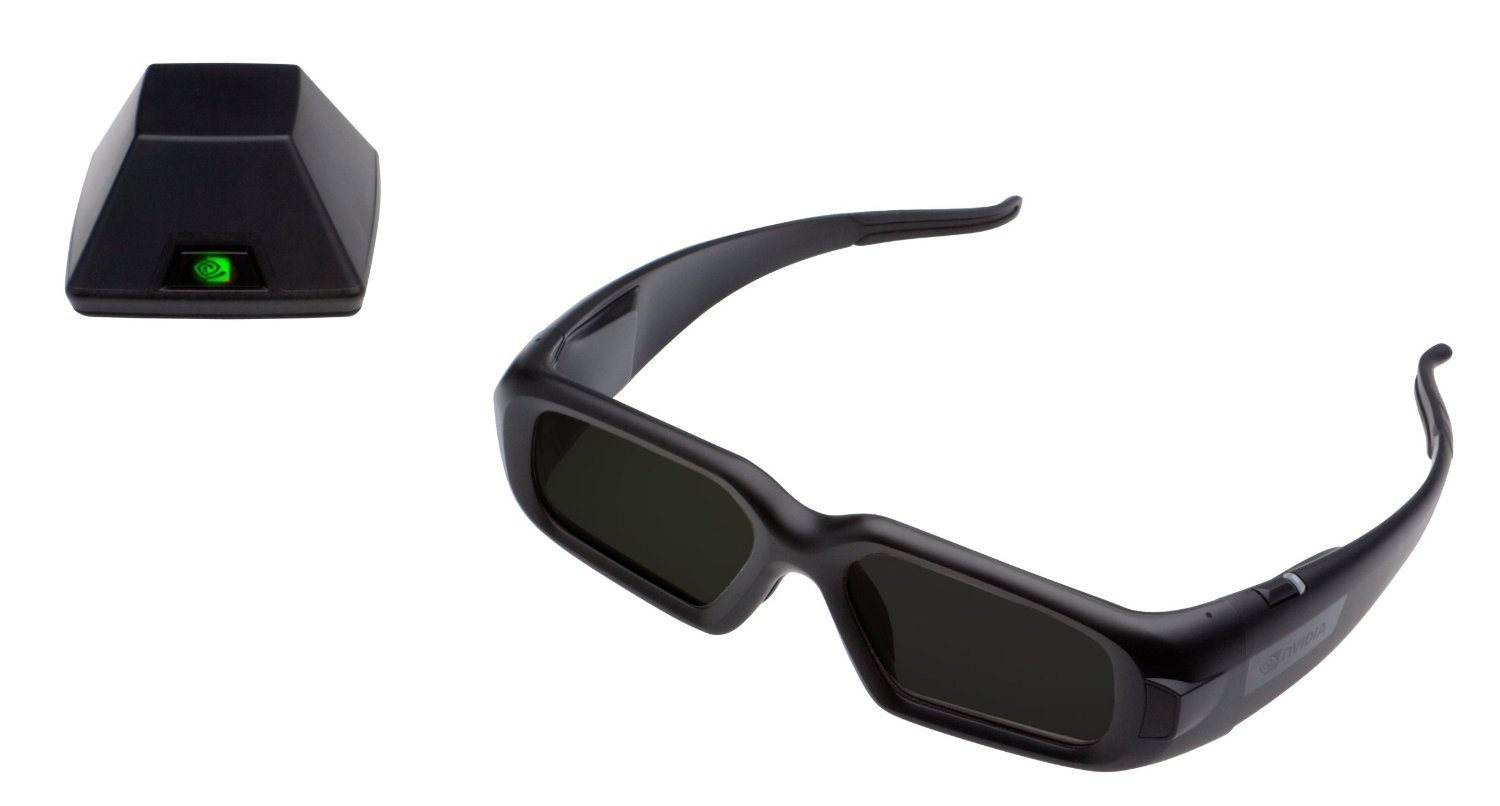 Image: The NVIDIA 3DVIZ PRO- ONE RF Glasses and its accompanying RF emitter. The glasses feature a sleek design, and the emitter is a compact device designed for broad signal distribution.
3. คำแนะนำในการตั้งค่า
- Emitter Placement: Position the RF emitter in a central location within your viewing area. The emitter provides a signal range of approximately 100 feet (30 meters) in all directions, without requiring a direct line of sight to the glasses. Ensure it is free from obstructions that could physically block the signal, although line-of-sight is not strictly necessary for RF transmission.
- การเชื่อมต่อของระบบ: Connect the RF emitter to your NVIDIA Quadro system. Refer to your NVIDIA Quadro system's documentation for specific port requirements and connection procedures. Typically, this involves a USB connection for power and data, or a dedicated 3D Vision Pro port.
- การติดตั้งไดร์เวอร์: Ensure that the latest NVIDIA Quadro drivers and 3D Vision Pro software are installed on your system. These drivers are crucial for proper communication between the emitter, glasses, and your graphics card. Visit the official NVIDIA webเว็บไซต์สำหรับดาวน์โหลดไดรเวอร์
- Pairing Glasses:
- Turn on the 3DVIZ PRO-E RF Glasses. Locate the power button, usually on the frame.
- Initiate the pairing process on the RF emitter (refer to the emitter's specific instructions, often a button press).
- The glasses should automatically detect and pair with the emitter. A status indicator on both the glasses and emitter will confirm a successful connection.
4. คู่มือการใช้งาน
- การเปิด/ปิดเครื่อง: Press and hold the power button on the glasses for approximately 2 seconds to turn them on or off. An LED indicator will typically illuminate when the glasses are active.
- การสวมแว่นตา: Place the glasses comfortably on your face. Ensure they are positioned correctly for optimal 3D viewing. Adjust the nose pads if necessary.
- Viewing 3D Content: Once your NVIDIA Quadro system is configured for 3D output and displaying compatible content, the glasses will automatically synchronize with the RF emitter to provide a stereoscopic 3D experience.
- สถานะแบตเตอรี่: Monitor the battery indicator on the glasses. When the battery is low, recharge the glasses using the provided charging cable.
5. การบำรุงรักษา
- การทำความสะอาด: Use a soft, lint-free cloth to clean the lenses and frame of the glasses. Do not use abrasive cleaners, solvents, or alcohol, as these can damage the lens coatings.
- พื้นที่จัดเก็บ: When not in use, store the glasses in a protective case to prevent scratches and damage. Avoid exposing them to extreme temperatures or direct sunlight for prolonged periods.
- การดูแลแบตเตอรี่ For optimal battery life, avoid fully discharging the glasses frequently. If storing for an extended period, charge the battery to approximately 50% capacity.
6 การแก้ไขปัญหา
- No 3D Effect or Flickering Image:
- Ensure the RF emitter is powered on and properly connected to your NVIDIA Quadro system.
- Verify that the glasses are turned on and successfully paired with the emitter. Check the status indicators.
- Confirm that the NVIDIA Quadro drivers and 3D Vision Pro software are correctly installed and updated.
- Check for any potential sources of RF interference in the environment, although the system is designed to be robust.
- Ensure your display device and NVIDIA Quadro settings are configured for 3D output.
- Glasses Not Turning On:
- The battery may be depleted. Connect the glasses to a power source using the charging cable and allow them to charge.
- Ensure the charging cable and power source are functioning correctly.
- Limited Range or Intermittent Connection:
- Reposition the RF emitter to a more central location within the viewพื้นที่ที่กำลังก่อสร้าง
- While RF does not require line-of-sight, dense physical obstructions can still attenuate the signal. Try to minimize such barriers.
- Ensure no other strong RF devices are operating on conflicting frequencies nearby.
7. ข้อมูลจำเพาะ
| คุณสมบัติ | รายละเอียด |
|---|---|
| หมายเลขรุ่น | พี753,พี703 |
| เทคโนโลยี | Radio Frequency (RF) Active Shutter |
| ความเข้ากันได้ | NVIDIA Quadro Plex, Quadro SDI, G-Sync Solutions |
| ระยะการทำงาน | Approximately 100 feet (30 meters) in all directions |
| น้ำหนักสินค้า | 1 ปอนด์ (0.45 กก.) |
| ผู้ผลิต | NVIDIA |
| ASIN | B018JM1OFA |
| มีจำหน่ายครั้งแรก | วันที่ 31 สิงหาคม 2013 |
8. การรับประกันและการสนับสนุน
For information regarding warranty coverage, technical support, or service, please refer to the documentation provided with your purchase or visit the official NVIDIA support webไซต์นี้ โปรดเก็บหลักฐานการซื้อไว้เพื่อใช้ยืนยันการรับประกัน


