การแนะนำ
This manual provides comprehensive instructions for the setup, operation, and maintenance of your Sharon 4 in 1 Bluetooth Multitouch Keyboard. Designed for versatility, this keyboard integrates a touchpad, making it an ideal accessory for various devices including Android, iOS/Mac OS X, Windows 8 & 10, and Smart TVs.
The keyboard features a durable aluminum housing, a long-lasting battery, and special function keys to enhance your productivity and entertainment experience. Please read this manual carefully to ensure proper use and to maximize the functionality of your device.
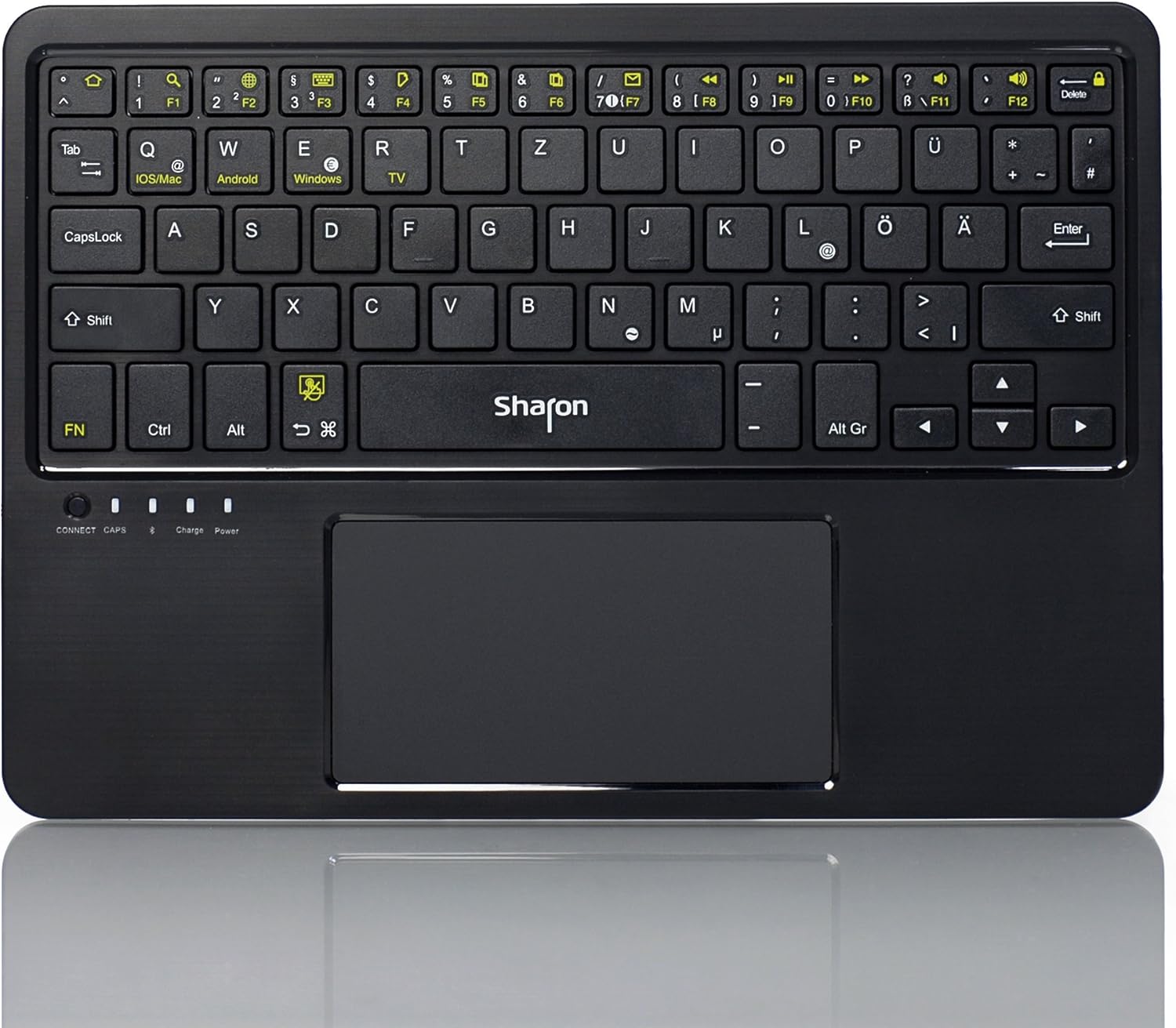
ภาพ: ด้านบน view of the Sharon 4 in 1 Bluetooth Multitouch Keyboard, highlighting its QWERTZ layout and integrated multitouch touchpad.
เนื้อหาแพ็คเกจ
ก่อนที่คุณจะเริ่มต้น โปรดตรวจสอบว่าสินค้าทั้งหมดมีอยู่ในแพ็คเกจของคุณ:
- Sharon 4 in 1 Bluetooth Multitouch Keyboard (QWERTZ layout)
- สายชาร์จ USB
- ขาตั้งพลาสติก
- High-quality Protective Bag
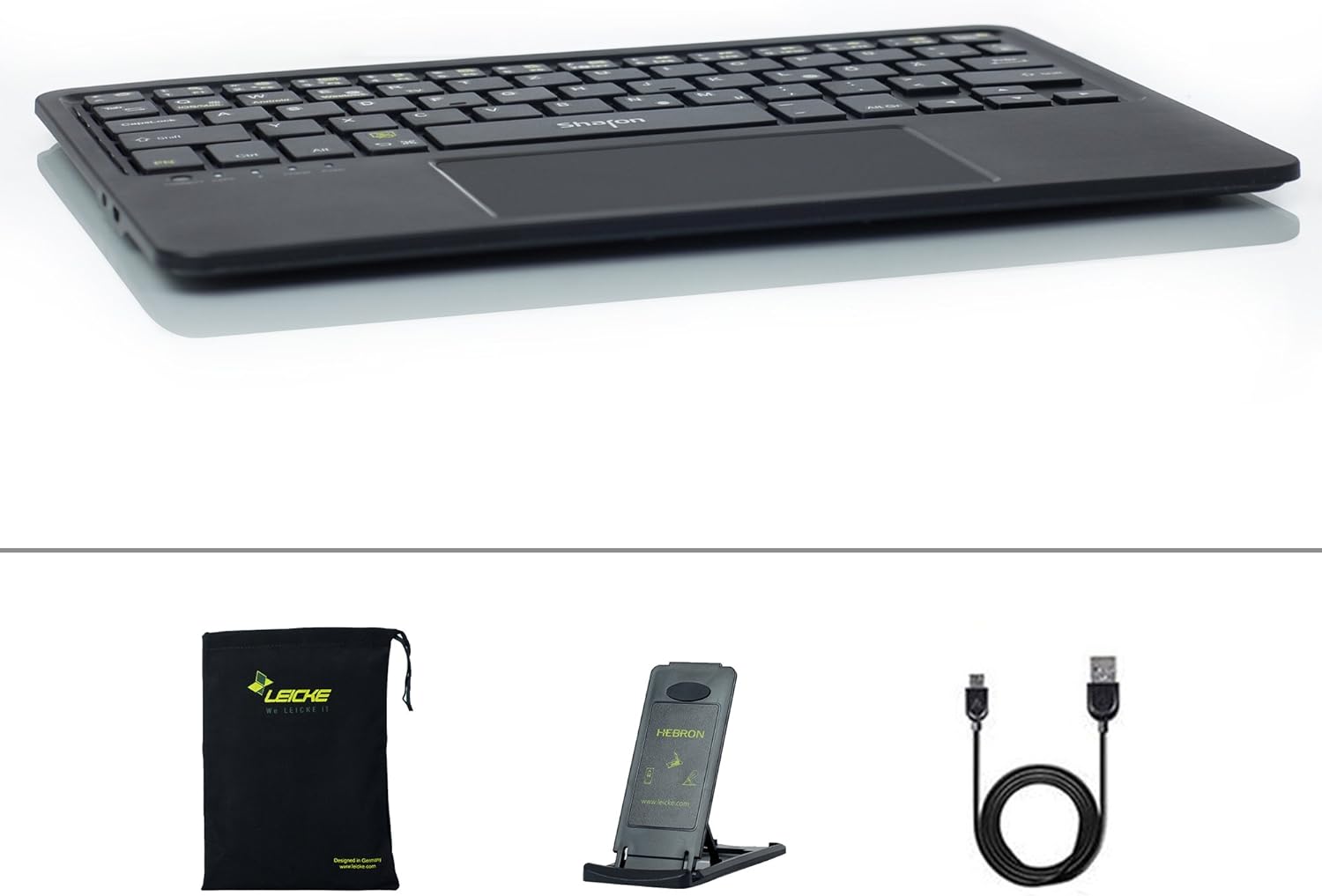
Image: The Sharon keyboard package contents, including the keyboard, USB charging cable, foldable stand, and protective carrying bag.
การตั้งค่า
1. การชาร์จคีย์บอร์ด
The keyboard comes with a built-in rechargeable Lithium Polymer battery. For optimal performance, fully charge the keyboard before first use.
- Connect the supplied USB charging cable to the charging port on the keyboard.
- Plug the other end of the USB cable into any standard USB port on a computer, laptop, or a USB wall charger.
- The charging indicator light on the keyboard will illuminate during charging and turn off when fully charged. A full charge provides up to 45 hours of continuous use or 60 days of standby time.
2. การจับคู่บลูทู ธ
The Sharon keyboard uses Bluetooth 3.0 for wireless connectivity, offering a range of up to 10 meters.
- Ensure the keyboard is charged and powered on. The power switch is typically located on the side or back of the keyboard.
- Press the "CONNECT" button on the keyboard. The Bluetooth indicator light will start blinking, indicating that the keyboard is in pairing mode.
- On your device (smartphone, tablet, computer, or Smart TV), navigate to the Bluetooth settings.
- เปิดใช้งาน Bluetooth และค้นหาอุปกรณ์ที่มีอยู่
- Select "Sharon Keyboard" or a similar name from the list of found devices.
- If prompted, enter the pairing code displayed on your device's screen using the Sharon keyboard, then press Enter.
- Once paired, the Bluetooth indicator light on the keyboard will stop blinking and remain solid, or turn off, depending on the model. Your keyboard is now ready for use.
3. Using the Stand
The included plastic stand allows you to position your tablet or smartphone at various angles for comfortable viewการพิมพ์และการพิมพ์
- Unfold the stand to its desired position. It supports 5 different angles.
- Place your device securely in the stand's groove.
- For transport, the keyboard and stand can be stored together in the provided protective bag.
คำแนะนำการใช้งาน
1. ความเข้ากันได้
The Sharon keyboard is designed for broad compatibility across multiple operating systems:
- ไอโอเอส: Apple iPad, iPhone 4, 5, 6, 6 Plus
- ระบบปฏิบัติการ: Mac Pro, iMac, MacBook, MacBook Pro series with OS X
- แอนดรอยด์: Devices such as Samsung, Sony Xperia, Huawei, ASUS, Nexus
- หน้าต่าง: Tablets and smartphones with Windows 7, 8, 8.1, 10 (Bluetooth required)
- สมาร์ททีวี: Compatible with Smart TVs that support Bluetooth keyboards

Image: The Sharon keyboard shown in use with a large monitor, a tablet, and a smartphone, illustrating its versatile compatibility across different device types.
2. Switching Layouts / Operating Systems
To optimize keyboard functionality for different operating systems, you can switch between layouts using the dedicated function keys:
- กด เอฟเอ็น+คิว for iOS/Mac OS X layout.
- กด Fn + ว for Android layout.
- กด Fn + อี สำหรับเค้าโครง Windows
- กด Fn + ร for Smart TV layout.

ภาพ: รายละเอียด view of the keyboard's top row, highlighting the function keys (F1-F12) and the dedicated keys for switching between iOS/Mac, Android, Windows, and TV operating system layouts.
3. Touchpad Usage and Gestures
The integrated multitouch touchpad allows for intuitive navigation and control, similar to a laptop's trackpad. It supports various gestures:
- แตะนิ้วเดียว: Left click / Select.
- แตะด้วยสองนิ้ว: คลิกขวา
- การเลื่อนด้วยสองนิ้ว: ใช้สองนิ้วลากขึ้นหรือลงเพื่อเลื่อนภาพในแนวตั้ง
- บีบเพื่อซูม: Pinch in or out with two fingers to zoom in or out.
- Swipe Left/Right with Two Fingers: Page forward/backward.
- Three Finger Swipe Up/Down: Page Up/Page Down.
- ปัดนิ้วสามนิ้วไปทางซ้าย/ขวา: Move selection.
To activate/deactivate the touchpad, press Fn + Spacebar.

Image: Visual guide demonstrating common multitouch gestures for the integrated touchpad, such as single-finger tap for left click, two-finger tap for right click, and pinch gestures for zooming.
4. ปุ่มฟังก์ชันพิเศษ
The top row of the keyboard features special function keys (F1-F12) that provide quick access to common commands. These keys often require pressing the Fn คีย์พร้อมกัน
| คีย์ผสม | การทำงาน |
|---|---|
| Fn+F1 | ปุ่มโฮม |
| Fn+F2 | ค้นหา |
| Fn+F3 | Select Language / Change Input Method |
| Fn+F4 | Show/Hide On-screen Keyboard |
| Fn+F5 | สำเนา |
| Fn+F6 | ตัด |
| Fn+F7 | แปะ |
| Fn+F8 | Open Standard E-Mail Program |
| Fn+F9 | การควบคุมการเล่นเพลง |
| Fn+F10 | ลดระดับเสียง |
| Fn+F11 | เพิ่มระดับเสียง |
| Fn+F12 | ล็อค/ปลดล็อคหน้าจอ |
5. การจัดการพลังงาน
The keyboard features an intelligent standby mode to conserve battery life. After 15 minutes of inactivity, the keyboard will automatically enter sleep mode. To wake it up, simply press any key. The keyboard is designed for long battery life, offering up to 60 days in standby mode and 45 hours of continuous working time on a single charge.
การซ่อมบำรุง
To ensure the longevity and optimal performance of your Sharon keyboard, follow these simple maintenance guidelines:
- การทำความสะอาด: ใช้ผ้าแห้งนุ่มๆ ที่ไม่มีขนเช็ดทำความสะอาดพื้นผิวแป้นพิมพ์ สำหรับคราบสกปรกที่ติดแน่น ให้ใช้ผ้าชุบน้ำหมาดๆ เช็ดเบาๆampชุบผ้าด้วยน้ำหรือน้ำยาทำความสะอาดอ่อนๆ ที่ไม่กัดกร่อน หลีกเลี่ยงความชื้นที่มากเกินไป
- พื้นที่จัดเก็บ: When not in use, store the keyboard in the provided protective bag to prevent dust accumulation and scratches.
- การดูแลแบตเตอรี่ Avoid fully discharging the battery frequently. Recharge the keyboard when the low battery indicator appears. If storing for an extended period, charge the battery to about 50% to prevent deep discharge.
- หลีกเลี่ยงสิ่งที่เกินขอบเขต: Do not expose the keyboard to extreme temperatures, direct sunlight, or high humidity.
- จัดการด้วยความระมัดระวัง: The keyboard has a bending-resistant aluminum housing, but avoid dropping it or applying excessive force.
การแก้ไขปัญหา
If you encounter issues with your Sharon keyboard, please refer to the following common solutions:
| ปัญหา | สาเหตุที่เป็นไปได้ | สารละลาย |
|---|---|---|
| แป้นพิมพ์ไม่เปิดใช้งาน | แบตเตอรี่หมด | Charge the keyboard using the supplied USB cable. |
| ไม่สามารถเชื่อมต่อคีย์บอร์ดผ่านบลูทูธได้ | แป้นพิมพ์ไม่อยู่ในโหมดจับคู่; บลูทูธปิดอยู่บนอุปกรณ์; อุปกรณ์อยู่ไกลเกินไป | Ensure keyboard is charged and powered on. Press the "CONNECT" button. Verify Bluetooth is enabled on your device and that the keyboard is within 10m range. Try restarting both devices. |
| แป้นพิมพ์หลุดการเชื่อมต่อบ่อยครั้ง | แบตเตอรี่ต่ำ, สัญญาณรบกวน, อุปกรณ์อยู่ไกลเกินไป | Recharge the keyboard. Move closer to your device. Avoid strong electromagnetic interference. |
| Keys are not responding correctly. | Incorrect OS layout selected; software glitch. | Ensure the correct OS layout is selected (Fn + Q/W/E/R). Restart the keyboard and your device. |
| Touchpad is not working. | Touchpad deactivated; software glitch. | Press Fn + Spacebar to ensure the touchpad is activated. Restart the keyboard and your device. |
ข้อมูลจำเพาะ
| คุณสมบัติ | รายละเอียด |
|---|---|
| ยี่ห้อ | ลีค |
| หมายเลขรุ่น | เอสไอ54235 |
| ขนาดสินค้า | 24.4 x 17.1 x 0.6 ซม. |
| น้ำหนักสินค้า | 267 กรัม |
| ประเภทการเชื่อมต่อ | บลูทูธ 3.0 |
| ช่วงสาย | สูงสุด 10 เมตร |
| ประเภทแบตเตอรี่ | แบตเตอรี่ลิเธียมโพลิเมอร์ 1 ก้อน (รวมอยู่ด้วย) |
| อายุการใช้งานแบตเตอรี่ (ใช้งานต่อเนื่อง) | นานถึง 45 ชั่วโมง |
| อายุการใช้งานแบตเตอรี่ (สแตนด์บาย) | นานถึง 60 วัน |
| วัสดุ | อลูมิเนียม |
| เค้าโครงแป้นพิมพ์ | แป้นพิมพ์ภาษาเยอรมัน QWERTZ |
| ความเข้ากันได้ของระบบปฏิบัติการ | iOS, OS X, Android, Windows (7, 8, 8.1, 10), Smart TVs (with Bluetooth) |
| ส่วนประกอบที่รวมอยู่ | Keyboard, USB Cable, Stand, Protective Bag |
การรับประกันและการสนับสนุน
ข้อมูลเกี่ยวกับเงื่อนไขการรับประกันสินค้าและการบริการลูกค้าไม่ปรากฏในข้อมูลผลิตภัณฑ์ที่ให้มา โปรดดูที่บรรจุภัณฑ์ของผลิตภัณฑ์หรือเอกสารอย่างเป็นทางการของผู้ผลิต website for details on warranty coverage and how to contact customer support for your LEICKE Sharon 4 in 1 Bluetooth Multitouch Keyboard.


